
 Lessons: 23Length: 2.5 hours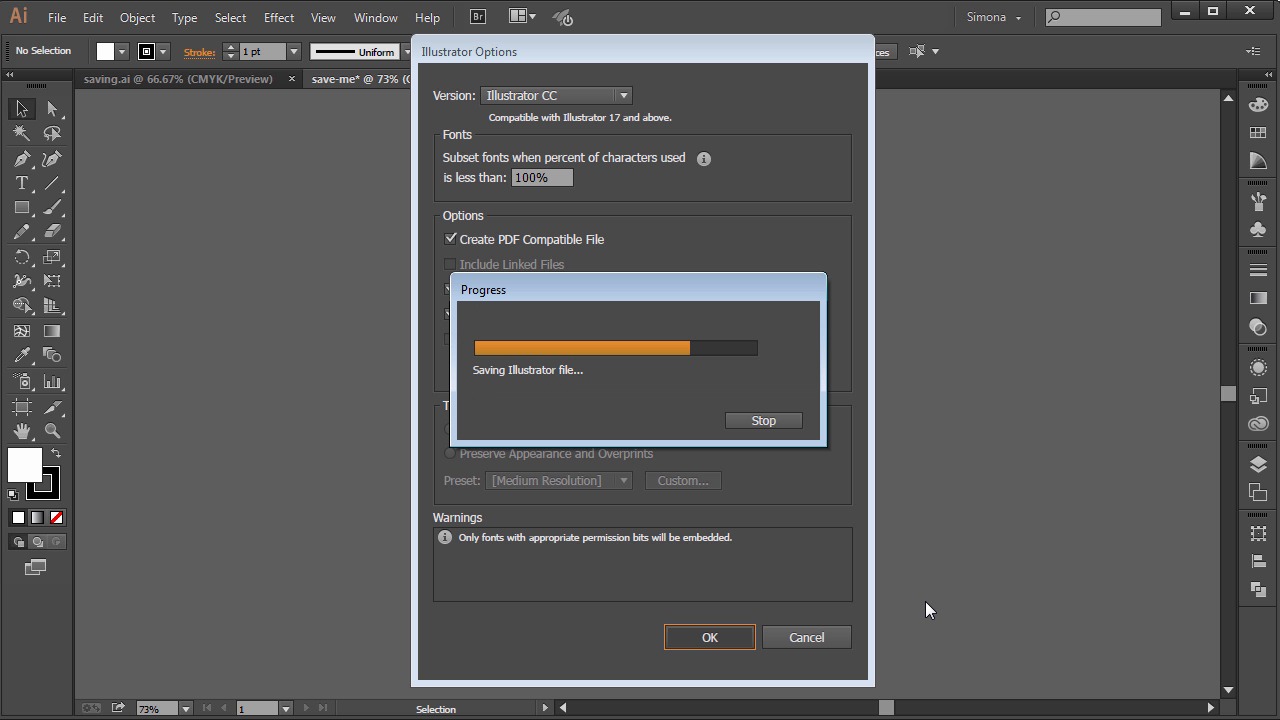
- Overview
- Transcript
7.1 Saving Your File
After creating your designs, you will need to know how to save them. So in this lesson you will learn how to save your file in different formats such as a native Adobe Illustrator file, a PDF, or as an SVG.
1.Introduction
1.1Introduction01:24
2.Program Overview
2.1Workspace and Document Setup07:21
2.2Adobe Illustrator Tools07:34
2.3Art Boards09:04
2.4Pixels vs. Vector, and the Vector Path Explained10:41
3.Drawing Shapes and Lines
3.1Creating Shapes07:38
3.2Making Lines06:03
3.3Drawing Tools07:42
3.4The Pen Tool08:34
4.Manipulating Shapes and Lines
4.1Select, Align, and Group05:30
4.2The Transform Tools10:24
4.3The Cutting Tools05:37
4.4Special Transform Tools09:27
5.Colors and Effects
5.1The Color Panel09:25
5.2Patterns08:31
5.3The Live Paint Tool06:41
6.The Type Tool
6.1The Type Tool05:23
6.2Formatting Text04:36
6.3Special Text Techniques04:53
7.Save, Export and Print
7.1Saving Your File03:04
7.2Exporting Your File03:00
7.3Printing Your File03:49
8.Conclusion
8.1Conclusion01:35
7.1 Saving Your File
Hi, my name is Simona and welcome to tuts+. You are watching the course, the Fundamentals of Adobe Illustrator and this is lesson, Saving your File. In this lesson we will learn how to save our file in different formats. So let's get started. Please open up Adobe Illustrator in the exercise file called saving in your source file folder. Here we have the lion illustration. You might have a similar result, or you created something else, or another animal, and I bet yours looks awesome. So let's learn how we can save our artwork in different formats. When you first create a new document, it is a good practice to give it a name right away. And then when we go to File > Save, we will be presented with a window and here we choose the location where to save the file. We could change the name still, and we can choose the type. What kind of file it will be. So let's leave Adobe Illustrator format for now. When we click OK, we will get the Illustrator options panel. In here we can choose which version of Adobe Illustrator we would like the file to be saved in. If you would like a PDF compatible file, embed ICC profiles and use a compression. These settings are the default, and we will leave them as is. So let's click OK. Now what if you want a PDF file format? So let's go to File again, and then we choose Save As. And in the Save As File Type, we choose Adobe PDF, then we click OK. Here we have another pop-up window, and we will leave it as is as well, and then we click Save PDF. Now, let's also save the file as an SVG. SVG stands for scalable vector graphics. SVGs are really useful when working with web graphics. And now we can save artwork created with Illustrator CC as an SVG as well. And since SVGs naturally scale and are usually small, they're ideal for the web. Especially with all the mobile device sizes out there. So let's go to File again, click Save As, and then we choose SVG from the drop down in the file type. Then we click OK. And we will leave the pop-up window as is for now also. And then we click OK again. And now we know how to save files in at least three different formats. In AI format, the native Adobe Illustrator file type, as a PDF, and as an SVG. And now we're at the end of this lesson about saving your file. So let's move on to the next lesson and learn how to export your file for different programs.


