
 Lessons: 23Length: 2.5 hours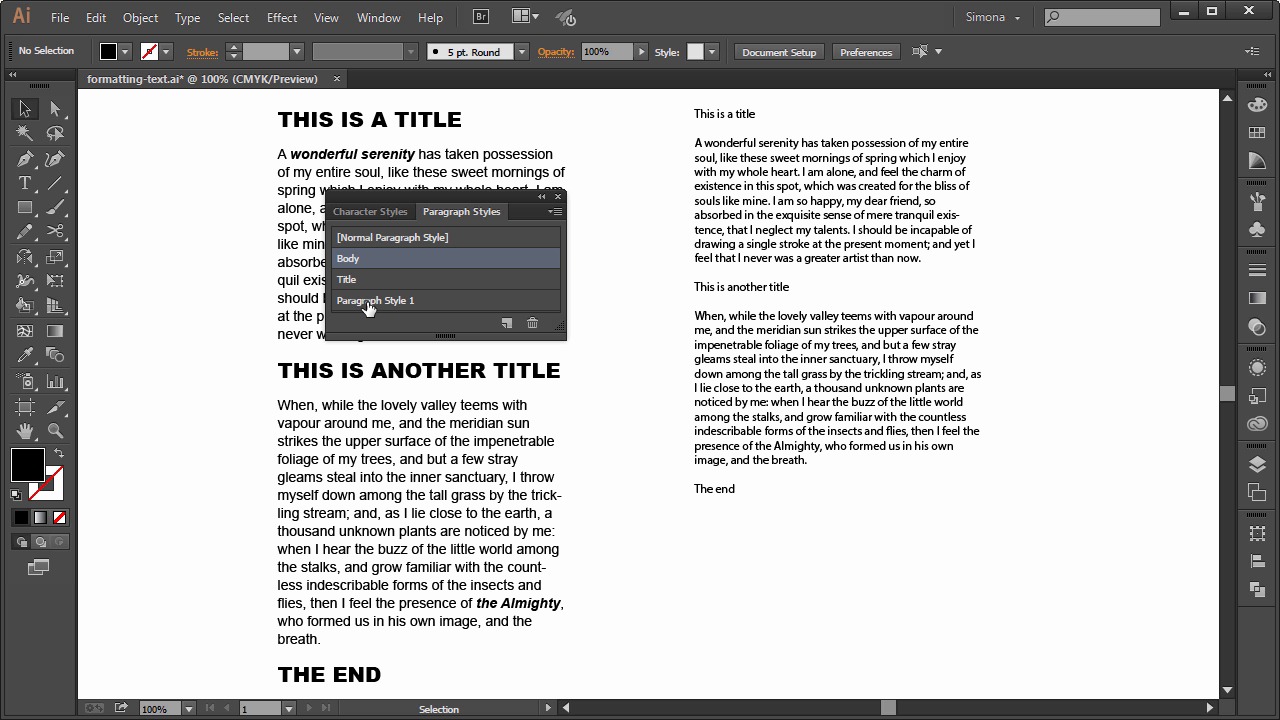
- Overview
- Transcript
6.2 Formatting Text
In this lesson you will learn how to format text and apply character and paragraph styles.
1.Introduction
1.1Introduction01:24
2.Program Overview
2.1Workspace and Document Setup07:21
2.2Adobe Illustrator Tools07:34
2.3Art Boards09:04
2.4Pixels vs. Vector, and the Vector Path Explained10:41
3.Drawing Shapes and Lines
3.1Creating Shapes07:38
3.2Making Lines06:03
3.3Drawing Tools07:42
3.4The Pen Tool08:34
4.Manipulating Shapes and Lines
4.1Select, Align, and Group05:30
4.2The Transform Tools10:24
4.3The Cutting Tools05:37
4.4Special Transform Tools09:27
5.Colors and Effects
5.1The Color Panel09:25
5.2Patterns08:31
5.3The Live Paint Tool06:41
6.The Type Tool
6.1The Type Tool05:23
6.2Formatting Text04:36
6.3Special Text Techniques04:53
7.Save, Export and Print
7.1Saving Your File03:04
7.2Exporting Your File03:00
7.3Printing Your File03:49
8.Conclusion
8.1Conclusion01:35
6.2 Formatting Text
Hi, my name is Simona and welcome to Tuts+. You are watching the course The Fundamentals of Adobe Illustrator and this is lesson Formatting Text. In this lesson, we will learn how to format text, and apply character styles, and paragraph styles. So let's get started right away. Open up Adobe Illustrator in the exercise file called Formatting Text. A character style is like a collection of character formatting attributes that we can apply to a text, and a paragraph style includes both the character and paragraph formatting attributes. Both we can apply to a selected paragraph or several paragraphs. This saves us time and we can apply a consistent to a text. So let me show you how we can use it. As you can see, I already created several paragraphs. And I use the area type form. On the left you can see the character and paragraph styles applied. And on the right text, it is unformatted. So let me demonstrate how we can use the styles. Let's open up the character and paragraph styles under Window > Type > Paragraph Styles. Both the Character and Paragraph Styles are nested. In the panel we can see that I created two new paragraphs styles. One called Body, and the other called Title. We also see in brackets the normal paragraph style, which is the default. Now when we double-click the style, it is imported that we have nothing selected. We will see a Paragraph Style Options panel. Here we can set everything. Here we can set how we want our paragraph to look. From Size, Font, Leading, Color, and so forth. Now it is up to you how you would like to format your text and please play around. There is no rule on what font or size or style. If you want to create a new style, all you have to do is click on the create new style icon here and a new paragraph style is added with a default name. And we can change it by double clicking and then in the options panel, we can set name, font size, and so forth. If you would like to get rid of the style, just click on it once and then select the trash can icon. Just make sure that no text is selected. Now let's apply the style to the text on the right. And you will see why styles are so neat. So let's double-click on the text to make it active. Then all we need to do is set the cursor onto the title here. And then in the Paragraph Styles, we click on the style Title. We don't have to select the whole text, just place the cursor on it. It will detect a paragraph and the style is applied to it. Then when we place the cursor on the next paragraph. And then we select the style body. Then, we do the title again. And then the next paragraph, we select body again, and then one more title. Now, if you want to change just one or two words. And we know the same style we want to maybe add to other words in the paragraph, we can use the character style. All we need to do is select the words that we want to format and then click on the character style to create it. Now we also can edit styles, so for example, let's edit the title style. So we double-click it, then we go an change for example, the character color. And then we click OK. Now all title styles applied to the text have been changed. And this is the strength of the character and paragraph style. And of course we can apply a multitude of formatting, but we will stop here for now. And now we are the end of this lesson about formatting text with character styles and paragraph styles. This is really just an intro. There are many, many more features to paragraph styles and character styles, but these styles can really save time. And add an inconsistency to a block of text. But, let's move on to the next lesson and learn more about special text techniques.


