
 Lessons: 23Length: 2.5 hours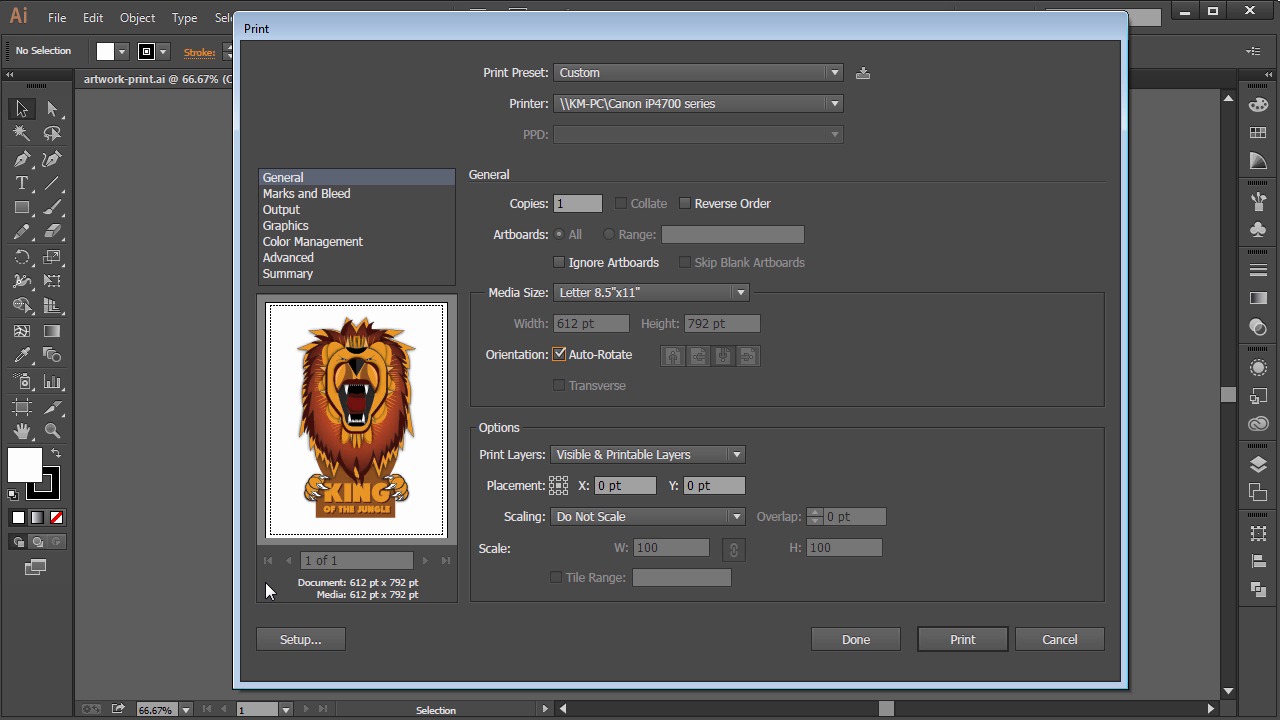
- Overview
- Transcript
7.3 Printing Your File
In this lesson you will learn how to use the Print dialog box to create a print from your artwork.
1.Introduction
1.1Introduction01:24
2.Program Overview
2.1Workspace and Document Setup07:21
2.2Adobe Illustrator Tools07:34
2.3Art Boards09:04
2.4Pixels vs. Vector, and the Vector Path Explained10:41
3.Drawing Shapes and Lines
3.1Creating Shapes07:38
3.2Making Lines06:03
3.3Drawing Tools07:42
3.4The Pen Tool08:34
4.Manipulating Shapes and Lines
4.1Select, Align, and Group05:30
4.2The Transform Tools10:24
4.3The Cutting Tools05:37
4.4Special Transform Tools09:27
5.Colors and Effects
5.1The Color Panel09:25
5.2Patterns08:31
5.3The Live Paint Tool06:41
6.The Type Tool
6.1The Type Tool05:23
6.2Formatting Text04:36
6.3Special Text Techniques04:53
7.Save, Export and Print
7.1Saving Your File03:04
7.2Exporting Your File03:00
7.3Printing Your File03:49
8.Conclusion
8.1Conclusion01:35
7.3 Printing Your File
Hi, my name is Simona and welcome to tuts+. You are watching the course, The Fundamentals of Adobe Illustrator and this is lesson Printing Your File. In this lesson we will learn how to set up our file so we can print it. So let's get started. Open up the Adobe Illustrator in the exercise file called, Artwork Print in your Source File folder. Now we have created a nice artwork. And now we want to print it out, frame it, and hang it on the wall or even give it away as a gift. So what do we need to do to print an artwork created with the Adobe Illustrator? When you print in Adobe Illustrator, the print dialog box has tons of information and settings. So, let's have a look at them and figure out what they mean. So, we go to File > Print. In the Print dialog box, we want to make sure that we are using the right printer to print from. In my case, it is this one here. Just make sure you have your own printer that you have turned on, selected. Next, we want to define the Media Size. You can find this right here and then from the drop down you can choose the sizes your printer can print out from. In my case, the maximum size of paper that I can print from is Letter size. Unless you have a printer that can print bigger, maybe you want to choose the same. So in our case, we choose the Letter, 8.5"x11" from the drop down. Next we see the Auto-Rotate feature, which is usually ticked by default. If we uncheck it, we can control how the document falls regarding the orientation. Now since we chose 8.5"x11" as a media size we can go over to the little preview window. Here we can see what's happening. On the bottom we can see the size of our document and the media size. Both are the same at the moment. If you will change the Media Size from the dropdown It would reflect it down here again, and it would be updated. When you go with the mouse over the preview window, a hand will appear, and then you can click and grab it, and then you can move the document around. See? I can move it to the edges, and then I can practically just move it, and what I see will be printed. You see the dashed line around, this is the media size. And what you see in this preview window is what will actually be printed. Anything outside of these dashed lines wouldn't be printed. Then we have options here about the Print Layers, and we can leave them as is. The Placement we can change via these squares. When I click one, the placement changes, but center is good for now. And then we have the Scaling. We will leave it at Do Not Scale, since our document size is Letter size, but if your work is bigger, you could choose Fit to Page, and it will automatically adjust it to fit the printer size. The Setup button here is for the preferences of your printer. And then, we can click OK. Now, here's an image of the printout I made of the lion illustration. And this is it. We are now at the end of this lesson and at the end of this course. You learned a lot about the fundamentals of Adobe Illustrator, and believe me, these are just the fundamentals. But I hope you're a bit more familiar with Adobe Illustrator now and you are about to love it as much as I do. So, let's wrap it up in our conclusion, and talk a bit more about other wonderful tools Illustrator has in its repertoire.


