
 Lessons: 18Length: 1.3 hours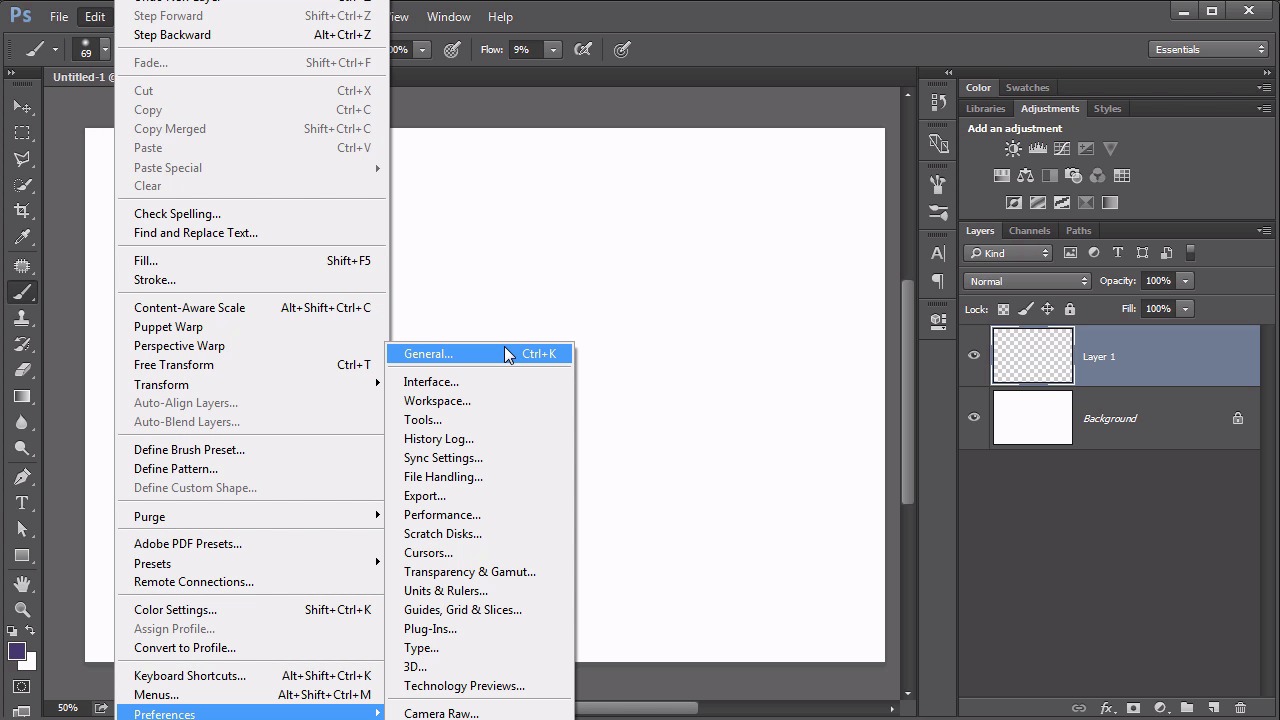
- Overview
- Transcript
5.1 GUI Color Wheel
Did you know there’s actually a Color Wheel built into Photoshop? And that you can use it instead of the standard color picker? Check out this lesson to see how!
1.Introduction
1.1Introduction01:22
2.Basic Color Theory
2.1The Color Wheel02:27
2.2Warm vs. Cool04:52
2.3Color Schemes04:45
2.4Hue, Saturation, and Lightness03:46
2.5When Colors Collide03:23
3.Color Modes
3.1RGB06:10
3.2CMYK05:36
3.3LAB06:06
4.Working With Color
4.1Scene Planning06:26
4.2Controlling Color With the Hue/Saturation Adjustment Layer06:00
4.3Controlling Color With Blending Modes07:35
4.4Controlling Color With Gradient Maps05:35
4.5Controlling Color With the Painting Tools04:24
5.Tips and Tricks
5.1GUI Color Wheel03:31
5.2Adobe Color Themes03:55
5.3Color Look-Up Tables (CLUT)02:56
6.Conclusion
6.1Conclusion00:53
5.1 GUI Color Wheel
Hello everybody! Welcome back to working with color in Photoshop. We're now on chapter number five which is the tips and tricks chapter of this course. We're now on lesson 5.1 where we talk about how to use a color wheel inside Photoshop. We spent a lot of time in the first chapter of this course talking about the color wheel, discussing how it came to be and how to use it to develop different color schemes. Now you may have noticed that when you're working in Photoshop whether it's with the painting tools or any of the other tools involving color, every time you open the Color Picker dialogue box, this box is noticeably lacking in color wheels. Instead, we get this hue strip which goes through the rainbow of colors and of larger box that controls the saturation and the brightness. So it's simple enough to figure out which colors that you want to use and pick it from this box, but it doesn't work very well when you're trying to figure out complimentary colors. Well, believe it or not Photoshop does actually come with a color wheel, it's just not someplace that's easy to find. Before I show you where it is, let me show you another way of accessing the color picker you may not be aware of. So with the brush selected, hold down the alt, that's the option on a Mac, plus the shift and then the right mouse button and you get this new type of color picker dialogue box. Where as the same hues strip over here and the larger box for the saturation in the lightness. This is a much quicker and faster way of accessing that control than just always to go down here and click on the color chip. It's not exactly the easiest keyboard shortcut, having to hit alt and shift and the right mouse button, but at least it is there but you might be wondering, what does this have to do with the color wheel? That's still looked like a box. Very true. You need to go to edit, preferences, general or control k is the keyboard shortcut for that. This setting here, the Hud Color Picker, is set to Hue Strip by default. You open that up, and down here at the bottom you can see there's a Hue Wheel. Let's pick the one that doesn't have a designation as to small, medium, or large and we'll click OK, and now let's redo that keyboard shortcut. So Alt+Shift+Right Mouse Button and hallelujah, we get a color wheel in Photoshop. So now this outside ring controls the hue and the inside square still looks familiar because it's controlling the saturation and the lightness. You may have already keyed in here to the obvious question here of well, if your mousing around over here, how do you get to that outer ring without moving the hue picker in here. Well, believe it or not, even though we're already holding down three buttons, we have to hold down a fourth button to do what's called jumping the HUD. So, if you hold down the space bar, it freezes the central color picker ring and let's you go out here to the other outside ring and start moving around this hue wheel and then you can hold down the space bar again to get back there to it, if you wanna continue doing that. Admittedly, this can cause some hand cramps. This is something that you're really gonna need to get used to if you plan on using this a lot. I find it totally worth it just to have a color wheel as a color picker within Photoshop. So now that we've discovered how to use color wheel within Photoshop to choose colors, you might be wondering what about those color themes that we learned about? Like the complementary or the split complementary and compound themes. Well next lesson, lesson 5.2 we'll talk about the Adobe color themes which is one of my favorite features in Photoshop when it comes to dealing with color.


