
 Lessons: 18Length: 1.3 hours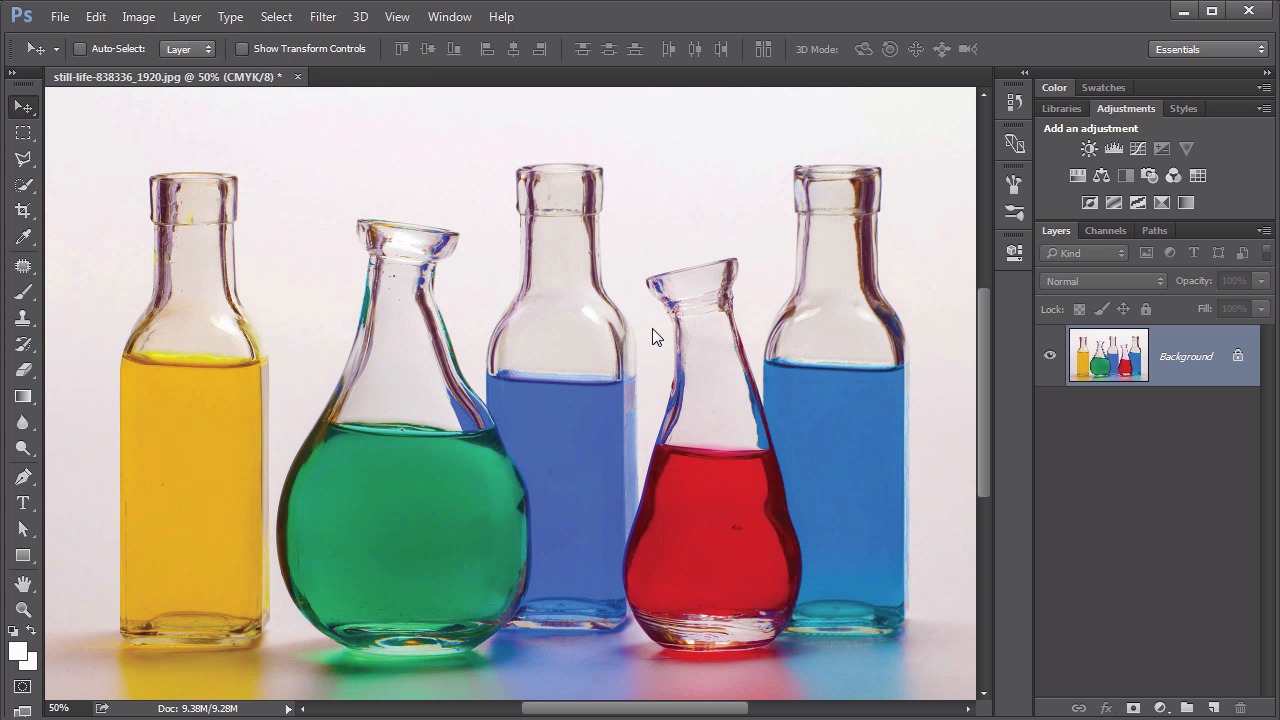
- Overview
- Transcript
3.2 CMYK
Now we encounter yet a different way of combining colors, the Cyan, Magenta, Yellow, and blacK model or CMYK. In this lesson we see why this approach is needed and when to use it.
Related Links
1.Introduction
1.1Introduction01:22
2.Basic Color Theory
2.1The Color Wheel02:27
2.2Warm vs. Cool04:52
2.3Color Schemes04:45
2.4Hue, Saturation, and Lightness03:46
2.5When Colors Collide03:23
3.Color Modes
3.1RGB06:10
3.2CMYK05:36
3.3LAB06:06
4.Working With Color
4.1Scene Planning06:26
4.2Controlling Color With the Hue/Saturation Adjustment Layer06:00
4.3Controlling Color With Blending Modes07:35
4.4Controlling Color With Gradient Maps05:35
4.5Controlling Color With the Painting Tools04:24
5.Tips and Tricks
5.1GUI Color Wheel03:31
5.2Adobe Color Themes03:55
5.3Color Look-Up Tables (CLUT)02:56
6.Conclusion
6.1Conclusion00:53
3.2 CMYK
Hello, everybody. Welcome back to Working With Color in Photoshop. This lesson 3.2 where we talk about the CMYK color mode. So if we look at the Venn diagram for the CMYK color mode, we can it see it matches a little more closely to the traditional color model that we talked about at the beginning of this course, using the red, blue and yellow as the primary colors. Now it's tweaked slightly in this model, in that the blue isn't really blue but it's a cyan, and the red isn't really red but it's magenta. The yellow pretty much stays the same, and that brings us the C, M, Y of the model. And then the K actually stands for black, which I know is the last letter of that word, but they were afraid if they went with the B at the beginning of the word people would confuse that with the B for blue. So in order to avoid the confusion of blue, they've called this cyan and they've called the black labeled with a K. so it avoids the use of the B all together. This is what's known as a subtractive color model because you add the colors together to get what is known as the lack of color or black. The CMYK color model is used for virtually all print media even still today. If your creating artwork that needs to be printed out. At some point or another its going to be converted to CMYK and because the CMYK color model is assuming the use of ink and not the use of light on monitors the CMYK has no way of producing white. There's no combination of these colored inks that's going to create white. Now they all together allegedly create black, but that's why we have that fourth color black just to make sure. Also, since the majority of printing is in black, it's actually much more efficient to have a separate black ink. As opposed to using three inks altogether for one color. The idea of printer ink using CMYK colors may be familiar to you, if you've ever had to change the printer ink in your own consumer printer. What you may not realize, is that you cannot print white with your printer. The way the printers work using this color model, the white is assumed to be the color of the paper originally. So any design you print out regardless of where the white is, the printer will assume it will be able to use the color of the paper to generate that white, which means if you were to put colored paper into your printer and print out your designs, all the areas that you expect to be white is going to be the color of that paper. I imagine some of you are going to want to go and try this right now and I would encourage you do to so, just to prove it to yourself. Go ahead and create a design, maybe it has some white letters on a color field and then try to print that out on a piece of colored paper. And see for yourself, those white letters will be the color of the paper. So let's take a look at dealing with the CMYK color model within Photoshop. First of all, let's talk about how do we even generate an image that's CMYK. That's done quite easily through the image mode, we just select the CMYK color. Now if you're watching closely, you may have noticed a slight shift in colors here. That is because the CMYK color mode, not only can it not generate white, there's certain vibrant colors of blues and greens that it has a lot of trouble with. So if I undo that color conversion, I'm just going to press control z, you can see some vibrancy come back into a lot of these blues and the reds over here too. Let me go back and forth with that, and watch closely what those colors look like. So this is RGB, that's CMYK. RGB, CMYK. Notice we lose a lot of color value in that. That's just something you'll need to keep in mind. In fact, let's go back to RGB real quick. Photoshop comes with some warnings when you're working with colors in RGB mode that won't reproduce well in the CMYK mode. If we go up to the view menu, you could set up your proof colors, so if you change the proof setup to work in CMYK, and then you turn on the proof colors, essentially what you're seeing here is an RGB file that is proofed as CMYK, so you're viewing as if it were converted to CMYK even though it's still an RGB file. Another helpful tool Instead of using the proof colors is to use the gamma warning. What that does is show this very strange gray tone. All the pixels that will need to be converted to a different tone when the image gets changed to CMYK. So that's a good visual check, too. Because maybe the two tones are very similar between RGB and CMYK, but this will mathematically detect it for you and show you exactly which pixels will not be their true intended colors. But then other than the working in between RGB In CMYK, there's not a lot of difference with how Photoshop handles CMYK images. You might be wondering, why not always just work with them, especially if you're going to be producing for print? Well one of the main reasons is there's a lot of the filters and adjustments that simply don't work with the CMYK color mode. They are completely grayed out, and so you're actually losing functionality in Photoshop. When you work with the CMYK image. So generally the workflow tends to be work with RGB within Photoshop, convert it to CMYK at the end before you export it for print. And yes, CMYK is handled pretty much the same way RGB is when it comes to the channels panel. Except there is an additional channel, that's the black channel, which makes a lot of sense when you look at it, because this original image has very little black in it. It's mostly white and colored image. So the black channel is going to show very few pixels are representing that black color. But otherwise, the yellow's about what we would expect, as with the magenta, and the cyan. So those are the two big color modes you will probably always be working with. But next lesson. Lesson 3.2, we talk about that elusive LAB color mode.


