
 Lessons: 16Length: 1.3 hours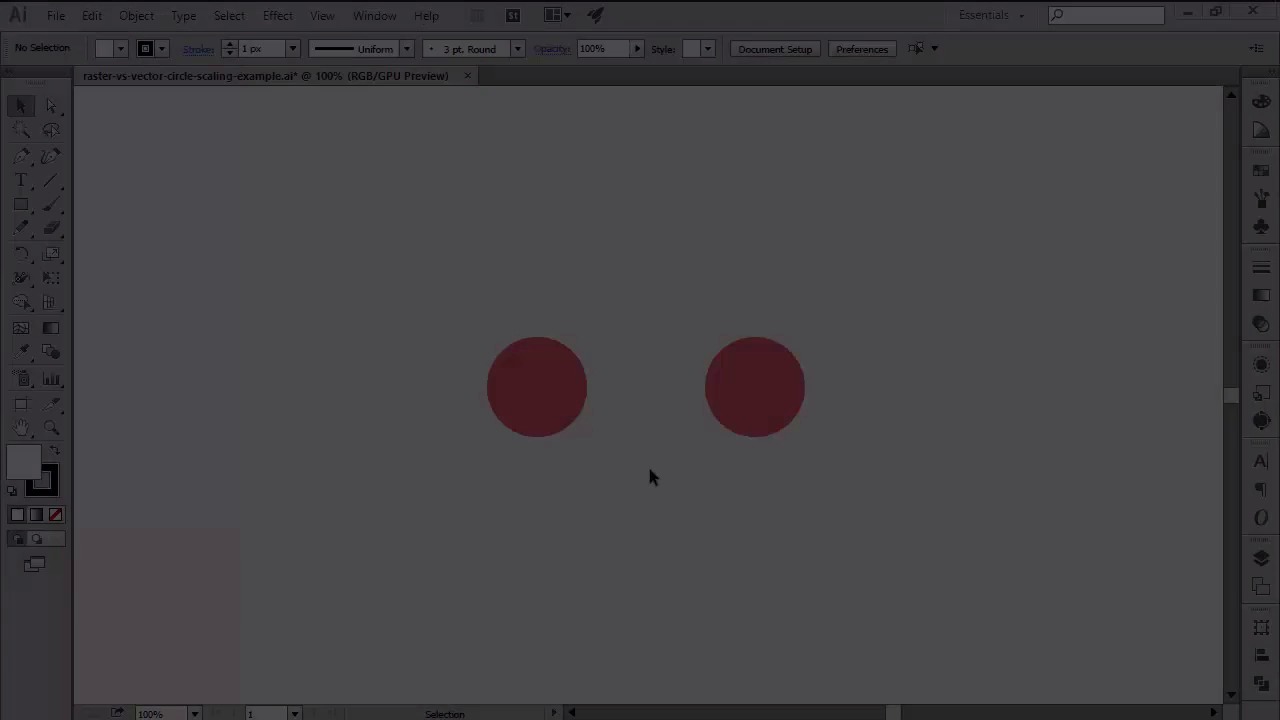
- Overview
- Transcript
2.1 Understanding How Illustrator Works
In this lesson, we will briefly talk about the way Illustrator handles vector shapes, compared to the more traditional raster images.
1.Introduction
1.1Introduction01:37
2.Understanding the "Pixel-Perfect" Concept
2.1Understanding How Illustrator Works02:26
2.2Defining the Concept04:09
2.3Advantages of Using a Pixel-Perfect Workflow03:01
2.4Introducing the Grid06:29
2.5Correct Use of Measurement Units06:09
3.Pixel-Perfect Workflow
3.1Adjusting Illustrator for a Pixel-Perfect Workflow04:49
4.Creating the Icons
4.1Size and Consistency05:54
4.2Creating the MacBook Icon06:30
4.3Creating the Window Workflow Icon06:03
4.4Creating the Designer Resources Icon06:11
4.5Adding Colors06:56
4.6Adding Finishing Touches: Highlights and Shadows08:23
4.7Creating Size Variations05:16
5.Saving for the Web
5.1Exporting the Icons03:16
6.Conclusion
6.1Conclusion01:32
2.1 Understanding How Illustrator Works
Hi, and welcome back to creating pixel perfect icons in Adobe Illustrator. My name is Andrei Stefan, and we are just starting out chapter two, understanding the pixel perfect concept, where we will talk about the key aspect that one needs to take in consideration when deciding to use a pixel perfect workflow. The current video is part of lesson 2.1, Understanding How Illustrator works where we are going to briefly talk about the vector software. So as you probably know, Illustrator's a vector based software capable of creating scalable artwork using mathematical algorithms. What this means is it can basically create an illustration and then scale it up or down without any loss of quality. Compared to a raster image, which is composed of a series of individual pixels aligned to a steady grid, a vector image is specially designed so that they can realign these composing pixel based elements, making it more versatile. The key difference between the two is in the way they handle the resizing process. While rasters simply enlarge or shrink the surface of each composing pixel, applying an antialiasing effect, vectors add or reduce pixels as needed. You can think of it as a game of quantity over quality. The larger the number of pixels you have, the higher the clarity and sharpness of your artwork will be. Since examples are usually more memory helpful, I will show a side by side comparison of two 100 by 100 px circles, one raster and one vector, and enlarge them so that you may see what happens to each of them during the process. So, on the left we have our raster circle, and on our right we have the vector one. The document is currently zoomed in at 100%. But, to be honest, you can't see any difference, in terms of quality, between the two. Let's see what happens if you zoom in at above 400%. As you've probably noticed, the raster one is looking a bit fuzzy, as we can now see the antialiasing that was applied to it when it was saved. Well what happens if it's scaled up by 200%? Well the result kind of speaks for itself. Now let's see what happens if we select the vector circle and scale it up using the same percentage. As you can see, the circle looks as crisp and clear as it did before all because Illustrator added pixels instead of stretching the surface of the ones it already had. Although vectors are usually more crisp than rasters, when you export your artwork as PNG or JPEG, you might end up with some fuzzy lines here and there. We will cover this topic in our next lesson, when we'll compare pixel perfect artwork to non-pixel perfect ones. So stay tuned.


