
 Lessons: 12Length: 1.2 hours
- Overview
- Transcript
4.2 Exporting Files for Print
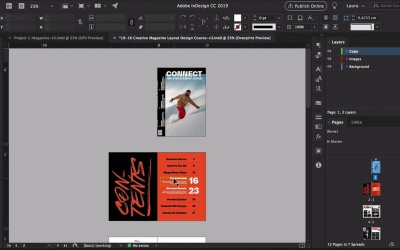
Ready to export your file? In this lesson, you’ll learn how to export a PDF file for print and how to package a file to share with other designers.
1.Introduction
1.1Introduction01:20
1.2InDesign vs. Affinity Publisher04:41
2.Getting Started
2.1The Essentials07:09
2.23 Ways to Create an Effective Workspace08:23
2.3The Structure of Your Document05:55
3.Design Elements
3.13 Foolproof Ways to Choose a Color Palette03:42
3.24 Typography Tips14:35
3.33 Essential Steps for Importing Images05:14
3.45 Ways to Create Impact in Your Design07:36
4.Printing
4.14 Steps to Get Your File Ready for Print04:26
4.2Exporting Files for Print05:01
5.Conclusion
5.1Conclusion01:59
4.2 Exporting Files for Print
Hi there, welcome back to this course. In this lesson, I will show you how to export a PDF file for print, and how to package a file. This is the last step we need to take in order to print our project. Head over to File > Export, and here, what I want to do is change the filename to the correct name. So for instance, I'll take the prefix, and leave it as Magazine Layout Design Course-v3. I want to save this in its respective folder. Format, Adobe PDF Print, click on Save, and head over to Adobe PDF Preset. So depending on your printer, they'll ask you to save the file as a specific preset. Sometimes these high quality print, I found that PDF X-1a 2001 is the usual one. And sometimes, it will be press quality so always ask the printer what they prefer. I'll go for Press Quality, Export as Pages. So these will be individual pages, and then the printers will make everything fit. Head over to Marks and Bleeds, select Use Document Bleed Settings. Check Crop Marks, and that's it. Click on Export, wait for the bar here to be done exporting. Let's open the folder, PDF. In here, I saved it outside of the PDF folder. So I just want to make sure that it's inside. Let's take a look. And here we have our single pages exported with the bleeds and the crop marks. You can see that on the side and the corners. So what's going to happen is, the printer is going to take individual pages. For example on a spread and overlap them. So sometimes a PDF can look a little bit scary just because it has that extra bleed on the side, but there's nothing to worry about. Now let's talk about packaging a file. So packaging a file is a great way to finish off a project. You have your file, you have all of your images, you have all of your fonts. And at this point, you probably won't need any of the old files that you created in order to get to the final design. This is also useful if you're a freelancer and want to, and you're doing a yearly review or you're saving all of your files and putting them away on your backup hard drive. In order to package a file, head over File > Package, and here we have a summary. So you want to make sure that there are no errors here. There are 13 fonts being used, links in the images, we have 13 links found, zero modify zero missing. And then it says, 12 images are using RGB color space. So because this magazine was only used online and not printed. That's why I have RGB color space. So always keep in mind that, if you're using CMYK that you have the images in CMYK there. Here you can go more into detail to check the fonts, link and images and then click Package. We have to save the publication one more time, click on Save. And now we have to choose where we want save it. I want to rename this package with the word package at the end, so I know what it is. And here we want to tick Copy Fonts, Copy Linked Graphics, and include an IDML file, which will allow you to open the InDesign file in previous versions of InDesign, not only CC. And include a PDF Print. And here, we can select the quality that we want to save it in. Click on Package, click OK. And now our file is being prepared. Let's head over here to the desktop. And here we have our original folder and our package folder. So let's see what's in it. We have our two version three files idml, indd. We have a PDF file, which is exactly like the one we just exported. We have our document fonts, and we have all of the images that we're using. Something that many designers do in order to send these files to a different designer, or to save it for archive is compressing the file. So right click > Compress, and that is it. You can send this zip file through Dropbox or any other file transfer service, and that's it. In the next lesson, we will do a quick recap of everything we learned in this basics of print design course. I'll see you there.


