
 Lessons: 12Length: 1.2 hours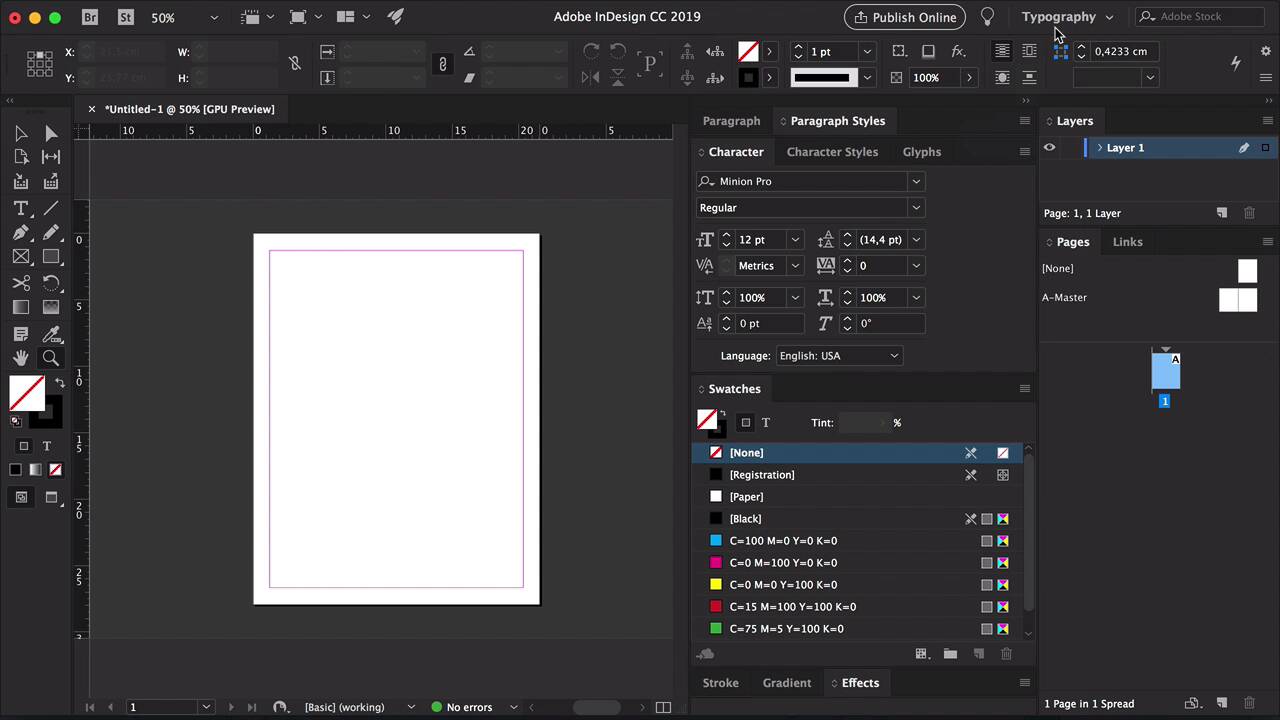
- Overview
- Transcript
2.2 3 Ways to Create an Effective Workspace
It's vital to set up an efficient workspace so you can find everything easily and work quickly on your print projects. In this lesson, we’ll take a look at the options in Preferences, how to personalize the panels, and file organization.
1.Introduction
1.1Introduction01:20
1.2InDesign vs. Affinity Publisher04:41
2.Getting Started
2.1The Essentials07:09
2.23 Ways to Create an Effective Workspace08:23
2.3The Structure of Your Document05:55
3.Design Elements
3.13 Foolproof Ways to Choose a Color Palette03:42
3.24 Typography Tips14:35
3.33 Essential Steps for Importing Images05:14
3.45 Ways to Create Impact in Your Design07:36
4.Printing
4.14 Steps to Get Your File Ready for Print04:26
4.2Exporting Files for Print05:01
5.Conclusion
5.1Conclusion01:59
2.2 3 Ways to Create an Effective Workspace
Hi there, and welcome back to this course. In this lesson, we will show you 3 ways to create an effective workspace. Having an efficient workflow is really important when you're working on a big project. So in this lesson, we will take a look at the preference options, having the right panels open, and file organization. Let's get started. Many beginner designers don't know that there is a preference panel in InDesign where you can set up every single thing that can make your workflow more efficient. Anything from changing the units in increments, detailed typesetting options that can really help you make your work easier and streamline it. So in InDesign, head over to InDesign CC > Preferences, and click on General. So when you get a new computer and download InDesign, or let's say, if you're starting at a studio, this is a great way to start. Because, again, here is where you can set everything up the way you're used to working. For example, here under General, you can already change the way you edit an object, or how you want the workspace to look like when you open InDesign. Under Interface, you can change the color of the background, how you want the panels to show up. Under Type, for example, triple-click to select a line. Sometimes you will double-click to select a paragraph or a single word. So little things like this that really allow you to personalize how you work. Compositions, we have H and J violations which is really useful to have if you are working with a lot of text, ruler units. If you live in a different country, you might be more comfortable using inches or centimeters or millimeters. And then we have even more detailed options like size and leading if you are using your keyboard a lot to change the line space or the kerning and tracking, I usually like to have this at 1 point. The Baseline Shift at 1 point as well, and the Kerning at 5. This just allows me to be even more detailed when I'm typesetting. So there are endless, endless options that you can have here. And this is probably my favorite part, setting up my workspace. And of course, you can also change how your computer is working with InDesign. You can change the performance, file handling. So it’s always good to take some time, take a look at these options and tailor it to what you like and what you’re used to working with. So I'll just make sure here that I have the units in increments set to centimeters and the page origin to page so that way you can see how this works. I'll click OK. Create a new document here. And you can already see that the preferences that we applied are already in the document. Now let's move on to setting up your workspace. If you go to the top right corner, you have a list of all the workspace that we have available within the software. So depending on what kinda project you're working on, if it's typography-based digital publishing, it will give you different panels for you to work with. So for example, we have the Essentials and this gives us the Properties, Pages, and CC Libraries panels. We could change this to the Typography workspace, and this will give us a totally different selection of panels. We have the Layers, the Pages, the Links panel. And then we have a single panel here that is very much focused on typography. We have the Paragraph panel, Paragraph Styles, Character, Character styles, Glyphs. And of course you can move the panels around and if you don't really use one of them, you can close it. And I like to base my workspace around a typographic workspace. So delete the ones or close the ones that I don't need and change the order in a way that benefits the type of projects that I work on. I'll head over here to the top right and select New Workspace. I'll put my name here, click OK. Let's close InDesign to make sure that when we open it, it is set to my workspace. Create New Document, and there we have it. We have my workspace already set up. Now let's move on to file organization. File organization is one of the most important things that you can do for your projects. If you're either a freelancer or if you're working in a studio, you need to keep an organized work flow. So the first two that we saw, setting up your preferences and your work space, that's a very individual. But when it comes to file organization, you have to keep in mind that you might have to send these files to another designer. If you're working in a studio, there might be another designer that will be working on the same project as you. So here, I'll start by creating a new folder on my desktop. And I try to keep my desktop as clear as possibly. Ideally, you would have a system on how you name your files and how you keep them organized by date. So for example, for me, this Project 1 would go under a specific folder, for example, Laura's Studio. And that's what this Project 1 folder would go into. So we start with a folder. And I've already saved the files that we created on the last lesson. So we have Project 1-Magazine and Project 1-Trifold Brochure. I'll move those two InDesign files into Project 1. And then there are a series of folders that you should have under that so you're able to keep all the linked files, the fonts and everything else that you export. So for me, the most important are having a fonts folder. If you don't have a fonts folder for each project, then you should have a fonts folder for your computer and that's where all the files should go for your fonts so they're not scattered around. Next, we need an images or JPEG folder. I like to call it Images because sometimes I work with JPEG or TIFF files. This is great if you're linking a lot of images into an InDesign file if you're working on a magazine, so you know where all the images for that specific project that are. Next, we need a PDF folder, great for when you export documents for your client and then we need an Old Files folder. And then another problem that we have as designers is we need to have different versions of the same project. So if you are working or developing an editorial design layout, you'll have different iterations and you will have different stages. As you communicate with your client, you might not need older spreads that you've designed so you will need the newest ones and then the question is how you keep those files. The way that I like to keep it is by naming them with the versions, so v1 will be version number one, and then let's say I went through a round of changes with the client, then I'll create a version number two, they gave me their feedback. Then I'll move version number one under old files and start working from version number two. This is also great to keep if, for example, version number two crashes and then the file is damaged, then at least I have another version as a backup that I can work from and I don't have to start everything from the beginning. And another folder that I think is really good to have is Notes or From Client. Clients will usually make their changes on a PDF file. So you download that file, and put it under Notes or From Client and then you proceed to make the changes from there. And like I said, every designer has a different way of organizing this. You have to find something that works for you. But whatever that is, make it consistent because you don't want to lose any of these files. So now that we've looked at the ways to create an effective workspace, we're ready to move on to the next lesson that will help you to structure a document to create an amazing layout. I'll see you there.


