
 Lessons: 21Length: 1.7 hours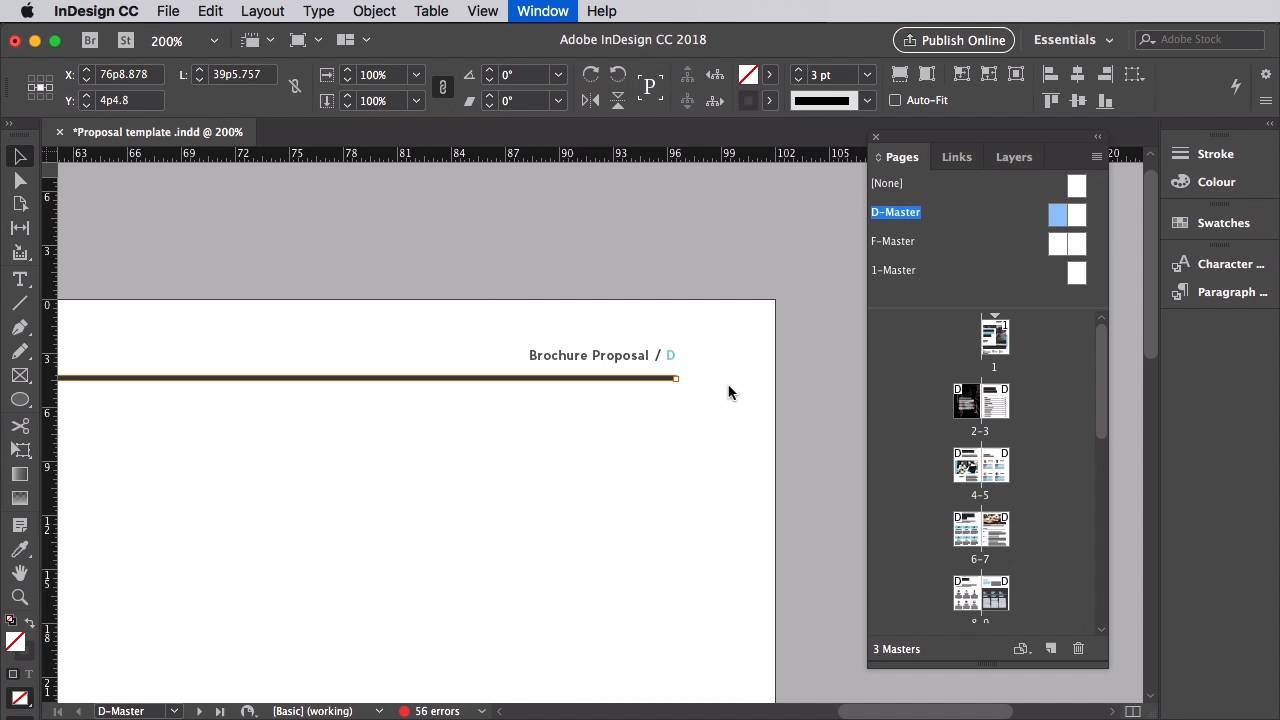
- Overview
- Transcript
2.6 How to Edit Master Pages in Your Template
Adjusting the styling of elements on your masters, such as page numbers and running headers, can have a big impact across a wide range of pages. In this lesson, you'll learn how you can edit the master pages in your proposal.
1.Introduction
1.1Introduction01:53
1.2What Is a Project Proposal?04:03
1.3What You'll Need to Create Proposal Documents01:41
2.How to Adapt a Proposal Template
2.1How to Choose a Suitable Proposal Template04:03
2.2Getting to Know Your Template06:23
2.3How to Adapt Your Template (The Easy Way)03:21
2.4How to Redefine Styles in Your Template05:44
2.5How to Format Color in Your Template03:07
2.6How to Edit Master Pages in Your Template03:33
3.How to Create and Design Your Own Proposal Layouts
3.1Setting Up Your Proposal: Part One03:14
3.2Setting Up Your Proposal: Part Two05:41
3.3Styling Your Proposal: How to Find Inspiration08:07
3.4How to Create an Effective Cover for Your Proposal08:01
3.5Styling Your Proposal: How to Create Type Styles06:25
3.6How to Create a Contents Page for Your Proposal07:03
3.7How to 'Map Out' Your Proposal09:42
3.8Styling Your Proposal: Shapes and Stats02:31
3.9Styling Your Proposal: Images07:26
3.10Preparing Your Proposal for Print: Preflight04:00
3.11Preparing Your Proposal for Print: Exporting03:45
4.Conclusion
4.1Conclusion03:08
2.6 How to Edit Master Pages in Your Template
Page numbers and running headers might be small, but as they are likely to feature on every page of your proposal, they make a subtle but consistent impact on the design of your document. Editing master page content is quick to do, and as with redefining textiles, it has an instant effect across a wide range of pages. Still working on our template document, let's look at how you can edit the content of your master pages. So expand the Pages panel, go to Window pages if it's not already open. And double-click on the first master which is here, called D-Master. Zoom into the top of the left hand page so you can see the page number and header really well. We can see from the Styles panel that this also has a style applied to it. But first let's get rid of that plus icon next to the style, and reset it so we can start from a clean slate. So right-click on the name of the style, H--3, and choose Apply H--3 Clear Overrides. This is going to increase the font size, which is fine. Let's bring it down to 9 points. Let's also switch the font to Bergen Text Semi Bold. And switch off the all caps. Okay, awesome. Now right-click on the H--3 Style and choose Redefine Style. Let's highlight the page number, symbolized by a D, because this is the D-Master. And switch the font color to our new accent swatch from the swatches panel. Now we can apply that style to the running header on the facing page. So select that text frame and click on H--3 to apply it. Switch to the Type tool, and from the top controls panel choose align right from the text alignment options. Okay, cool, so what else can we tweak? Well, these lines running beneath each header are fine, but we can add a bit more flair to them as well. We can adjust the look of these using the Stroke panel, which you can find in Window > Stroke. Select both lines of your selection tool cursor, and from the Stroke panel you can see that you can choose from a range of different styles under the Type menu. So you can go for Dots, or Dashes, or a Wavy line. I actually really like the hash lines because these add a bit of subtle texture to a line and make them look a bit less digital and clean. So I'm going to go for Straight Hash, okay? So with both the running headers and the lines beneath them reformatted, you can transfer these onto other relevant master spreads. So select all the elements sitting on the D-Master by dragging your cursor across the page and head up to Edit and Copy. In the Pages panel, double click on the F-Master to bring up this spread on screen. Delete the headers that are on there, and then go to Edit and Paste in Place, awesome. So by doing that, you've tweaked the look of the page numbers and running headers across all the inside pages of your document, great job. In this section of the course, we've looked at different ways you can edit and customize a proposal template. Making it more unique and creating a look for your proposal that ultimately looks like your own work, even if the foundations have been built by somebody else. Of course, this isn't the only way you can design creative proposals, it's simply a quick and easy way to help you save time. In the next section of the course, we'll look at how you can create your own completely unique and creative project proposals from scratch in Adobe InDesign. You'll learn how to create an effective cover. How to find stylistic inspiration for your layouts. How to create an engaging, consistent style across your document. And how to perform sophisticated print design tasks such as creating gradients, swatches, and type styles. So if you want to take your proposal design skills to the next level, make sure to stick around for the next lesson. I'll see you there.


