
 Lessons: 8Length: 42 minutes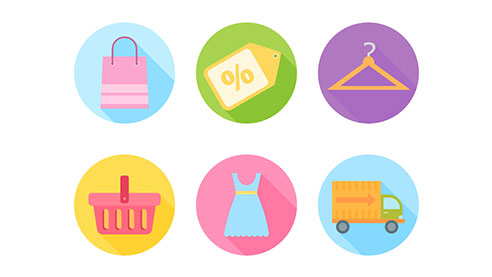
- Overview
- Transcript
1.1 Introduction
Hello and welcome to the course How to Design Flat Icons in Affinity Designer at Envato Tuts+. My name is Yulia Sokolova, and I’ll be your instructor. We will cover in detail the process of creating some trendy flat shopping icons. This introduction video is an overview of what you will learn during this course.
1.Introduction
1.1Introduction01:17
2.Creating Flat Shopping Icons
2.1Shopping Bag Icon07:13
2.2Discount Badge Icon07:01
2.3Hanger Icon05:21
2.4Shopping Basket Icon06:07
2.5Dress Icon05:33
2.6Cargo Truck Icon07:41
3.Conclusion
3.1Conclusion01:36
1.1 Introduction
Do you wanna try yourself in icon design or a maybe you create icons but this time you want to make it in affinity designer, this course is for you. We'll go through a descriptive process of creating a set of fun shopping icons using the draw persona of affinity designer which is used to make scalable back to graphics. We’ll be working with basic geometric shapes transforming them. Using various separations to combine the shapes, learning how to align and arrange them, working with colors, and getting used to the main functions of the program. By the end of this course, you'll be able to expand the graded set. Or to create any other kind of flat icons of any topic. For example, hiking icons, food icons birthday icons and so on. Such things are widely used in web design, advertisement design and illustration. I guess you're already willing to start creating our first set Let's move on to our next video and start right from the point to discover the essential functions of Affinity Designer and to create the first icon from our set, a shopping bag. See you in the next lesson.


