
 Lessons: 8Length: 42 minutes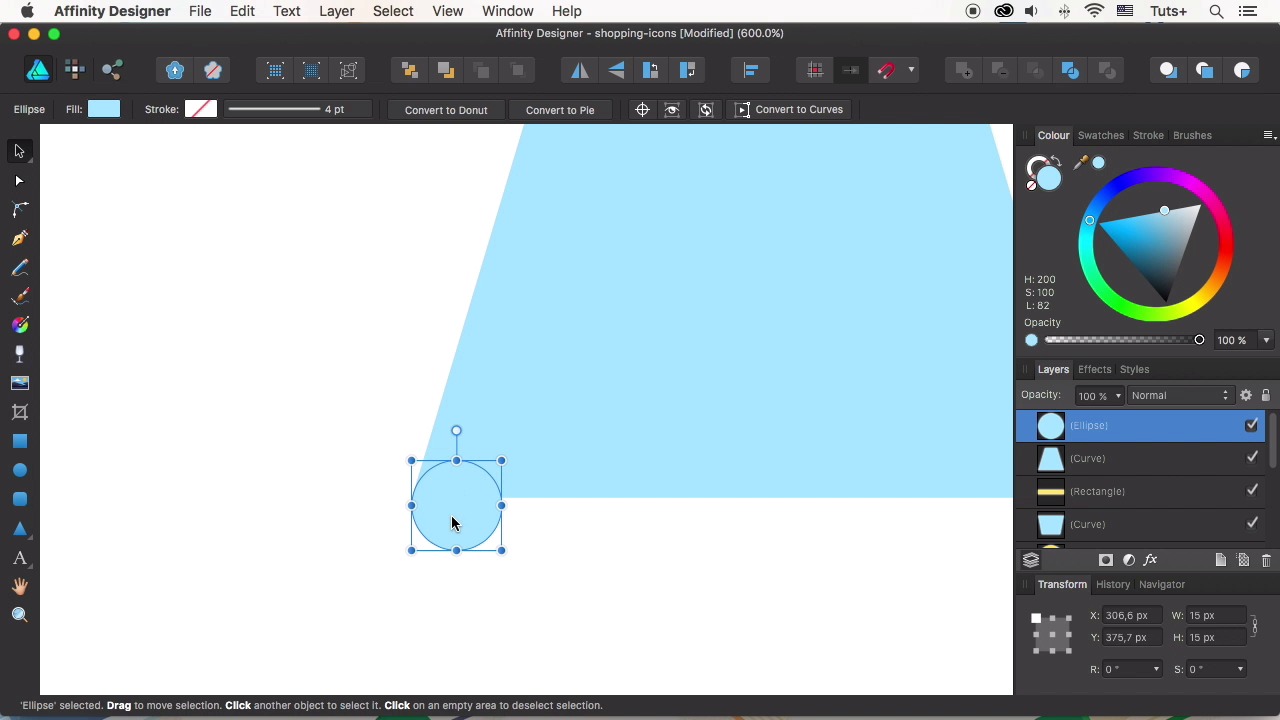
- Overview
- Transcript
2.5 Dress Icon
In this lesson we’ll be designing an elegant women’s dress, using basic shapes, the Node Tool and the Arrange panel.
1.Introduction
1.1Introduction01:17
2.Creating Flat Shopping Icons
2.1Shopping Bag Icon07:13
2.2Discount Badge Icon07:01
2.3Hanger Icon05:21
2.4Shopping Basket Icon06:07
2.5Dress Icon05:33
2.6Cargo Truck Icon07:41
3.Conclusion
3.1Conclusion01:36
2.5 Dress Icon
Hello guys and welcome back to the course How To Designed Flood Icons In Affinity Designer, with Yulia Sokolova at Tuts+. In this lesson we'll be designing an elegant woman's dress using basic shapes and the Node tool. Let's do it. Take the Rectangle tool. And let's make a shape of 75 by 55 pixel size. Change the color to a gentle sky blue. Convert the shape to curves to make it editable. Now switch to the Node tool, and select the bottom left node. Hold Shift and press the right key to move the point 10 pixels to the right. Do the same for the opposite node, moving it to the left. Now we will take the Rectangle tool again to make a narrow stripe of the same width as the bottom part of the blue shape. This will be 55 by 10 pixels. Align the shapes if needed. And fill the stripe with light yellow color. Now duplicate the shape by pressing Cmd+C, Cmd+V. Drag the upper edge of the down. Making a long skirt of 55 by 100 pixel size. Take the Eye Dropper and drag it over the blue shape to pick the color. Then click the tiny circle to apply the selected color to the skirt. Now we'll convert the shape to curves and grab the Node tool. Select the bottom left node, hold Shift, and press the left arrow key three times to move the node 30 pixels to the left. And move the opposite node to the right, forming a full skirt. Let's decorate the bottom of the skirt with some fluffy ruffle. Take the Ellipse tool, And make a 15 by 15 pixel circle. Align it to the left side of the skirt. And make it fit its bottom. Hold Option+Shift and drag the shape making a copy. Press Cmd+J multiple times to make more copies, covering the bottom edge of the skirt. Select all the circles and resize the group to make it fit the skirt. And we can use the Add operation to merge the circles into one single shape. Select Everything and make sure that the elements are perfectly aligned. And let's shape the neckline of our dress. Make a circle above the top of the dress. And align it to the center. Let's squash the top part of the dress just a little bit And subtract the shapes to make a nice rounded cutout for the neck. The dress is almost ready, so we can make some minor adjustments. For example, we can use the Node tool to bend the size of the skirt, making it puffy. Group the elements of the dress. And let's finish up with the icon. Copy the circle base from our previous icon. Change the color to a gentle pink or red. Recolor the shadow. And align the shapes horizontally and vertically. Resize the shadow to make it fit the dress. Use the Node tool to make additional nodes, To move them around and to delete the one's you do not need. And here you have it. An elegant and stylish dress is ready. Great job my friends. We've finished another icon of our Flood Set and already feel easy and convenient with Affinity Designer tools and functions. Let's fix the results by designing one more icon to make a full set of six icons. This is going to be the most detailed one, a cargo track. See you in the next lesson.


