
 Lessons: 15Length: 1 hour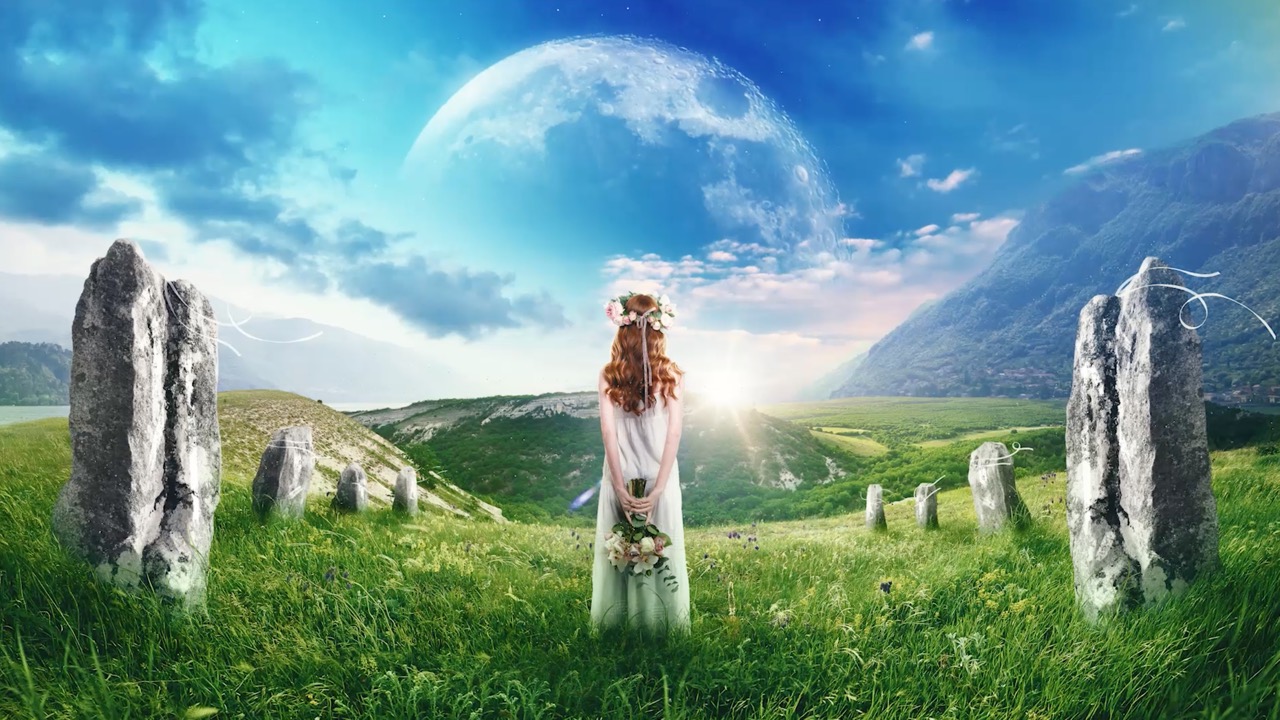
- Overview
- Transcript
1.1 Introduction
Hello, and welcome to this course all about photo compositing and photo manipulation. We will be looking at how to composite both landscapes and people, as well as creating detail and special effects. Let's take a quick look at everything we will be learning as we create our own Photoshop art.
1.Introduction
1.1Introduction00:55
1.2Setting Up Photoshop and Choosing the Right Resources05:25
2.Creating a Landscape
2.1Sky Replacement in Photoshop03:13
2.2Adding Stars and a Planet to the Sky04:19
3.Compositing a Subject
3.1Image Compositing in Photoshop06:28
3.2How to Cut Out an Image in Photoshop Using the Pen Tool03:04
3.3How to Select Hair in Photoshop03:05
3.4How to Use the Object Selection Tool in Photoshop03:12
3.5How to Blend in Photoshop Using Layer Modes 03:01
3.6Lighting Effects in Photoshop10:52
4.Adding Details
4.1Painting Simple Details 05:35
4.2Painting With Adjustment Layers03:01
4.3Creating Depth05:06
5.Color Correction in Photoshop
5.1Color Grading in Photoshop04:01
6.Conclusion
6.1Conclusion01:12
1.1 Introduction
Hello, and welcome to "Introduction to Photo Manipulation in Adobe Photoshop". I'm Abbey Esparza, and I fell in love with photo manipulation and compositing over ten years ago, usually playing with themes in the dark and surreal genre. However, today, we'll be putting together a fantasy-themed composite, ancient ruins, monstrous moons, and all. This course will cover all aspects of photo compositing, including how to composite both landscapes and subjects, such as statues of people, packed with everything from lighting and shading, blending, and of course, a slew of other tiny little special effects that will help to give your composites at detail and story. So make sure and watch it through till the very end, so you don't miss a thing. Enough talking, let's go into our very first video, setting up a Photoshop workspace. This is "Introduction to Photo Manipulation in Adobe Photoshop".


