
 Lessons: 10Length: 41 minutes
- Overview
- Transcript
3.1 How to Draft the Front of Your Cover
In this lesson, we’ll dive into creating the artwork for the front of our cover. We'll work towards creating a particular design, while sharing tips about how to adapt your newly acquired skills to creating your own unique covers. We’ll then start drafting the layout of the front cover in Adobe InDesign, as well as ‘mapping out’ the basics of the design.
1.Introduction
1.1Introduction01:12
1.2What You'll Need to Get Started01:49
2.Getting Started: Genres, Styles, and Sizing Your Cover
2.1How to Find Creative Direction for Your Cover03:44
2.2How to Size Your Cover03:14
3.Designing Your Front Cover
3.1How to Draft the Front of Your Cover02:13
3.2How to Refine Your Design: Part One06:23
3.3How to Refine Your Design: Part Two08:32
4.Expanding Your Cover Design
4.1How to Expand Your Design Into a Full Cover07:34
4.2How to Export Your Cover for Printing03:25
5.Conclusion
5.1Conclusion02:51
3.1 How to Draft the Front of Your Cover
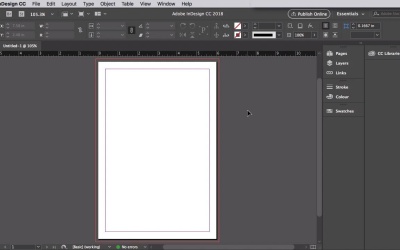
Hey there, okay, so now we can get started with the really fun stuff. Let's get InDesign opened up, and get started creating the front of our cover. In the New Document window, let's make sure the intent at the top is set to Print. And all we want initially is one page, and also uncheck Facing Pages. Switch the units to Inches. And set the page to the width that we noted down earlier, which is 6 inches. And you can set the height to 9 inches. Okay, so let's set the margins to 0.375 inches. Scrolling down, we want to make sure to add a bleed to our cover, which is really important. Bleeds can vary depending on which print-on-demand service you're using. But for Kindle Direct Publishing, which we're using as an example for our cover here, they ask for an 0.125 inch bleed. So let's type that in, 0.125. Okay, cool, now click Create. Here we are, awesome. So this is a template for a front cover, which is always the best thing to start designing first even if you're creating a full wrap around print cover like we are here. Okay, we're ready to get started, mapping out the basics of our front cover. First thing first, it's always good to know the center points for our cover, so we can align type and images accurately. So make sure the rulers are visible by heading up to View and Show Rulers. And pull out a guide from the left-hand ruler to the center point, which is at 3 inches. Now we can section out the cover to help us map out where the text and images are going to go. So pull a guide down from the top ruler to 1.85 inches. 1.85, which will be the baseline of our header. And a second down to 2.9 inches, which is the baseline for the subheading. Pull a final one down to 7.8 inches which marks the top of the author name. Okay, cool. And that's it for now. Head straight for the next lesson, where we'll start to build up typography and graphics on our design.


