
 Lessons: 7Length: 36 minutes
- Overview
- Transcript
2.1 Setting Up Our Project
In this lesson, you’ll learn how to download fonts from Envato Elements, how to set up a new document, and how to install fonts on your system. If you're not sure where to find 3D fonts or how to install a font in Illustrator, you're in the right place. When that's all done, we’ll be ready to get designing!
Related Links
- Elements Asset: Indigo Font
- Fonts on Envato Elements
1.Introduction
1.1Welcome to the Course00:45
2.Designing the Isometric Text Effect
2.1Setting Up Our Project02:19
2.2How to Make an Isometric Grid in Illustrator04:31
2.3How to Make Isometric Text02:41
2.4Adding Layers and Colour08:36
2.5How to Add Shadow to Text in Illustrator09:53
2.6Illustrator Freeform Gradients07:01
2.1 Setting Up Our Project
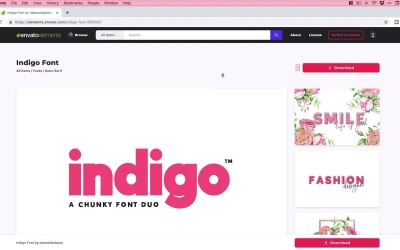
Okay, so we're now in Adobe Illustrator. First things first. We need a new document. So we'll start by going to File down to New, and you'll see the welcome screen. And I'm gonna select 1920 by 1080 here. You can pick any document size you like. It doesn't really matter. I'm using pixels. And I'm gonna twiddle this down here and get some more options. Now, we're working in RGB color mode. This is designing for screens. You can use CMYK, that's if you're designing for print. But we get a few more colors in the RGB spectrum. So we're gonna stick with this one, because we got some quite punchy colors I'm gonna be using within this design. 72 ppi is absolutely fine for this. Click Create and you'll see that we get a new artboard and a new document. So the next thing to do is to save this. So if we go up to File, down to Save As, and we can type a name. I'm gonna call this Course. Save that as an Adobe Illustrator file. These are the settings that I'm using. Click OK, there we go. We have our document saved so we're all good just in case something goes wrong. Okay, so first of all we actually need to get ourselves a font. So as I said, we're gonna jump to Envato Elements. We've got this nice font here, a chunky font called indigo. You can see a few different uses of this font here. But when you're happy, click Download, and it will download that font. And if I just jump to my desktop, it will download it most likely as a zip folder. And what you can do, whether you're on Windows 10 or Mac OS, is double click this and it will either extract it or you can go inside the zip folder. Essentially, we want to get the contents of the zip folder out onto our desktop or another folder location on our computer. So you can see I've got mine here. And if I just whip this up, it might look something like this. There is an outline version as well, but we're not going to use that. So whether you're using the OpenType format or the TrueType, just double click on the font. And as I say, whether you're on Windows 10 or Mac OS, you have an option to install that font. And there you go, you're all good to get started. And it should automatically load that font straight into Adobe Illustrator. If it doesn't, just give Illustrator a restart and you should be all good to go. Okay, so we've created a new document. We've saved that document. We've also installed the font that we're going to be using in this course. So yeah, I will see you in the next lesson.


