


Need to know how to make an editable PDF in InDesign? It's simple! In this tutorial, we'll create a fillable form in InDesign and open it up in Adobe Acrobat to fill it out.
What You'll Learn in This Fillable PDF InDesign Tutorial
- What is a fillable form in InDesign?
- Why create an editable PDF?
- How to make an editable PDF in InDesign
- How to use and share InDesign forms
When making a fillable PDF, InDesign is an excellent choice! Note that you can also create editable PDF files in Adobe Acrobat—one of the most common software out there to view, read, and edit PDF files. Adobe Acrobat Reader is free, but lacks some of that extra functionality.
Adobe InDesign, however, has far more design and functionality options, overall. It is robust design software with a wide variety of export options. So, for the beginner user, keep this in mind:
- We will create an editable PDF in InDesign.
- We will use Adobe Acrobat to view and fill out our InDesign forms.
- Adobe Acrobat Reader is the free version, and it can be used to easily view and interact with PDF files.
Why create editable PDF files? It makes it easier to distribute forms and let your viewers easily fill, save, and share the completed document.
What You'll Need
For this tutorial, you'll need Adobe InDesign and a document of your choice. InDesign has a 7-day free trial, if you'd like to test it out! You will also need Adobe Acrobat to view your editable PDF. InDesign is not an ideal choice for casually viewing PDF documents.
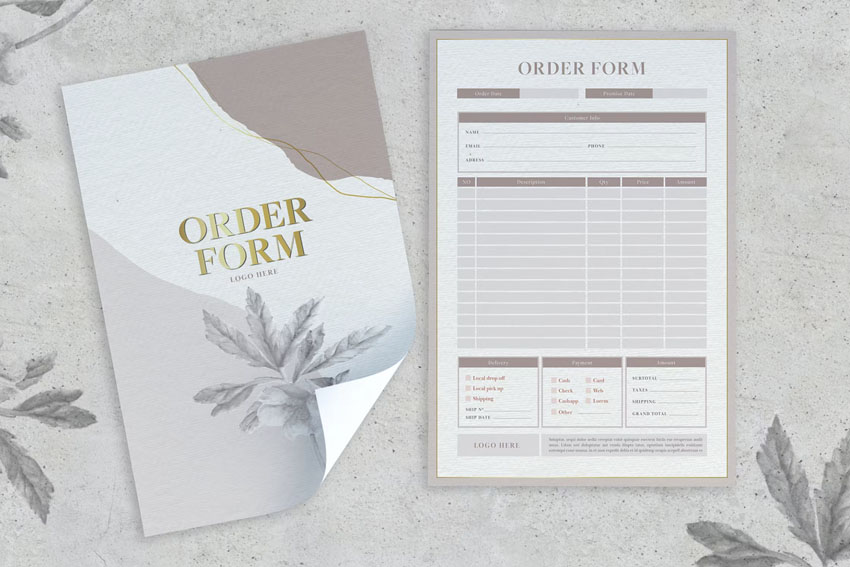
In this walkthrough, we'll use this elegantly designed order form InDesign template:
How to Create a Fillable Form in InDesign
Step 1
Let's begin creating our Adobe InDesign fillable PDF form. The good news is, you can turn almost any design or template into a fillable form in InDesign!
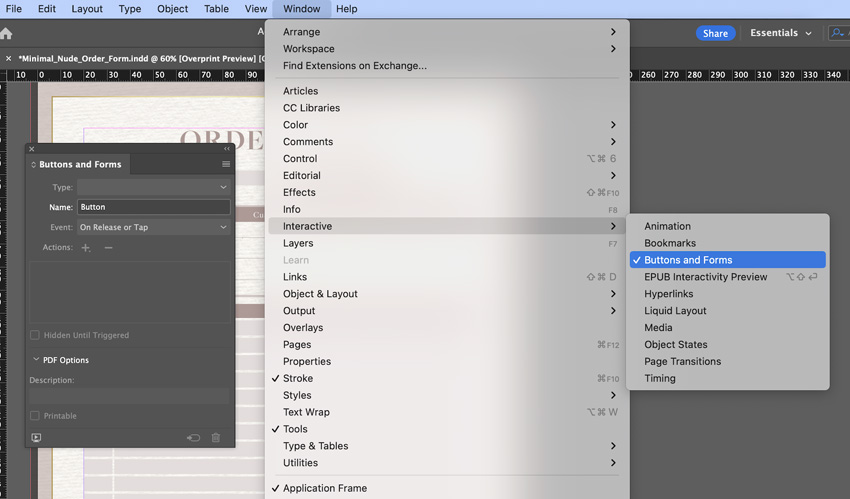
The first thing we'll need to do is open our Buttons and Forms panel. To do so, go to Window > Interactive > Buttons and Forms.
Step 2
Next, we need to design our editable PDF; InDesign needs to know where our form items are. This InDesign template is an order form—and while it looks as if it's fillable, we haven't established that functionality yet.
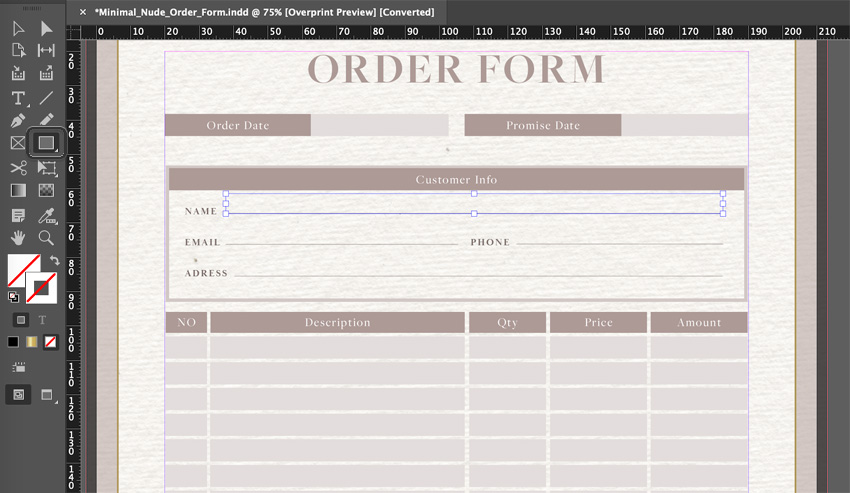
To do so, let's start with the Rectangle Tool. You can find it in your Tools panel. You can also use the Rectangular Frame Tool or Horizontal Type Tool, if you prefer.
With the Rectangular Frame Tool selected, click and drag to draw a rectangular shape where you would like your first form field. This is the first step in learning how to create an editable PDF.
Step 3
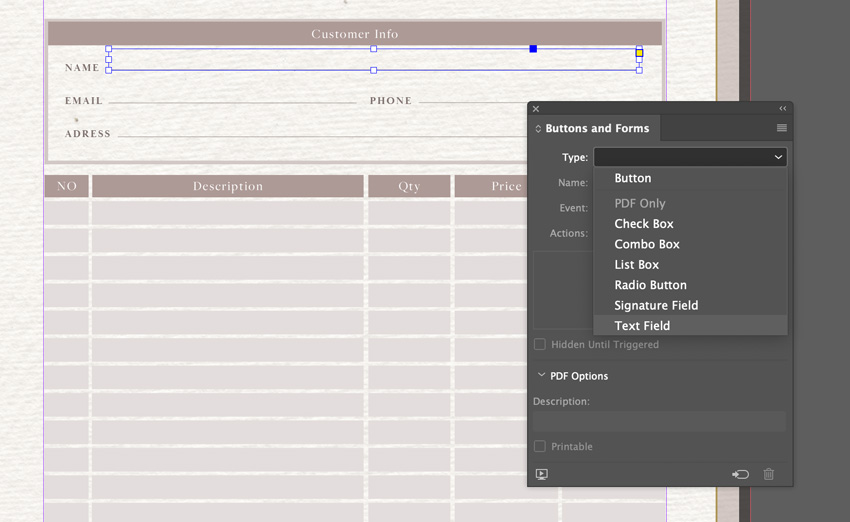
With your newly drawn rectangle selected, take a look at your Buttons and Forms panel.
In the Type field, click on the dropdown menu and select Text Field. This will create a new form element where the viewer can type in content.
Step 4
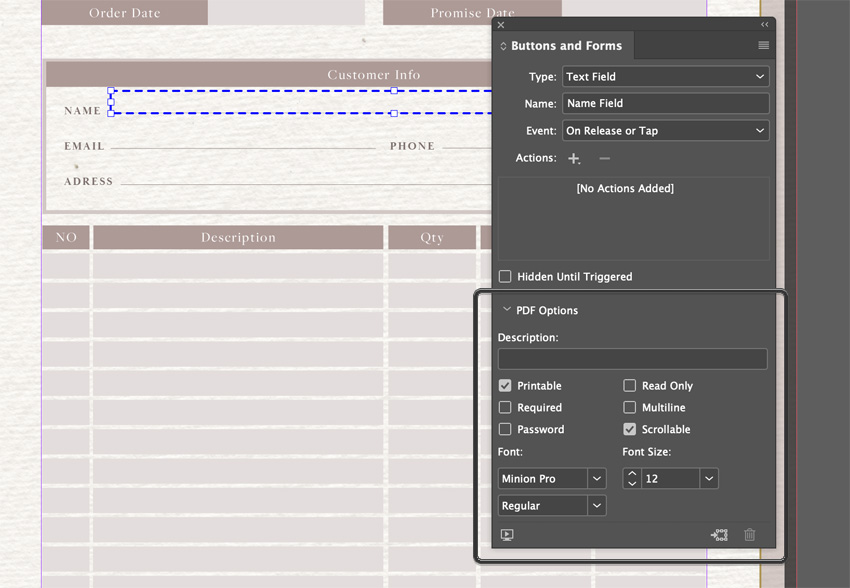
Take a look at the Buttons and Forms panel again. There is a section here called PDF Options. Click to expand this part of the panel.
Here, you can customize your new Text Field. For example, you could make the field required, or you could make it multi-lined. You can also set the font and the font size.
Step 5
Repeat this process to create a fillable form in InDesign. In this order form InDesign template, I've filled out all of the applicable spaces with Text Fields, using this same process. Remember to Save your work!
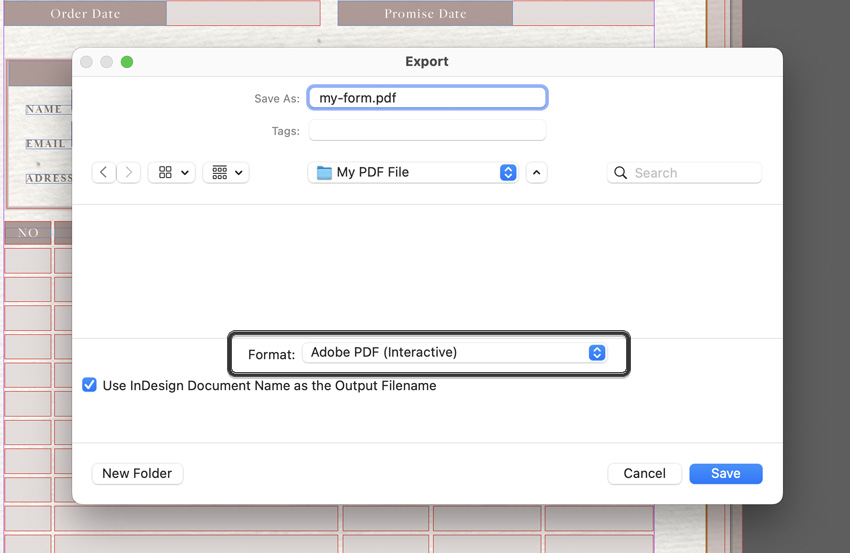
Once you're happy with your work, go to File > Export.
When exporting, choose Adobe PDF (Interactive). You can find it under the format options, in the Save dialog box.
Step 6
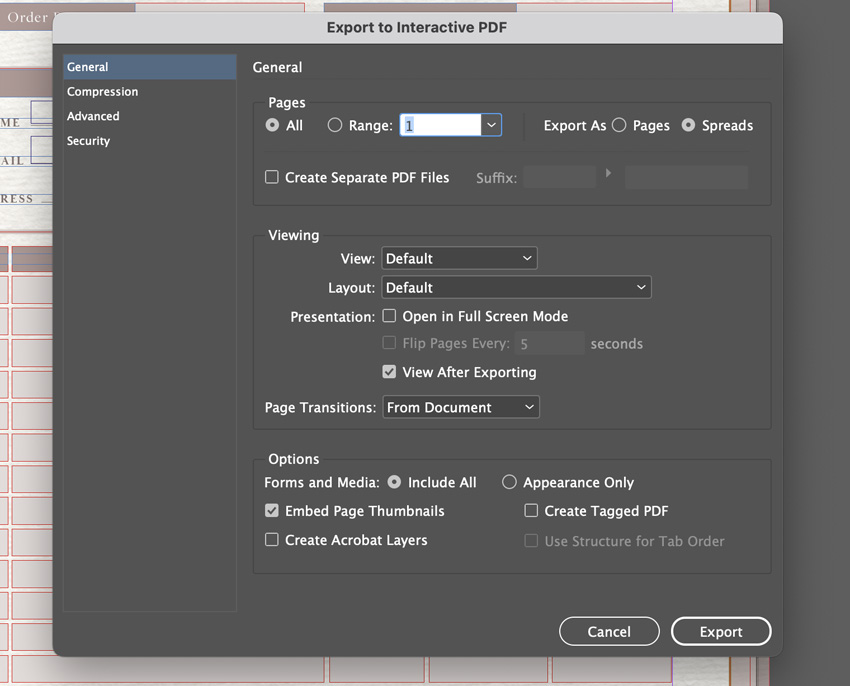
Finally, we get some export options to choose from.
- General contains general settings for your consideration, like how you would like your PDF to be viewed by default, and what you would like included.
- Compression deals with the file size and quality of your PDF. You can raise or lower these settings to suit your needs.
- Advanced includes some accessibility options, like the display title and language.
- Security includes some security features, e.g. whether you would like your PDF to require a password. While this can be a helpful feature, it is not a replacement for something like encryption.
I like to toggle View After Exporting on, so InDesign will open my file for me right after I export. It's convenient as my work will then automatically open in Adobe Acrobat for me (or whatever your default PDF viewer is on your computer).
Once you're happy with your selections, click Export to create your PDF.
Step 7
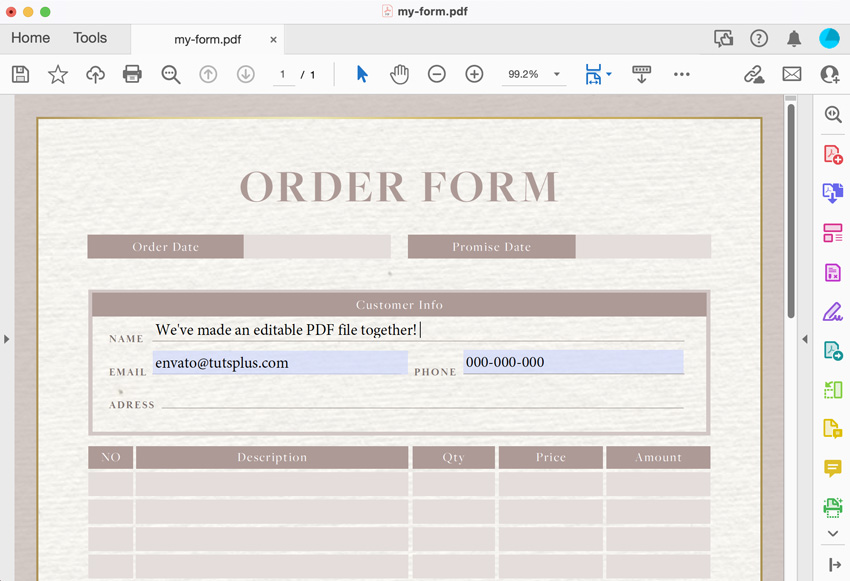
And here's a look at our newly created, fillable PDF file in Adobe Acrobat. All I have to do is click on any of the fields and start typing in the Text Fields—it's that simple!
You've Created an Adobe InDesign Fillable PDF Form
Creating an editable PDF can be a great way to share documents that require not only reading but filling out too. When creating a fillable PDF, InDesign offers a ton of options—remember, you can try out things like checkboxes and radio buttons too from that Buttons and Forms panel! What kind of PDF documents would you create?
Learn More About Adobe InDesign
Adobe InDesign is a powerful design tool with tons of possibilities—InDesign forms are just the beginning! Learn more about Adobe InDesign with the library of free tutorials here at Envato Tuts+. Why not check out another tutorial today?


 By
By



