


Love is in the air! Love is everywhere! In this tutorial we’ll go through an inspiring process and create an intricate lettering postcard.
We’ll be combining various techniques, starting by working with basic geometric shapes and tools and moving on to freehand writing, using the drawing tools of Adobe Illustrator! We’ll finish up by working with colors and adding some ornate details.
If you're on the hunt for the perfect love lettering designs, you should try Envato Elements. There you'll find any type of creative asset you could imagine.


By subscribing to Envato Elements, you unlock more than 10 million items such as love lettering fonts, mockups, templates, illustrations, and more! For one low monthly fee, you can download as many of these digital assets as you want, whenever you want.
How to Make a Love Letter Card
By the end of this tutorial, you'll have an elegant lettering postcard that would make a lovely present for a dear person. What is more, you can apply the same techniques to make any other hand-lettering card or poster, whether it is an original birthday congratulation postcard, a greeting card, or a stylish wedding invitation.
Let's get started on how to make a love letter card design.
What You'll Learn From Our Tutorial on How to Make a Love Letter Card
- How to shape the letters of love, from a hand-drawn sketch to digital
- How to use the Blob Brush Tool to create a love lettering design
- How to combine a word into a cute design of a love letter
I'll be using Adobe Illustrator for this tutorial on creating lettering for cards.
1. How to Shape the Letters of Love
Step 1
Start by making a New Document of 450 x 450 px size.
I usually start creating my lettering cards from rough sketches, searching for ideas and balanced compositions. Your sketch doesn’t have to be perfectly aligned and neat. Here is the one I made; it looks quite quirky and uneven because I made it very fast in order to fix my idea on paper.
I’ll be using this sketch just as a reference for my future card. I place it on a separate layer, double-click the layer, and tick the Template checkbox to make the layer 50% transparent and lock it.


Step 2
Let’s start shaping the word “loving” from the letter L. Use the Rectangle Tool (M) to make an 8 x 50 px light-yellow shape. Make another stripe on top, setting its size to 10 x 25 px and filling it with turquoise.


Step 3
Now let's render the decorative elements of the letter, which will be used for all the other letters as well. Take the Ellipse Tool (L), make two 12.5 x 12.5 px overlapping circles, and place them on the left side of the turquoise stripe, as shown in the screenshot below. The color of the circles doesn’t matter—I’m just making them contrasting and visible. Select both circles and click Minus Front in the Pathfinder panel to cut off the top circle.


Step 4
Now that we have the crescent shape, let’s make it fit the turquoise stripe. Select both the stripe and the crescent, take the Shape Builder Tool (Shift-M), hold Alt, and click the bottom piece of the crescent to delete it.


Step 5
Use the Eyedropper Tool (I) to pick the color from the stripe and apply it to the decorative element. Double-click the Reflect Tool (O) and flip the shape over the Vertical Axis. Click the Copy button to add the reflected shape and attach it to the opposite side of the turquoise stripe. In this way, we create a retro floral look for our letter.


Step 6
Let’s select all the turquoise pieces and Unite them in the Pathfinder into a single shape. Use the Delete Anchor Points Tool (-) to get rid of the unneeded points at the edges of the merged shape. If the shape looks deformed or non-symmetrical, use the Direct Selection Tool (A) to fix the anchor points and the anchor handles. Remember to hold Shift if you want to position the handles straight either horizontally or vertically.


Step 7
Now add a 30 x 10 px rectangle for the horizontal part of the letter L. Create another small 6 x 7.5 px rectangle and place it on the right side of the shape.


Step 8
Select the top-right corner of our small rectangle with the Direct Selection Tool (A) and use the Live Corners feature to make it fully rounded.
Let’s use the Align panel to position the shapes properly. Select both the horizontal stripe and the rounded rectangle, and then click the horizontal stripe once again to make it a Key Object (it will be marked with a thicker selection). Click Horizontal Align Right in the Align panel to align the shapes to the right.
Align all other parts of the letter, if needed.


Step 9
Now let’s decorate the top of the letter. Make a 7 x 7 px yellow circle and place it on the left side of the yellow vertical stripe. Hold Alt-Shift and drag the circle to the right, making a copy. Now our letter L has a softer, more rounded look.


Step 10
Let’s add some more decorative elements. Using the Line Segment Tool (\) or the Pen Tool (P), hold Shift and make a vertical stripe in the center of the letter. Set the Stroke color to a darker yellow. Head to the Stroke panel and set the Weight to 1 pt. Set the Profile to Width Profile 1 in the bottom of the Stroke panel, making the line thicker in the middle and thin at the ends.
Select the line and press Control-[ several times to place it beneath the turquoise shape.


Step 11
Add a cornered line on top of the turquoise shape and make the Stroke color light-turquoise. And here is the easiest way to make the dotted line: in the Stroke panel, tick the Dashed Line checkbox, and set the dash to 0 px and the gap to 4 pt. Set the Weight to 1.5 pt, and there you have it!


Step 12
Now let’s make the letter O. Take the Rounded Rectangle Tool and make a 30 x 52.5 px shape. You can adjust the Corner Radius to your liking from the top control panel.
Use the Guides to align the letters to the top. You can drag the Guides right onto your Artboard from the Rulers (Control-R).
Make another rounded rectangle on top of the first one. I use the vertical stripe of our previous letter to make sure that the outline of the letter O will have the same width. This helps me to adjust the size of the inner shape.
When you’ve adjusted the size of the inner rectangle, select them both and use the Minus Front function of the Pathfinder to cut the shape out, making a hole.


Step 13
Select the letter O and go to Object > Path > Offset Path. Set the Offset value to 1.5 px, forming a rim outside the letter. Fill the new shape with turquoise color and Align it to the bottom of the letter L, using the horizontal stripe of the L as a Key Object.


Step 14
Select the turquoise element of the O and take the Eraser Tool (Shift-E). Hold Alt and delete the top half of the shape.
Use the horizontal Guide to make the elements of the letters the same height.
Copy the turquoise vertical stripe from the letter L and use the Eraser Tool (Shift-E) to delete the stripe, leaving only the decorative “tail”. Attach the tails to the letter O, making them fit the turquoise shape of the O.
Select all the turquoise elements of the O and press Shift-Control-] to Bring them to Front.


Step 15
Create another rounded rectangle above the O, switching it to Stroke color. Use the Scissors Tool (C) and click the marked anchor points to split the shapes into two parts. Change the appearance of the parts, applying the same Stroke settings as we have for the letter L.


Step 16
Now let’s make the letter V. Duplicate the yellow vertical stripe from the letter L twice and rotate the stripes, making them overlap at the bottom and form a V-shape.
Select both stripes and use the Shape Builder Tool (Shift-M) while holding Alt to delete the unneeded pieces.


Step 17
Use the Offset Path function with 1.5 px Offset value and fill the created shape with turquoise. Align the new shape to the bottom of the previous letter.


Step 18
Erase the top part of the turquoise shape and attach floral decorative elements to it. Finish up the letter by adding decorative strokes.


Step 19
Shape the next two letters—I and N—from the vertical parts of the letter L. Use the copies of these parts and combine them with each other, making letters of the same style.


Step 20
And, finally, the letter G. Make a copy of the letter O and use the Eraser Tool (Shift-E) to erase a piece on its right side. Fix the decorative strokes or make new ones if they look deformed after transformation.
Duplicate the yellow circles and a tiny rounded rectangle from the letter L, and finish up with the letter G.


Good job! The first word of our card is ready. Let’s move on and do some handwriting!


2. How to Use the Blob Brush Tool for the Handwriting Design of Your Love Letter
Step 1
Now let's write the word “you” in a freehand manner. You can use your own handwriting or select a nice handwritten font to your liking as a reference and draw above it.
Double-click the Blob Brush Tool (Shift-B) to open the Options window. You can see my settings in the screenshot below. I’m using a graphics tablet to make the process more comfortable and smooth, and I change the size of the brush with the [ and ] keys. If you're using a mouse, move the Fidelity slider to Smooth in order to get flowing lines.


Step 2
The Blob Brush Tool (Shift-B) allows us to draw with shapes, so we can’t edit the lines as strokes. However, we can use the Direct Selection Tool (A) to move the anchor points and adjust the position of the anchor handles. This way we can vary the thickness of the letter, making some of its parts thicker and the others thinner, imitating real-life handwriting on paper.


Here is how my word looks. I was tracing the letters right above the sketch and edited them to make the lettering look smooth and flowing.


Step 3
Now we’ll imitate a typewriter font. We could use some of the built-in fonts and just type the word, but let’s stick to the overall style of our image and give it a handwritten look.
First of all, let’s select a nice typewriter font, like Courier, Consolas or any other to your liking. I’m using the Prestige Elite Std font to type the phrase “is like”, setting the size to 12 pt and the color to a light tint of grey.
Lock the object in the Layers panel, arm yourself with the Blob Brush Tool (Shift-B), and start drawing out the letters. I make them look a bit different than the original.
Finally, group (Control-G) all the letters and move them a bit closer to each other.


Step 4
Now let’s move to the word “magic”. I’m using my sketch as a reference to form the cartoon-like letters. Use the Pencil Tool (N) to draw a curved swirly letter and fill it with dark-blue color. My vector letter doesn’t look exactly like the one on the sketch, because the sketch is rather rough.
If you feel uncomfortable drawing with the Pencil Tool (N) without a proper sketch, you can make a clean sketch with smooth letters, place it in Adobe Illustrator, and then just trace above with the Pencil Tool (N). This will help you to control the lines and make the drawing process easier.
I’m using the Direct Selection Tool (A) to move and edit any points of the letter that don’t look right. Try to make the swirls of the letter look more or less symmetrical.


Step 5
Now let's draw the letter A. Notice how the left side of the A fits nicely the swirl of the letter M. This helps to build a certain connection between the letters.
Draw a small shape on top of the A and use the Minus Front function of the Pathfinder to cut it out, forming a rounded hole.


Step 6
Continue using the Pencil Tool (N) and draw the next letter. Place the G above the A and rotate it to the left a bit, making it fit the arc of the A.
Add a straight letter I with a playful swirly dot on top of it.
Finish up by drawing a rounded C, rotating it to the opposite side, to the right. Edit the letters, if needed, making them smooth.


Step 7
Adjust the position of the letters, making them correspond with each other, placing some of them higher and the others lower, rotating them in opposite directions in order to give the word a playful cartoon look.


Step 8
Use the Pencil Tool (N) again, but this time switch the Fill color to none and the Stroke color to dark blue. Make smooth, rounded strokes around the letters. In the Stroke panel, set the Weight to 1 pt and the Profile to Width Profile 1.
Now the word looks detailed. Let’s move on and combine the words into a romantic card!


3. How to Combine the Words Into a Love Lettering Design
Step 1
First of all, let’s create a 450 x 450 px rectangle and fill it with a very dark violet-blue color. Send the rectangle to Back (Shift-Control-[), forming the background.
Our letters look flat at this stage, and we can either leave them like that or try applying gentle gradients to give our image some more depth and make the letters look intricate.
Start by changing the colors of the letter L in the word “loving”. Select all the yellow elements and fill them with linear gradient from orange to yellow, giving it a touch of gold. Use the Gradient Tool (G) to place the gradient vertically.
Then select the turquoise elements and apply a vertical linear gradient from turquoise to blue, making the letter look glowing.
Recolor all the remaining letters of the word as well.


Step 2
Now let’s work on the word “you”. Start by applying a linear gradient from light brown to light beige, setting the gradient diagonally.


Step 3
Now let’s make the letter Y look three-dimensional by adding subtle shadows in the places where the lines overlap. Copy the Y and Paste in Front (Control-C > Control-F). Fill the copy with a contrasting blue color.
Zoom in the loop of the letter and use the Scissors Tool (C) to click the four anchor points at the overlapping part of the letter, marked in the screenshot below. Now that the shape is split into several parts, keep it selected, take the Eraser Tool (Shift-E), and use it as shown below.


Step 4
Now select the unneeded elements, leaving only a few of the pieces, which will be turned into shadows.


Step 5
Set the Blending Mode of the shape to Multiply and fill it with linear gradient from light brown to white. You can also set the Opacity of the white tip of the gradient to 0%, making it fully transparent. Use the Gradient Tool (G) to position the gradient in the right direction.
These gentle shadows help us to separate the parts of the letter, making them look three-dimensional.


Step 6
Do the same for the rest of the letters, forming the pieces that will be turned into shadows. I’ve marked these shapes with black color in the screenshot below.
Switch these shapes into Multiply Blending Mode and apply linear gradients, as we did in the previous step. Now our word looks quite three-dimensional!


Step 7
Move to the next part of our card and fill the phrase “is like” with an elegant gold-beige linear gradient by selecting all the letters and applying a gradient to all of them at once. Add two thin horizontal lines by each side of the phrase.


Step 8
And, finally, the last word of our card: “magic”. Select all the letters and apply a linear gradient from blue on top to lilac at the bottom.
Color the strokes as well, making them fit the palette of the word. You can either leave them as strokes and apply the colors manually or Object > Expand Appearance and color them together with the letters by selecting the whole word and applying a vertical gradient.


Step 9
Let’s make the letters a bit more detailed and intricate. Select the letter M and apply Offset Path with -2.5 px Offset value, creating a smaller shape inside. Fix the inner shape, if needed, by moving the anchor points and handles with the Direct Selection Tool (A).
Fill the created shape with a vertical linear gradient from dark blue to dark violet and switch the Blending Mode to Screen, making the shape semi-transparent and bright.
Use the same technique to add bright elements to each letter.


Step 10
Let’s add some more magic to our image by creating sparkling stars. Use the Star Tool (you can find it in the same drop-down menu as other geometric shapes) to make a 4-pointed star. Hold the Control key while making the star to adjust its thickness, making it bulgy.
Make a group of stars of different sizes, filling them with lighter and darker golden gradients, and speckle the stars around the word “magic”.


Step 11
Use the Pencil Tool (N) to draw a swirly line at the top left side of the word “loving”. Switch to Stroke color and apply a linear gradient from brown to light beige. You can’t edit the direction of your Stroke gradient with the Gradient Tool (G), but you can adjust its Angle from the Gradient panel.
In the Stroke panel, set the Weight to 2 pt and the Profile to Width Profile 1.


Step 12
Add more swirls and twirls around the word “loving”, forming a frame. Add some swirls by both sides of the word “you” as well.


Step 13
Finish up the swirls by adding thin light-violet strokes and thin dotted strokes, making the swirls look ornate.


Lovely! Our Lettering Postcard Is Finished!
Great job, my friends! We’ve finished our elegant lettering "love" postcard, which you can print, put in a frame, and proudly present to your beloved person. It is made by you and, as you know, hand-made gifts created with love are the best.
I hope you’ve enjoyed the process of creating this card and will use these tips and tricks to create other lettering cards or posters.


By the way, I’ve got another lettering tutorial for you! It is easy and fun, so check it out!


That's It! Now You Know How to Make a Love Letter Card
We hope you enjoyed this tutorial. Please feel free to use what you've learned here in future design projects.
Remember that creating love lettering fonts from scratch is not an easy thing to do—it requires practice, patience, and experimentation. Give hand lettering a try!
5 Best Fonts for Love Letter Templates & Designs From Envato Elements
Envato Elements gives you access to millions of creative assets with unlimited downloads for a low monthly fee. You can get everything you need, like love lettering fonts and graphic templates. Envato Elements is perfect for graphic designers or illustrators looking to speed up their work or stand out from the crowd. This is the ultimate subscription for creatives!
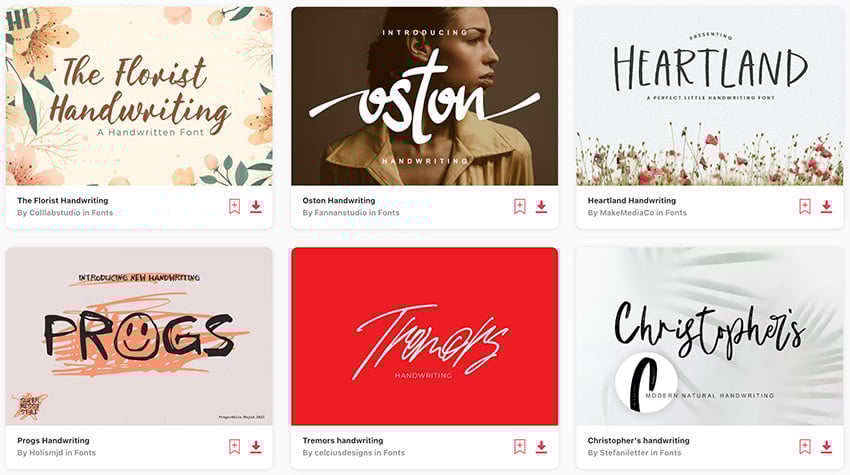
Take a look at these five premium love lettering fonts for your design projects:
1. Anastacia Font for Love Design Letters (OTF, TTF, WOFF)
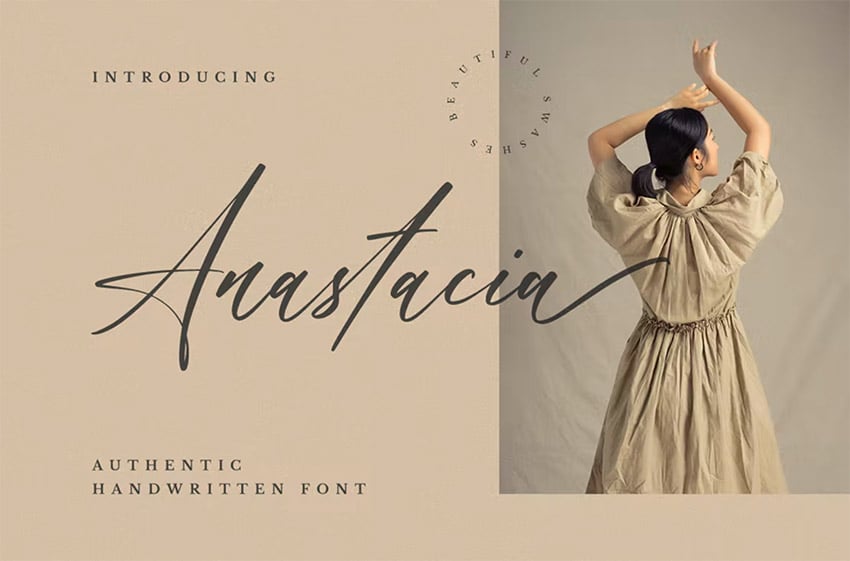
This is the best authentic and handwritten font for your love design letters. Give your love letter template designs a natural and aesthetic look. Lowercase and uppercase letters, numerals and punctuation, multilingual, ligatures, and swashes are all included.
2. Movelite Lettering for Cards (OTF, TTF)
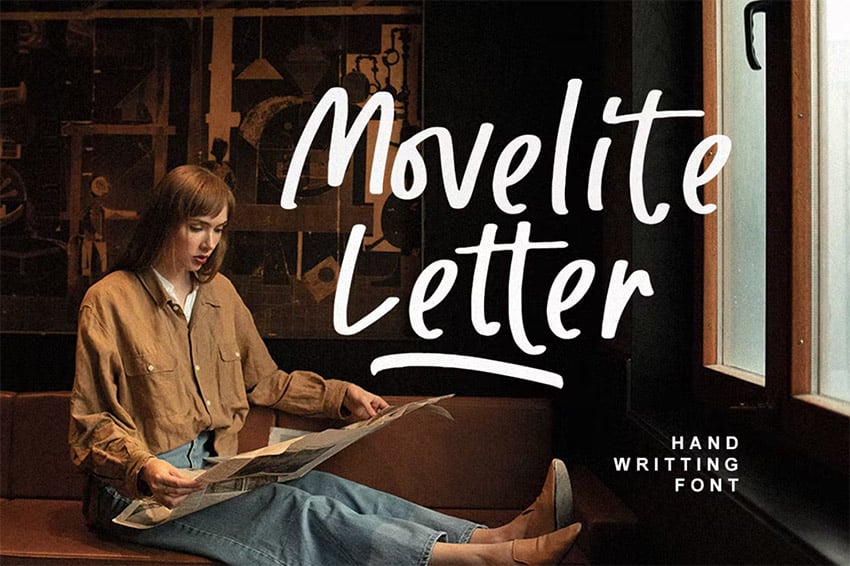
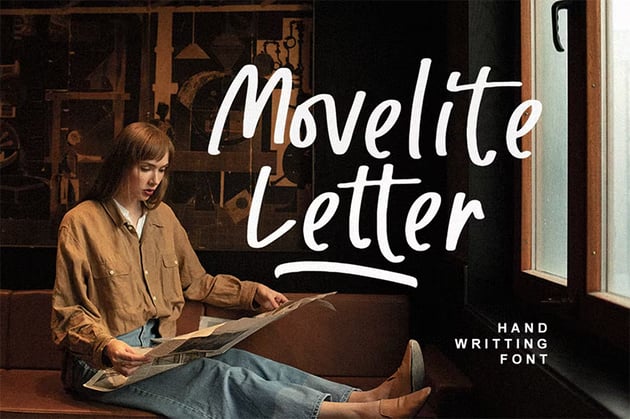
Movelite Font is a high-quality, multi-language font. This font has many ligatures and is great for love letter template designs, advertisements, books, magazines, and more! Get a modern and stylish look with beautiful love lettering fonts like this one.
3. Quirky Font for Love Lettering Designs (OTF, TTF, WOFF)
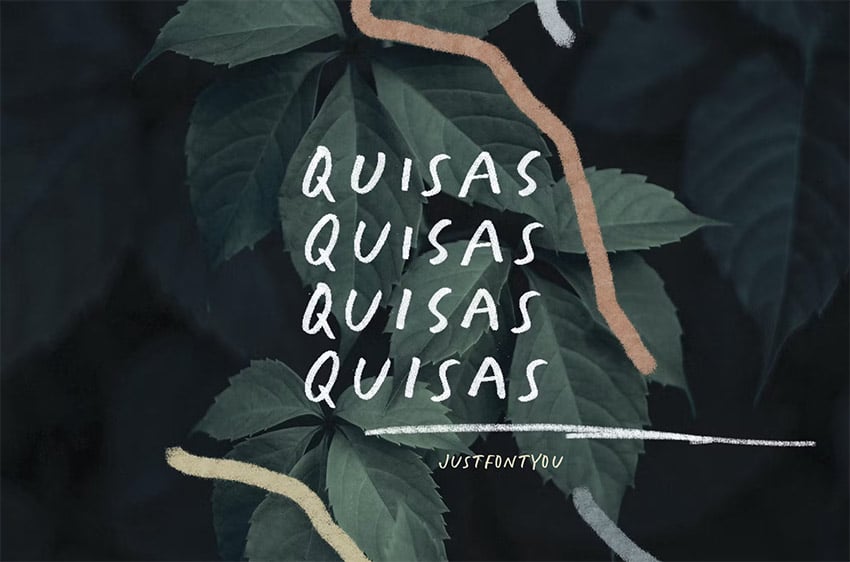
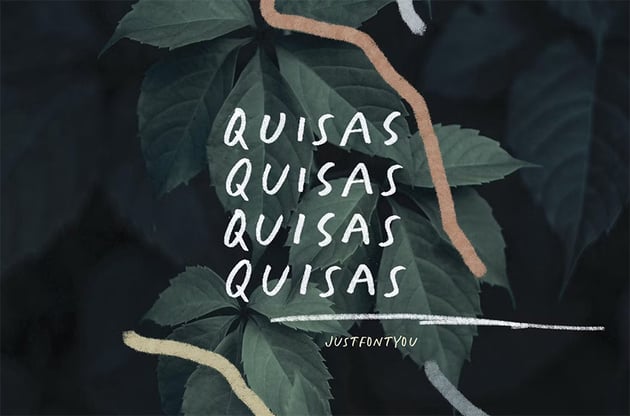
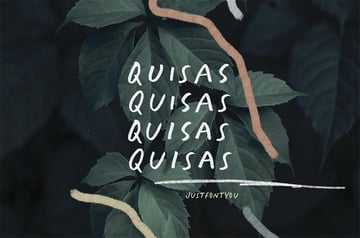
Quisas is a quirky font that features a collection of sloppy handwriting fonts in all caps. Give different styles to your love lettering designs by mixing uppercase and lowercase letters. These love lettering fonts can be used with Adobe Photoshop and Adobe Illustrator.
4. Roomfer for Love Letter Template Designs (OTF, TTF)
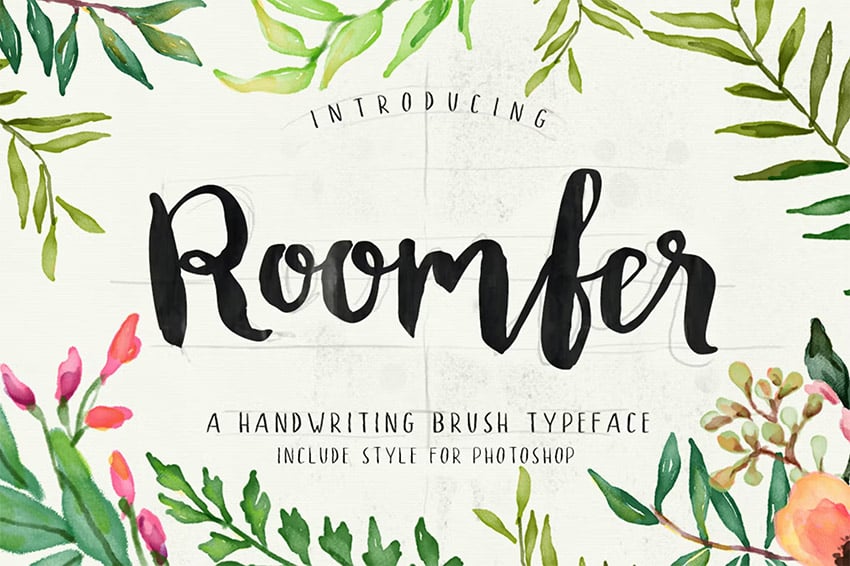
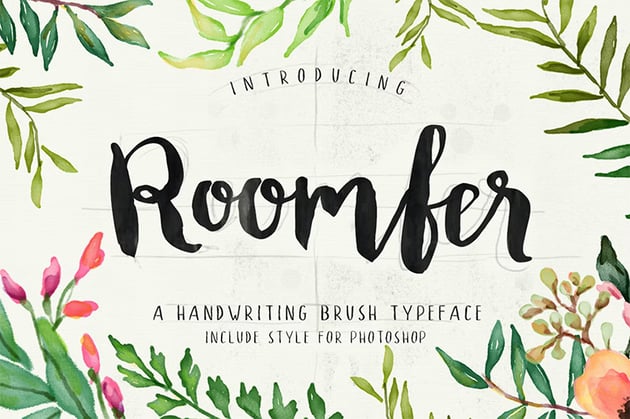
Are you looking for cute love lettering fonts? Roomfer is a bold handwriting style brush with unique case characters. This font style is widely used for wedding and anniversary celebrations, so it will fit perfectly with your love lettering designs.
5. Magic Lettering for Cards & Other Designs (OTF, TTF, WOFF)
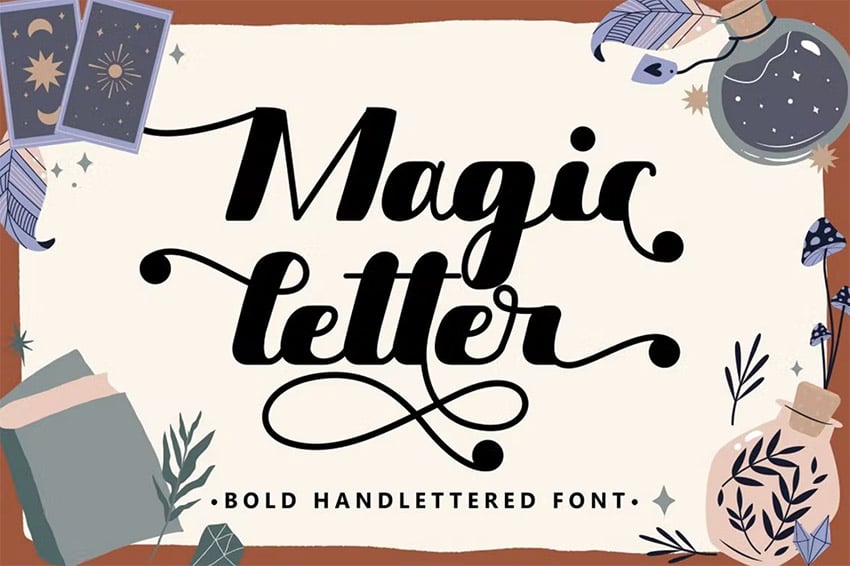
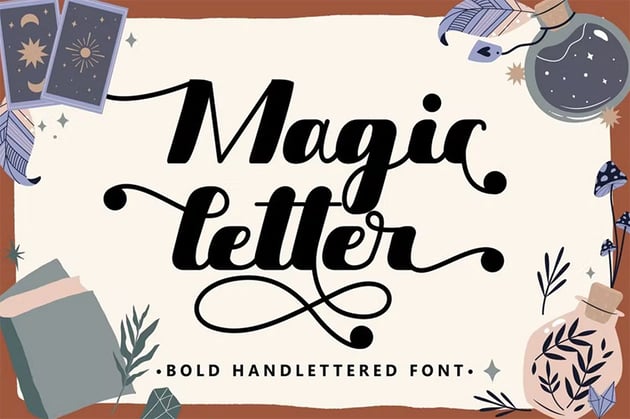
Give your love lettering designs a magical touch with this unique bold hand-lettered font. This font has some distinctive ligatures with round endings, making it easily identifiable. The Magic Letter font features:
- uppercase
- lowercase
- numerals and punctuations
- easy to install files
- PUA-encoded
Discover More Fonts for Love Design Letters and Prints
In this tutorial, you've learned how to make a love letter card with cool lettering. However, if you'd like to see more font templates and learn more about design, this is the section for you. We've gathered some of our favorite templates and tutorials so you can continue learning and creating.

 How to Adjust the Font Size in Illustrator


 How to Install Multiple Fonts at Once


 How to Add Fonts to Photoshop (Mac and Windows)


 25+ Best (Free) Super-Cute Fonts With Pretty Design Styles


 36 Best Fall Fonts to Download (Autumn Fonts for Your Fall Designs)

 42 Best Cricut Cursive Fonts (Stylish Script Fonts to Download)


 Advanced Adobe Illustrator Tutorial (Free Course)


 Hand Lettering: How to Vector Your Letterforms

Editorial Note: This post has been updated with contributions from Gonzalo Angulo. Gonzalo is a staff writer with Envato Tuts+.
 By
By



