


Welcome to our Illustrator in 60 Seconds series, in which you can learn an Illustrator skill, feature, or technique in just a minute!
Illustrator in 60 Seconds: The Layers Panel
Creating detailed compositions will often prove to be a tedious task since you'll almost always have to deal with a lot of objects and paths, making it impossible to keep track of them all.
Luckily for us, Illustrator has a built-in layer system to help get things organized and stacked so that you can look at your composition and instantly know where to find one section or another.
So if you're new to the Layers panel, I recommend you watch this video since it will show you all you need to know in order to get going!
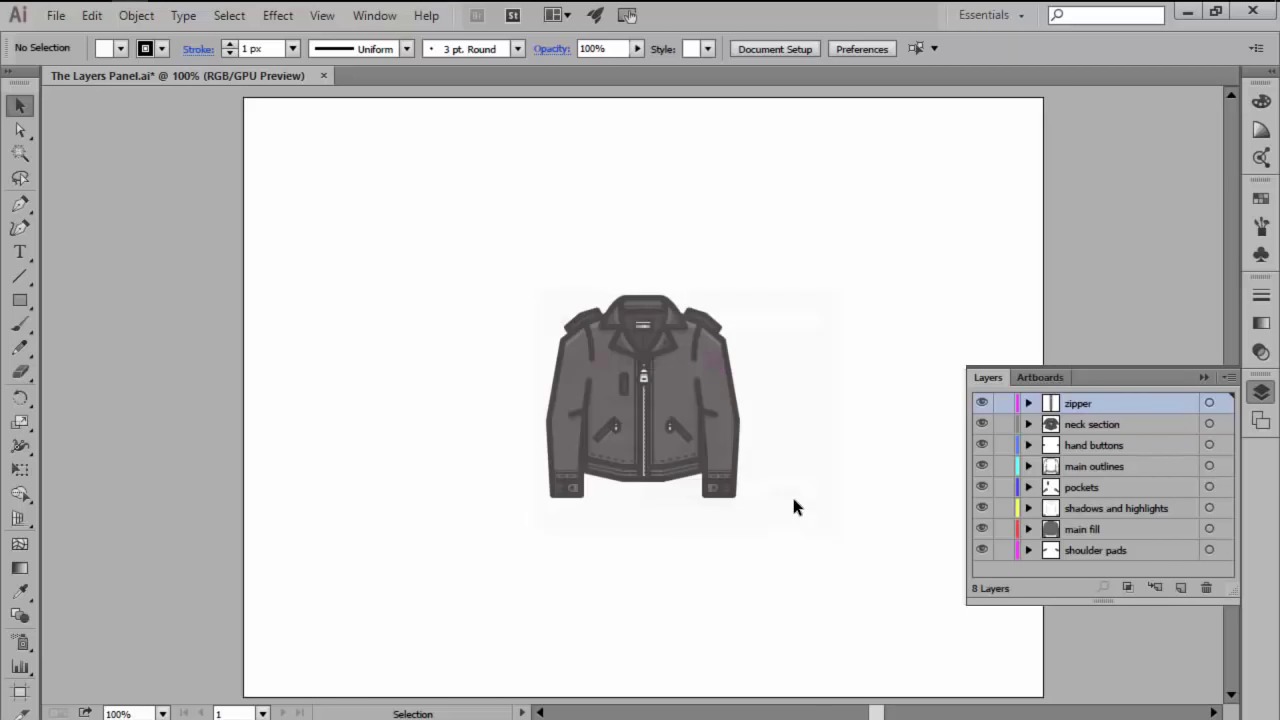
How to Use Illustrator's Layers Panel
Illustrator will automatically Color and Name each layer using its own labeling system, but you can change that by Double-clicking on the layer that you want to adjust.


We can easily create a New Layer by pressing the Create New Layer button towards the bottom of the panel. To remove a layer, first select it and then click on the Delete Selection button, which will remove both it and its contents.


Each layer has a little Eye Icon, which we can use to Show or Hide these contents. Next to that is an Empty Box which will Lock the layer.


Want to see this in action? Check out the video above to see this lesson at work!
A Bit More Detail
Want to learn more about Adobe Illustrator's vast tools and settings? Check out these tutorials below:

 The A to Z of Adobe Illustrator


 Layers vs. Artboards: Comparing the Methods for Exporting Icon Packs


 How to Create Pixel-Perfect Artwork Using Adobe Illustrator

 New Coffee Break Course on Using Layers and Artboards in Adobe Illustrator

60 Seconds?!
This is part of a new series of quick video tutorials on Envato Tuts+. We're aiming to introduce a range of subjects, all in 60 seconds—just enough to whet your appetite. Let us know in the comments what you thought of this video and what else you'd like to see explained in 60 seconds!
 By
By



