


In this tutorial, you'll learn how to photoshop people out of pictures using the Content Aware Fill tool. This feature allows you to quickly fill in a selection with surrounding content for object removal in Photoshop, making it look like a part of the original image.
Would you rather watch this tutorial in action? Follow us along over at the Envato Tuts+ YouTube channel! Learn how to remove something in Photoshop by watching this video:

What You'll Learn in This Photoshop Tutorial
- How to remove a person from a photo in Photoshop
- How to mark an object with the Pen Tool to remove a person in Photoshop
- How to use Content Aware in Photoshop
- How to turn a path into a selection for object removal in Photoshop
- How to remove unwanted objects in Photoshop
- How to use Curves in Photoshop
What You'll Need
Find more resources on Envato Elements to keep learning and practicing how to photoshop someone out of a picture.
1. How to Open the Picture in Photoshop
Using the Content Aware tool on different images produces different results. An image with a gradient background or a lot of detail such as the land in this image is quite tricky to work with.
Let's begin by opening your selected image in Photoshop. This is the first (and obvious) step to erase someone from a photo.
2. How to Mark the Object With the Pen Tool
We are extracting the person from this photo. Using the Pen Tool, begin by making a path around the subject.
The nice thing about using Content Aware is that you do not have to be exact when making a selection to remove a person in Photoshop. In fact, do your best not to cut too close to the subject.
Notice how far I am drawing the path from the subject. Try to keep this distance all the way around. If you go too close, Content Aware will take pixels from the subject.


3. How to Turn a Path Into a Selection
Once you complete the path around the subject, turn it into a selection. This can be done by right-clicking on the path and selecting Make Selection.
A dialog box will pop up. Make sure the Feather is set to 0 px, and leave all other options as they are. Click OK.


4. How to Remove People in Photoshop With Content Aware Fill
Now we have an active selection around our subject. In this step, we'll learn how to remove an object from a picture using Content Aware Fill. To do this, go to Edit > Fill.
A dialog box will pop up. Make sure the Content Aware option is selected, the blending mode is set to Normal, and the Opacity is at 100%. Hit OK.
You can cancel the selection at any time by making another selection or just clicking anywhere else on the page with any selection tool.


5. How to Remove Objects in Photoshop
In this step, we will remove some of the other artifacts in the image using the same process. The Content Aware tool did miss a spot where the subject’s foot originally was.
To fix this, draw a rectangle around the area using the Rectangle Selection tool. And use the Content Aware Fill as we have done in the previous steps.


6. How to Enhance a Picture in Photoshop (Optional)
Now that we've learned how to photoshop people out of pictures, we'll enhance the photo by giving it a more vibrant look. The colors currently appear somewhat dull. There are many ways to accomplish this, but we will use color Curves.
To do this, go to Image > Adjustments > Curves. A dialog box will pop up, and we will select each of the channels (R, G, B) and work on them separately.
Select the Red channel from the dropdown menu. We are going to make two points on the graph: one at the bottom of the top right square, and one at the top of the bottom left square.
Once you have made these points, make sure you enter the values for each. For the top right point, the Output value is 199, and the Input value is 185. For the bottom point, the values are 56 and 68 respectively.
You can play around with these settings and adjust them to whatever you feel is appropriate. Repeat this for the other colors, Green and Blue.


Well Done! You've Learned How to Remove a Person From a Photo in Photoshop
Now you know how to photoshop someone out of a picture! Your image should now look something like the one below. As you can see, we have removed the woman on the left with very little effort using Photoshop's Content Aware feature.
It's easy to remove a person from a picture when you follow these steps. They're useful overall for object removal in Photoshop. Keep practicing and experimenting with more pictures now that you know how to use the Content Aware tool!


3 Top Actions to Remove Objects in Photoshop in 2023
Now you know how to remove objects in Photoshop from scratch. The Content Aware Fill tool can be really cool, but if you're looking for a faster, one-click solution for how to remove a person in Photoshop, we've got some cool actions for you!
If you're an avid Photoshop user and have a growing collection of add-ons, Envato Elements is a great option for you. You can download unlimited professional Photoshop actions for a low monthly fee. You'll also have access to thousands of add-ons, fonts, graphic templates, and more.
If you want to remove an object in Photoshop in one click, check out the following actions:
1. Automated Content Aware Fill Action (ATN)


This Photoshop action offers a one-click solution to remove a person from a photo, remove an object in Photoshop, or erase text from a large stack of files, with two methods of input.
The layer stacks input allows you to place up to 500 layers that share the same subject or watermark (in the same position). It's very useful when you're wondering how to photoshop people out of pictures, especially if there are many files.
The video input is useful for getting rid of small objects that don’t move throughout the footage. As you can see, this Photoshop action is a great addition to your toolbox.
2. Subtract Background Adaptive Action (ATN)


Now, maybe you don't precisely want to erase someone from a photo. If what you need is to remove background objects in Photoshop quickly, you need an action to do so.
This action is designed for quickly masking out a subject by mimicking the background coloring and subtracting it. It works in solid colors and two-color linear gradients.
3. Texture Seam Remover (CCX)
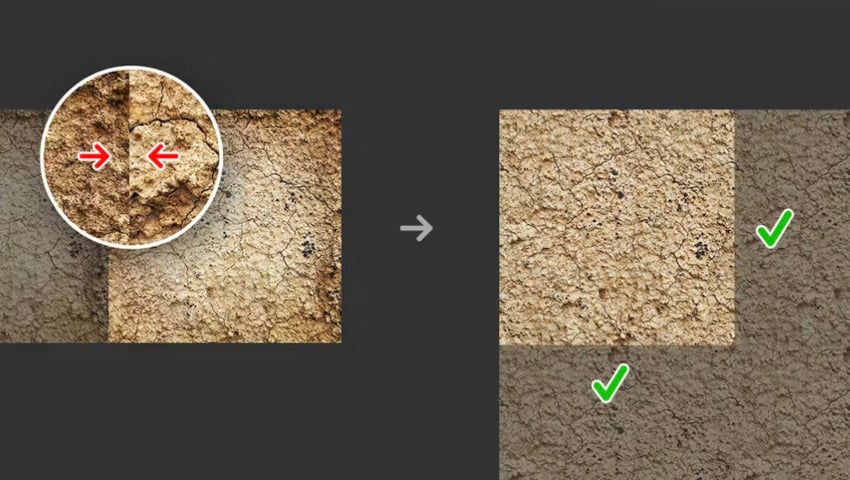

While this action's purpose isn't to remove a person from a picture per se, it helps you erase and smooth the seams in an image so that a pattern or background looks natural. For example, you can use this after you erase someone from a photo so that the edges of the remaining objects and subjects in the background don't seem odd.
Discover More Amazing Photoshop Tutorials and Resources
In this tutorial, you've learned to remove a person from a photo in Photoshop. As you saw, the Content Aware feature can be super useful.
We also showed you some actions to remove a person from a picture in Photoshop. These actions provide a faster and more professional result.
If you enjoyed learning how to photoshop someone out of a picture, we've got more resources for you:

 How to Cut Out an Image in Photoshop


 How to Make a Distressed Effect Photoshop Action

 How to Add a Texture Overlay in Photoshop

 How to Sharpen an Image in Photoshop


 What Are Photoshop Actions and How to Install Photoshop Actions


 28 Best New Photoshop Portrait Actions


 45 Best Photoshop Text Styles (Download Layer Effect PSDs Now!)


 100+ Awesome Photoshop Effects Tutorials

 By
By



