


Learning how to do gradients in Illustrator is easier than it seems. In the following steps, you will learn how to add a gradient to text in Illustrator using two different methods.
Follow along with us over on our Envato Tuts+ YouTube channel for this and more video tutorials:
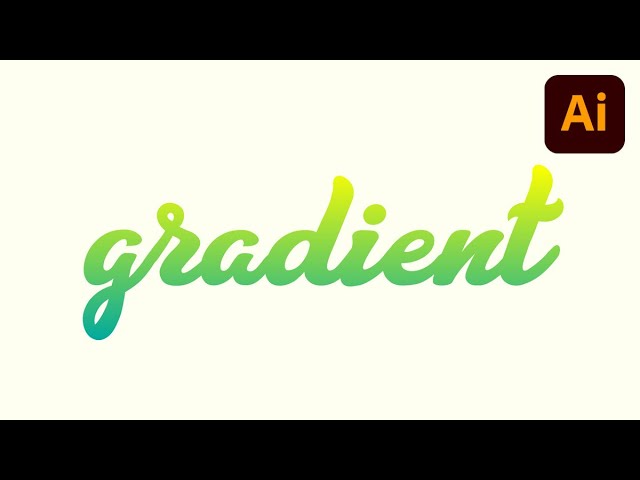
Looking for more gradient text Illustrator inspiration? Head over to Envato Elements.
What You'll Learn in This Gradient Text Tutorial
- How to add a gradient to text in Illustrator via a non-destructive fill
- How to add a gradient to text in Illustrator via a destructive fill
- How to apply a gradient to a text outline in Illustrator
What You Will Need
You will need the following resource in order to learn how to apply a gradient to text in Illustrator:
- Letter Craft font
If you want to try this process with a different typeface, explore the premium fonts available on Envato Elements.
1. How to Add a Gradient to Text in Illustrator (Non-Destructive Fill)
Step 1
There are two methods that you can use to apply a gradient to text in Illustrator. For the first method, select your text and go to the Appearance panel (Window > Appearance). Click the Add New Fill button and make sure that the newly added fill stays selected.
Move to the Gradient panel (Window > Gradient) and click the gradient thumbnail or the gradient slider to apply a gradient across all text in Illustrator. Once you've applied it, you can edit the gradient or the text as you wish.


Step 2
Take a closer look at the text, and you'll notice a subtle pixelated outline. This happens because of that original text color which still lies underneath your gradient.
To fix this issue, all you have to do is remove that color. Go to the Appearance panel and double-click the Character button to access the text settings. Click the Fill color wheel and remove the color using that [None] swatch. To return to the Appearance settings, click the Type button.


2. How to Add a Gradient to Text in Illustrator (Destructive Fill)
Step 1
For the second method, select your text and go to Type > Create Outlines to turn the text into editable vector shapes. Now, you can apply a gradient to text in Illustrator, but the gradient will be applied separately, on each letter shape.
To add a gradient to text in Illustrator evenly, you need to turn your group into one vector shape. Open the Pathfinder panel and click the Unite button, and then turn the resulting shapes into a compound path (Object > Compound Path > Make or Control-8).


Step 2
With your compound path selected, move to the Gradient panel (Window > Gradient) and apply a gradient across all the text in Illustrator. Once you've applied it, you can edit the gradient as you wish, but not the text.


3. How to Apply a Gradient Outline to Text in Illustrator
Step 1
You can also apply a gradient outline to your text in Illustrator.
If you used the first technique to apply a gradient to text in Illustrator, select that text and simply hit the Shift-X keyboard shortcut to switch the Fill and Stroke attributes in the Appearance panel. Increase the stroke weight to make the outline thicker.
You might have noticed that the outline is overlapping at some points. This simply happens because Illustrator applies a stroke to each character. To fix this issue and apply the outline to the entire text, select the Stroke from the Appearance panel and go to Effect > Pathfinder > Add.


Step 2
If you used the second technique to apply a gradient to text in Illustrator, select that compound path and use that same Shift-X keyboard shortcut to switch the Fill and Stroke attributes in the Appearance panel.


Congratulations! You're Done!
Here's how it should look. Now that you know how to add a gradient to text in Illustrator, you can use these techniques in your future projects.


Premium Gradient Font Effects From Envato Elements
When it comes to high-quality Illustrator effects, Envato Elements is the go-to spot. Browse through thousands of effects you can use to apply a gradient to text in Illustrator. No need to create gradient fonts out of thin air. These premium templates come with many options to add a gradient to text in Illustrator.
1. Pale Gradients: Gradient Text Illustrator Effect (AI, PNG)


If you often struggle to come up with fresh color combinations for your gradient text in Illustrator, check out the Pale Gradients template. It comes with 30 different gradient options to try in your projects.
2. Palltone Gradient: Illustrator Gradient Text Effect (JPG)


There's no need to learn how to do a gradient in Illustrator from scratch when you have a premium template. The rich and warm tones of Palltone Gradient will give your gradient text effect a lush vibe. Choose from ten color configurations.
3. Khavi Gradient Font (TTF, OTF, WOFF, WOFF2)


Before learning how to add a gradient to text in Illustrator, you must pick the right font for the job. Khavi is a great choice for its bold lines and retro-modern style. Pair it with pastels and pale colors for a fresh gradient font look.
4. Beifo Gradient Text Illustrator Option (OTF)


Beifo is another great option for adding an Illustrator gradient on text. Its thick lines make it easy to hold a rich gradient without losing its nuance. You can also pair it with some gradient backgrounds.
5. Abstract Gradient Background (AI, EPS, JPG)


Want to add an extra something to your Illustrator gradient text projects? This Abstract Background is the right choice for you. Match it with your color palette or use some contrast with black and white to achieve different effects.
Want to Learn More?
There's so much more to learn about Adobe Illustrator. We have loads of tutorials on Envato Tuts+, from beginner to intermediate level. Take a look!

 How to Make, Save, and Load Gradient Swatches in Illustrator


 How to Create a Retro Chrome Text Effect in Adobe Illustrator


 How to Draw Vector Peaches Using Gradient Mesh in Adobe Illustrator


 How to Use the Blend Tool for Lettering in Adobe Illustrator


 How to Design Gradient-Based Logos in Adobe Illustrator


 How to Create a Space Illustration Using Omber


 Stay Golden With This Shiny Metallic Text Art Effect in Adobe Illustrator


 Creating an Environmentally Friendly Green Type Treatment

 How to Use an SVG Color Font to Create a Logo Design in Illustrator

 25+ Best Gradient Resources to Download


 By
By



