


Make a statement with your wedding stationery by learning how to make an InDesign wedding menu template in just a few easy steps.
In this menu wedding design tutorial, we will cover how to set up a wedding menu template through the use of Layers and Paragraph styles. You will also learn how to prepare your wedding menu in an InDesign template that users can edit easily. This menu format measures 9 in x 4 in, which makes it easy for you and other users to print at home.
In a hurry? We’ve got amazing dinner menu templates and menu card templates over at Envato Elements. Go check them out!
What You'll Learn in This Tutorial
- What You'll Need for Your InDesign Menu Template
- How to Set Up a Wedding Menu Template File in InDesign
- How to Design Your Wedding Menu Template Layout in InDesign
- How to Convert Your Menu Layout Into an InDesign Template
- How to Export a File for Printing
- Great Job! You’ve Finished Your Wedding Menu Template!
- 5 Best Wedding Menu Templates From Envato Elements
- Learn More With These Amazing Resources
What You'll Need for Your InDesign Menu Template
You'll need access to Adobe InDesign. If you don't have the software, you can download a trial from the Adobe website. We'll also be using:
Download the assets and make sure the fonts are installed on your system before starting. When you are ready, we can dive in!
1. How to Set Up a Wedding Menu Template File in InDesign
Step 1
In InDesign, go to File > New. Name the document wedding menu template. Set the file to the following wedding menu dimensions:
- Width to 4 in
- Height to 9 in
- Orientation to Portrait
- Units to Inches
- Pages to 1
- Uncheck Facing Pages
- Columns to 1
- Margins to 0.5 in
- Bleeds to 0.125 in (it's best to seek your professional printer’s preference)No
Now that we have our wedding menu size, click Create.


Step 2
Organizing layers is an important practice when designing an InDesign wedding menu template. Bring up the Layers panel by going to Window > Layers. Double-click on Layer 1 and rename it Background.


Step 3
On the Layers panel main menu, select New Layer. Name it Copy. Click OK.
Create a new layer named Images. Click OK.


2. How to Design Your Wedding Menu Template Layout in InDesign
Step 1
Time to break down our wedding menu card size. On the Layers panel, select the Background layer.
To Place an image, press Command-D. Locate the Watercolor pink backgrounds folder and select the 7.jpg file. Click Place.


Step 2
Click on the InDesign menu template to place the image. Using the Direct Selection Tool (V), resize the frame to cover the width of the wedding menu template and extend it to the bleed. Make sure that the wedding menu card size is fully covered.


Step 3
Head over to the Layers panel and lock the Background layer. Select the Copy layer.


Step 4
Using the Text Tool (T), create a text frame at the very top of the InDesign menu template. Use the side margins to help you place the text box in the center of the page. Add text—in this case, I’ve added ‘Let’s Dine!’


Step 5
Open the Character panel by going to Window > Type & Tables > Character panel.
On the Character panel, set the Font to Cest Lavie Regular and the Size to 40 pt.
On the Control bar, set the Alignment to Center.


Step 6
Create a text box under the title using the Text Tool (T). Here, we will include the couple’s name and date on two lines.
On the Character panel, set the Font to Cest Lavie Serif and the Size to 10 pt.
On the Control bar, set the Alignment to Center.


Step 7
Create a text box under the names using the Text Tool (T). Here, we will include the menu for the day. We will use a combination of the Regular and Serif family. Add copy, and let’s start formatting:
- Subtitle: Add a hyphen before and after each subtitle as this will help create emphasis. Set the Font to Cest Lavie Regular and the Size to 20 pt.
- Menu items: set the Font to Cest Lavie Serif and the Size to 8 pt.
On the Control bar, set the Alignment to Center.


Step 8
Create a text box under the menu with the Text Tool (T). Include a line such as ‘Bon Appetit’.
On the Character panel, set the Font to Cest Lavie Serif and the Size to 10 pt.
On the Control bar, set the Alignment to Center.


Step 9
Head over to the Layers panel and lock the Copy layer. Select the Images layer.


Step 10
Press Command-D to Place an image on the InDesign menu template. Locate the arrange_6.png file and click Open.


Step 11
Click on the menu layout to place the image.
Head over to the Control panel and activate the Constrain Proportions button. Set the Percentage to 45%.
Place the image in the bottom left corner of the menu. Make sure that the image is touching the bleed marks.


Step 12
Press Command-D to Place an image on the menu card template. Locate the arrange_5.png file and click Open.
Click on the InDesign menu template to place the image.
Head over to the Control panel and activate the Constrain Proportions button. Set the Percentage to 55%.
Place the image in the bottom right corner of the menu. Make sure that the image is touching the bleed mark.


3. How to Convert Your Menu Layout Into an InDesign Template
Once you’ve finished designing your menu layout, it's time to get it ready for easy customization. In this particular InDesign menu template, we will create Paragraph Styles for the content. The rest of the elements are JPEG files that don’t require specific formatting.
Step 1
Go to Window > Styles > Paragraph Styles. On the Paragraph Styles panel, we will create a number of formatting styles based on our menu design.
Select and activate the text box at the top of the page. Head over to the Paragraph Styles panel and click on the Create New Style button. This will create a new style based on the text you selected.


Step 2
Double-click on Paragraph Style 1 to open the Paragraph Style Options window.
Change the Style Name to Title. You will notice that the Style Settings will include the settings you used on the text—this is a great way to double-check everything is in order. Click OK.


Step 3
Select the couple’s name and date using the Text Tool (T). Head over to the Paragraph Styles panel and click on the Create New Style button.
Double-click on the new Paragraph Style and set the Style Name to Couple name.
Repeat the same procedure for the rest of the menu and create styles for the Subtitle and Menu Description.
Now your InDesign menu template is ready to be shared with others. Users will have the option to easily change the fonts and content through the paragraph styles. Users will also be able to change the images if they desire through the organized Layers panel.


4. How to Export a File for Printing
Before exporting a file for printing, it is useful to take a look around all the edges of the menu design. This is to make sure all the images bleeding out are touching the bleeds.
Step 1
To export the file, go to File > Export. Name the file Wedding Menu Template and choose Adobe PDF (Print) from the Format dropdown menu. Click Save.


Step 2
In the Export Adobe PDF window, set the Adobe PDF Preset to Press Quality.


On the left side of the panel, select Marks and Bleeds. Check All Printer’s Marks and Use Document Bleed Settings. Click Export. You will have a ready-to-print PDF file.


Great Job! You’ve Finished Your Wedding Menu Template!
In this tutorial, we learned how to make a wedding menu template in InDesign. We covered key information like wedding menu dimensions and design tools that will help you create a ready-to-edit menu design. Today, we learned to:
- set up a ready-to-print InDesign menu template with the right menu size for a wedding
- organize and create different layers
- use paragraph styles to create a template
- export a PDF file for printing
If you are new to InDesign and need menu layout ideas or menu design templates right away, head over to Envato Elements. We’ve got many options to explore!


5 Best Wedding Menu Templates From Envato Elements
Is your special day coming up soon? Free wedding menu templates online might seem tempting, but going premium is always the safest bet. Check out these amazing wedding menu designs, created by top-tier designers.
1. Food Menu for Wedding Invitation (AI, EPS)
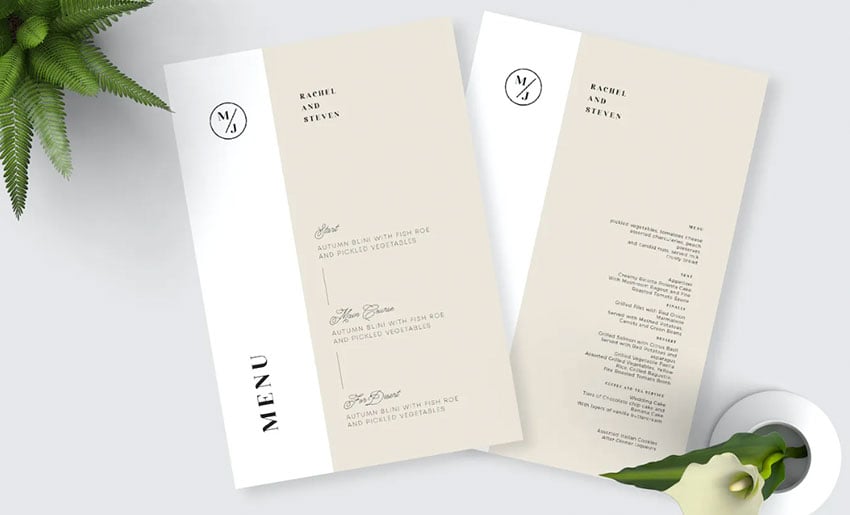
This wedding menu template has a minimalist design that fits more neutral wedding themes. The wedding menu header uses a unique vertical layout that makes it stand out from other designs. The file for this wedding menu design is vector based and easy to edit in Adobe Illustrator.
2. Wedding Menu Invitation Template (AI, PSD)
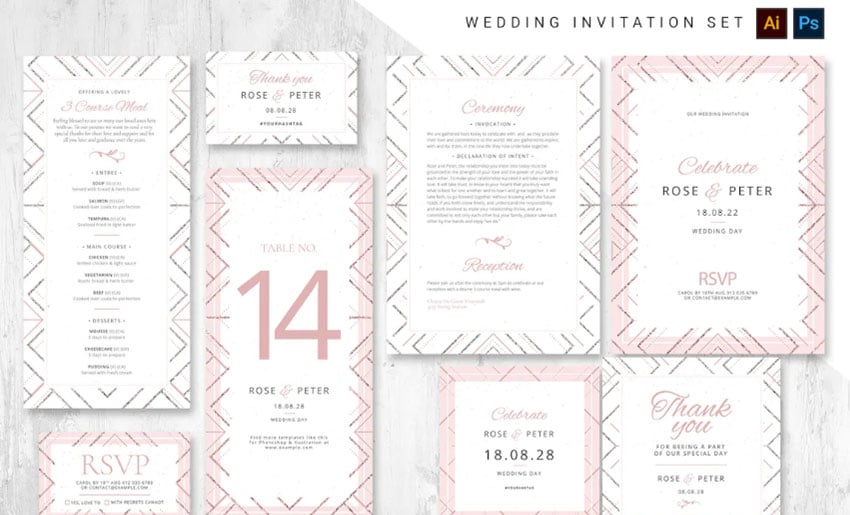
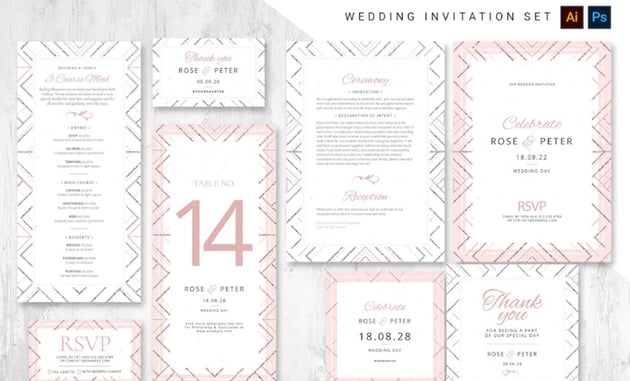
This pack of wedding menu templates includes other important print materials like invitations and banners. The wedding menu design includes a pattern that fits boho wedding themes perfectly.
3. Multicolor Menu Set (AI)
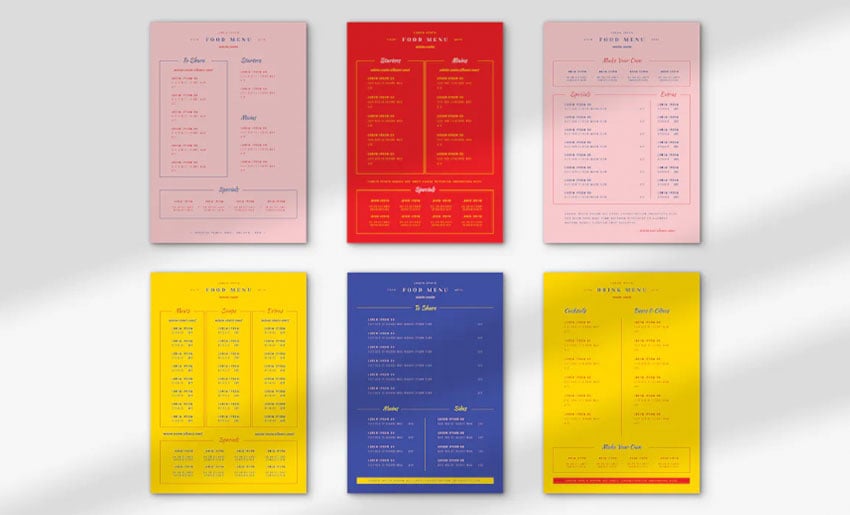
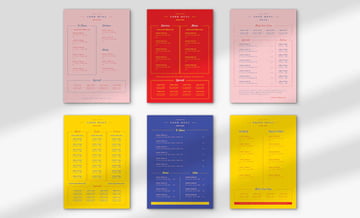
If you want to add a pop of color to your wedding, try this menu wedding design. It's clean and easy to edit. The wedding menu header can be modified to fit your wedding theme. It also includes six different layouts to choose from.
4. Drink Menu Templates (AI, EPS)
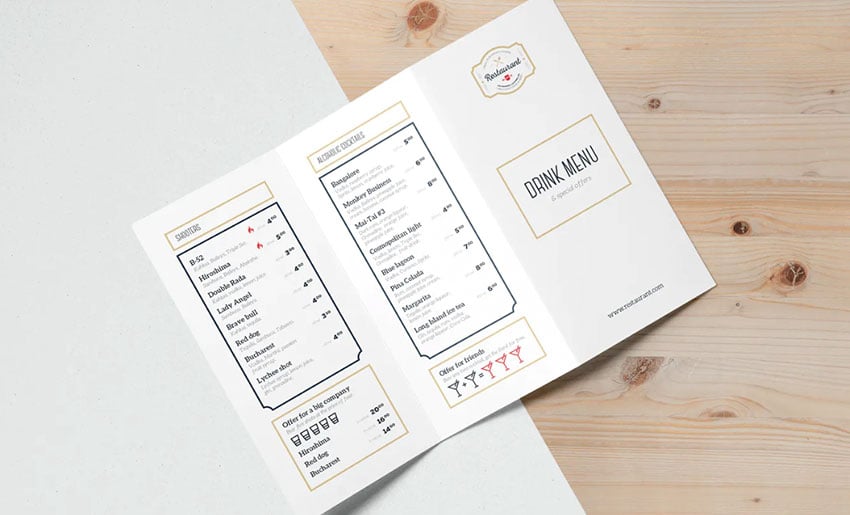
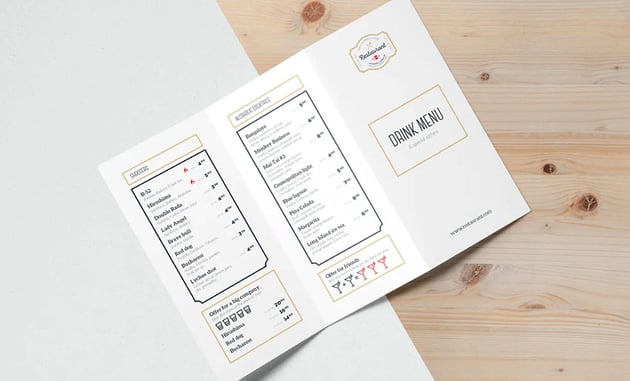
Including a drink menu is a great idea for a wedding. This menu size for a wedding is perfect, since it can be neatly placed at every place. Let your guests know what's available from the bar. Also, use your wedding menu header to match the design with your theme.
5. Table Tent Food Menu (INDD, PSD)
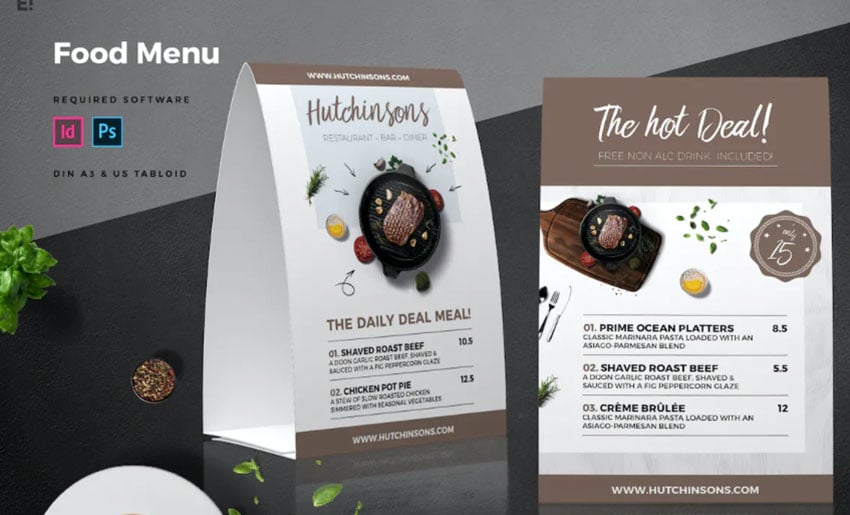
When it comes to the question of "what size should a wedding menu be", there are no rules. A table tent wedding menu size could also be a great idea. This is a two-page, layered template that's easy to edit.
Learn More With These Amazing Resources
Liked this free wedding menu template design tutorial? Check these out:

 42 Best InDesign Template Tutorials


 27 Best Flyer Design Ideas Using a Flyer Maker (With Photo)


 How to Create a Marble Wedding Invite in Adobe InDesign


 19 New InDesign Templates Creatives Must Have in Their Arsenal


 How to Create an Alice in Wonderland Inspired Afternoon Tea Invite in Adobe InDesign

 How to Make a Restaurant Menu Template in InDesign
 By
By



