

An Instagram puzzle feed is a fun and engaging way to share your content. Want to learn how to create one of your own? In this tutorial, we'll take a look at the ins and outs of how to create a puzzle feed on Instagram, and we'll share some easy-to-customize Instagram puzzle template designs too.


1. What Is an Instagram Puzzle Feed?
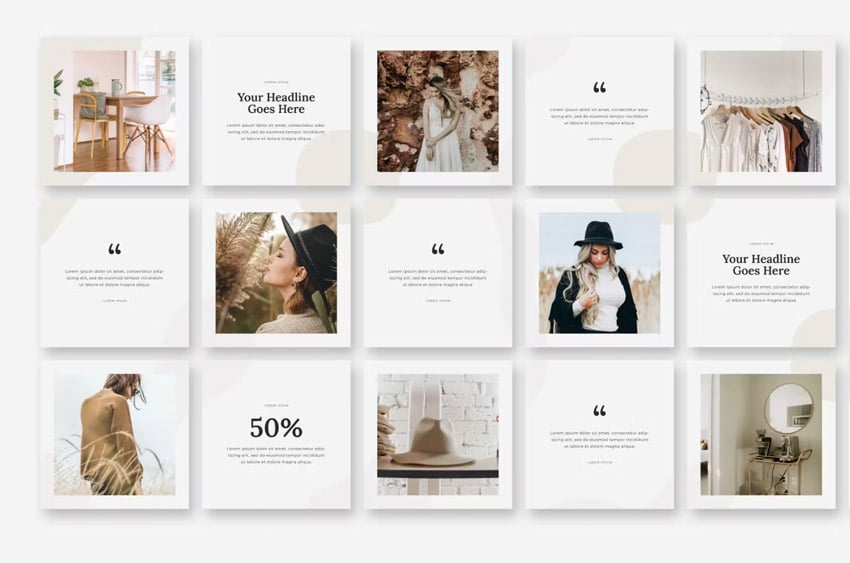
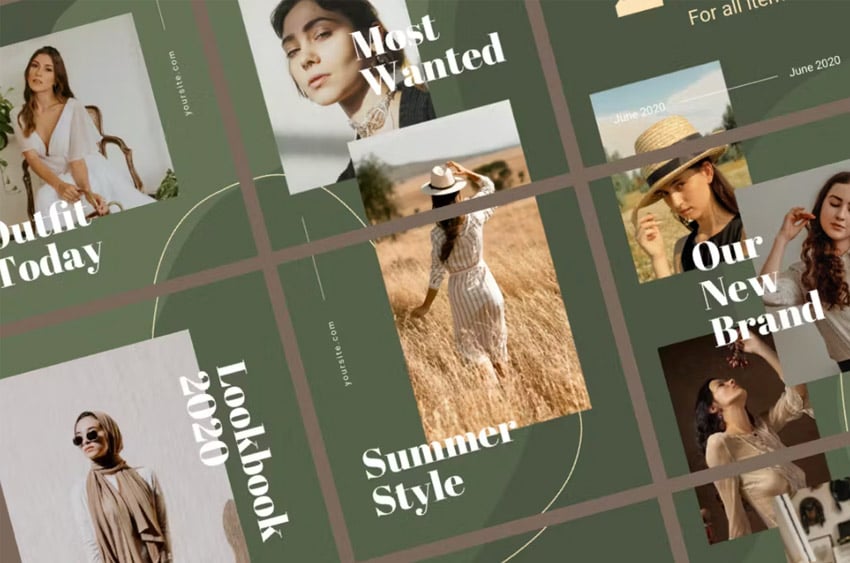
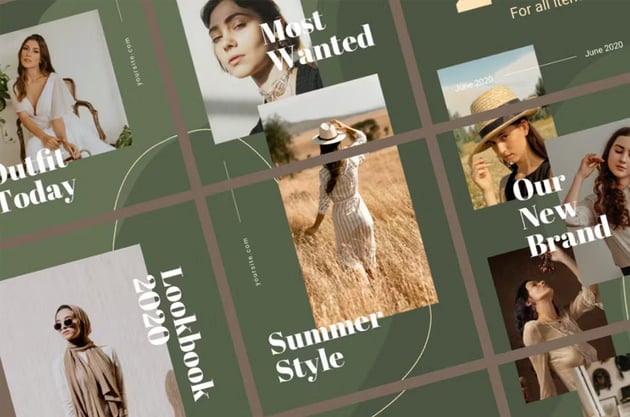
An Instagram puzzle feed is a creative way to display and organize your posts on Instagram. It's also commonly known as an "Instagram grid" or "Instagram puzzle grid". It involves breaking down a larger image into smaller individual posts. This way, while the posts are still individually beautiful, they also create a cohesive larger design when viewed collectively on your profile's grid.


This approach is popular among artists, influencers, businesses, and brands because it's a visually interesting way to share your content and make it more memorable. In addition, the cohesive look of an Instagram puzzle feed can encourage the viewer to scroll through the profile and complete the imagery or theming—rather than just staying at the top of the profile and moving on. This means it could help increase engagement and interaction.


In addition to potentially increasing engagement, Instagram puzzle feeds can be an interesting tool for storytelling. Remember, the key here is that each piece of the puzzle contributes to an overarching aesthetic and imagery. It can also be a wonderful way to further establish brand consistency—so, for example, an Instagram puzzle could be a wonderful way to introduce a product launch or share customer stories revolving around a particular experience. It can be a great tool for a wide variety of scenarios.




2. How to Create an Instagram Puzzle Feed
Step 1
Let's deconstruct and explore how to create a puzzle feed on Instagram. Before we get into the design part of how to create a puzzle grid, Instagram has some ins and outs we should be aware of.
- Square images in your Instagram feed should be 1080x1080 pixels.
- Keep in mind that the Instagram feed is 3 images wide—that's 3240 pixels.
Before you get started, it's important to consider the size of your Instagram puzzle template. Do you want it to be a short puzzle feed? For example, while less common, you could have an Instagram puzzle feed that only spans one row, i.e. three images. Or you could have something really quite long, like three images across and six down. Consider what would be best for your content.


Step 2
But it's more than just knowing the overall dimensions when you're working out how to create a puzzle grid for Instagram. In this example, we'll work in Adobe Photoshop. Let's take a look at this stylish Instagram puzzle template together—it definitely makes things easier.
Here's what it looks like in Adobe Photoshop. This particular design is 3240 pixels wide (again, that's three posts wide) by 6480 pixels high (that would be six posts tall).
I have the Layers panel open in this screenshot. You can open this panel by going to Window > Layers, and it'll show you all the layers in the Photoshop document.


Step 3
We can toggle the top layer on by clicking on the eye icon—this turns visibility for this layer on or off. In this case, this layer has some guidelines placed for us. You'll notice that it divides up the image into 1080 pixel squares. Now, we can get a feel for our entire Instagram puzzle design.


Step 4
But let's step back for a moment. You'll notice that this template starts with a Background layer—and this is a great place to start any Instagram puzzle template. You can start by establishing the aesthetic you'd like your puzzle design to revolve around. Something like an abstract background can be an awesome idea. Here are some other ideas you could try:
- a watercolor-textured background
- a neon retro 80s background
- a neutral background with abstract shapes
- a background with leaves or florals
If you're looking for more background inspiration, check out the background illustrations on Envato Elements.


Step 5
So how do you divide up your Instagram puzzle design? One of the great things about working with an Instagram puzzle template is that it completes all that for you—it's already divided up and ready to go. However, if you want to do it yourself, here are two methods you could try:
- In this template, the Line Tool was used to create lines every 1080 pixels. This acts as a guide to help you as you design your puzzle grid.
- You could also use Photoshop's Guides by going to View > New Guide. This method is handy because you can place them via exact pixel measurements.


Step 6
Adding text to your Instagram puzzle design is simple—turn to the Type Tool in the Tools panel, as highlighted below. Just click to start adding new text. If you're working in an Instagram puzzle template, you can use the Type Tool to edit any placeholder type too.
In this example, I've edited the text with the Imani handwriting font and Butterie calligraphy font. You can use any fonts you prefer—whether it's the ones that are used within a template or otherwise.


Step 7
But what about adding images? This particular Instagram puzzle template uses Smart Objects—which is a great idea. Think of them like placeholder images that you can easily replace with anything you want. They're awesome to use while you're designing your Instagram puzzle layout because they aren't image-dependent. It gives you lots of flexibility.


Step 8
Here's an example of what it's like to work without Smart Objects. We could open our image by going to File > Open and selecting our image. Copy it and then Paste it into our Instagram puzzle design. We'd then need to resize it to fit.
This all works fine and dandy, but it's a little time-consuming—especially if you decide you'd like to use a different image later on. If you want to work this way, there's nothing technically wrong with your workflow—but let's check out an easier way.


Step 9
Here we have a bunch of Smart Objects that have already been added to our Instagram puzzle template. The benefit here is that we can play with where we'd like the images to go before we even touch our actual images. This means you could potentially use this Instagram puzzle template multiple times—you could even swap out the background or just adjust some text, because the content here would be easy to replace.


Step 10
To demonstrate, let's create a rectangle. Select the Rectangle Tool and click and drag to create a shape. Because I'm already in an Instagram puzzle template, some styling has been automatically applied for me (convenient, right?).


Step 11
But right now, it's just a rectangle. If we want to convert it to a Smart Object, we'll have to right-click on our newly created layer (in the Layers panel) and select Convert to Smart Object.


Step 12
Once you've done so, double-click on that same layer. Photoshop will then take us "inside" the Smart Object—and it looks very much like a new document. From here, we can paste any content we want into this space.


Step 13
For example, I've pasted a photograph in this Smart Object. Afterwards, all I need to do is go to File > Save to save my Smart Object. Then, I can return to my original design file.


Step 14
And check it out—my Smart Object contains my photo. The best part is, I can go inside and edit this Smart Object any time I want. It's easy to swap photos without manually pasting and resizing over and over again. It's also handy because I can experiment with my layout without necessarily having all of my content on hand.


Step 15
Here's a look at what this Instagram puzzle template looks like with all of the Smart Objects filled in with imagery. I can move these "picture frames", resize them, and change the design in any way I want—without necessarily losing any part of my photos. They haven't been cropped or anything like that, so I can easily edit the Smart Objects to reposition the photos within these frames.


Step 16
But how about preparing your Instagram puzzle grid—how do you prepare and save those images? Well, there are several ways you could do that. Let's take a look at the way this Instagram puzzle template has made it even easier for us. In this case, it uses the Slice Tool in Photoshop—as highlighted below. It provides 18 slices for us, but you could use this tool to make slices yourself too.


Step 17
Go to File > Export > Save for Web to save your work using this method. This isn't the only way you could do this, but it's a speedy one.


Step 18
Here's what our Export options look like. You can change the quality of your images. I kept mine at Maximum quality.
Click Save to save your images.


Step 19
But here's the best part—Photoshop saved all 18 images for me, as they were sliced, individually. That's it! No cutting it or positioning by hand—all the hard work has been done for us, and our puzzle grid is ready to post.


Step 20
But wait a moment—make sure you're aware of how to post your Instagram puzzle grid. It's easy to assume you might want to start with the first image, but that would be backwards! Here's a little cheat sheet to explain:


Note that the bottom-right image in your Instagram puzzle grid should be your first post. You may also want to plan your posts so they look good and make sense when viewed on your profile—for example, posting in a minimum of sets of three could help keep the integrity of the grid intact.
Here's a look at that same cheat sheet overlaid on top of the Instagram puzzle grid template we just experimented with, to help further clarify the post order.


Remember that there are many ways to create a puzzle feed on Instagram. Some prefer using Adobe Illustrator or even Canva. There's no wrong answer—but Instagram puzzle templates can definitely take some of the guesswork out for you. In fact, making an Instagram puzzle template of your own can prove to be a convenient resource you can use again and again.
Check Out These Awesome Instagram Puzzle Feed Designs
Looking for some design inspiration? Check out these beautifully designed Instagram puzzle grids. They're all available on Envato Elements—an amazing resource. One low price gets you limited access to hundreds of Instagram puzzle templates, as well as fonts, graphics, and much more.
1. Branding Instagram Puzzle Template (PSD)


Here's another beautifully designed template for Adobe Photoshop. It's another design that has 18 images—6 rows—that you can customize any way you like. Looking for a quick and ready-made design? Just add your photos, and you're done. Or use this to jump-start your design process and create something completely new.
2. Instagram Template (AI, PSD)


Isn't this a fun and energetic design? It would absolutely be an eye-catching addition to any Instagram feed. This one has the benefit of including files for both Adobe Photoshop and Adobe Illustrator, so you can work in whichever software you prefer.
3. Instagram Template (PSD, JPG, PDF)


This watercolor texture is so earthy and cozy, isn't it? And the image spaces in this Instagram puzzle template are just so organic and fun. You can easily achieve these effects with this template—just insert your images and you're ready to post.
4. Retro Instagram Puzzle Template (AI)


This is such an awesome Instagram puzzle grid design, right? It has colorful retro vibes and could make a memorable impression. Keep in mind, you could add to and tweak this design in any way you prefer—or simply add your content and post right away.
5. Fashion Instagram Puzzle Template (PSD)


Here's another lovely Instagram puzzle grid. This time, it uses stylish gradient effects, and it would be an amazing choice for fashion-centric posts. Or you could easily remix this for artwork, music, and more.
Looking for Even More Instagram Inspiration?
If you're looking for even more Instagram design inspiration, make sure to check out these collections, right here at Envato Tuts+. There's plenty more to see and download today.

 21 Awesome Instagram Themes (Aesthetic Post Ideas)


 44 Best Instagram Layout Ideas (Using Instagram Grid Templates)


 38 Best Instagram Mockups (PSDs and Using an Instagram Mockup Generator)

 10 Best Instagram Story Templates (Birthday, Fall, Music, and More!)


 24 Best Instagram Templates (Posts, Stories, PSD, and More)

 21 Instagram Post Ideas for Musicians (Instagram Template Examples)
Learn More About Designing for Instagram
You can also learn more about designing for Instagram here at Envato Tuts+. From how to make stylish posts to how to make your own templates, there's lots to learn. Check out these free tutorials today:

 How to Make Instagram Infographics


 How to Post to Instagram From Lightroom Mobile


 How to Create a Black Friday Instagram Template


 How to Make a Food Highlight Cover for Instagram


 How to Create an Instagram Post Template in Photoshop

 How to Create a Cottagecore Collage in Photoshop


 How to Create an Instagram Story Cover: Photoshop in 60 Seconds

 By
By



