


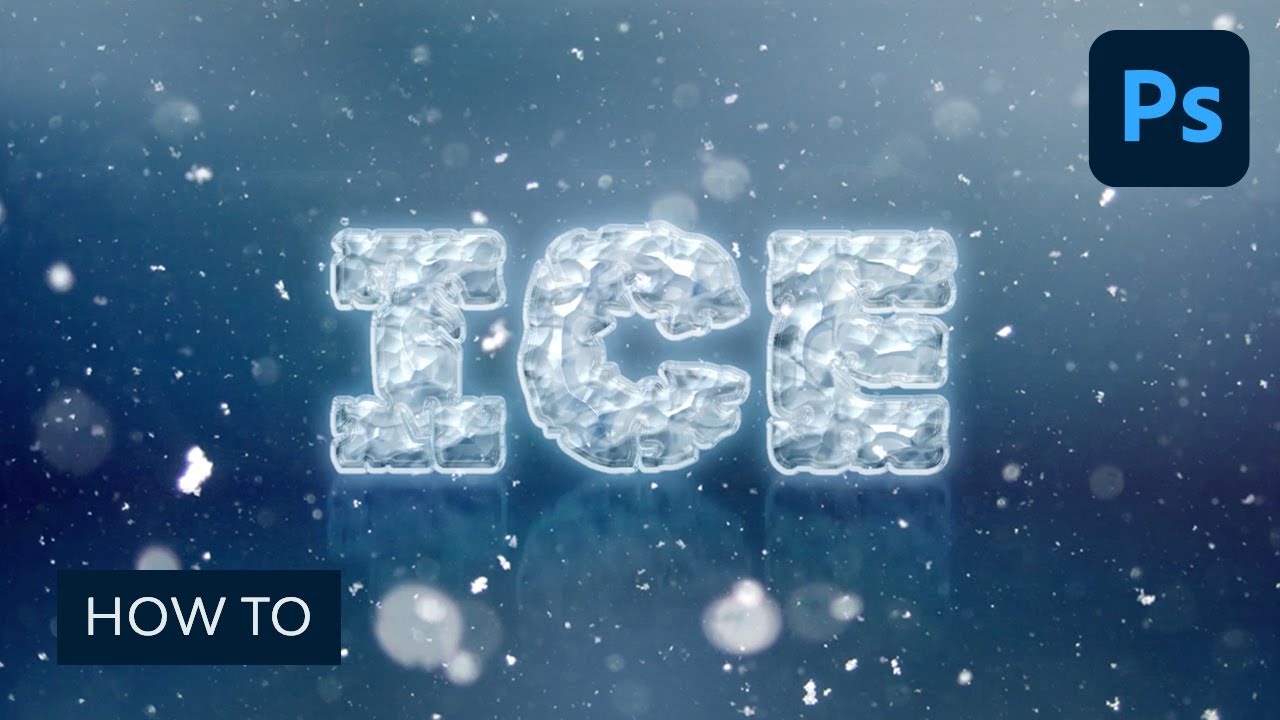
This tutorial will show you how to use layer styles, with simple shapes and textures, to create an easy ice effect in Photoshop. This text effect was inspired by the many Photoshop Actions & Presets available on Envato Elements.
Let's start creating this ice effect in Photoshop. Follow along with us over on our Envato Tuts+ YouTube channel:
- What you will learn in this Adobe Photoshop text effect tutorial:
- Tutorial Assets
- Create the Background Shape
- How to Style a Ground Shape
- How to Copy and Paste Layer Styles
- How to Adjust a Background
- How to Create Text Layers
- How to Style the Original Text Layer
- How to Style the First Copy Text Layer
- How to Style the Second Copy Text Layer
- How to Create a Reflection
- How to Create a Simple Shadow
- How to Add a Snow Texture Overlay
- Congratulations! You're Done
- 5 Ways to Add Ice Effects in Photoshop
- Learn How to Create More Ice Effects!
What you will learn in this Adobe Photoshop text effect tutorial:
- How to create a cool ice effect in Adobe Photoshop
- How to use different combinations of layer styles to achieve the 3D ice effect
- How to adjust gradient effects
- How to create a snowy environment effect
Let's get started!
Tutorial Assets
The following assets were used during the production of this tutorial:
- Kornik font
- Textures - Golds, Whites, And Greys by snowmanjester
- Heavy Snow Texture by incolor16
- Free Pack 6000 Photoshop gradients by Supertuts007 (Load the CSP True Sky Gradients.grd file.)
1. Create the Background Shape
Step 1
Create a new 1000 x 650 px document.


Step 2
Pick the Rectangle Tool, and create a rectangle that covers the bottom part of the document. Rename the rectangle layer to Ground.


Step 3
Create another rectangle that covers the upper part, and rename its layer to Back.


2. How to Style a Ground Shape
Double-click the Ground layer to apply the following layer style:
Step 1
Add an Inner Shadow with these settings:
- Blend Mode: Linear Burn
-
Color:
#9cb0be - Opacity: 15%
- Distance: 0
- Size: 250


Step 2
Add a Gradient Overlay with these settings:
- Check the Dither box
- Blend Mode: Linear Burn
- Opacity: 20%
- Style: Radial
- Scale: 150%
- Create a Transparent to Fill Color gradient fill using
Blackon both sides.


Step 3
Click the + icon next to the Gradient Overlay tab to add another Gradient Overlay effect with these settings:
- Check the Dither box.
- Check the Reverse box.
- Use the shown Gradient fill from the CSP True Sky Gradients file.


Step 4
Click the first Gradient Overlay tab again, and then click-drag inside the document to move the gradient so that the light is near the upper part of the rectangle.


This is how the first rectangle should look.


3. How to Copy and Paste Layer Styles
Step 1
Right-click the Ground layer, choose Copy Layer Style, and then right-click the Back layer and choose Paste Layer Style.
Double-click the Back layer to uncheck the Reverse box in the second Gradient Overlay effect.


Step 2
This will style the back rectangle. If needed, move any gradient fills as you did before.


4. How to Adjust a Background
Step 1
Click the Create new fill or adjustment layer icon at the bottom of the Layers panel and choose Hue/Saturation.


Step 2
Change the Hue to -3, the Saturation to -25, and the Lightness to -20.


Step 3
Add a Gradient fill layer. Create a Transparent to Fill Color gradient fill using a Black color on both sides.
Then, change the Style to Radial and the Scale to 200, and check the Dither box.


Step 4
Change the Gradient layer's Blend Mode to Soft Light.


Step 5
Place the Textures - Golds, Whites, And Greys image on top of all layers, rename its layer to BG Texture, and resize it as needed.


Step 6
Go to Image > Adjustments > Desaturate, and then change the BG Texture layer's Blend Mode to Soft Light.


5. How to Create Text Layers
Step 1
Create the text in All Caps using the font Kornik.
Then, set the Color to #367497, the Size to 250 pt, and the Tracking value to 25.


Step 2
Duplicate the text layer, change the copy's Fill value to 0, and then duplicate the copy layer.


6. How to Style the Original Text Layer
Double-click the original text layer to apply the following layer style:
Step 1
Add a Bevel and Emboss with these settings:
- Style: Emboss
- Technique: Chisel Soft
- Depth: 200
- Size: 10
- Uncheck the Use Global Light box
- Angle: 60
- Altitude: 50
- Gloss Contour: Sawtooth 1
- Check the Anti-aliased box
-
Highlight Mode:
- Opacity: 20%
-
Shadow Mode: Screen
-
Color:
#ffffff - Opacity: 80%
-
Color:


Step 2
Add a Contour with these settings:
- Contour: Rolling Slope - Ascending
- Check the Anti-aliased box.
- Range: 100%


Step 3
Add an Inner Glow with these settings:
- Blend Mode: Linear Light
- Opacity: 50%
-
Color:
#edf1f4 - Technique: Precise
- Source: Center
- Size: 90
- Contour: Gaussian
- Check the Anti-aliased box


Step 4
Add a Satin with these settings:
- Blend Mode: Screen
-
Color:
#afcbea - Opacity: 50%
- Angle: 30
- Distance: 38
- Size: 50
- Contour: Cone - Inverted
- Check the Anti-aliased box
- Check the Invert box


Step 5
Add a Gradient Overlay with these settings:
- Blend Mode: Multiply
- Opacity: 70%
- Create a Fill Color to Transparent gradient fill using the colors
#275c8dto the left and#274a71to the right.


Step 6
Add an Outer Glow with these settings:
- Blend Mode: Soft Light
- Opacity: 50%
-
Color:
#b9dfff - Spread: 20
- Size: 10
- Contour: Cove - Deep
- Check the Anti-aliased box
- Range: 80%


Step 7
Change the text layer's Fill value to 20%.


7. How to Style the First Copy Text Layer
Double-click the first copy text layer to apply the following layer style:
Step 1
Add a Bevel and Emboss with these settings:
- Technique: Chisel Hard
- Size: 50
- Gloss Contour: Ring
- Check the Anti-aliased box
-
Highlight Mode: Soft Light
- Opacity: 50%
-
Shadow Mode: Soft Light
-
Color:
#f4ffff - Opacity: 70%
-
Color:


Step 2
Add a Contour with these settings:
- Contour: Cove - Deep
- Check the Anti-aliased box.


Step 3
Add an Inner Shadow with these settings:
- Blend Mode: Linear Burn
-
Color:
#8699a6 - Opacity: 100%
- Distance: 0
- Size: 35


This will style the second text layer.


8. How to Style the Second Copy Text Layer
Double-click the second copy text layer to apply the following layer style:
Step 1
Add a Bevel and Emboss with these settings:
- Technique: Chisel Hard
- Size: 50
- Uncheck the Use Global Light box
- Angle: -158
- Altitude: 64
- Check the Anti-aliased box
-
Highlight Mode: Linear Light
- Opacity: 50%
-
Shadow Mode: Linear Burn
-
Color:
#90abc8 - Opacity: 100%
-
Color:


Step 2
Add a Contour with these settings:
- Contour: Cove - Deep
- Check the Anti-aliased box.


Step 3
Add a Texture with these settings:
- Pattern: Molecular
- Depth: 5%


Step 4
Add a Pattern Overlay with these settings:
- Blend Mode: Soft Light
- Pattern: Satin


Step 5
Add an Outer Glow with these settings:
- Opacity: 35%
-
Color:
#7ab6ef - Spread: 20
- Size: 30


This will finish off the ice effect. This is already starting to look like an ice cube font.


9. How to Create a Reflection
Step 1
Duplicate all three text layers you have, go to Layer > Merge Layers, and rename the merged layer to Reflection.


Step 2
Press Command-T to enter the Free Transform Mode, and then right-click the bounding box and choose Flip Vertical.


Step 3
Move the reflection text right below the original text, and hit the Return key to accept the changes.


Step 4
Right-click the Reflection layer, choose Convert to Smart Object, and then change its Blend Mode to Soft Light and place it below the original text layer.


Step 5
Go to Filter > Blur > Motion Blur, and change the Angle to 90 and the Distance to 10.


Step 6
Click the Add layer mask icon at the bottom of the Layers panel to add a mask.


Step 7
Pick the Gradient Tool, set the Foreground and Background Colors back to Black and White, and select the Reflection layer mask's thumbnail.
Choose the Foreground to Transparent fill in the Options bar, and make sure that the Linear Gradient icon is active.
Now hold the Shift key and drag from about over the top of the original text to right outside the document's bottom, in order to fill the mask and hide the lower part of the reflection.
You might need to retry or repeat this step a couple of times in order to get a result you like.


10. How to Create a Simple Shadow
Step 1
Duplicate the original text layer, drag the copy below it, and rename it to Shadow.


Step 2
Right-click the Shadow layer and choose Rasterize Type.
Press Command-T, and scale the text down vertically to get the basic shadow shape.


Step 3
Use the Move Tool to reposition the Shadow below the text.


Step 4
Go to Filter > Blur > Gaussian Blur, and set the Radius to 10.


Step 5
Change the Shadow layer's Blend Mode to Multiply and its Opacity to 70%.


11. How to Add a Snow Texture Overlay
Step 1
Place the Heavy Snow Texture image on top of all layers, rename its layer to Snow Texture, change its Blend Mode to Screen, and resize the texture as needed.


Step 2
Pick the Spot Healing Brush Tool, and make sure that the Sample All Layers box in the Options bar is unchecked.
Use a soft round tip to paint over unwanted spots and get rid of them.


Congratulations! You're Done
In this tutorial, we created a simple background using shapes, layer styles, and adjustment layers. Then, we created three text layers and styled all of them to achieve the ice effect.
After that, we created a reflection and a shadow for the ice text. Finally, we added a snow texture overlay to finish the effect.
Now you know how to create an ice effect in Photoshop! You can create an ice font, an ice cream font, or even an ice cube font without using an ice font generator.


5 Ways to Add Ice Effects in Photoshop
Need more inspiration? Check out and download some of these professionally made assets from Envato Elements. These are great especially if you are looking to save some time.
Snow Lettering Photoshop Action (ATN, ABR, PAT, PDF, PSD)


See your text or logo written on snow! You'll get a realistic effect of writing on the snow in just a couple of seconds. Get winter lettering for your winter projects and ice fonts.
Ice Chrome Photoshop Layer Styles (ASL, HTML, PSD, PAT)


These layer styles look perfect with every font and shape. Apply them to give a feeling of a freezing and icy environment. It's perfect to give a Christmas and Winter feeling to your work. The textures are real ice photos. Imagine how an Ice Age font would look with this effect.
Ice Frozen Texture Mockup (PSD)


This Ice Frozen Texture Mockup includes one high-res (4500x3000 pixel size, 300dpi) PSD with three different styles. Edit your ice text with smart objects, organized layers and folders, and a changeable background color.
Digital Snow Photoshop Brushes (ABR)


Try these digital snow effects for your Christmas and winter designs. You will receive two ABR files, one for Photoshop CS2–CS5 and another for CS6/CC and above. Choose from 40 different snow designs.
Blizzard Photoshop Action CS3+ (ABR, ATN, TXT)


Just brush the area over your object and play the action. You will get the effect of a strong snowstorm in a few minutes and clicks. You can try this out if you want to create an ice font.
Learn How to Create More Ice Effects
If you liked this and are looking to learn how to create some more ice effects, check out the tutorials below. Expand your expertise by going through these in-depth guides. Happy designing!
 3 Top Winter Themed Video Templates for After Effects


 How to Create a Disney Frozen Inspired Text Effect in Photoshop


 How to Create an Ice Text Effect in Adobe InDesign

 How to Draw Ice and Icicles Using Pencils and a Stock Image

 How to Create a Surreal Icy Fish Photo Manipulation With Adobe Photoshop


 How to Create a Half-Blurred Text Effect in Adobe Illustrator


 How to Create a Winter Text Effect in Illustrator

 How to Create an Underwater Text Effect in Photoshop

 By
By



