


Welcome to our Illustrator in 60 Seconds series, in which you can learn an Illustrator skill, feature, or technique in just a minute!

Illustrator in 60 Seconds: How to Create Custom Guides in AI
Always wanted to create custom guides from more intricate shapes but never knew exactly how? Well, if that's the case, you should watch this quick video, which will show you how easy the process is!
By default, Illustrator comes with a basic Ruler system that you can turn on using the Control-R keyboard shortcut. You can use it to add both horizontal and vertical guidelines, to which your shapes can snap, by simply clicking and dragging them out.

But what about those situations when you need to build a set of custom guides based on more intricate shapes? You’ll be happy to hear that the software allows you to do just that using any shape, as long as it’s a vector.
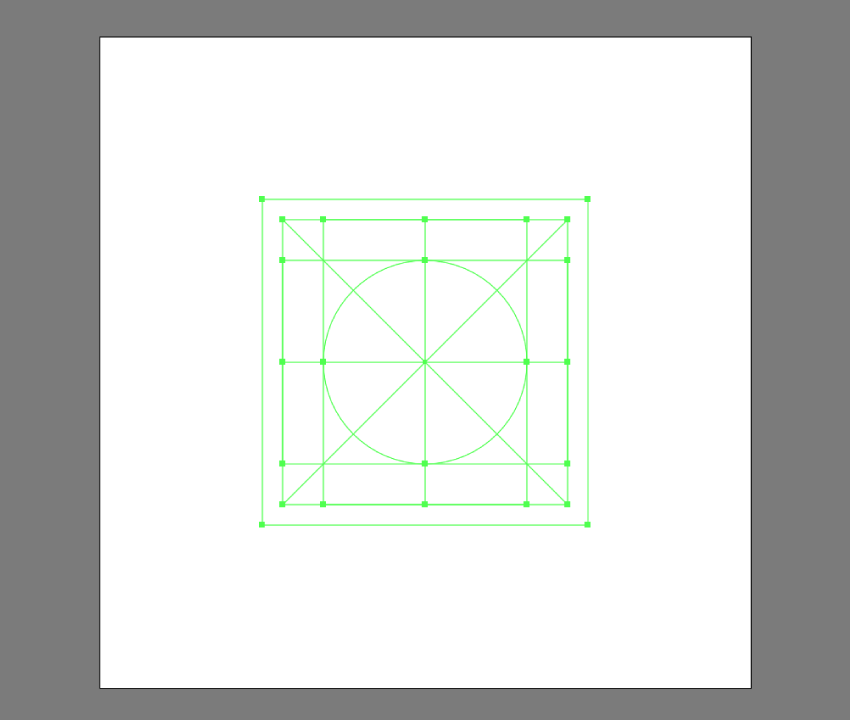
In my case, I’ve set up a simple grid system that I’ll be using for some custom icons that I’ve built using a couple of basic geometric shapes and strokes.

To convert my shapes into guides, I first have to select them and then go to View > Guides > Make Guides or use the faster right click > Make Guides option. This will turn them into a custom reference grid that I can lock and use to build my assets on.

A Bit More Detail
Learn more about Adobe Illustrator on Envato Tuts+:
 How to Use the Shape Builder Tool in Illustrator
 10 Illustrator Tools Every Designer Should Be Using
 Comparing the Two Methods for Creating Line Icons: Offset Paths vs. Strokes
60 Seconds?!
This is part of a series of quick video tutorials on Envato Tuts+ in which we introduce a range of subjects, all in 60 seconds—just enough to whet your appetite. Let us know in the comments what you thought of this video and what else you'd like to see explained in 60 seconds!
 By
By



