


In this Illustrator embossing tutorial, you'll learn how to make text look embossed in Adobe Illustrator.
For starters, you'll learn how to create a simple background for your text design. Next, you'll learn how to add some text and easily adjust its appearance. Moving on, you'll learn how to emboss text in Illustrator. Finally, you'll learn how to transfer the properties of your embossed text to other pieces of text.
But what if you don't have time to learn how to create an embossed effect in Illustrator? What if you need a variety of Illustrator text effects ready for your designs?
Then Envato Elements is the best option for you. The subscription-based offers you unlimited Illustrator text effects and more! Easily make an embossed design with this layer style from Envato Elements:


Do you prefer video tutorials over written guides? Don't forget to visit the Envato Tuts+ YouTube channel! There you can watch lots of video tutorials, like this new video on how to create an embossed effect in Illustrator:
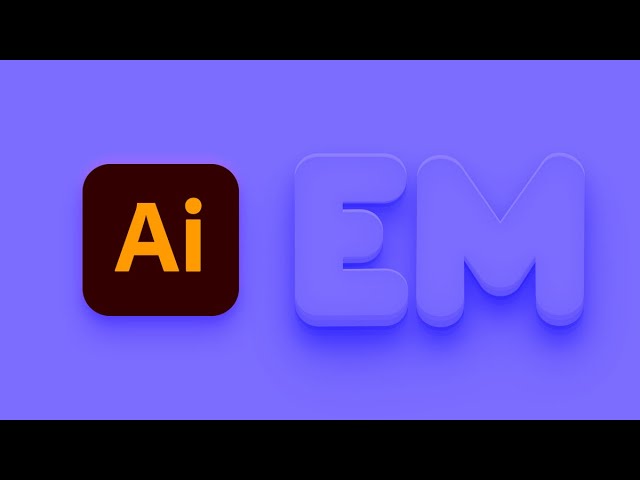
What You'll Learn in This Embossed Effect Illustrator Tutorial
- How to create the background
- How to add the text
- How to emboss text in Illustrator
What You'll Need
You'll need the following font in order to complete this Illustrator embossed effect tutorial:
- Knicknack font
1. How to Create the Background
To create an embossed effect in Illustrator, we'll start with a background. Hit Control-N to create a new document. Select Pixels from the Units drop-down menu, enter 850 in the width box and 680 in the height box, and then click that More Settings button. Select RGB for the Color Mode, set the Raster Effects to Screen (72 ppi), and then click Create Document.
Pick the Rectangle Tool (M) and focus on your toolbar. Remove the color from the stroke, and then select the fill and set its color to R=124 G=109 B=254. Create a shape the size of your artboard (850 x 680 px) and place it as shown in the following image. Now that the background is prepared, let's learn how to make text look embossed in Illustrator.


2. How to Add the Text
Step 1
Pick the Type Tool (T) and open the Character panel (Window > Type > Character). Select the Knicknack font and set the size to 130 px.
Click on the artboard and add the "EMBOSSED" text. Set its color to white (R=255 G=255 B=255). Place it as shown in the first image.
Using the same tool and text attributes, add the "TEXT" and "EFFECT" pieces of text and place them as shown in the second image.


Step 2
Select the "EMBOSSED" text, focus on the Swatches panel (Window > Swatches), and click that [None] swatch to remove the white text color.
Move to the Appearance panel (Window > Appearance) and add a new fill using the Add New Fill button. Select that new fill and set its color to R=97 G=83 B=242.


3. How to Emboss Text in Illustrator
Step 1
Make sure that your "EMBOSSED" text stays selected and keep focusing on the Appearance panel.
Add a second fill and select it. Change the color to R=104 G=90 B=253 and go to Effect > Distort & Transform > Transform. Enter the attributes shown below and click OK. Don't forget to check that top-middle reference point (highlighted in the following image).


Step 2
Make sure that your "EMBOSSED" text stays selected and keep focusing on the Appearance panel.
Add a third fill and select it. Change the color to R=142 G=127 B=254 and go to Effect > Distort & Transform > Transform. Enter the attributes shown below and click OK. Remember to check the top-middle reference point.


Step 3
Make sure that your "EMBOSSED" text stays selected and keep focusing on the Appearance panel.
Add a fourth fill and select it. Change the color to R=136 G=121 B=254 and go to Effect > Distort & Transform > Transform. Enter the attributes shown below in the left window and click OK. Remember to check the top-middle reference point. Go again to Effect > Distort & Transform > Transform. Enter the attributes shown below in the right window and click OK. This time, remember to check the bottom-middle reference point.


Step 4
Make sure that your "EMBOSSED" text stays selected and keep focusing on the Appearance panel.
Add a fifth fill and select it. Change the color to R=124 G=109 B=254 and go to Effect > Distort & Transform > Transform. Enter the attributes shown below in the left window and click OK. Remember to check the top-middle reference point. Go again to Effect > Distort & Transform > Transform. Enter the attributes shown below in the right window and click OK. This time, remember to check the bottom-middle reference point.


Step 5
Make sure that your "EMBOSSED" text stays selected and keep focusing on the Appearance panel.
Be sure that the top fill is still selected and go to Effect > Stylize > Inner Glow. Enter the attributes shown below and click OK.


Step 6
Make sure that your "EMBOSSED" text stays selected and keep focusing on the Appearance panel.
Add a new fill and drag it to the bottom of the panel. Select it, set the color to R=97 G=83 B=252, and go to Effect > Stylize > Drop Shadow. Enter the attributes shown in the top-left window (in the following image), click OK, and then apply the other two Drop Shadow effects shown below.


Step 7
Make sure that your "EMBOSSED" text stays selected and keep focusing on the Appearance panel.
Add a new fill and drag it to the bottom of the panel. Select it, set the color to R=97 G=83 B=252, and go to Effect > Stylize > Drop Shadow. Enter the attributes shown in the following image and click OK.


Step 8
Make sure that your "EMBOSSED" text stays selected and keep focusing on the Appearance panel.
Add a new fill and drag it to the bottom of the panel. Select it, set the color to R=97 G=83 B=252, and go to Effect > Stylize > Drop Shadow. Enter the attributes shown in the following image and click OK.


Step 9
Make sure that your "EMBOSSED" text stays selected and keep focusing on the Appearance panel.
Add a new fill and drag it to the bottom of the panel. Select it, set the color to R=97 G=83 B=252, and go to Effect > Stylize > Drop Shadow. Enter the attributes shown in the following image, click OK, and this will be your embossed text.


Step 10
Focus on the Layers panel, expand your layer, and use those target icons to easily apply the Appearance attributes used for your "EMBOSSED" text to the other two pieces of text. Target icons are the little round icons displayed at the far right of each individual layer or shape.
Hold the Alt button on your keyboard, click the target icon that stands for your "EMBOSSED" piece of text, and then drag it onto the target icon that stands for your "TEXT" and "EFFECT" pieces of text.


Congratulations! Your Embossed Text Is Ready!
Here is how your embossed text should look. I hope you've enjoyed this tutorial on how to emboss letters in Illustrator and can apply these techniques in your future projects. Feel free to adjust the final text design and make it your own!


5 Top Illustrator 3D Text Effects From Envato Elements
Now that you know how to emboss letters in Illustrator, you might be looking for resources to speed up your process. For a flat monthly fee, you can download as many Illustrator 3D text effects as you wish from Envato Elements.
Here's a selection of some of my favorite Illustrator text effects:
1. Emboss Effect Illustrator Add-On (EPS)
This Illustrator embossed effect add-on is the easiest way to create an embossed font design. It's easy to edit and comes in organized layers. Give it a try for your next project!
2. Neon 3D Embossed Letters Effect (EPS)


Prefer a brighter embossed design? Why not try Illustrator 3D text effects like this one? If you like neon and eye-catching designs, this is a cool way to emboss letters in Illustrator!
3. Red Hero 3D Text Effect (AI)


Give your embossed font designs a really cool look with this text effect. With a few clicks, your text will transform into this embossed effect Illustrator design.
4. Levitation: Illustrator 3D Text Effect (AI, EPS)


Use this emboss Illustrator add-on for a different look. This text effect will make your text look as if it's levitating over paper. This is a pretty cool interpretation of an emboss effect in Illustrator!
5. Retro Futurism 3D Embossed Letters Effect (EPS)


Here's an Illustrator 3D text effect you can try for a cool effect. If you like retro text effects, this one is worth a try. You'll make a pretty nice emboss Illustrator design!
Want to Learn More?
Check out the following text effect tutorials:

 How to Make a Tentacle Art Brush in Adobe Illustrator


 How to Make a Pickle Pattern Brush in Illustrator

 New Course: Create an Isometric Text Effect in Adobe Illustrator


 How to Create a Coconut Text Effect in Adobe Illustrator

 How to Create an Isometric Text Effect in Adobe Illustrator


 How to Create a Cool Cut-Out Text Effect in Illustrator

 Use a Pattern Brush to Create Rope Effects in Illustrator

 How to Create a Russian Text Effect in Adobe Illustrator

 How to Create a 3D Text Art Effect in Adobe Illustrator

 How to Create a Spain-Inspired Text Effect in Adobe Illustrator

 How to Create a Retro Long Shadow Text Effect in Adobe Illustrator
 By
By



