

In the following tutorial, you will learn how to draw a curved line in Illustrator using different techniques.
Once you've learned how to curve a line in Illustrator, you can head over to Envato Elements where you can get unlimited downloads of stock videos, music, graphics, photos, fonts, and more.
What You'll Learn in This Tutorial
- How to draw a curved line in Illustrator
- How to curve a line in Illustrator using effects
1. How to Draw a Curved Line in Illustrator
Step 1
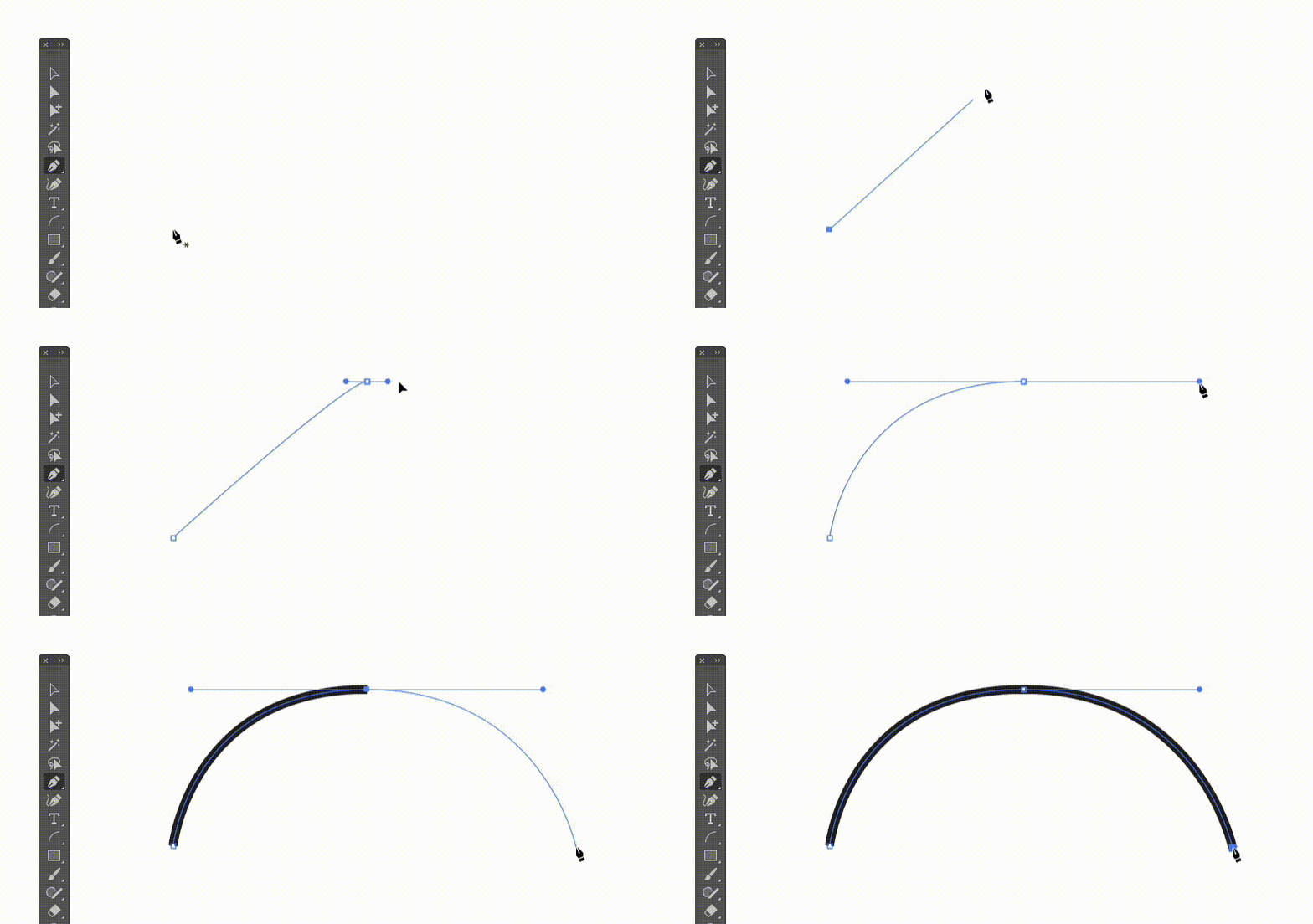
Select the Pen Tool (P), click once to add the starting point of your line, and then click and drag to curve the line.


Step 2
Alternatively, you can use the Curvature Tool (Shift-Tilde) as it automatically creates curved lines. Use simple clicks to create a curved line in Illustrator.



Step 3
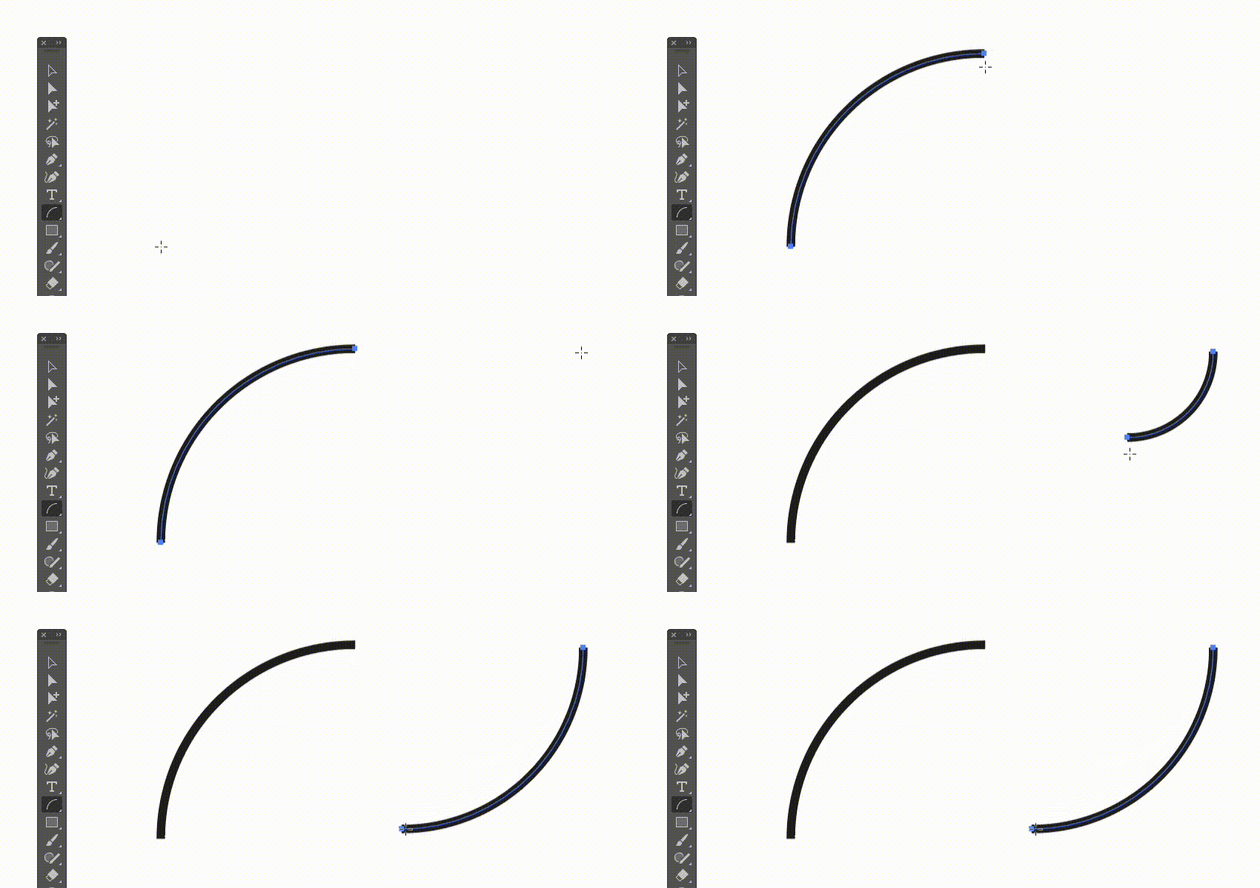
Another tool that you can use to curve lines in Illustrator is the Arc Tool. Select it from your Toolbar, and simply click and drag to easily create a curved line in Illustrator.


2. How to Curve a Line in Illustrator
Step 1
To curve an existing line, you'll need the Anchor Point Tool (Shift-C). Select it and simply click and drag your line to curve it.

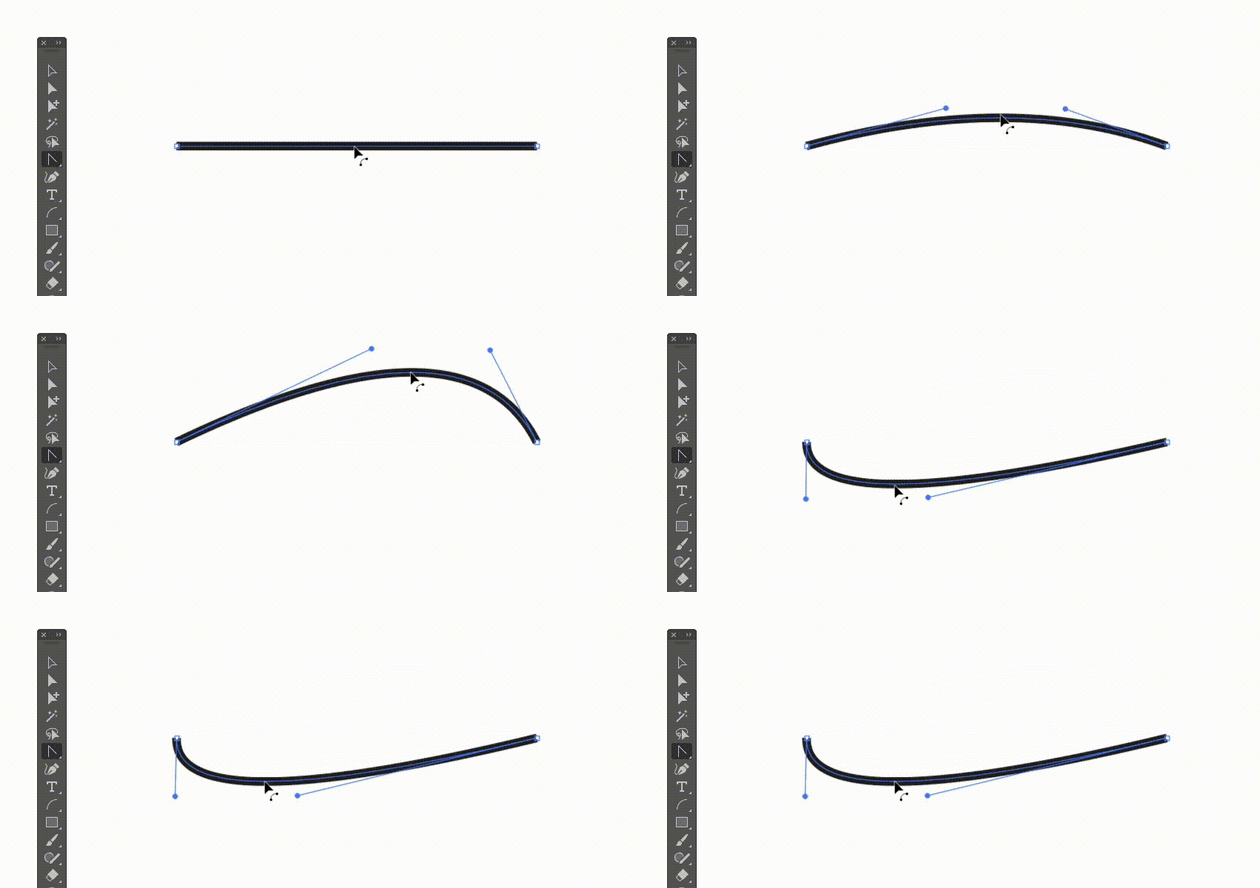
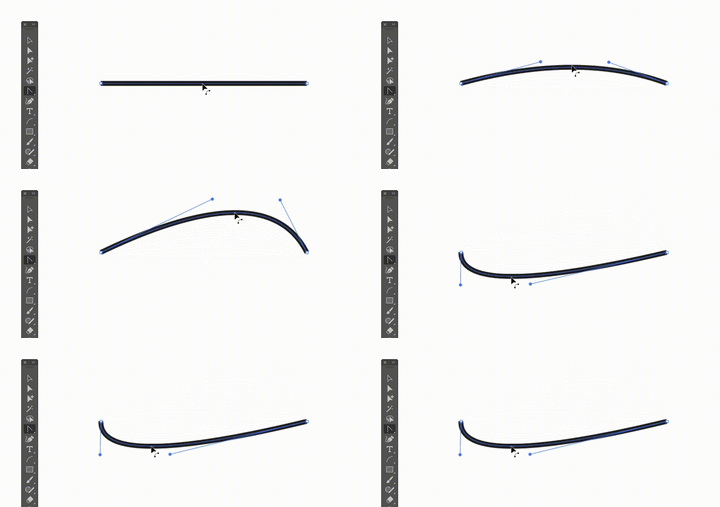
Hold down the Shift key as you click and drag to constrain the curvature of your line.
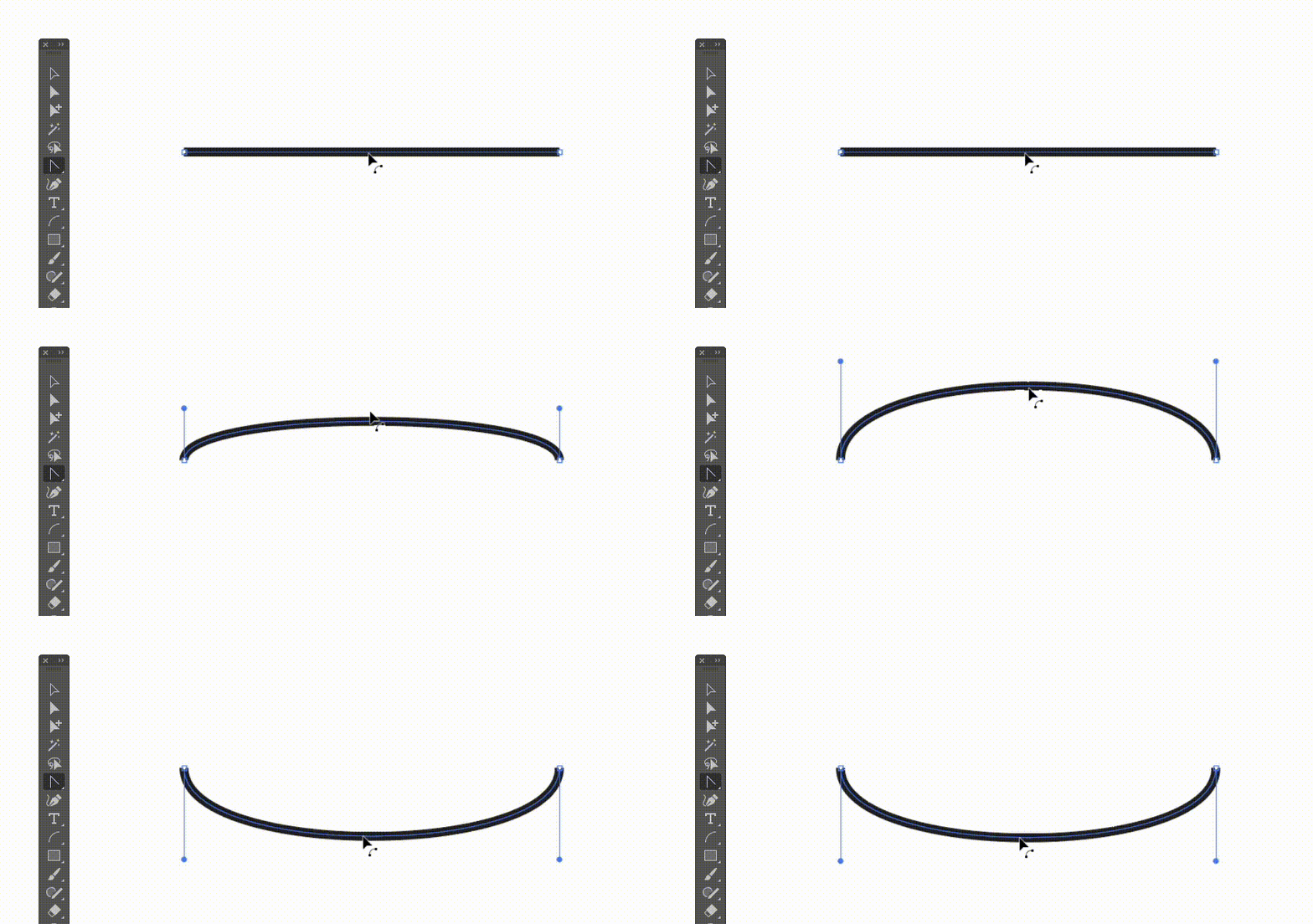
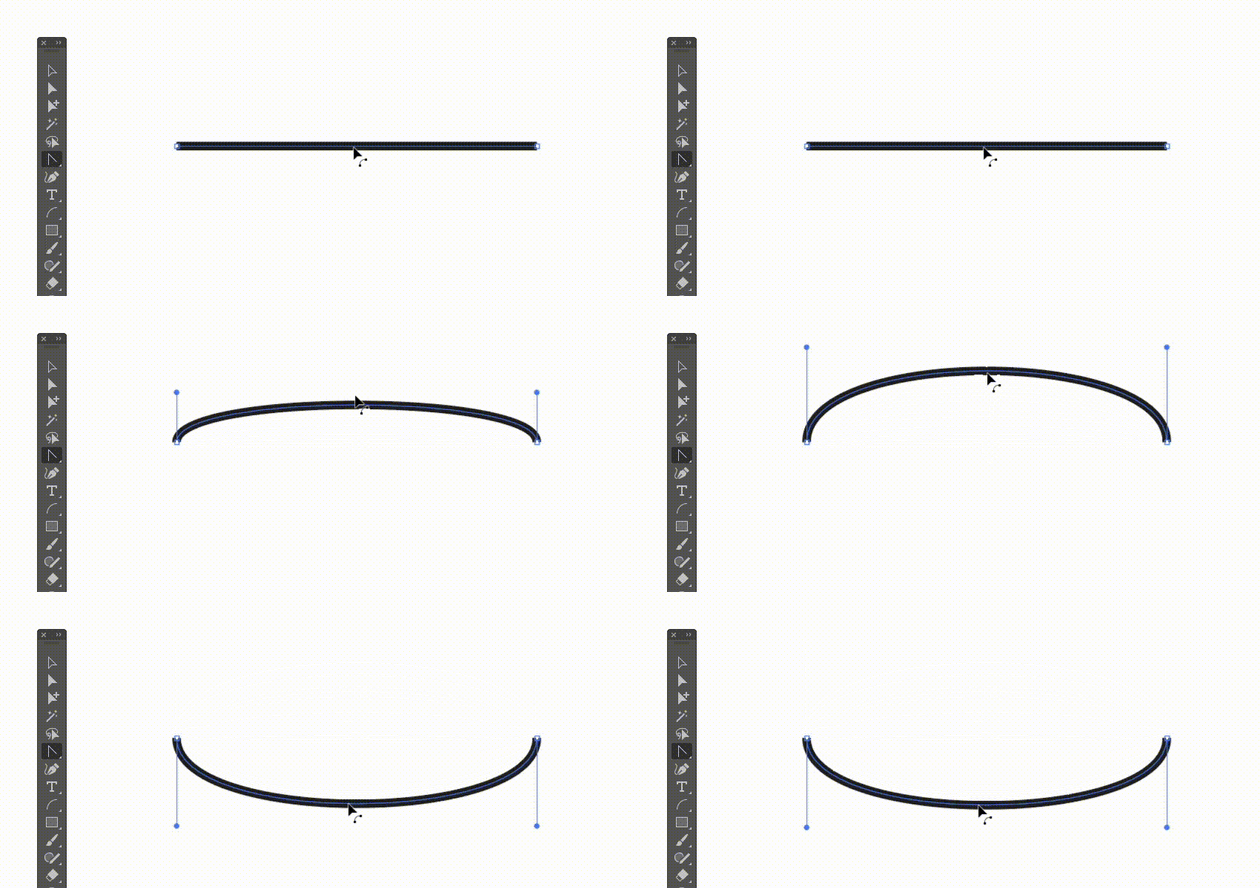

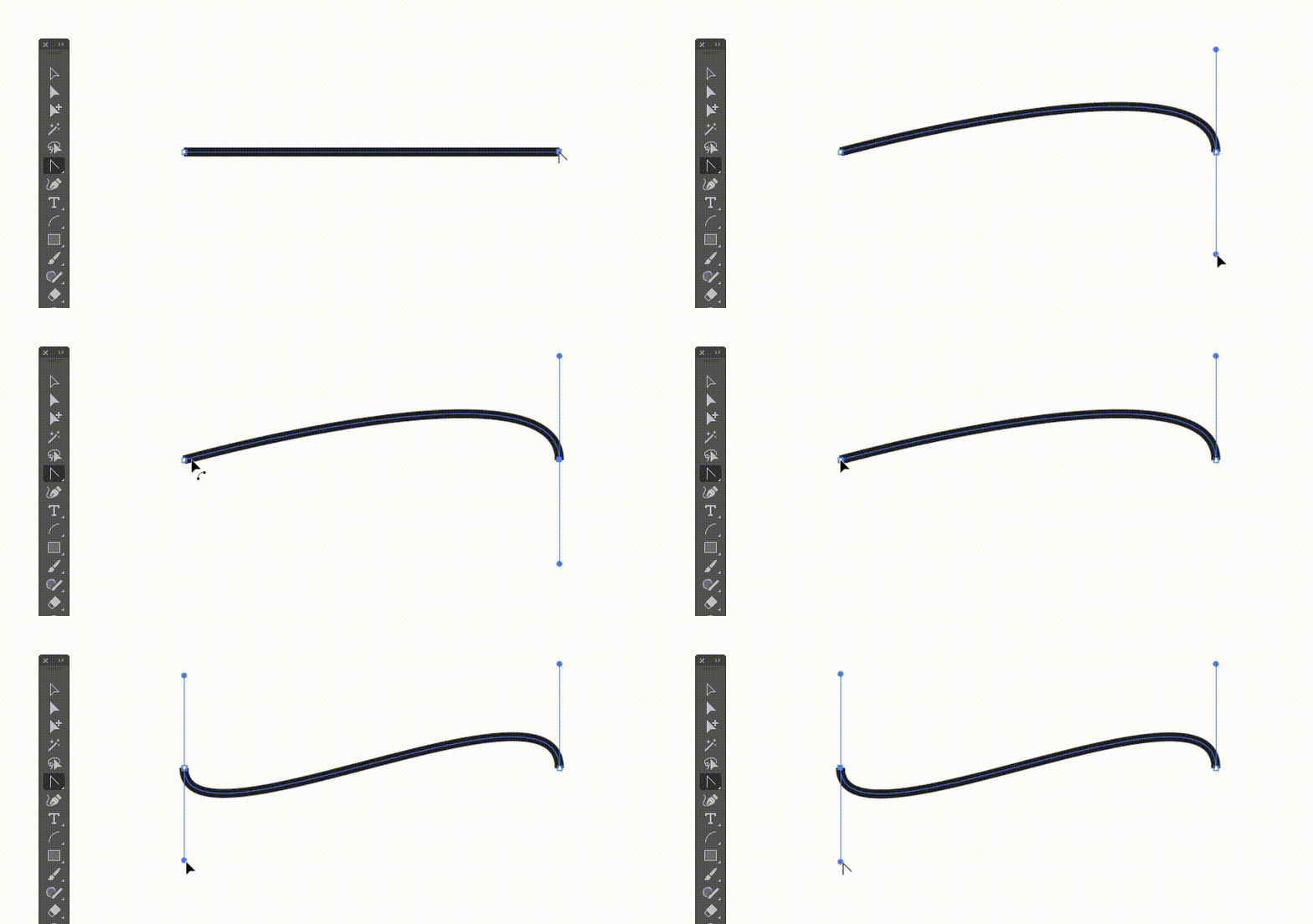
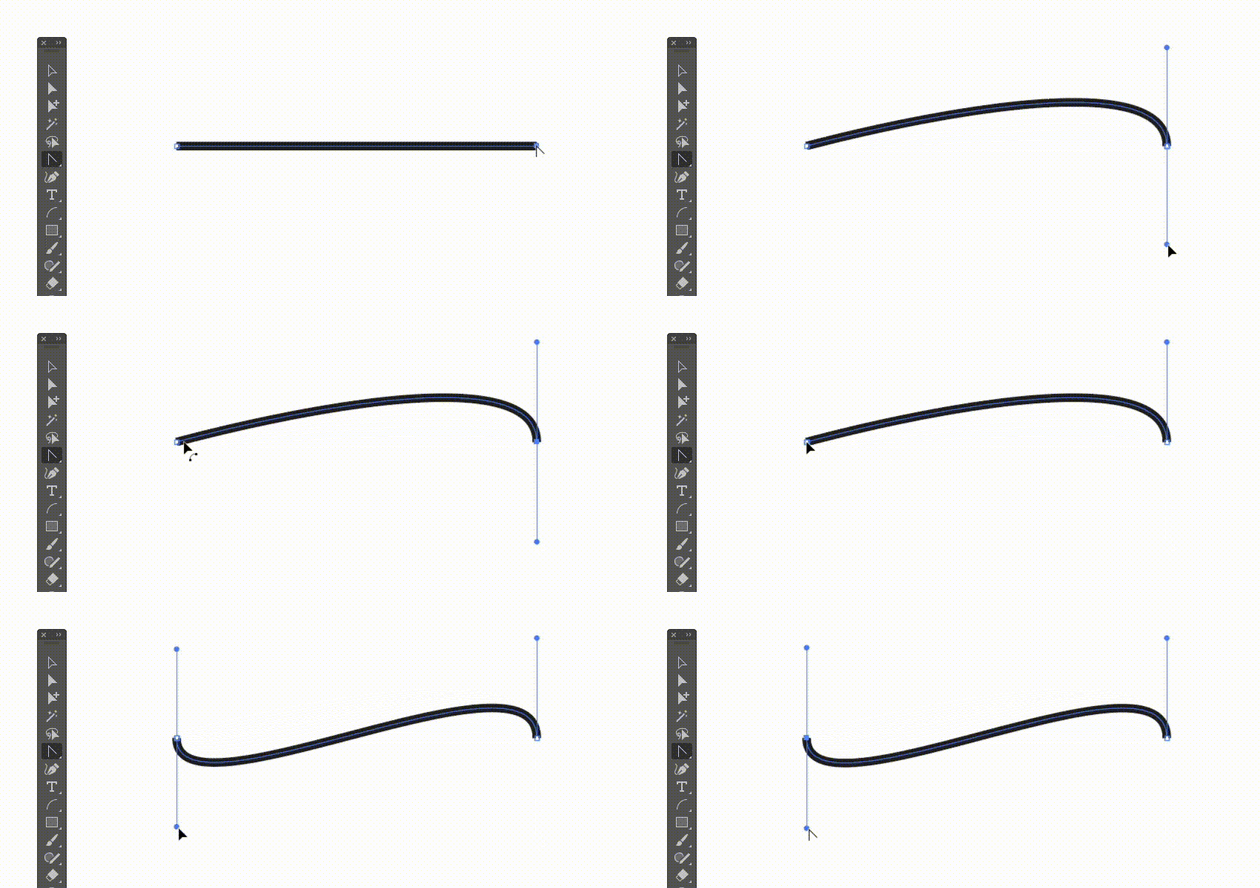
You can also click individual anchor points to turn a line into a curved line in Illustrator.

3. How to Curve a Line in Illustrator Using Effects
Step 1
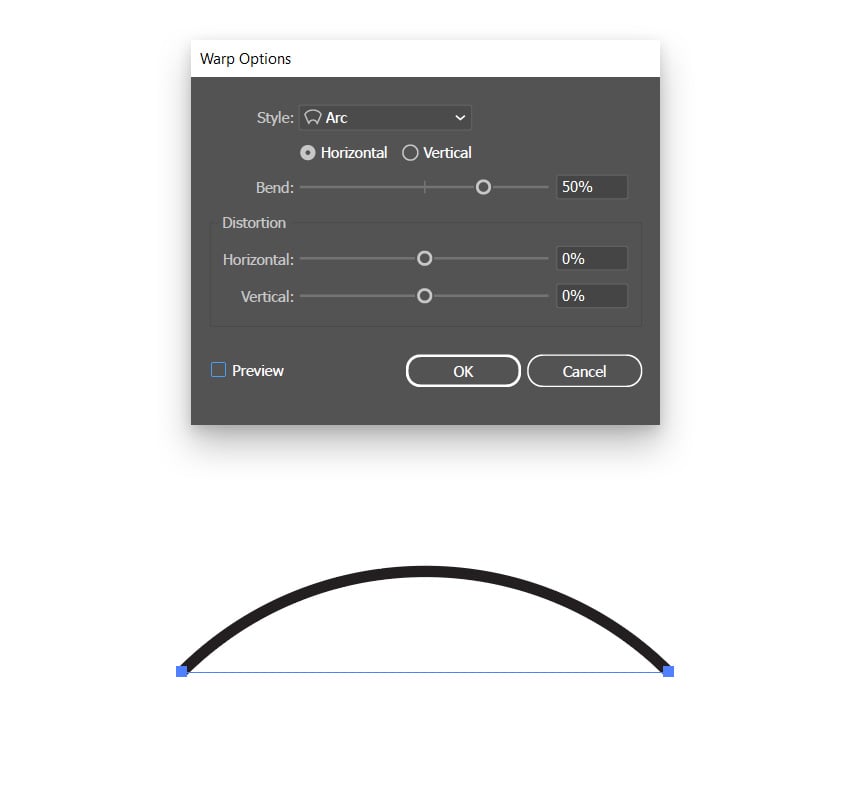
Select your line and go to Effect > Warp > Arc, and then play with those settings to add the curviness. Feel free to try some of the other Warp effects to apply different curvatures.


Step 2
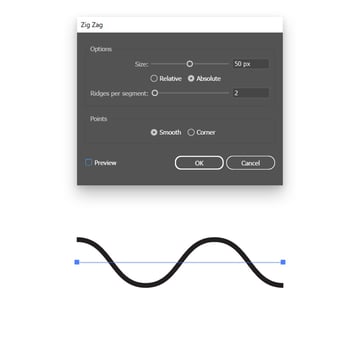
Select your line and go to Effect > Distort & Transform > Zig Zag, and then play with the settings to add the curviness.


Congratulations! You're Done!
Now that you've learned how to curve lines in Illustrator, feel free to use these techniques in your future projects.
You can find some great sources of inspiration at Envato Elements, with interesting solutions to improve your design portfolio.
Want to Learn More?
We have loads of tutorials on Envato Tuts+, from beginner to intermediate level. Take a look!

 How to Edit Text in Illustrator


 How to Draw a Circle in Illustrator

 How to Change the Canvas Size in Illustrator

 How to Cut Out a Shape in Illustrator

 How to Change Color in Illustrator

 How to Add an Artboard in Illustrator

 How to Rotate Text in Illustrator

 How to Make a Triangle in Illustrator

 How to Duplicate a Layer in Illustrator

 How to Fill in Illustrator
 By
By



