


Do you love old typewriters and the distinct typewriter texture and style they apply to the letters? Those duplicated letters, and the illegible and sometimes even blurred and almost missing symbols? A premium typewriter font can add a lot of personality to your creative projects.


In this tutorial, I will show you a quick and easy way to create a vintage typewriter font effect using a displacement map, textures, and smart filters. Follow this easy tutorial to create a typewriter font in Photoshop that you can use each time you need it.
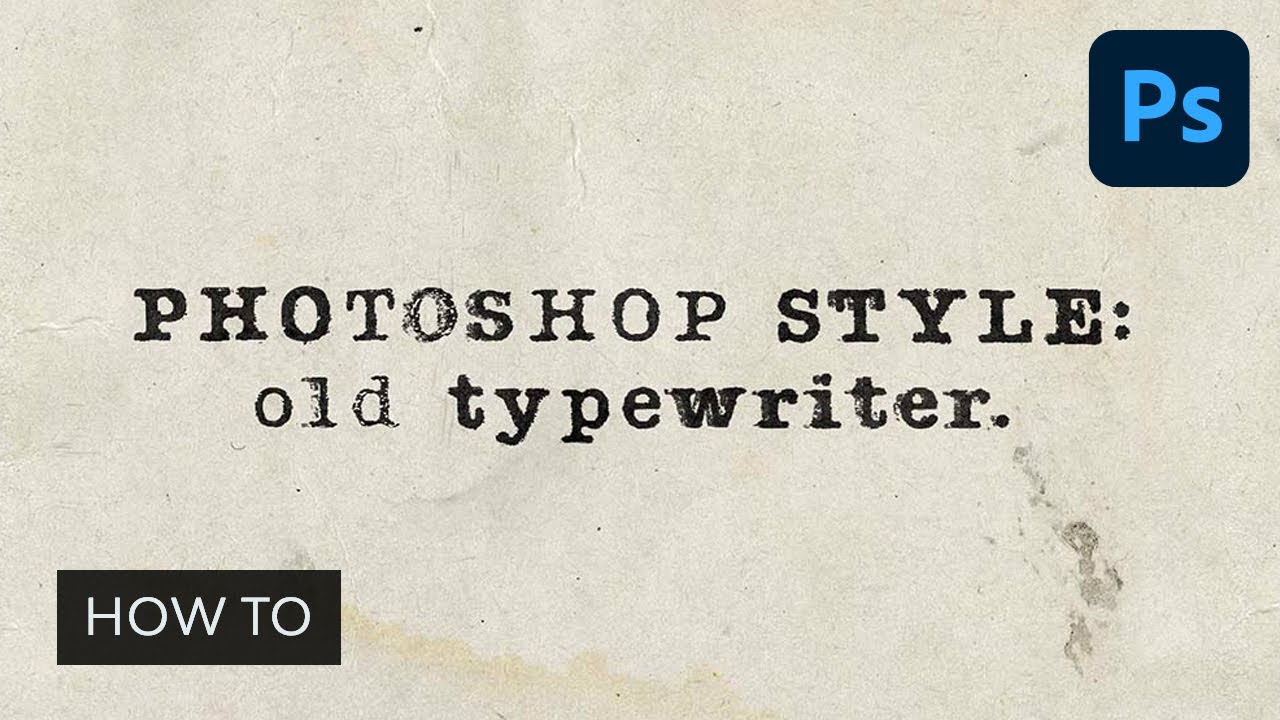
Let's start to create our own vintage typewriter font effect. If you want to learn this typewriter text effect via video, check out our lesson on the Envato Tuts+ YouTube channel:
What You'll Learn
As you're getting ready to start this Photoshop typewriter font tutorial, you should check the study program to prepare for what you'll learn. In this case, we'll go over:
- How to prepare the document
- How to create a typewriter font text effect
In a few simple steps, you'll be ready to create your own typewriter text effect.
What You'll Need to Learn How to Make a Typewriter Font in Photoshop
The following assets were used in the production of this Adobe typewriter font tutorial:
1. How to Prepare the Document
Step 1
Let's get started with this typewriter texture tutorial. Set up a New Document by pressing Control-N. Set the document size to 1500 by 1000 px.


Step 2
Drag and Drop the textures from the tutorial assets to the document, and then make these layers Invisible.


Step 3
We're halfway through the first process to create a typewriter font in Photoshop. Now, hit T and create two text layers with any words you want to use.


Step 4
After that, add a Mask to each layer.


Step 5
Select the text layers while holding Shift, and hit Control-G to create a group of the layers. Then add a mask to this group as we did before.


Step 6
Now we need to create four duplicates of the group using Right Click > Duplicate Layer.


2. How to Create a Typewriter Font Text Effect
It's time to begin the second process to create a Photoshop typewriter font.
Step 1
Select the mask of the first text layer and then Control-click on the icon of the text layer.


Step 2
Go to Select > Modify > Contract and set Contract By to 4 px.


Step 3
Press Shift-Control-I to invert the selection, and then hit Shift-F5 to fill the selection with black.


Step 4
Add the same mask effect to the second text layer and hit Control-D to deselect.


Step 5
Select the mask of the first layer and then go to Filter Gallery > Brush Strokes > Splatter and use the following settings: Set Radius: 10; Smoothness: 15. After that, add the same filter to the mask of the second layer using Alt-Control-F.


Step 6
Put the ink texture inside the first group of layers.


Step 7
Double-Click on the ink texture in the Layers panel, and then go to Color Overlay and use white.


Step 8
Now we need to add the selection to the masks of the second group of layers, as we did before. But this time we'll use the following settings: Contract By: 2 px.


Step 9
After that, select the mask of the text layer and go to Filter > Filter Gallery > Brush Strokes > Sprayed Strokes and set the Stroke Length to 20, Spray Radius to 0, and the Direction to Horizontal. Then add the same effect to the second layer mask using Alt-Control-F.


Step 10
Now let's go to the next group of layers and add the masking effect to both text layers as we did before, but this time we don't need to use the contract function.


Step 11
Select the Mask of the layer and then go to Filter > Distort > Displace and use the following settings:
- Horizontal Scale: 4
- Vertical Scale: 4
- Displacement map: Tile
- Undefined Areas: Repeat Edge Pixels
Hit the OK button, and now you need to select the PSD file from the tutorial assets as a displacement map. Add the same effect to the second layer using Alt-Control-F.


Step 12
Add the masking effect to the text layers in the fourth group with the Contract by 4 px setting.
Step 13
Don't despair! We're halfway through this second part of the tutorial about Adobe typewriter fonts.
To continue, select the mask of the text layer and go to Filter > Distortion > Ripple, using the following settings: Amount: 69%; Size: Medium. After that, select the mask of the second text layer and hit Alt-Control-F to add the same filter.


Step 14
Select the mask of the first layer and then go to Filter Gallery > Sketch > Torn Edges and use the following settings:
- Image Balance: 40
- Smoothness: 15
- Contrast: 15
After that, add the same filter to the mask of the second layer using Alt-Control-F.


Step 15
Now let's go to the last group of layers and create a mask effect as we did before using Contract by 4 px.
Step 16
Go to Filter Gallery > Brush Strokes > Splatter and use the following settings: Spray Radius: 10; Smoothness: 15. After that, add the same filter to the mask of the second layer using Alt-Control-F.


Step 17
And finally, let's add the last filter to the mask. Go to Filter Gallery again, and then select Texture > Craquelure and set the Crack Spacing to 35, Depth to 10, and Brightness to 0. Use the same effect for the mask of the second layer.


Step 18
Now we need to make some of the elements invisible. Select the mask of the first group of layers, and then hit M and select some words you would like to make visible. Hold Shift to make multiple selections.


Step 19
Hit Shift-Control-I to invert the selection and then Control-I to invert the mask.


Step 20
Delete some parts of different group masks as we did before.


Step 21
Move the first group of layers about 10 px to the left while holding Shift.


Step 22
Change the Opacity of the group to 90%.


Step 23
You're almost done! Just a couple of steps to create your own Photoshop typewriter font.
Create a duplicate of the overlay texture and move both layers above all the groups. Then change the Blending Mode of the first texture to Hard Light and the Opacity to 52%. After that, change the Blending Mode of the second texture to Multiply.


Step 24
Select the first overlay texture and hit Alt-Shift-Control-B. Then hit OK.


Step 25
Go to Image > Adjustments > Brightness/Contrast and set the Brightness to -80 and Contrast to 100.


Step 26
And for the last step, we need to put all the previous groups in a new group and then Right-Click on the first texture and select Create a Clipping Mask.


Awesome Work, You're Now Done Creating a Photoshop Typewriter Font!
Congratulations! You have created an old Adobe typewriter font effect using a displacement map, textures, and smart filters. Here is our final result. Isn't it an awesome typewriter texture?


Premium Typewriter Font Examples From Envato Elements (2023)
As you can see, learning how to make a typewriter font in Adobe Photoshop is fairly easy. However, if you want to know what a premium typewriter font looks like, check out the best typewriter font collection available on Envato Elements. With them, you will get a top typewriter text effect in a few seconds.
1. Enigma Typewriter Sans Font (TTF)


This classic typewriter font will help you to recreate the style of old documents and papers. It was inspired by the "Enigma machine" and has a great vintage and grungy look. This typewriter font supports multilingual glyphs and comes in one TTF file.
Download this incredible typewriter texture to give a cool look and feel to your projects.
2. Silk Remington Typewriter Texture (TTF)


Inspired by the name of the old brand, this product is an authentic old typewriter font, created by Jadugar Design Studio. This vintage typewriter font comes in five variations, from Thin to Rough, so it could be really useful for different types of projects.
You can get this typewriter text effect without having to go through the process of learning how to make a typewriter font in Adobe Photoshop.
3. Not My Type Typewriter Font (OTF)


If you ask what font looks like a typewriter, the answer is the one that is created with a real typewriter. This typewriter font was made with an Oliver Courier Typewriter from an antique market. If you need a simple old typewriter font with a great number of alternates, this one is the best choice for you.
4. AMTW Premium Typewriter Texture (TTF)


If you are looking for an American typewriter font, take a look at AMTW. This classic typewriter font could be used in many ways because it comes in three styles: regular, rough, and rough-rough.
Use this as a Photoshop typewriter font or in any other design editing platform.
5. Catalina Typewriter Text Effect (TTF)


If you are looking for a font that looks like a typewriter but was made by hand, Catalina Typewriter is the best typewriter font for you. This neatly handwritten font would be perfect for creating typewriter font tattoo sketches, table cards, menus, and much more.
You can download it with a couple of clicks and include it in your arsenal as an Adobe typewriter font.
Explore More Photoshop Tutorials and Resources
Now, you know how easy it is to learn how to make a typewriter font in Adobe Photoshop. You've also seen top examples of typewriter textures. However, if you would like to learn more about different Photoshop text effects, check out these tutorials:

 How to Create a Grunge Text Effect Using a Displacement Map in Adobe Photoshop


 How to Create a Stylized Chalk Text Effect in Adobe Photoshop


 How to Create a Distressed Painted Wall Text Effect in InDesign


 How to Create a Copper Foil Texture Text Effect in Adobe Photoshop

 How to Choose the Right Font for Your Brand


 How to Identify a Font


 How to Design and Construct a Functional Cursive Font

 How to Use Fonts With Swashes

 By
By



