


In this tutorial, you will learn how to create an amazing photo effect inspired by the Grand Theft Auto VI video game art style (click on the link to watch the Grand Theft Auto 6 trailer). I will explain everything in so much detail that everyone can create it, even those who have just opened Photoshop for the first time.
Jump to content in this section:
- What You'll Need to Make a Grand Theft Auto Filter in Photoshop
- Let's Get Started Creating a Grand Theft Auto Filter
- How to Select the Subject for Your GTA Photo
- How to Create the Background for Your Grand Theft Auto 6 Effect
- How to Create the Subject Art Style
- How to Make the Final Adjustments to Your GTA Photo
- You Made It! You've Put Together a Cool Grand Theft Auto Photo Effect in Photoshop
- Top Grand Theft Auto 6 Photoshop Actions from Envato Elements
- More GTA Resources from Envato Tuts+
What You'll Need to Make a Grand Theft Auto Filter in Photoshop
To create a GTA filter, you will need the following resources:
1. Let's Get Started Creating a Grand Theft Auto Filter
Step 1
First, open the photo that you want to turn into a Grand Theft Auto 6 image. To open your photo, go to File > Open, choose your photo, and click Open. Now, before we get started, just check a couple of things:
- Your photo should be in RGB Color mode, 8 Bits/Channel. To check this, go to Image > Mode.
- For best results, your photo size should be 2000–4000 px wide/high. To check this, go to Image > Image Size.
- Your photo should be the Background layer. If it is not, go to Layer > New > Background from Layer.

Step 2
Now we need to expand the canvas on the top so we have more space around the subject on this side. Go to Image > Canvas Size and use the settings below:

2. How to Select the Subject for Your GTA Photo
Step 1
In this section, we are going to make a selection of our subject and then copy the subject to a separate layer to create a picture in GTA VI style. Choose the Quick Selection Tool (W) and select the background of the photo. Use the Shift-Alt buttons on your keyboard to add or subtract areas from the selection. After you've made a perfect selection, press Control-Shift-I to invert the selection.

Step 2
Now go to Select > Modify > Smooth and set the Sample Radius to 5 px. Then, go to Select > Modify > Contract and set Contract By to 1 px. After that, go to Select > Modify > Feather and set the Feather Radius to 1 px.

Step 3
Press Control-J to create a new layer using the selection, and name this layer Subject.

3. How to Create the Background for Your Grand Theft Auto 6 Effect
Step 1
In this section, we are going to create the background for a Grand Theft Auto 6 effect. Select the Background layer, go to Layer > New Fill Layer > Solid Color to create a new solid color fill layer, name it Background Color, and choose the color #000000 as shown below:

Step 2
Now go to File > Place Embedded, select the image from the second stock image link, and click Place. Then, set the Width and Height of the texture to 180% as shown below, and name this layer Background Image.

Step 3
Right-click on this layer and choose Rasterize Layer. Then, go to Filter > Filter Gallery > Artistic > Cutout, and set the Number of Levels to 8, Edge Simplicity to 10, and Edge Fidelity to 3.

Step 4
Now press Control-A on your keyboard to make a selection of the whole canvas. After that, go to Layer > Layer Mask > Reveal Selection to add a layer mask that reveals the selected area of the photo.

Step 5
Right-click on the layer mask and choose Apply Layer Mask. Then, press Control-T, Right-click anywhere inside the canvas, choose Distort, and transform this layer as shown below:

Step 6
Go to Layer > New Adjustment Layer > Hue/Saturation to create a new hue/saturation adjustment layer and name it BI_Saturation/Brightness.

Step 7
Now press Control-Alt-G to create a clipping mask. Double-click on this layer thumbnail and, in the Properties panel, set the Saturation to -40 and Brightness to +20 as shown below:

4. How to Create the Subject Art Style
Step 1
In this section, we are going to create the subject art style for a Grand Theft Auto VI effect. Select the Subject layer, go to Filter > Sharpen > Unsharp Mask, and set the Amount to 500%, Radius to 1 px, and Threshold to 0 levels.

Step 2
Now go to Filter > Stylize > Diffuse and set the Mode to Anisotropic.

Step 3
Go to Filter > Stylize > Oil Paint, set the Stylization to 2 and Cleanliness to 10, and uncheck Lighting.

Step 4
Now go to Filter > Sharpen > Unsharp Mask, and set the Amount to 100%, Radius to 3 px, and Threshold to 0 levels.

Step 5
Go to Filter > Stylize > Diffuse and set the Mode to Anisotropic.

Step 6
Go to Filter > Sharpen > Unsharp Mask, and set the Amount to 100%, Radius to 1 px, and Threshold to 0 levels.

Step 7
Go to Filter > Noise > Reduce Noise and use the settings below:

Step 8
Now go to Filter > Blur > Surface Blur, and set the Radius to 2 px and Threshold to 15.

Step 9
Press Control-J on your keyboard to duplicate this layer. Then, go to Filter > Filter Gallery > Artistic > Cutout, and set the Number of Levels to 8, Edge Simplicity to 3, and Edge Fidelity to 3.

Step 10
Now change the Opacity of this layer to 25% and name it Subject_Adjustment.

Step 11
Control-click on this layer thumbnail to make a selection of this layer. Then, go to Select > Modify > Smooth and set the Sample Radius to 5 px.

Step 12
Now go to Layer > New > Layer to create a new layer, and name it Subject Stroke.

Step 13
Choose the Rectangular Marquee Tool (M), set the foreground color to #000000, Right-click anywhere inside the canvas, and choose Stroke. Set the Width to 4 px, Location to Outside, Mode to Normal, and Opacity to 100%.

Step 14
Choose the Rectangular Marquee Tool (M) again, set the foreground color to #000000, Right-click anywhere inside the canvas, and choose Stroke. This time, set the Width to 2 px, Location to Center, Mode to Normal, and Opacity to 100% as shown below:

Step 15
Press Control-D on your keyboard to deselect the selection.

5. How to Make the Final Adjustments to Your GTA Photo
Step 1
In this section, we are going to make final adjustments to the GTA photo design. Go to Layer > New Adjustment Layer > Photo Filter to create a new photo filter adjustment layer, and name it Photo Tint.

Step 2
Now Double-click on this layer thumbnail and, in the Properties panel, set the Filter to Orange and Density to 15% as shown below:

Step 3
Press D on your keyboard to reset the swatches, go to Layer > New Adjustment Layer > Gradient Map to create a new gradient map adjustment layer, and name it Overall Contrast.

Step 4
Now change the Blending Mode of this layer to Luminosity and set the Opacity to 28%.

Step 5
Go to Layer > New Adjustment Layer > Vibrance to create a new vibrance adjustment layer and name it Overall Vibrance/Saturation.

Step 6
Now Double-click on this layer thumbnail and, in the Properties panel, set Vibrance to +31 and Saturation to +20.

Step 7
Go to Layer > New Adjustment Layer > Levels to create a new levels adjustment layer and name it Overall Brightness.

Step 8
Now Double-click on this layer thumbnail and, in the Properties panel, enter the settings below:

Step 9
Press Control-Alt-Shift-E on your keyboard to make a screenshot, and then press Control-Shift-U to desaturate this layer. Then, go to Filter > Other > High Pass and set the Radius to 2 px.

Step 10
Now change the Blending Mode of this layer to Hard Light and name it Overall Sharpening.

You Made It! You've Put Together a Cool Grand Theft Auto Photo Effect in Photoshop
Congratulations, you have succeeded in making a picture in GTA VI style! Here is the result of our Grand Theft Auto VI effect:

Doesn't this GTA picture filter look cool? Now, you can make your own GTA effect in Photoshop.
Top Grand Theft Auto 6 Photoshop Actions From Envato Elements
If you look at the Grand Theft Auto 6 trailer, the video game's artwork is cool and sleek. If you want to achieve that same effect, you don't have to work that hard. As you can see, the steps for creating a Grand Theft Auto 6 action are easy to follow.
However, if you don't have the time or interest in creating your own GTA effect in Photoshop, don't worry. Envato Elements has a slew of premium Photoshop actions to help you out. Take a look!
1. Grandiose 3: Animated Grand Theft Auto Filter Photoshop Action (ATN)
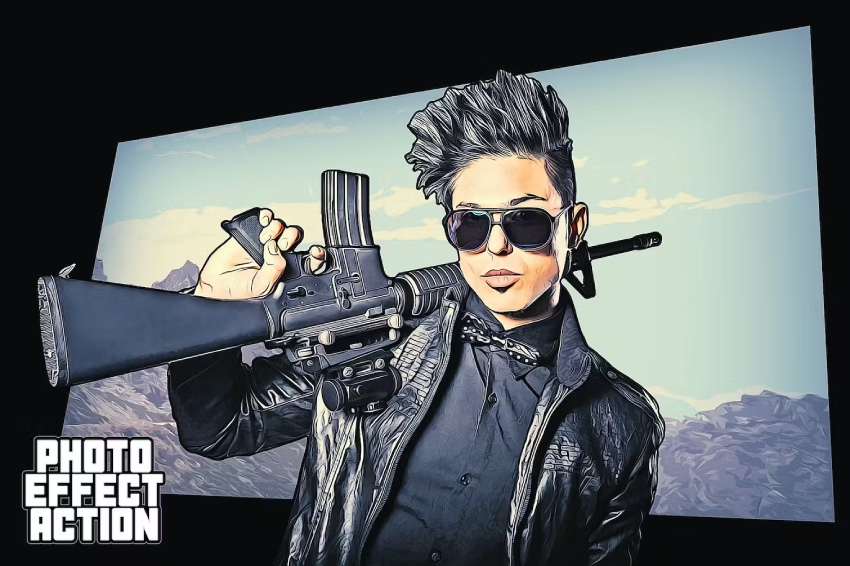
If you would like to create an even more advanced effect, which you can also animate if you want, using just a single click and in only a few minutes, then check out my Grandiose 3 Grand Theft Auto Filter Photoshop Action.
Using this GTA effect Photoshop action, you can transform your photos into amazing GTA-inspired art with no work at all. Simply fill in your subject with a color and just play the action. It’s really that simple! The action will do all the work for you, leaving you fully layered and customizable results. The action also creates 20 preset color GTA filters that you can choose from.
There are also 16 background shape actions, an action to add more elements to the design, an action to create a GTA-inspired text effect using your own text, and an action to animate the results.
It comes with a detailed video tutorial that demonstrates how to use the action and customize the results to get the most out of the Grand Theft Auto photo effect.

2. Portraits Characters Game: Photoshop GTA Picture Filter (ATN, PAT)
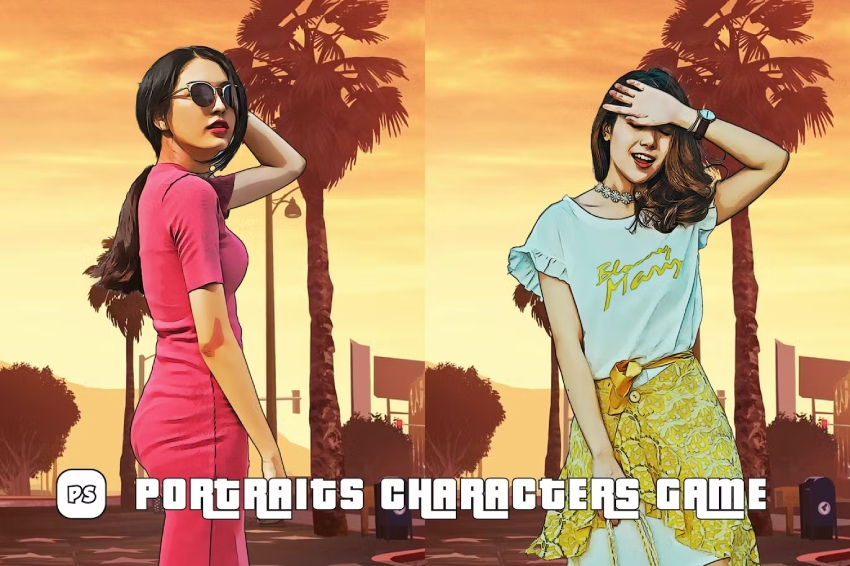
Here's another fantastic option for a professional Photoshop action with a similar effect to GTA. In the blink of an eye, you'll get the aesthetic you want. It's extremely easy to use, but you get a help file if you need any assistance in getting it to work. Get it now and transform your images with this GTA picture filter.
3. Mafia Painting Art: GTA Filter Photoshop Action (ABR, ATN, PNG)
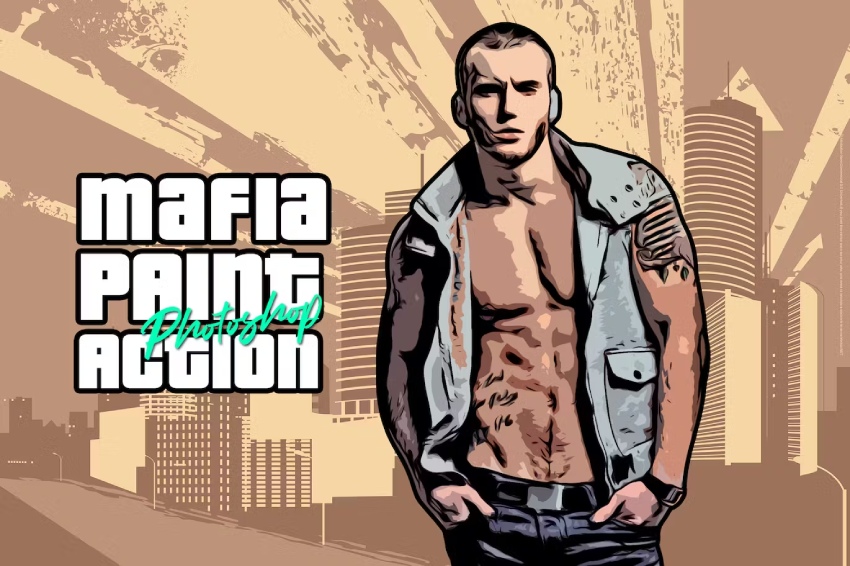
This next GTA picture filter Photoshop action blurs lines and makes your images more abstract instantly. You'll get a beautiful aesthetic that will save you a lot of time when editing your images. You can use this GTA picture filter to create graphic designs, flyers, social media campaigns, posters, and so much more!
4. GTA Photoshop Action: Grand Theft Auto VI Effect (ATN, PSD)
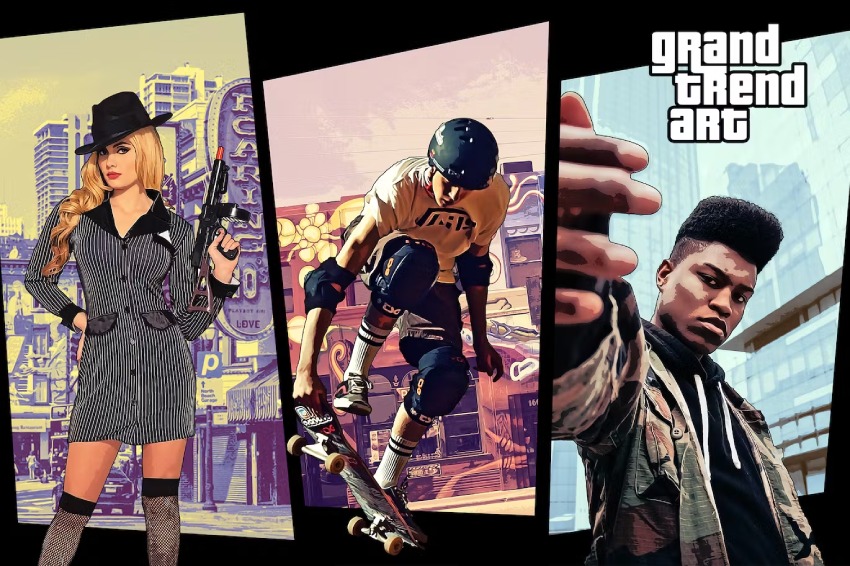
Get a closer result to the Grand Theft Auto VI aesthetic with this awesome Photoshop action from Envato Elements. This download contains 5 frame templates, 15 overall color presets, a video tutorial, and a help file to guide you through the process of putting together a picture in GTA VI style. Be mindful that this Grand Theft Auto VI action only works with the English version of Photoshop.
5. Grand Theft Auto Photo Filter Photoshop Action (ATN)
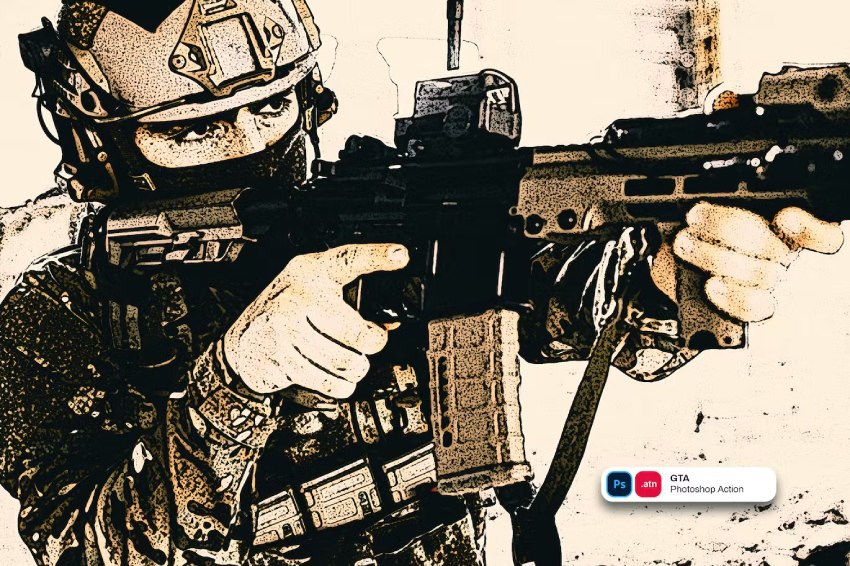
Finally, give this Grand Theft Auto Photoshop action a try. You'll have the coolest designs in a few seconds. Run it to transform your images into a GTA-style effect. You can customize it to your liking to get a highly detailed artistic rendition. The GTA filter comes in well-organized layers so you can work with it seamlessly.
More GTA Resources from Envato Tuts+
If you enjoyed this tutorial on Grand Theft Auto VI photo effects, you may also like:


 By
By



