


Creating balanced artwork can sometimes become a tedious task, especially if you're trying to do it without a reference system.
Luckily for us, Illustrator has a special option, Snap to Grid, that allows us to snap each object to the Grid, making our process a lot more straightforward.
Learn more about the Adobe Illustrator Snap to Grid feature by checking out my how-to video, which will show you where the option is located and most importantly how it works.

How to Use the Snap to Grid Option in Illustrator
By default, the Grid itself is hidden, so you'll first have to turn it on from within the View menu in order to be able to see it.


Go back to View menu and enable the Snap to Grid option.


Now each time you create a new shape by clicking and dragging, you'll be able to Snap to Grid, which will allow you to easily establish a size and position for your elements.


This tool enables you to create intuitive compositions by taking advantage of the underlying grid line structure, with every shape gradually snapping to larger or smaller space gaps.


Want to see this in action? Check out the video above to see this lesson at work!
Top Envato Elements Items for Illustrator
Do you want to start practicing your Snap to Grid Illustrator skills? Discover five must-have Envato Elements items for Illustrator users. These selections are designed to elevate your design work, streamline your creative process, and inspire your artistic journey.
1. Isometric Illustration Design (AI, EPS, FIG, JPG, PDF, PSD, SVG)



This modern isometric design illustration is easy to edit and customize. It's perfect for using the Snap to Grid option!
2. Yoga Girl Illustration (EPS, PDF, PNG)



In a serene natural setting, a girl practices yoga in the lotus pose. Get ready to experiment with proportion, composition, and symmetry.
3. Summer Pack Illustration (AI, EPS, JPG, PDF, PNG, SVG)



With this vector pack illustration, you can create countless variations for business branding, infographics, social media, promotion, website, landing pages, banners, and other illustration purposes. The illustrations are easy to resize and change, which is great for using the Snap to Grid! You can also customize colors of each shape as required.
4. Isometric Restaurant Building (EPS, JPG)
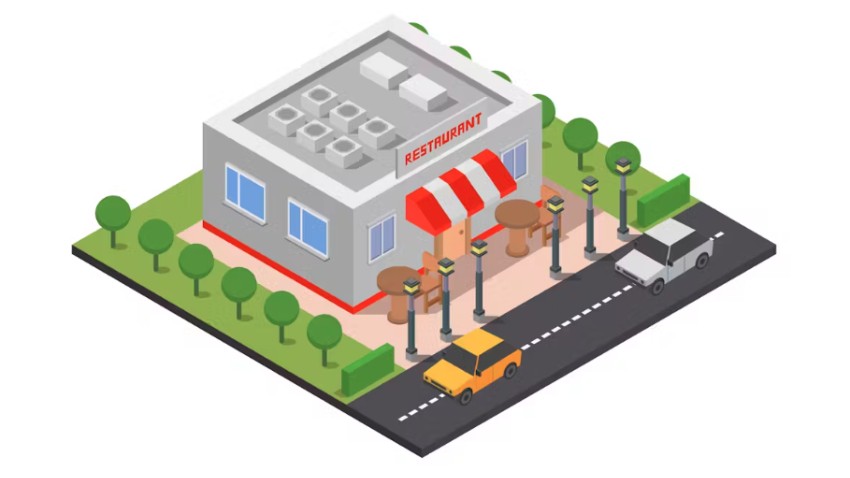


This Isometric Restaurant Building in vector contains EPS and JPG files, which you can modify in any way you want. Take a shot: use your Snap to Grid skills to change the size or placement of any element from the illustration.
5. Cute Red Panda Illustration (AI, EPS, JPG, PNG, SVG)



This Cute Red Panda illustration features a 100% vector format, allowing you to scale it without losing the quality.
Create new designs with these or other Envato items by using the Snap to Grid feature in Adobe Illustrator; by doing so, you can significantly enhance the accuracy of your designs, streamline your workflow, and ensure that every element is perfectly aligned and visually appealing.
Explore More Adobe Illustrator Tutorials
Want to learn more about Adobe Illustrator's vast tools and settings? Check out these tutorials below:

 Adobe Illustrator Tips and Tricks: A to Z of the Best Hacks!


 Illustrator in 60 Seconds: Grids


 How to Create Pixel-Perfect Artwork Using Adobe Illustrator

 Quick Tip: Advantages of Using the Clipping Mask Over the Pathfinder Panel

 How to Draw a Dolphin in Illustrator

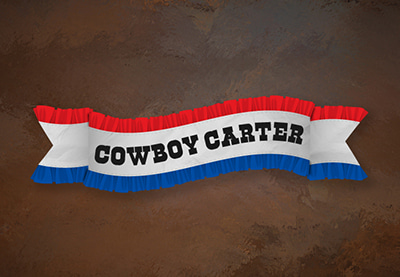
 How to Create a Beyoncé "Cowboy Carter" Ribbon in Illustrator

 By
By



