


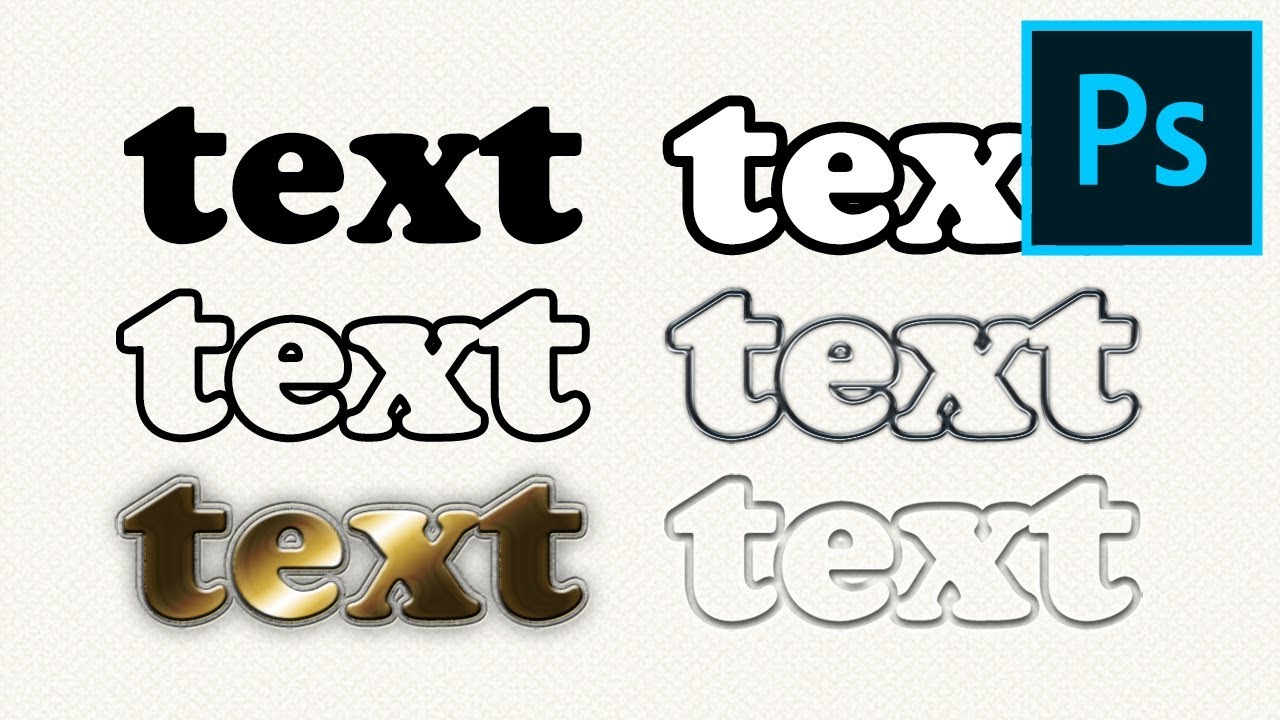
In this tutorial, I will show you how to outline text in Photoshop and how to customize it to your needs. With this simple trick, you'll be able to outline any text or font in minutes! As a bonus, I will also show you how to edit the outline separately from the letters using Layer Styles.
Follow along with me over on our Envato Tuts+ YouTube channel to learn how to outline text in Photoshop:
Unlimited Fonts to Create Text With Borders in Photoshop at Envato Elements
If you're looking for fonts for Photoshop to do text outlines, you've come to the right place. On Envato Elements, you'll be able to find curated and creative assets for all your design projects. For a low monthly fee, download as many fonts, video templates, stock video, and graphics as you want.


Now, let's get started with this quick tutorial on how to outline text in Photoshop.
1. How to Outline Text in Photoshop
Step 1
Start by typing your text with the Type Tool (T).


Step 2
Right-click the text layer and select Blending Options.


Step 3
Check Stroke. Your text will be outlined in the default way.


Step 4
You can easily customize the text outline in Photoshop by playing with the settings presented here. First, let's change the Color of the text border of the font to make it more visible, for example to white.


Step 5
In this step, we'll take a look at other styles and effects to add a stroke to our text in Photoshop.
The outline text can also be filled with a Gradient, if you need it...


... or with a Pattern of your choice.


The opportunities are endless when you create text with borders in Photoshop. Experiment with all the styles that Photoshop has and design text with outlines that match your style!
Step 6
You can also change the thickness of the outline of your text in Photoshop...


... and change its Position towards the edge of the letters.


Step 7
If you want the Photoshop outline text to be subtler, you can lower its Opacity or change its Blend Mode to interact with the background.


Step 8
Finally, if you need to remove the text and only keep the text border of your font, that's also possible. Just go to the Blending Options and drag the Fill Opacity bar down to 0%. This will remove the fill color and only leave the outline text.


2. How to Edit the Text Outline in Photoshop Separately
Step 1
Unfortunately, you can't add styles directly to the outline text this way. For example, if you check Drop Shadow, the shadow will be cast by the whole text, even if you make the fill transparent. If you want to edit the outline separately, you need to use a trick. Right-click the layer and select Rasterize Layer Style.


Step 2
You can now freely use all the style settings on your text with all outlines. The downside of this method is that you can no longer edit the text, since it's been turned into a shape.


That's It! Now You Know How to Outline Text in Photoshop
As you can see, adding text borders to your fonts is a piece of cake. You only need some patience to experiment with all the styles and effects that Photoshop has to offer.
Now that you've completed this tutorial, you'll be able to:
- Use Photoshop for text outlines
- Edit stroke text in Photoshop separately
5 Best Layer Styles & Fonts to Outline Text From Envato Elements
There are many ways to use Layer Styles to make your text more visually appealing, but if you want to save time, you can use ready-made text effects.
In this section, you'll find the best layer styles and effects for Photoshop to outline text from Envato Elements. Let me show you a few examples:
1. 3D Text Effect (PSD)
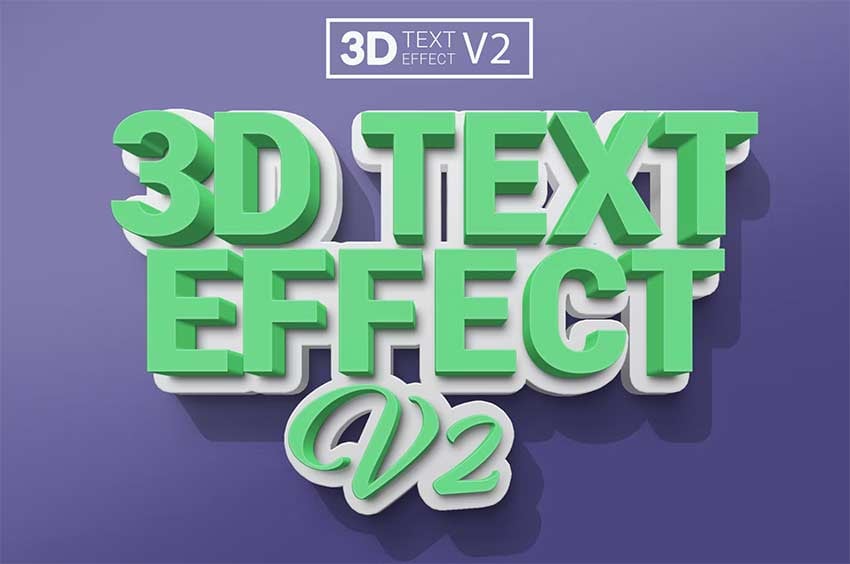
This 3D effect looks very complex, but it's simple to use. Just double-click the text layer to edit the text directly. It's a Smart Object, which means that the text is saved in another file. Once you edit that separate file and save it, the main file will be automatically modified according to your changes. It can take a while if the effect is very complex, but you don't have to do anything. Just wait for the magic to happen!
2. Game Logo Text Effect (PSD)


You can use this method to create even very complex logos. The best thing about it is that you only need to provide the text and everything else happens without any effort on your side. This text effect, for example, allows you to create a 3D-looking logo straight from a video game. You can also create text with borders in Photoshop easily.
3. Retro & Groovy Font (OTF, TTF)
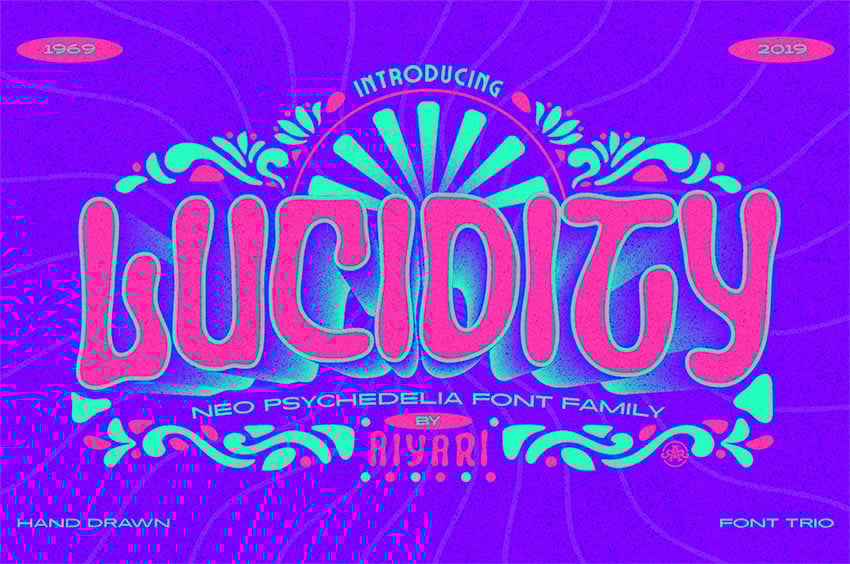
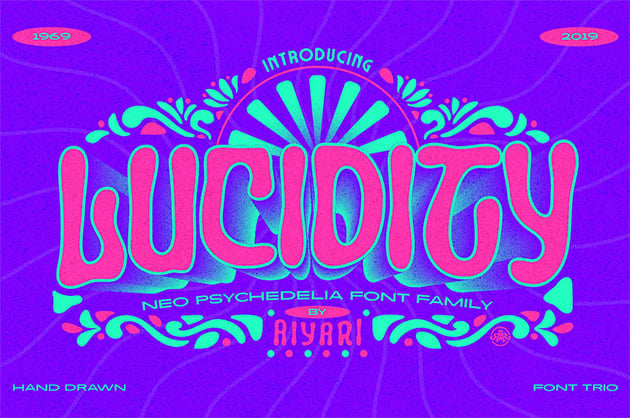
Go ahead and design text in vintage style using this font. Normally it would take a lot of time and skill to create an effect like this, but it's already done and ready to be used. Just add your own text!
4. Vintage Black & White Text Effect (PSD)
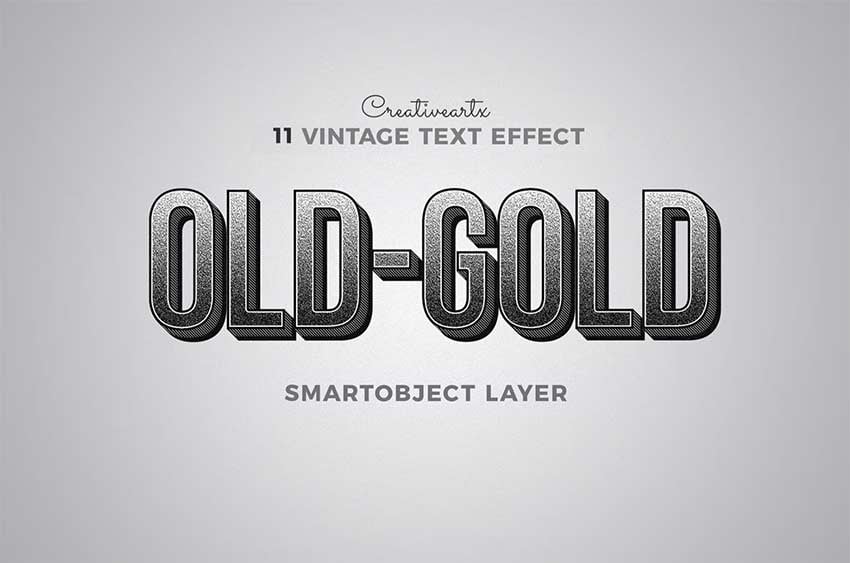
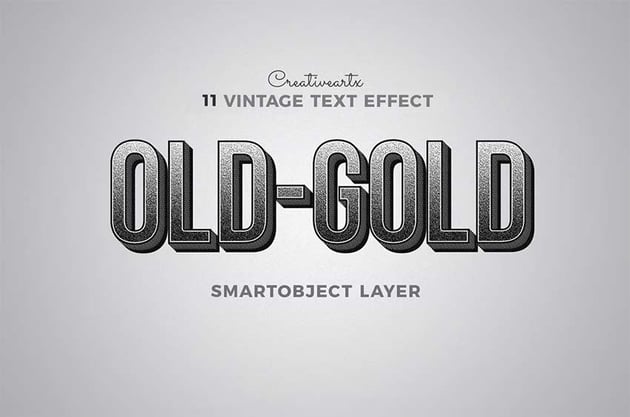

Here's another example of this method. Here the text becomes a part of the whole artwork, being altered to look older. The black and white effect makes the outline text look bolder and eye-catching.
5. Graffiti Text Effect (PSD, ASL, PDF)


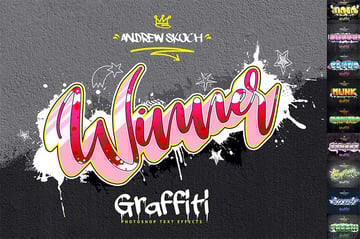
Give an urban and modern look to your designs with this graffiti text effect. This effect features ten different styles, is easy to edit, and is 100% customizable. Also, create cool stroke text in Photoshop with this text effect.
Good Job!
Now you know how to outline letters in Photoshop and how to customize the outline with Layer Styles. If you want to learn more about creating text effects, you may be interested in one of our other tutorials:

 How to Create a Cartoon Text Effect in Adobe Photoshop


 How to Create a Chalkboard Sign With Chalk Text in Adobe Photoshop


 How to Create a Neon Flame Text Effect Action in Adobe Photoshop


 How to Create a 3D Golden Cinematic Text Action in Adobe Photoshop

 How to Create an inFamous Inspired Text Effect in Adobe Photoshop

 How to Create a 3D Chipped, Painted Wood Text Effect in Adobe Photoshop


 32 Best Gold Text Photoshop Effects (And Other Metallic Effects)


 How to Create a Realistic Neon Light Text Effect in Adobe Photoshop
Editorial Note: This post has been updated with contributions from Gonzalo Angulo. Gonzalo is a staff writer with Envato Tuts+.
 By
By



