


If you're interested in Photoshop text effects, in this tutorial I'll show you how to make 3D text in Photoshop in just a few steps. We're going to adjust its shape, set the light sources, create a material, and then render it all. Just keep in mind you need at least Photoshop CC or CS6 Extended for this.
Follow along with us over on our Envato Tuts+ YouTube Channel to learn how to make 3D text in Photoshop.
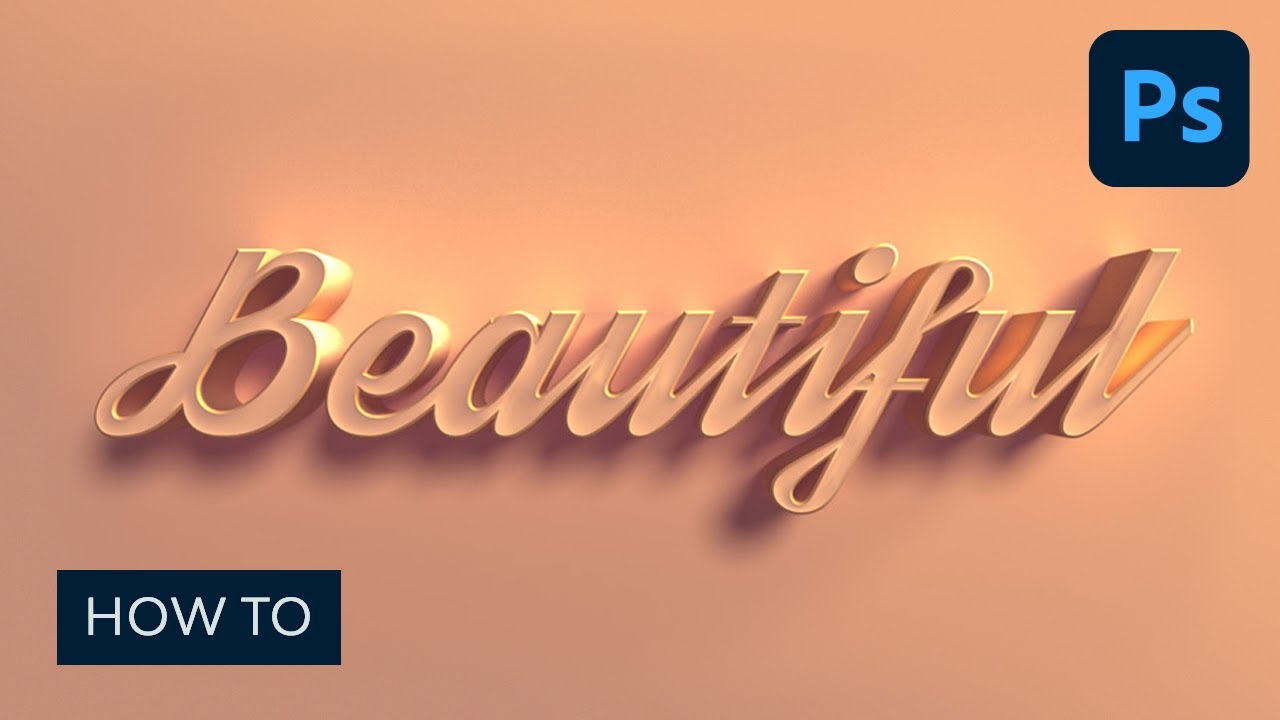
What You Will Learn in This 3D Text Photoshop Tutorial
- How to turn text into a 3D object in Photoshop
- How to make 3D text in Photoshop
Prefer to use Adobe Illustrator? We've got a free course on transforming text to 3D in Illustrator too!
How to Make a 3D Text Effect in Photoshop
Step 1
Create a New File. Type some text in a big, bold font. If you like, you can download the one I used, Streetwear.


Step 2
With the text layer selected, go to 3D > New 3D Extrusion From Selected Layer.


Step 3
Your text will be turned into a 3D object with some default settings. Before we start changing them, let's set the scene first. Click the 3D text and go to the Coordinates tab in the Properties panel. Change the X angle to 90 degrees.


Step 4
Select the first tool in the upper bar, and click somewhere outside of the object to move the camera. Drag it until you see a red-blue cross.


Step 5
Go to the Coordinates tab and adjust the second column to only include a 90-degree rotation on the X axis.


Step 6
If needed, drag the cross more to the center and place the 3D text in the center, too.


Step 7
Let's add a background that our object will be interacting with. Go back to the layers and draw a rectangular shape.


Step 8
Go to 3D > New Mesh from Layer > Depth Map to > Plane.


Step 9
Select both layers and go to 3D > Merge 3D Layers.


Step 10
Select the last tool in the upper bar and resize the rectangular shape to fill the whole scene. You can adjust the thickness of the letters by dragging the shape up by its Z axis (the blue arrow)


Step 11
Let's adjust the setting of the 3D text now. Go to the first tab in the Properties panel and click Shape Presets. Select one from the list, keeping in mind that they can all still be adjusted.


Step 12
To adjust the shape, go to the Cap tab. Here you have access to many settings to achieve the result you need. I decided to use a simple contour with a very thin bevel and a slight indentation.


Step 13
Time to set the lights! Scroll down the list to find Infinite Light. Drag it to cast a nice shadow under the letters.


Step 14
You can change the Softness of the shadow and the Intensity of the light in the Properties panel.


Step 15
Let's add one more light. Click the white card on the bottom of the 3D panel and select New Infinite Light.


Step 16
Turn off the first light for a moment and drag the new light so as to illuminate mostly the contours of the letters. Keep the shadow soft, too.


Step 17
Go to the Materials tab now. Select all the materials of the text and add some colors to them. Diffuse is the main color of the object. Specular is the color of the highlights and shine. Ambient is the color of the shadow. Keep these colors in the same hue range for a natural 3D effect in Photoshop.


Step 18
Once you've set all the colors of your 3D words, create a New Material.


Step 19
Click the Rectangle on the list and add the material to it.


Step 20
If you want to make the shadows brighter, you can also add some ambient light to the scene. Find Environment on the 3D list and change Global Ambient to a bright color. You can increase the intensity of the ambient light, too.


Step 21
When you're done, click Render to see how your scene really looks. It can take a while to finish rendering, but even a few passes can show you what to expect.


Step 22
If you notice something you want to fix, just hit Escape to stop rendering and adjust the settings that you want to change, like the intensity of light, the direction of the light sources, or the properties of the material. Feel free to repeat this until you're completely happy with the end result.
And that's it! You now know how to make 3D text in Photoshop step by step.


Top 3D Text Effects From Envato Elements
Now you know how to create a basic 3D text effect in Photoshop. However, it still takes a lot of effort to create something more complex. If you want to save time, there are plenty of ready-made 3D text effects available on Envato Elements.
1. Real Photoshop 3D Text Mockups (PSD)
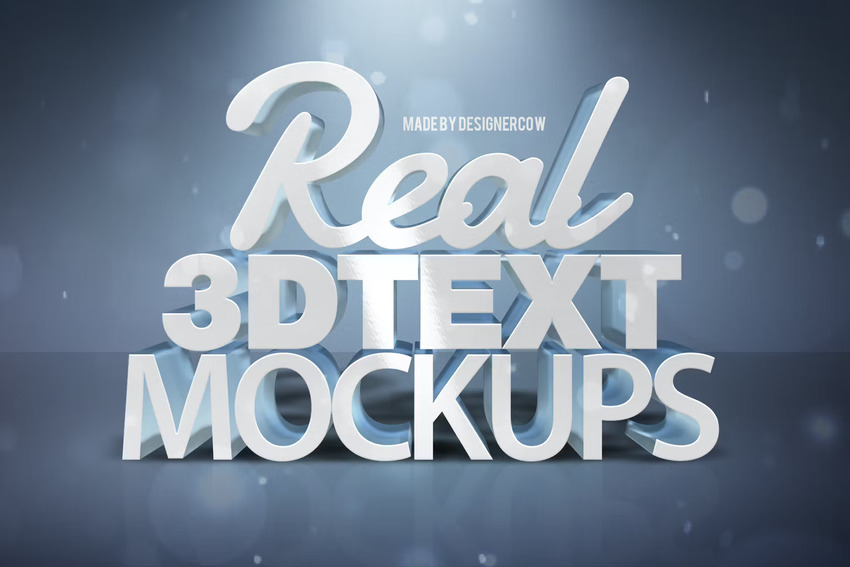
Looking for a 3D text effect for Photoshop? This set contains six options. You can easily add realistic materials to your letters, and the background will complement the text nicely.
You can create text for a digital flyer or a poster this way—just type it in, change the font, and enjoy the end result.
2. Rubber 3D Text Effects (PSD)
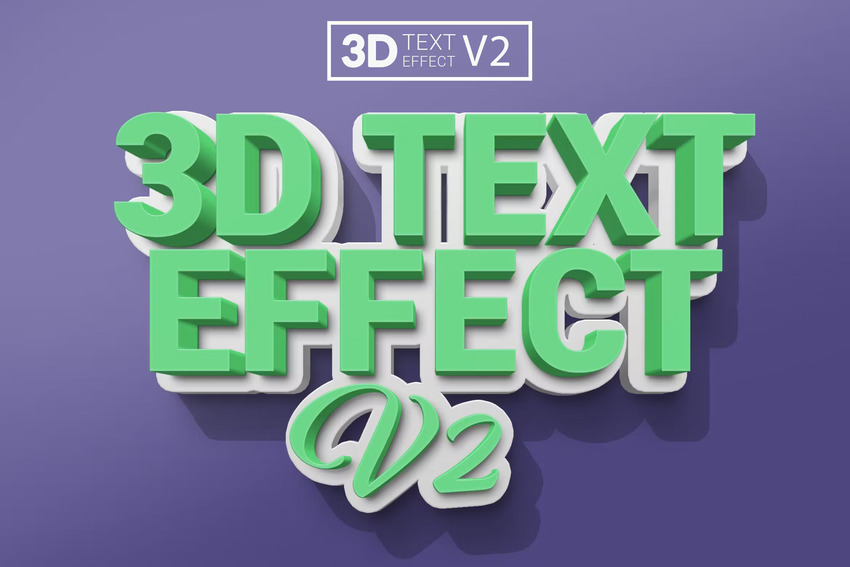

You can also create a unique double-3D text in Photoshop with this set. It offers three variations of the same effect: nice, softly shaded letters that bring rubber to mind. You can change the text, font, and even color in this 3D effect.
3. Classic Photoshop 3D Text Effect (PSD)
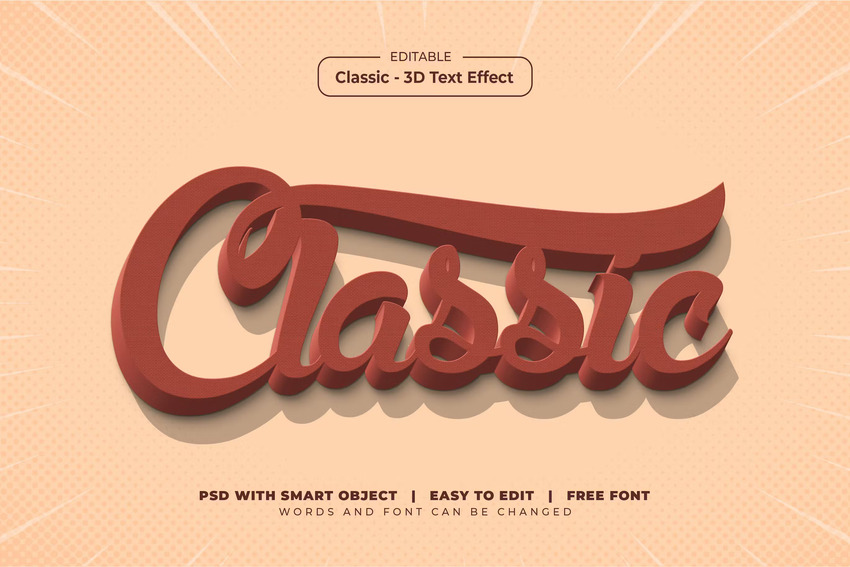
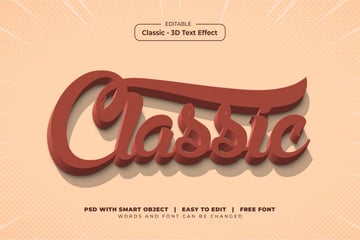
Create the coolest 3D text in Photoshop with this asset. It's an awesome 3D effect that works on text, shapes, and logos. The file is easy to edit and use, with organized layers. Don't hesitate to try this if you need to create text in 3D.
4. Vibrant 3D Text Effect in Photoshop (PSD, ASL)



Can't choose a single 3D effect for Photoshop? This fun and high-quality bundle comes with eight different styles. The Photoshop 3D text effect consists of vivid gradients and isometric compositions. It's the ideal asset if you want to add 3D words to your next design.
5. 3D Text Effect Creator (ATN)
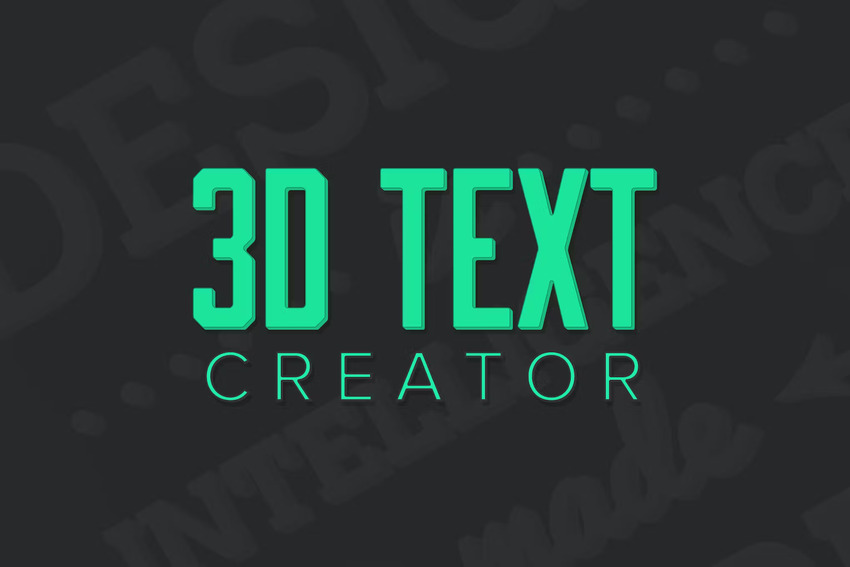
Here's a simple yet useful 3D effect for Photoshop. Use it for any kind of project that would benefit from this 3D font trend. It offers five outline styles, and all the layers are fully editable. Converting your text to 3D has never been easier!
Good Job!
Now you know how to make 3D text in Photoshop. If you want to learn more about creating 3D text effects in many styles, try these tutorials:

 How to Create a 3D Black and Gold Text and Logo Mockup


 How to Create a Glittering, Festive, 3D Text Effect in Adobe Photoshop


 How to Create a Flat, Faded 3D Text Effect in Adobe Photoshop

 How to Create a 3D Text Effect Action in Photoshop


 How to Create a 3D Gold Layered Text Effect in Adobe Photoshop

 How to Create an Underwater Text Effect in Photoshop


 Mastering 3D Text in Adobe Illustrator


 Create an Isometric 3D Text Effect in Adobe Illustrator

 By
By



