

Adobe has updated its software programs once again! Adobe MAX 2023 was filled with new features and enhancements. In this quick tip, I will show you how to hide spreads in Adobe InDesign.
How to Hide a Spread in InDesign
Step 1
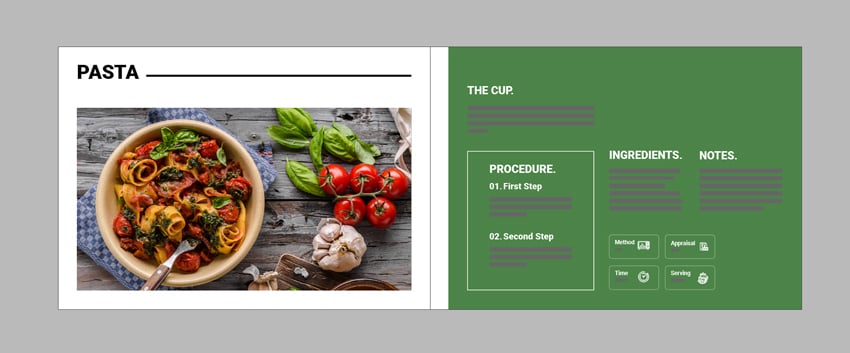
Open your InDesign document. I'm using this cookbook template from Envato Elements.


Step 2
Locate the Pages panel by going to Window > Pages.


Step 3
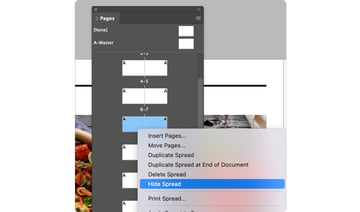
Select the spread in InDesign that you want to hide, and Right-Click > Hide Spread.


Now You Know How to Hide a Spread in InDesign!
It's important to know how to hide a spread in InDesign. There may be instances where you want to focus on a single page or simply hide the spreads for a cleaner view. You can easily switch back and forth between displaying and hiding spreads as needed throughout your design process.
Learn Even More With These InDesign Tips
Learning a design program takes time and effort. Start off on the right foot by checking out these Adobe InDesign resources.








 By
By



