

Looking to speed up your design workflow in InDesign? In this article, I'll be sharing four handy InDesign keyboard shortcuts that will save you time and make your design process easier. Join me as we dive into the world of InDesign and discover shortcuts that will have you designing like a pro in no time!
If you prefer video content, don't forget to follow along with this video from the Envato Tuts+ YouTube channel:
Jump to content in this section:
What You Will Need
If you want to follow along, check out this plant shop trifold brochure from Envato Elements:
1. How to Duplicate an Object in InDesign Shortcut
If you're an avid Adobe InDesign user, you know the importance of finding shortcuts to streamline your workflow. One handy shortcut that can save you time and effort is the ability to duplicate objects in InDesign with just a few simple steps.
Step 1
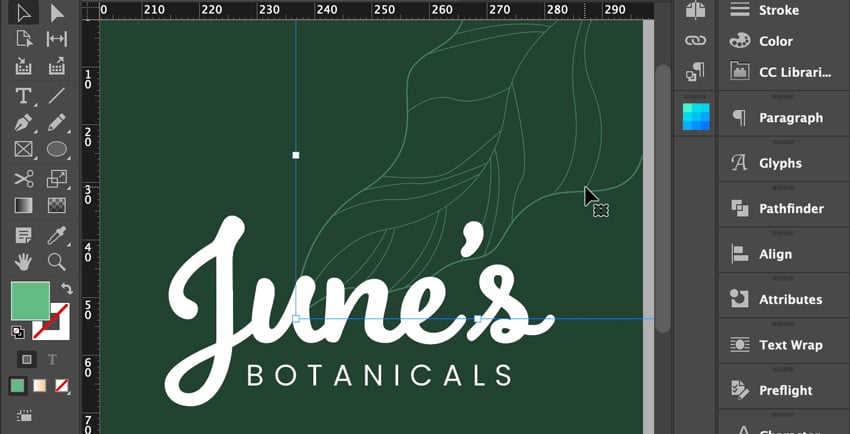
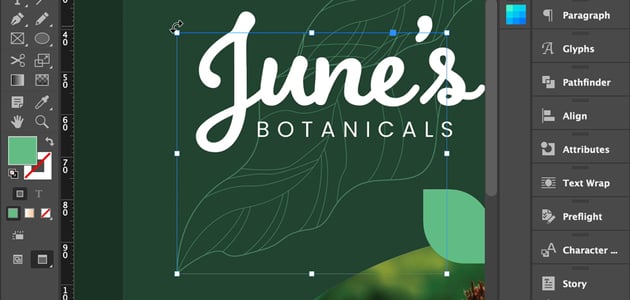
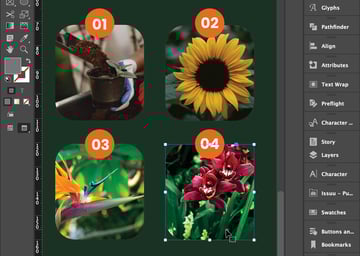
Select the object you want to duplicate.
Step 2
Press Command-Option-Shift-Arrow Key on your keyboard to duplicate the object.

2. How to Preview in InDesign Shortcut
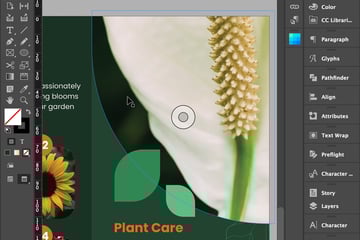
This invaluable shortcut allows you to catch any errors or inconsistencies before sending your work off for printing or publication.

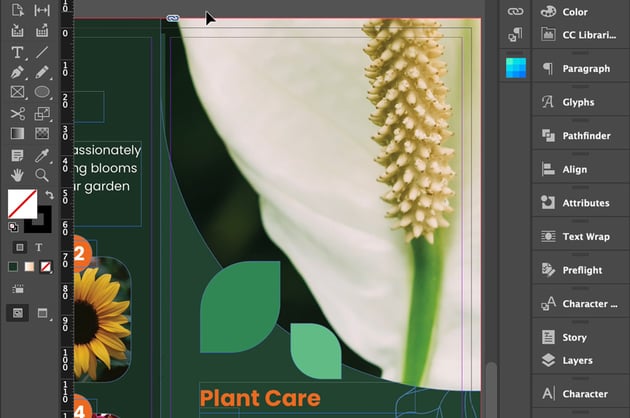
If you want to view your artwork as it will appear in its final form, simply press W on your keyboard.


3. How to Undo in InDesign Shortcut
This essential shortcut can save you from countless mistakes and design mishaps. Whether you accidentally deleted a crucial element or made an unintended change, fear not, for InDesign has a nifty shortcut to quickly undo your actions.

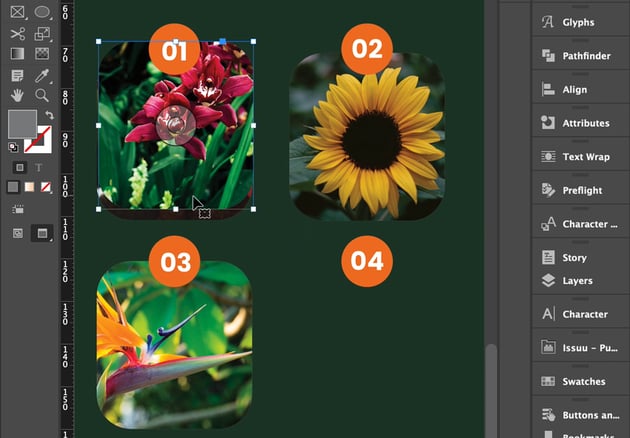
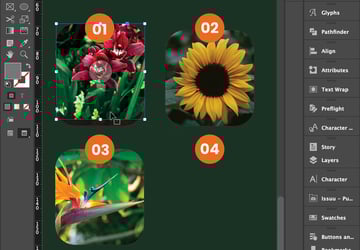
To swiftly undo your most recent action in InDesign, simply press Command-Z on a Mac.

4. How to View InDesign Without Lines Shortcut
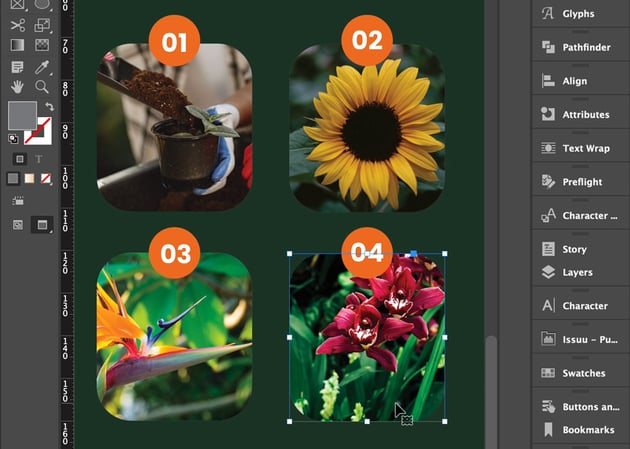
Gridlines can sometimes hinder our ability to truly appreciate the aesthetics and layout of our designs. They can be visually overwhelming and make it difficult to see the finer details. That's why it's crucial to have a quick and convenient method for temporarily hiding them, so we can marvel at our creations with unobstructed vision.
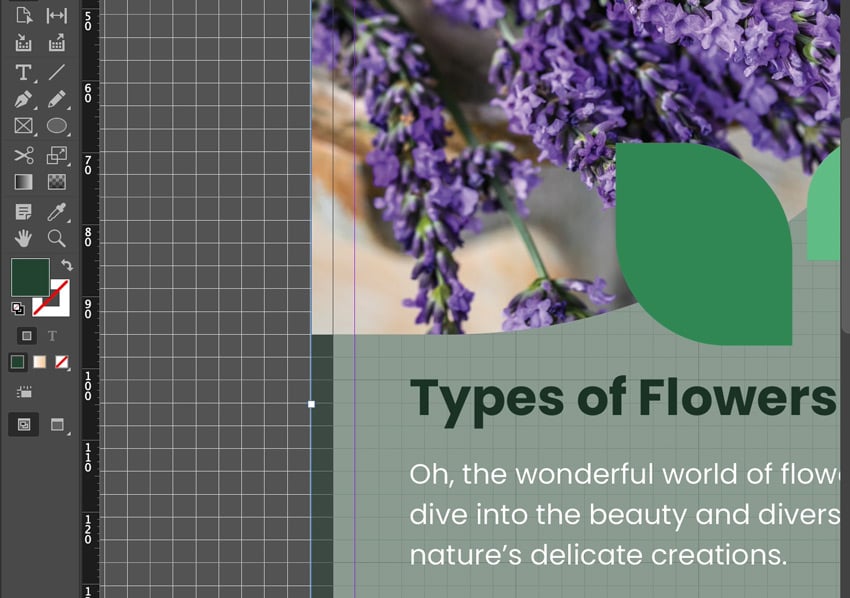
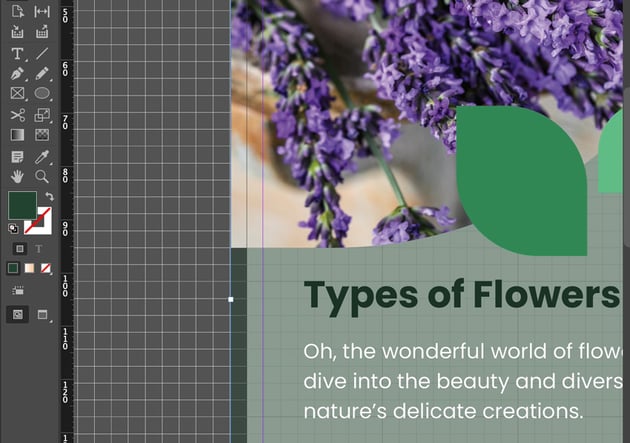
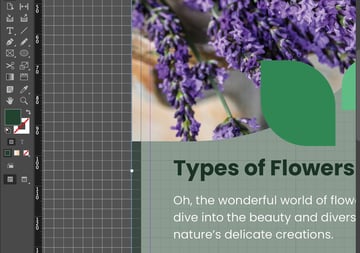
If you want to remove those distracting gridlines in InDesign, press Command-'.


5. How to Add Keyboard Shortcuts InDesign
After learning about several keyboard shortcuts in InDesign, you're probably wondering, "How do I create my own keyboard shortcuts?"
Step 1
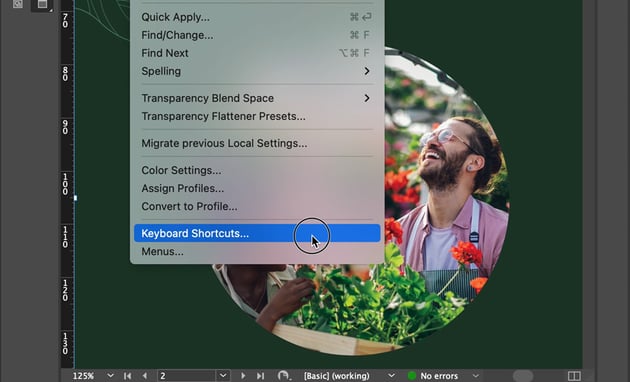
Go to Edit > Keyboard Shortcuts.

Step 2
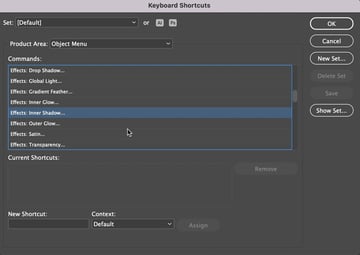
Select a Command that you want to create a keyboard shortcut for.


Step 3
Type the shortcut in the New Shortcut field.


Step 4
Click on Assign.


There You Have It!
These shortcuts may seem small, but they can make a world of difference in speeding up your design process and enhancing overall productivity.
Flex those design muscles with this collection of articles to further your skills. Envato Tuts+ has tutorials that are perfect for novices and experts. Take a look—you won't be disappointed:


 By
By



