


Smoke effects can be easy to create when you follow this tutorial on how to create a smoke Photoshop action. We'll use smoke brushes in Photoshop to create a unique Photoshop effect you can use to add smoke to photos.
Prefer a video to learn how to add smoke in Photoshop? Follow along with us over on our Envato Tuts+ YouTube channel:

Looking to create a smoke effect in Photoshop but need it fast? Head on over to Envato Elements, where you can find many smoke effect Photoshop actions.
What You'll Learn in this Smoke Photoshop Action Tutorial
- How to create a Photoshop Action
- How to create a smoke effect using Photoshop Brushes
- How to rotate a Photoshop Brush
What You Will Need
To create a convincing Photoshop smoke effect, you'll need special smoke brushes. And, of course, you'll need a photo to work on. Here are the assets I'll be using in this tutorial on how to add smoke in Photoshop:
How to Create a Smoke Effect Photoshop Action
Step 1
Open your file. Before we start recording the smoking Photoshop action, we need to prepare the masks. Create a New Layer and name it Mask 1.
Use the collection of smoke brushes to paint white smoke on the man’s back, softly blending him into the background. Feel free to experiment here—there’s no single correct way to do this.


Step 2
Create a New Layer and name it Mask 2. Use the smoke brushes again, but this time paint with black. Add smoke coming out of the man’s back, with all the wisps in roughly the same direction. The problem with stamp brushes is that they can’t be rotated, but you can rotate the canvas instead—the effect will be the same. Use a soft eraser or a Layer Mask to blend the smoke with the background.


Step 3
Create a New Layer and name it Mask 3. Paint with black again, adding some background smoke. Then go to Filter > Blur > Motion Blur. Add some blur and lower the Opacity.


Step 4
Create a New Layer and name it Mask 4. Paint black clouds of smoke going in the same direction as the previous wisps.


Step 5
Merge Mask 2 and Mask 3.


Step 6
We can start the action now. Go to the Actions panel and create a new action. Name it Smoke Effect. Hide all the masks.


Step 7
Duplicate the background layer by pressing Control-J twice. Go to the upper copy, hold Control, and click the thumbnail of Mask 1 to select it. Invert the selection with Control-Shift-I, and add a Layer Mask.


Step 8
Move to the lower copy, and go to Filter > Blur > Gaussian Blur. A basic form of smoke effect should already be visible.


Step 9
Duplicate the background layer again and move it to the top. Add Gaussian Blur to it.


Step 10
Lower its Opacity to create a dreamy glow effect.


Step 11
Duplicate the background layer once again and drag it to the top. Lower the Opacity. Press Control-T to transform the layer’s size. In the upper bar, click Maintain Aspect Ratio and set the Width to 150%. Then switch to Relative Positioning and move the layer 100 pixels to the left. Press Enter twice.


Step 12
Add Gaussian Blur to the layer. Then take the selection from Mask 4 and add it as a Layer Mask without inverting.


Step 13
Create a snapshot of the whole image with Control-Shift-Alt-E. Add Gaussian Blur to it. Then take the selection from the middle mask and add it as a Layer Mask.


Step 14
Stop recording.


You can now add smoke to any other photos you may have. Just add all the masks and press play!
That's How Easy It Is to Create Your Own Photoshop Smoke Effect
Now you know how to create a smoke effect in Photoshop, using the technique of Photoshop actions. Here's the finished result, and below you'll find even more examples of how you can make this awesome smoke Photoshop effect your own.


Premium Smoke Photoshop Actions From Envato Elements
You've gone through the process of how to add smoke in Photoshop. However, you may not always have the time or interest to do it yourself. That's where the premium smoke Photoshop effects from Envato Elements come in.
By subscribing to Envato Elements for a low monthly fee, you get access to tons of high-quality creative digital assets, including Photoshop smoke effects and Photoshop smoke overlays. Here are a few premium smoke Photoshop effects, ready to download from Envato Elements.
Animated Smoke Photoshop Action (ABR, PAT, ATN)
With this action, you'll be able to add realistic, animated smoke clouds to your photos. All you need to do is to paint a selection and play the action twice. It's the best way to add smoke to photos without having to learn how to create smoke in Photoshop.


Clouds of Smoke Effect Photoshop Action (ATN, ABR, PDF)
If you want to make your photo more magical, with this set of smoke effect Photoshop actions you'll be able to produce an effect of colorful smoke clouds surrounding your subject. Choose from 19 color options, and adjust the result as you see fit to put together smoking Photoshop effects.


Smoke Photoshop Action (ABR, ATN)
Or maybe you're interested in creating a ghost-like effect? This action makes your subject look translucent, and the clouds of smoke give it an ethereal look. It's a very artistic smoke Photoshop effect that you can achieve with a single click, and without going through the process of how to add smoke in Photoshop.


Animation Smoking Photoshop Action (ABR, ATN)
Here's another animated smoke Photoshop effect that you can use to give your photos an amazing look in seconds. This smoking Photoshop effect is very realistic and can also be used as a still image.


Realistic Photoshop Smoke Overlays (PNG)
If you want more control over the whole process, here you can find ten Photoshop smoke overlays that you can add manually, exactly the way you want. They're very simple to use and give an instant effect. Even if you know how to create smoke Photoshop actions, this is a great option to let your creativity out.


More Envato Tuts+ Resources for Photoshop
If you want to learn more about creating Photoshop portrait actions, try these tutorials as well:

 How to Make a Retro Comic Book Portrait Effect Action in Photoshop


 How to Create a Photo to Art Text Effect Photoshop Action

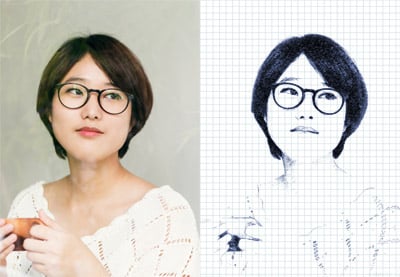
 How to Make a Photoshop Action to Create a Portrait Photo Effect

 How to Turn a Photo Into Art by Creating a Painting Photoshop Action

 How to Add a Glowing Photo Effect to a Portrait in Photoshop

 How to Create a Charcoal Drawing From a Photo (With a Photoshop Action)

 By
By



