


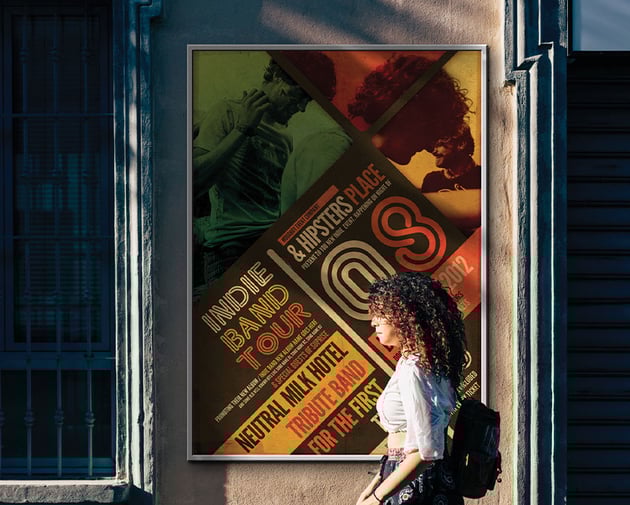

Learn how to create a poster mockup in Adobe Photoshop with this tutorial. Throughout this poster mockup tutorial, you'll learn how to create a smart object and how to frame a poster mockup. To make your poster look realistic, I'll also show you how to add shadows as a finishing touch.
What You'll Learn in This Tutorial
- How to create a smart object in Photoshop
- How to make a poster mockup in Photoshop
- How to make a frame poster mockup in Photoshop
Tutorial Assets
1. How to Create a Smart Object in Photoshop
Step 1
Open the closed shop photo in Photoshop. Use the Rectangle Tool (U) and make a rectangle that is 2460 px x 3420 px.


Step 2
Rename the rectangle layer Poster Mockup Design. Right-click the layer and select Convert to Smart Object.


2. How to Make a Poster Mockup in Photoshop
Step 1
Decrease the size to 57% on the Poster Mockup Design layer so that it fits on the wall by going to Edit > Free Transform. Place the Poster Mockup Design layer into its own Folder.


Step 2
Select the Background layer and go to Select > Subject. Now we need to invert the selection by going to Select > Inverse. Create a mask on the Poster folder layer.


Step 3
Double-click the Poster Mockup Design thumbnail. This should open a new file window. Place your Indie Fest Poster within this new window and File > Save.


Step 4
Double-click the Poster Mockup Design layer and add a Drop Shadow using these settings:
- Blend Mode: Multiply
- Color:
#000000 - Opacity: 100%
- Angle: 139
- Distance: 14
- Spread: 0
- Size: 18


Step 5
Add another Drop Shadow layer style using these settings.
- Blend Mode: Multiply
- Color: #221f1f
- Opacity: 65%
- Angle: 139
- Distance: 55
- Spread: 0
- Size: 68


3. How to Make a Frame Poster Mockup in Photoshop
Step 1
Now let's add a frame to the poster mockup using the Rectangle Tool (U). Change the Stroke to 31 px and the color to #ebe9e9.


Step 2
Add a Bevel and Emboss layer style to the frame layer using these settings:
- Style: Inner Bevel
- Technique: Chisel Hard
- Depth: 131
- Direction: Up
- Size: 6
- Soften: 0
- Angle: 139
- Altitude: 30
- Highlight: Color Dodge |
#ffffff - Highlight Opacity: 100%
- Shadow: Multiply |
#000000 - Shadow Opacity: 89%


Step 3
Add an Inner Shadow layer style to the frame layer using these settings:
- Blend Mode: Multiply |
#221f1f - Opacity: 20%
- Angle: 139
- Distance: 61
- Choke: 0
- Size: 7
- Noise: 81%


Step 4
Select the Background layer and make the Poster folder invisible. Make a selection of the tree shadow using the Magic Wand Tool (W). Create a new layer on top of the Poster folder, fill it with #0b0b0d, and name it Shadow.


Step 5
Go to Filter > Blur > Gaussian Blur and change the Radius to 4 pixels on the Shadow layer.


Step 6
Add a Motion Blur to the Shadow layer and change the Angle to -33 and the Distance to 212.


Step 7
Make the Poster folder visible. Select the Shadow layer and Right-click > Create Clipping Mask. Change the Shadow layer to Linear Burn and the Opacity to 49%.


Now You Know How to Create a Poster Mockup in Photoshop
Don't be afraid to experiment and try out new techniques until you achieve the perfect look for your poster mockups. If you're short on time, try out this impressive poster mockup for Photoshop from Envato Elements.


Expand Your Mockup Knowledge!
Learn how to create everything from poster mockups to brochures with this collection of tutorials.


 By
By



