


In this tutorial, you will learn how to create a dust brush Photoshop add-on. I will explain everything in so much detail that everyone can create the brush, even those who have just opened Photoshop for the first time.
Looking to download unlimited Photoshop brushes and other creative assets? Head on over to Envato Elements, where you can find hundreds of unique and creative Photoshop brushes, as well as fonts, graphics, and much more.
What You Will Learn in This Dust Brush Photoshop Tutorial
- How to create brushes from scratch in Photoshop
- How to create a cloud dust Photoshop brush
- How to create a dust particle effect Photoshop brush
- How to apply brushes to a photo
- How to add dust particles to a Photoshop brush
What You'll Need
To recreate the design above, you will need the following resources:
- Stock Image - no longer available
1. How to Start Creating a Dust Photoshop Brush
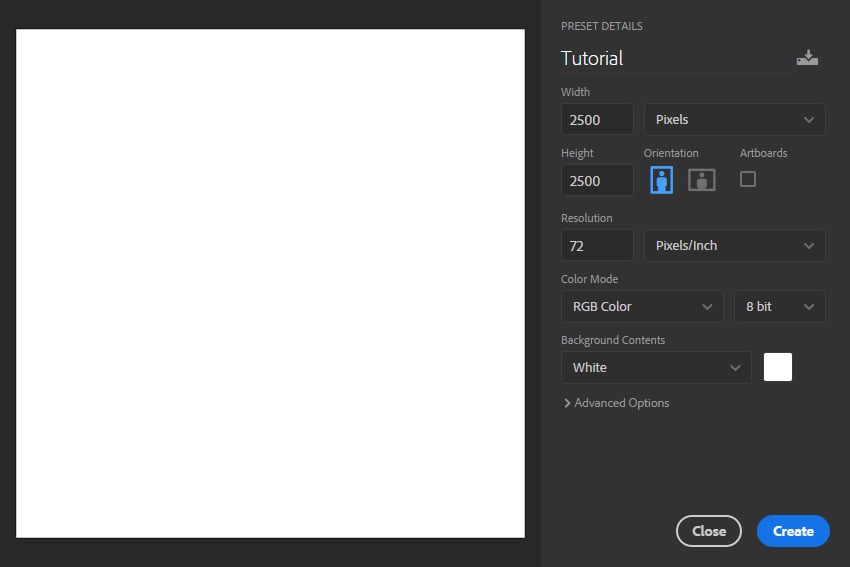
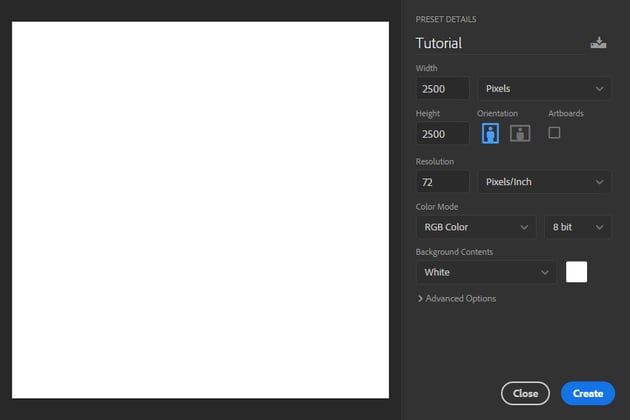
First, create a new file. To create a new file, go to File > New and set the Width and Height to 2500 px and Resolution to 72 px/in.

2. How to Create a Cloud Dust Photoshop Brush
Step 1
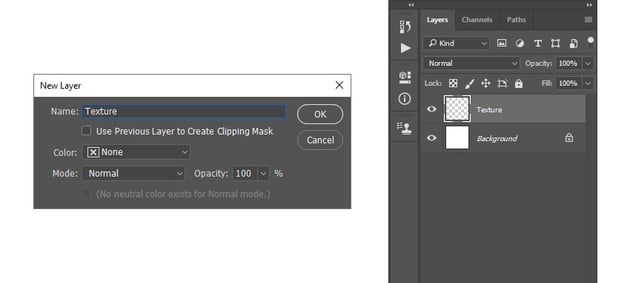
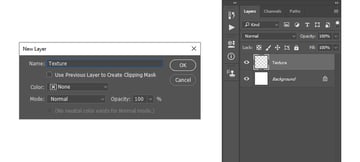
In this section, we're going to create the cloud dust Photoshop brush. Go to Layer > New > Layer to create a new layer and name it Texture.

Step 2
Now press D on your keyboard to reset the swatches and go to File > Render > Clouds.


Step 3
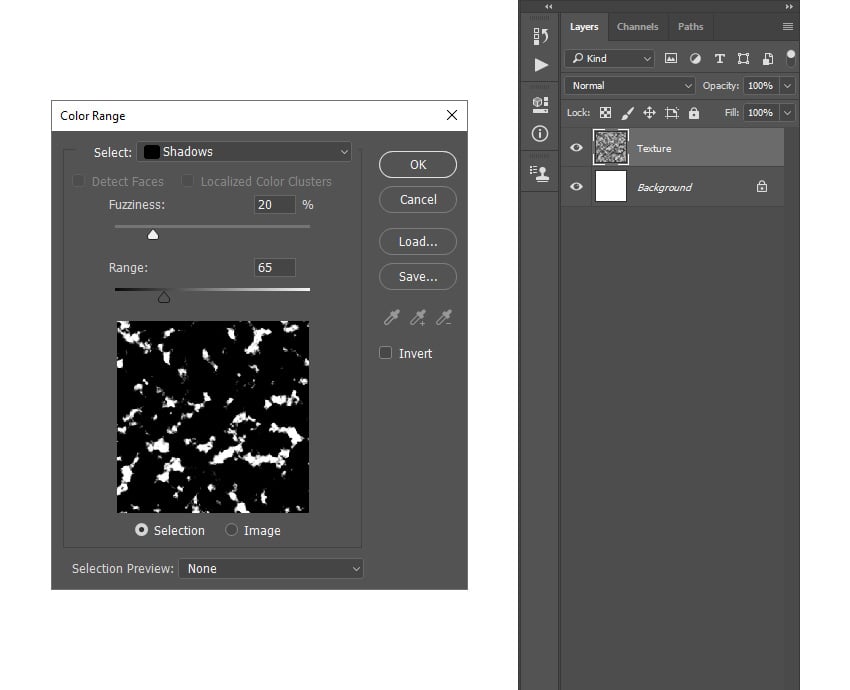
Go to Select > Color Range and set Select to Shadows, Fuzziness to 20%, and Range to 65.
Step 4
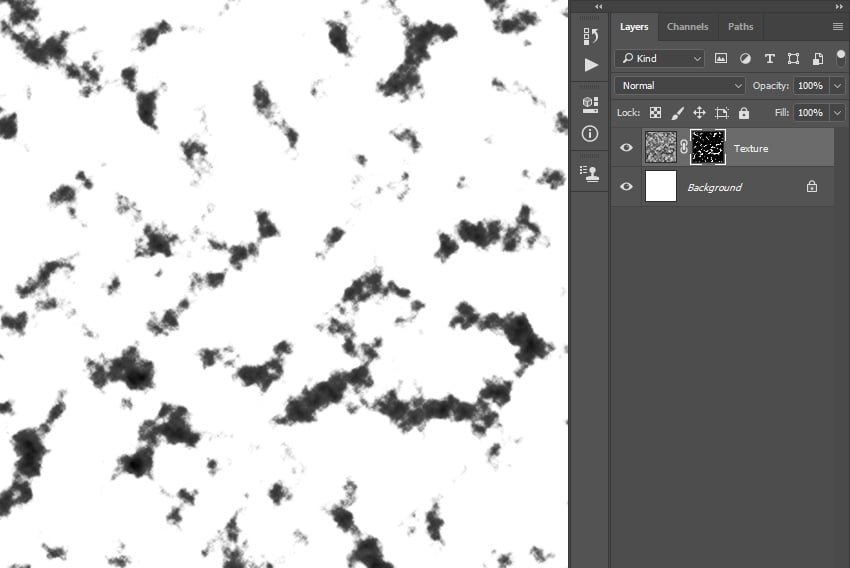
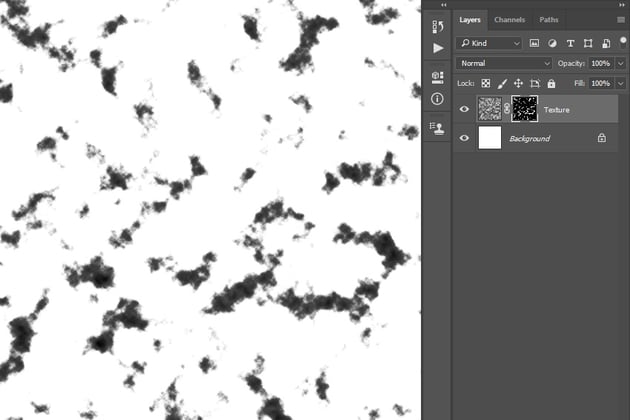
Now go to Layer > Layer Mask > Reveal Selection to add a layer mask that reveals the selected area of the layer.
Step 5
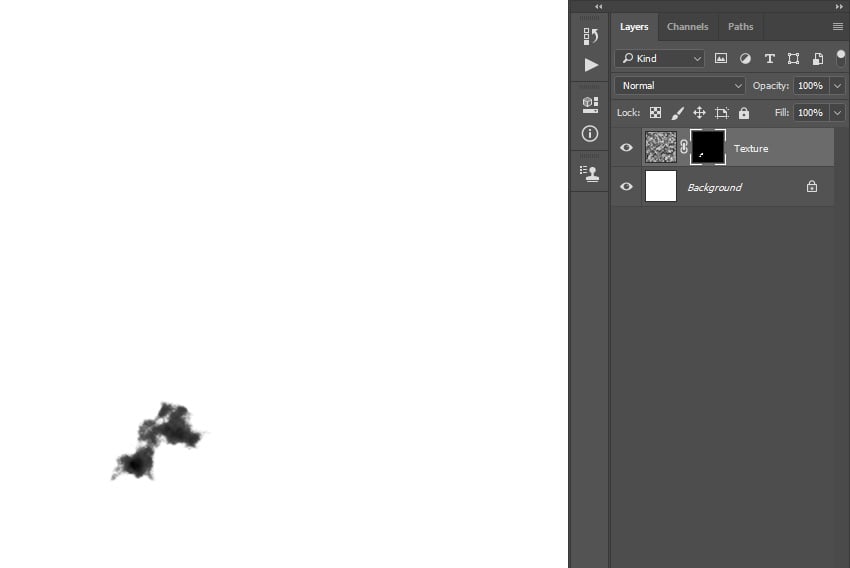
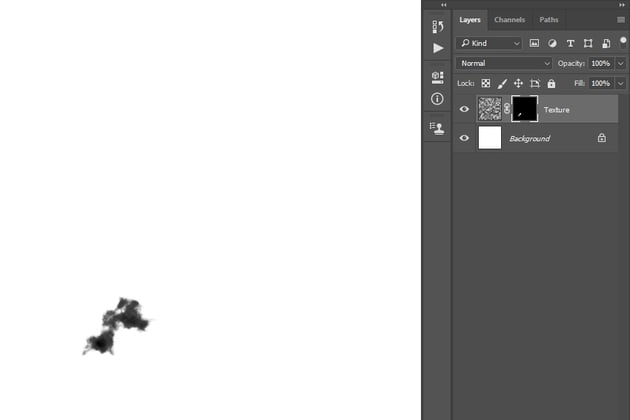
Choose the Brush Tool (B), pick a hard or soft round brush, and set the foreground color to #000000. Then, brush over the areas of the texture that you want to remove, leaving only the area you want to use for a brush.
Step 6
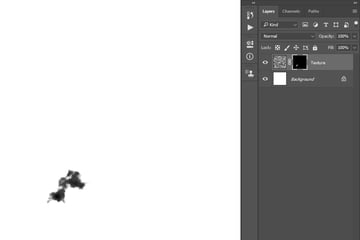
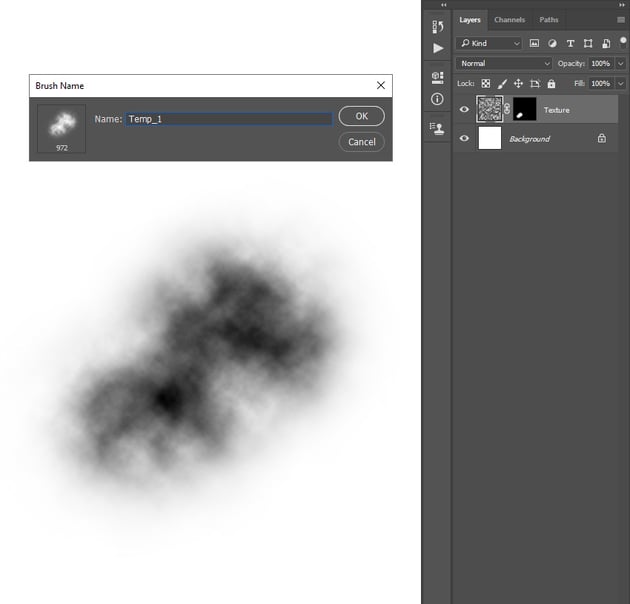
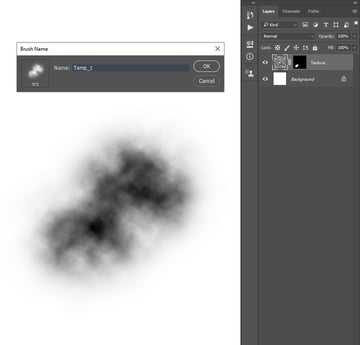
Now choose the Brush Tool (B), pick a soft round brush, and set the foreground color to #ffffff. Then, brush over the texture area you left to expand it. After that, select the thumbnail of this layer, go to Edit > Define Brush to define this texture as a brush, and name it Temp_1.

Step 7
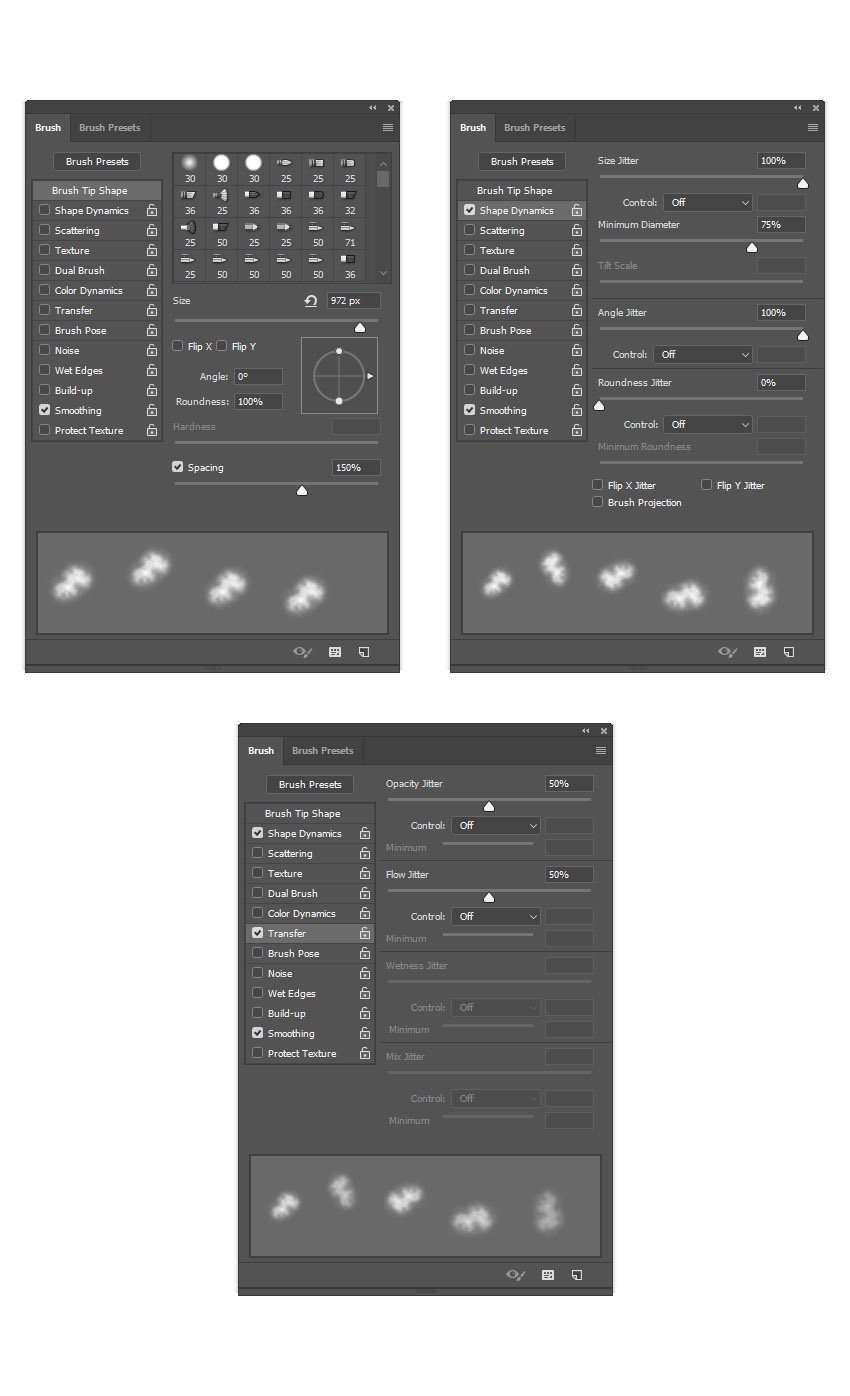
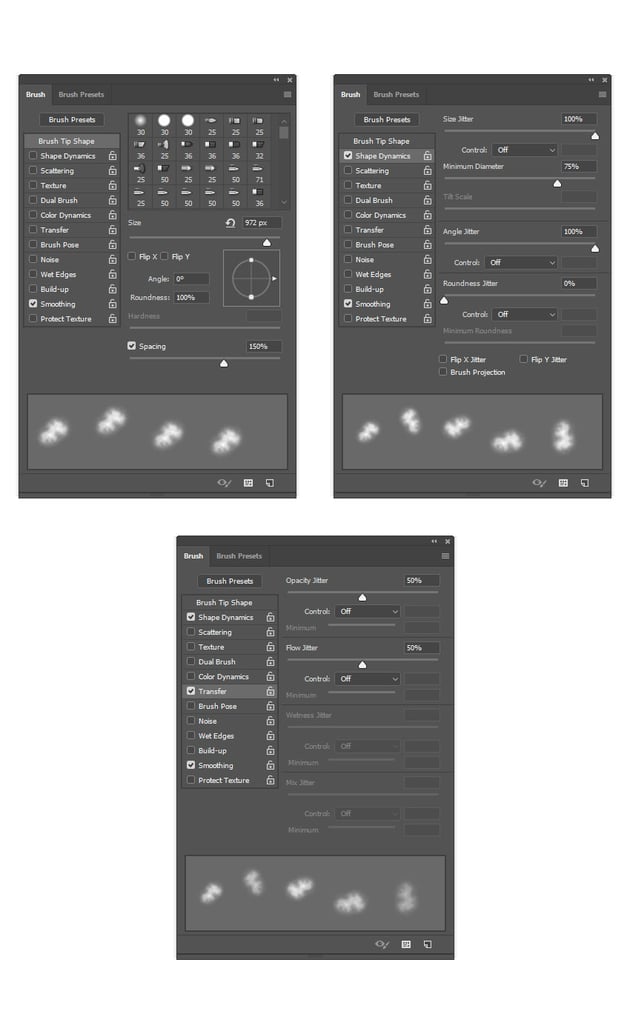
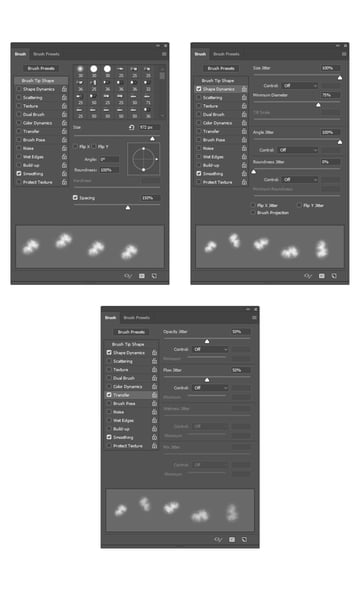
Press B on your keyboard, right-click anywhere inside the canvas, select the Temp_1 brush, and hit Enter. Then go to Window > Brush and, in the Brush window, use the settings below:
Step 8
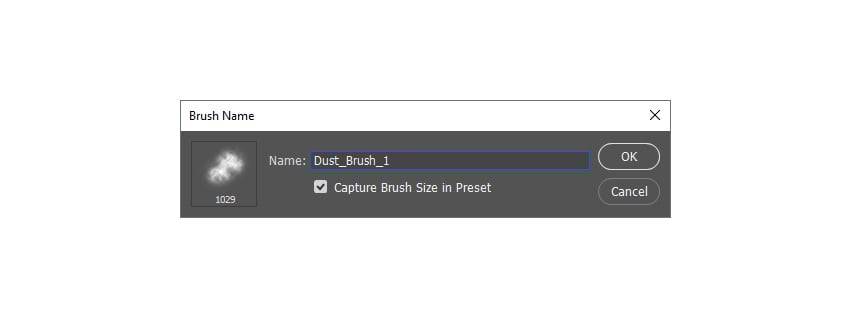
Now, to define this brush with new settings as a new brush, click on the top-right icon in the bottom-right corner of the Brush panel, and name it Dust_Brush_1.

3. How to Create a Dust Particle Effect Photoshop Brush
Step 1
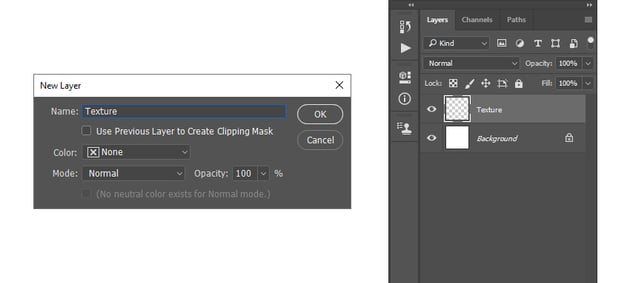
In this section, we are going to create a dust particle Photoshop brush using the same Photoshop file. Right-click on the Texture layer and choose Delete Layer. Then, go to Layer > New > Layer to create a new layer and name it Texture again.

Step 2
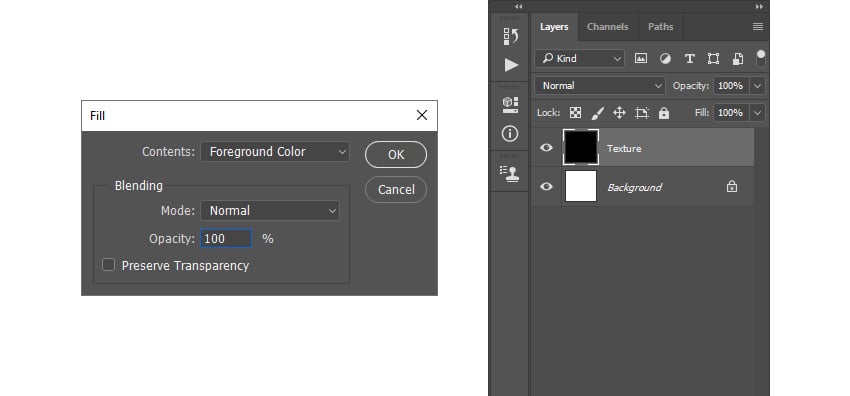
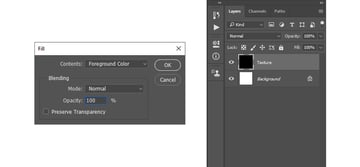
Now, set the foreground color to #000000. Then, go to Edit > Fill, and set the Contents to Foreground Color, Mode to Normal, and Opacity to 100%.
Step 3
Go to Filter > Pixelate > Mezzotint and set the Type to Coarse Dots.


Step 4
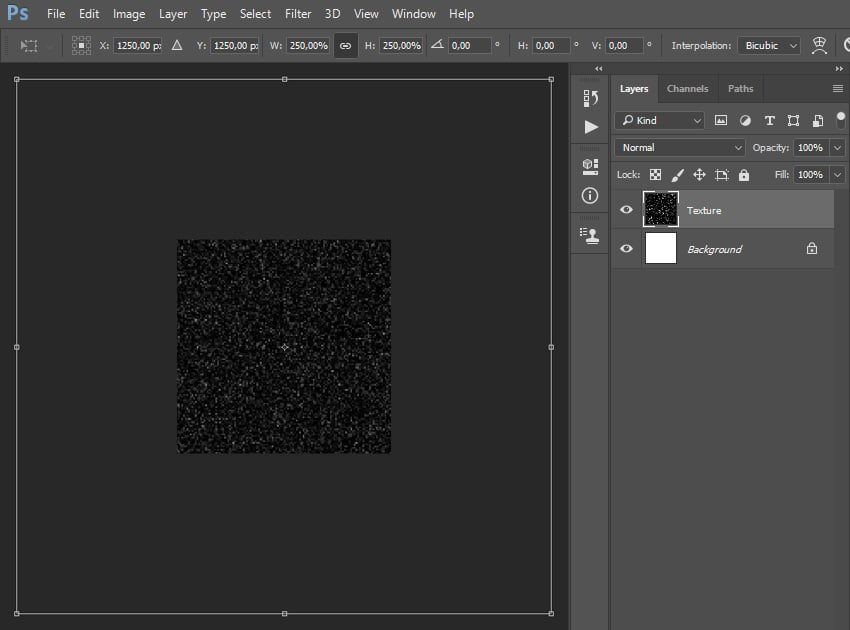
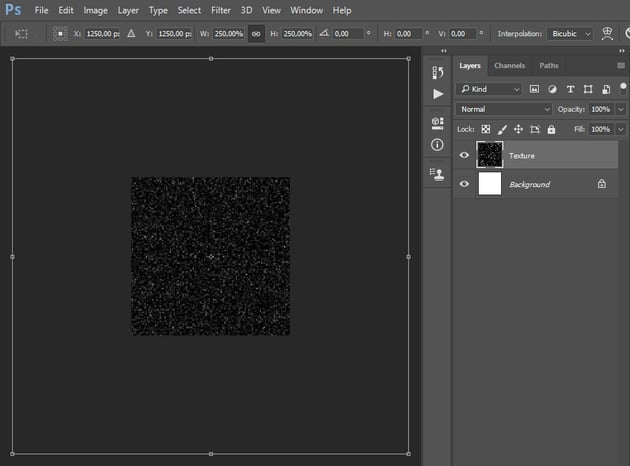
Now press Control-T to open up the transform options and set the Width and Height of the layer to 250%.
Step 5
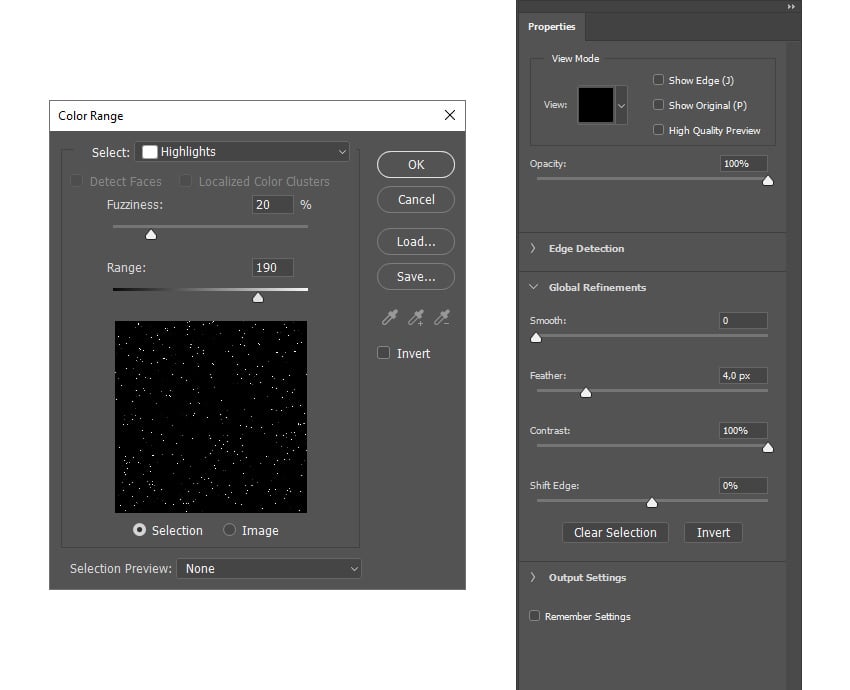
Go to Select > Color Range and set the Select to Highlights, Fuzziness to 20%, and Range to 190. Then, go to Select > Select and Mask and set the Smooth to 0, Feather to 4 px, Contrast to 100%, and Shift Edge to 0%.

Step 6
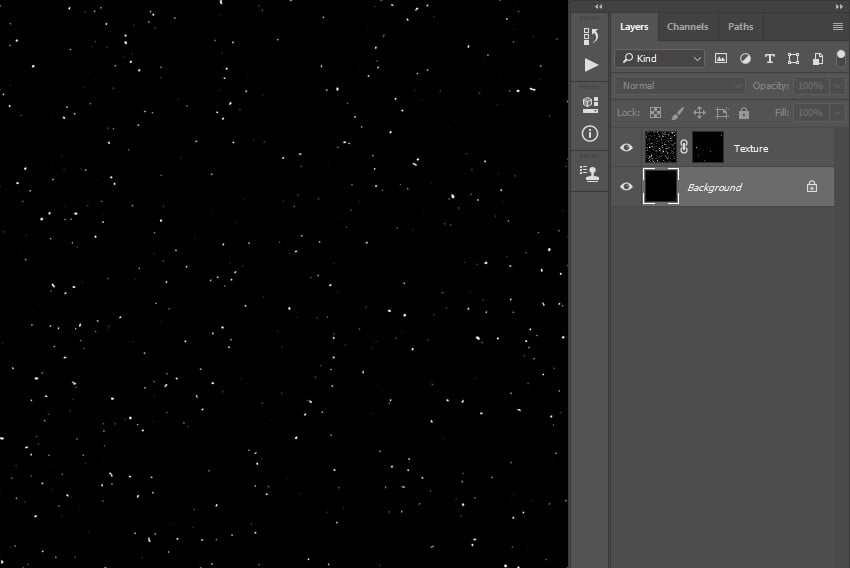
Now, go to Layer > Layer Mask > Reveal Selection to add a layer mask that reveals the selected area of the layer. Then, select the Background layer, and press Control-I to invert this layer's colors.
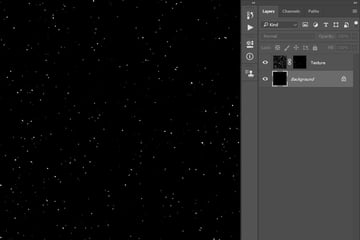
Step 7
Choose the Brush Tool (B), pick a hard round brush, and set the foreground color to #000000. Then, brush over the areas of the texture that you want to remove, leaving only the area you want to use for a brush.
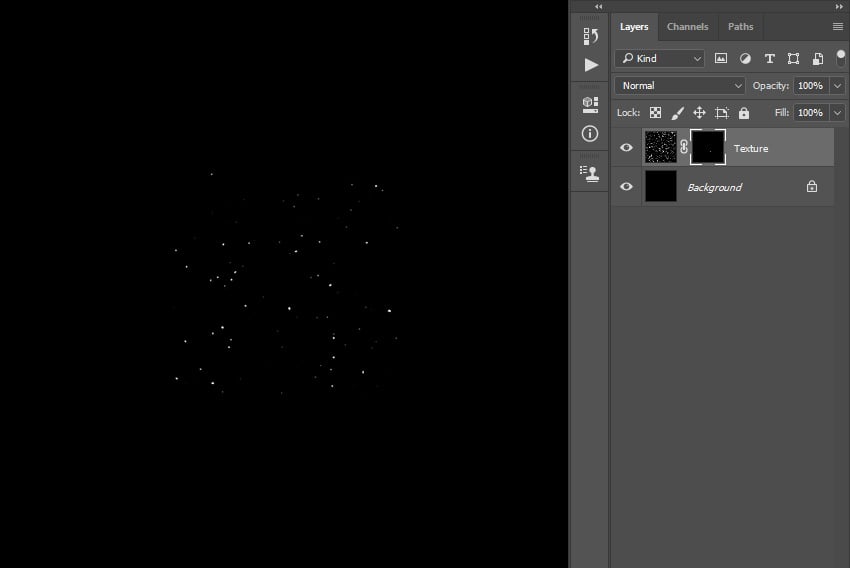
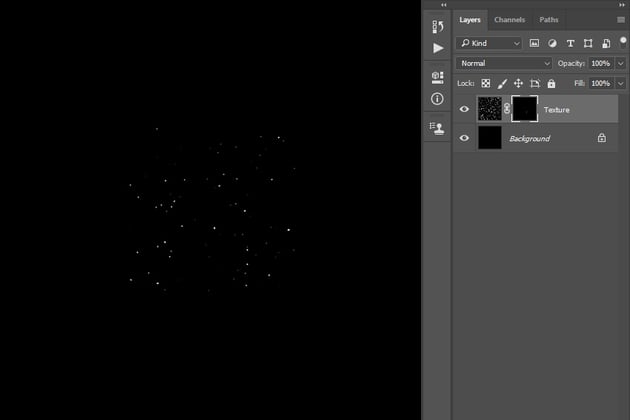
Step 8
Now press Control-Alt-Shift-E to make a screenshot. Then, press Control-I to invert this layer's colors. After that, select the thumbnail of this layer, go to Edit > Define Brush to define this texture as a brush, and name it Temp_2.
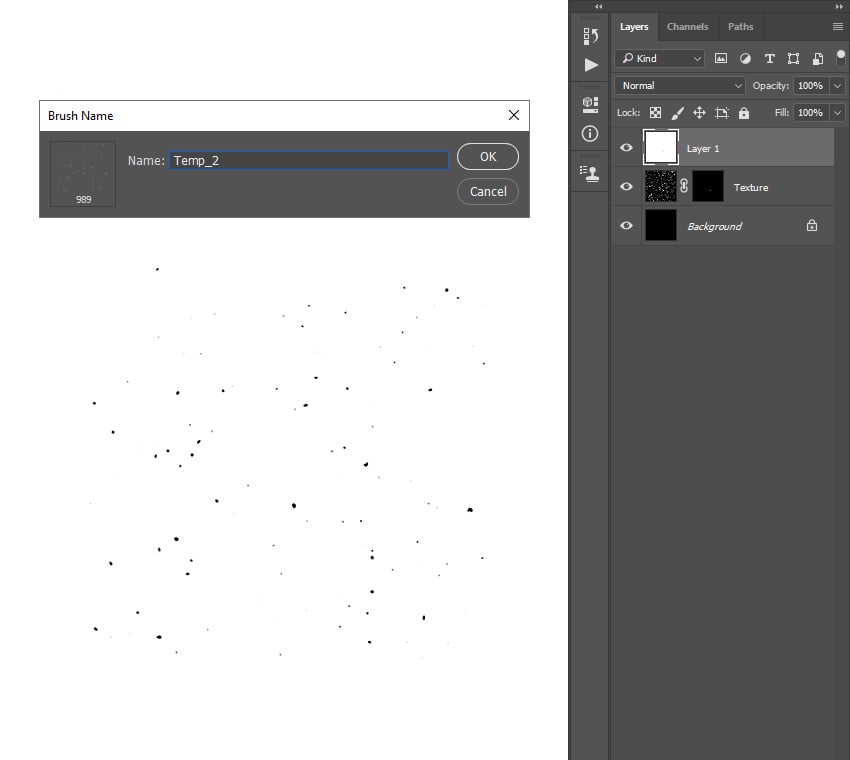
Step 9
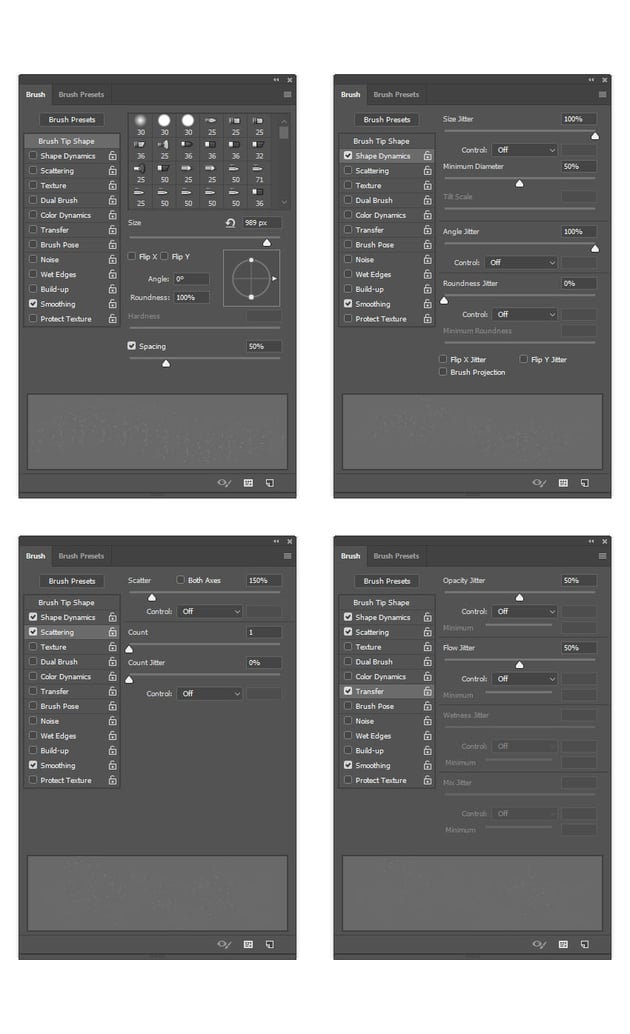
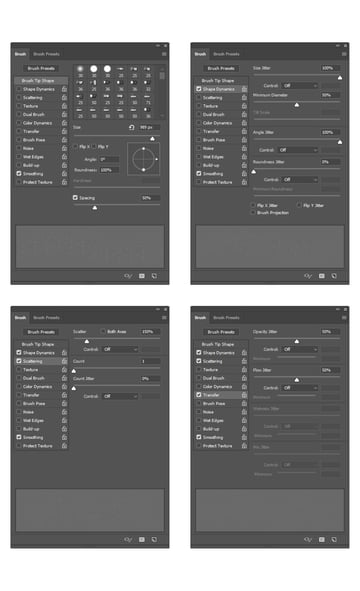
Press B on your keyboard, right-click anywhere inside the canvas, select the Temp_2 brush, and hit Enter. Then go to Window > Brush and, in the Brush window, use the settings below:
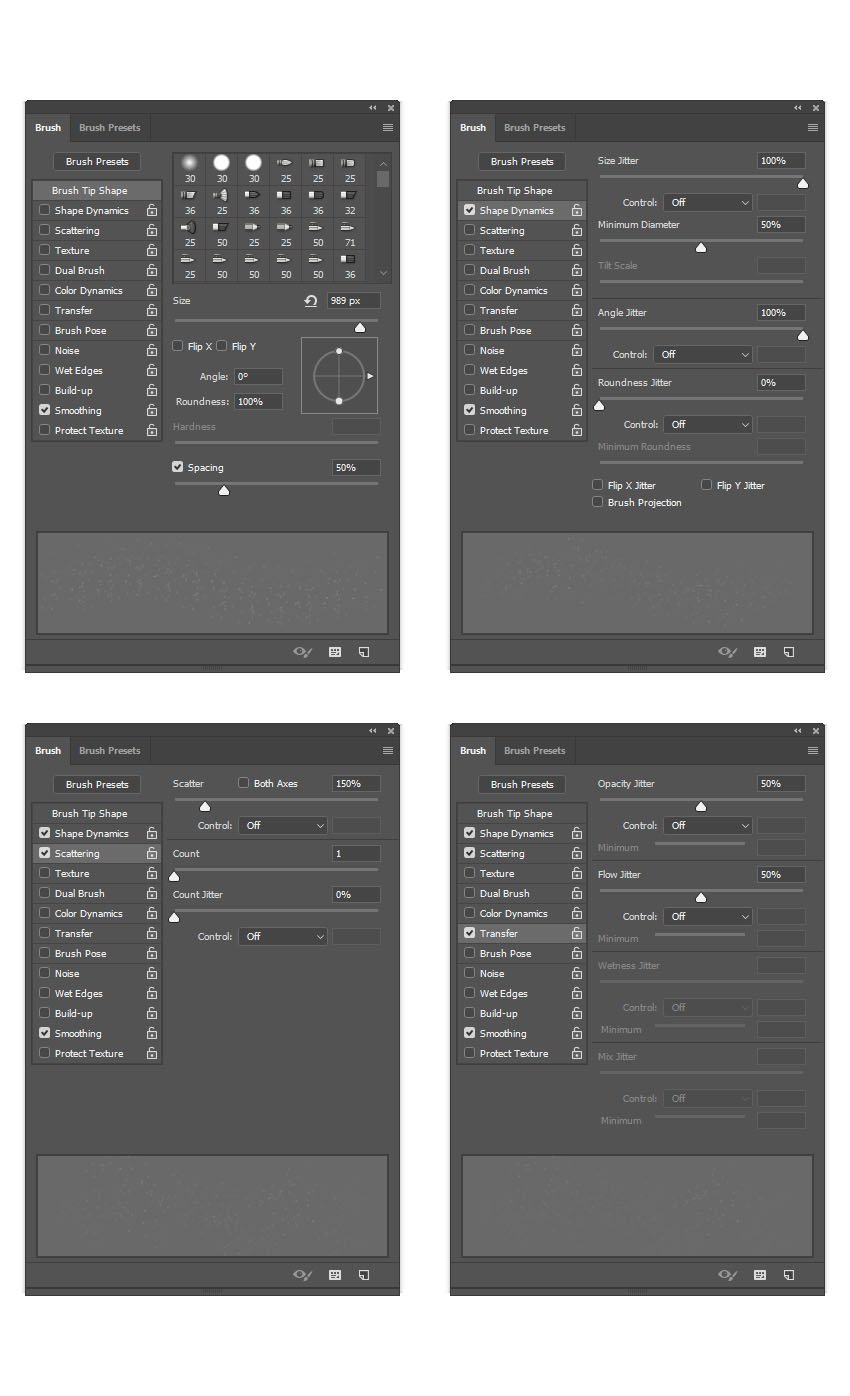
Step 10
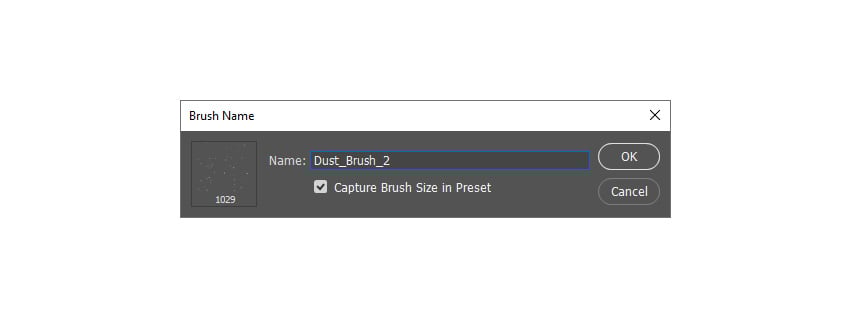
Now to define this brush with new settings as a new brush, click on the top-right icon in the bottom-right corner of the Brush panel, and name it Dust_Brush_2.
4. How to Apply Dust Brushes to a Photo
Step 1
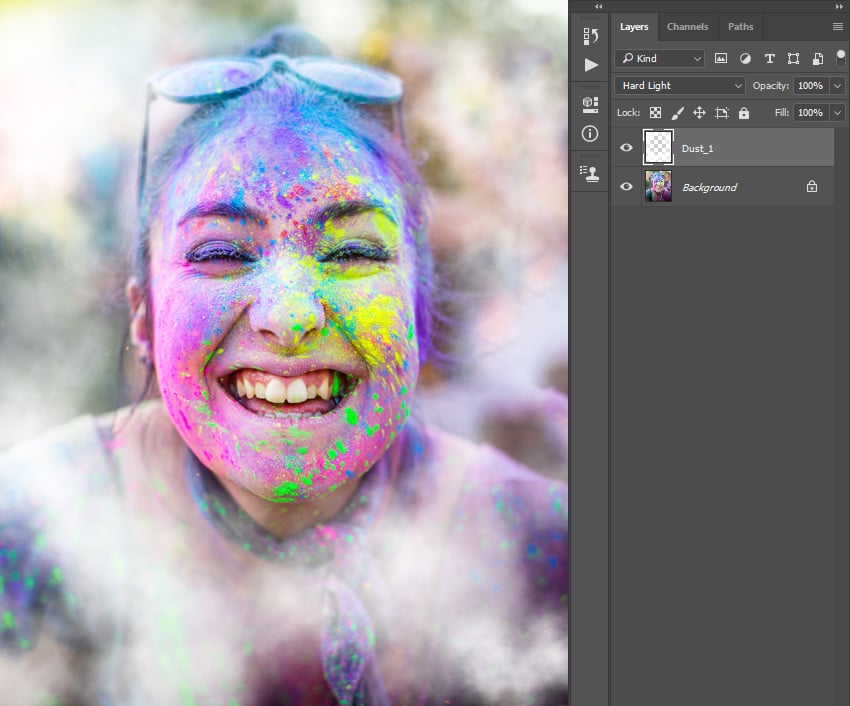
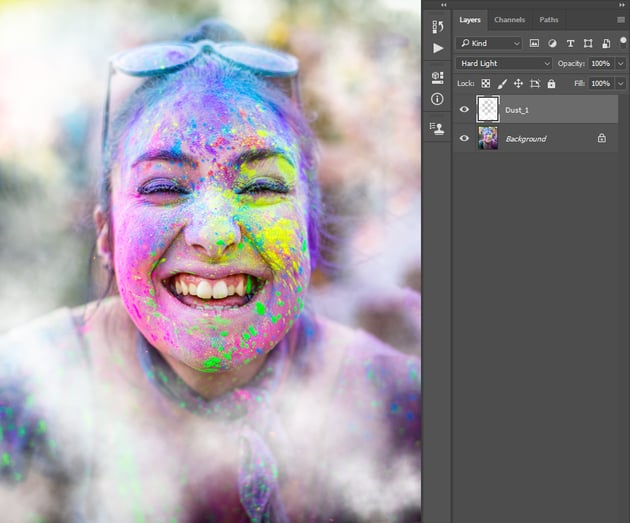
In this section, we are going to add dust particles to a Photoshop brush and apply the cloud dust brush to a photo. First, open the photo that you want to work with by going to File > Open, choose your photo, and click Open. Then, press Control-Shift-N to create a new layer, choose the Brush Tool (B), pick the Dust_Brush_1 brush, set the foreground color to #ffffff, and brush over your photo. After that, change the Blending Mode of this new layer to Overlay and name it Dust_1.
Step 2
Now go to Layer > New Fill Layer > Solid Color to create a new solid color fill layer, name it Dust_1_Color, and choose the color #c4d7f8. Then, press Control-Alt-G on your keyboard to create a clipping mask.


Step 3
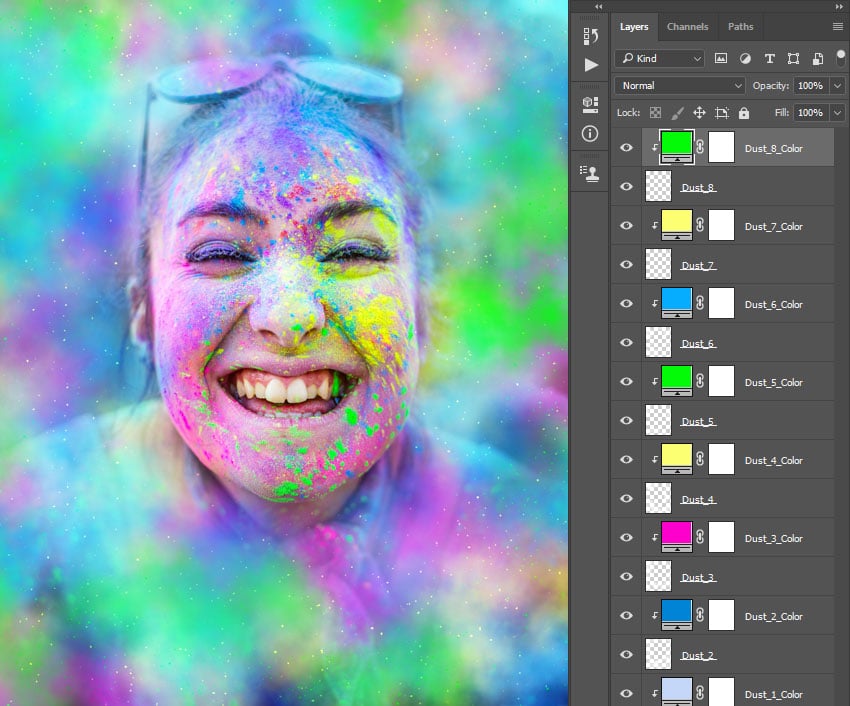
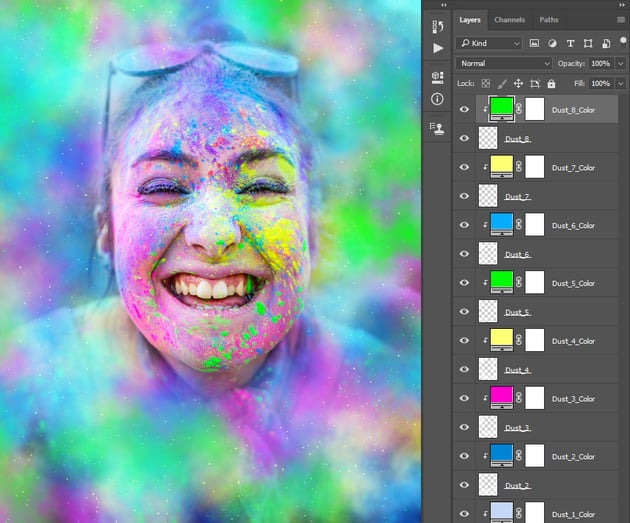
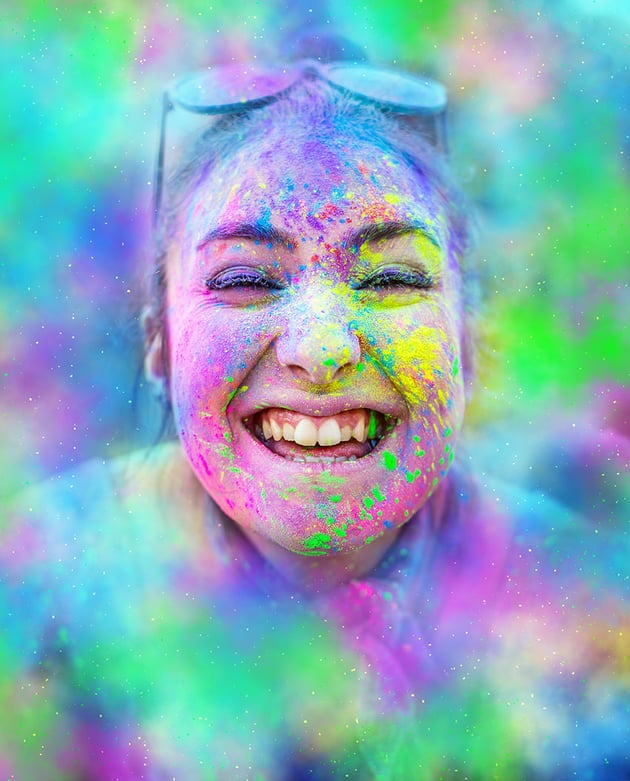
Repeat these steps to create as many dust layers as you want. Don't forget to use both Dust_Brush_1 and Dust_Brush_2 brushes that we created. Feel free to use different brush settings, different color layer settings, and dust layer blending modes. Here is my result:
You Made It!
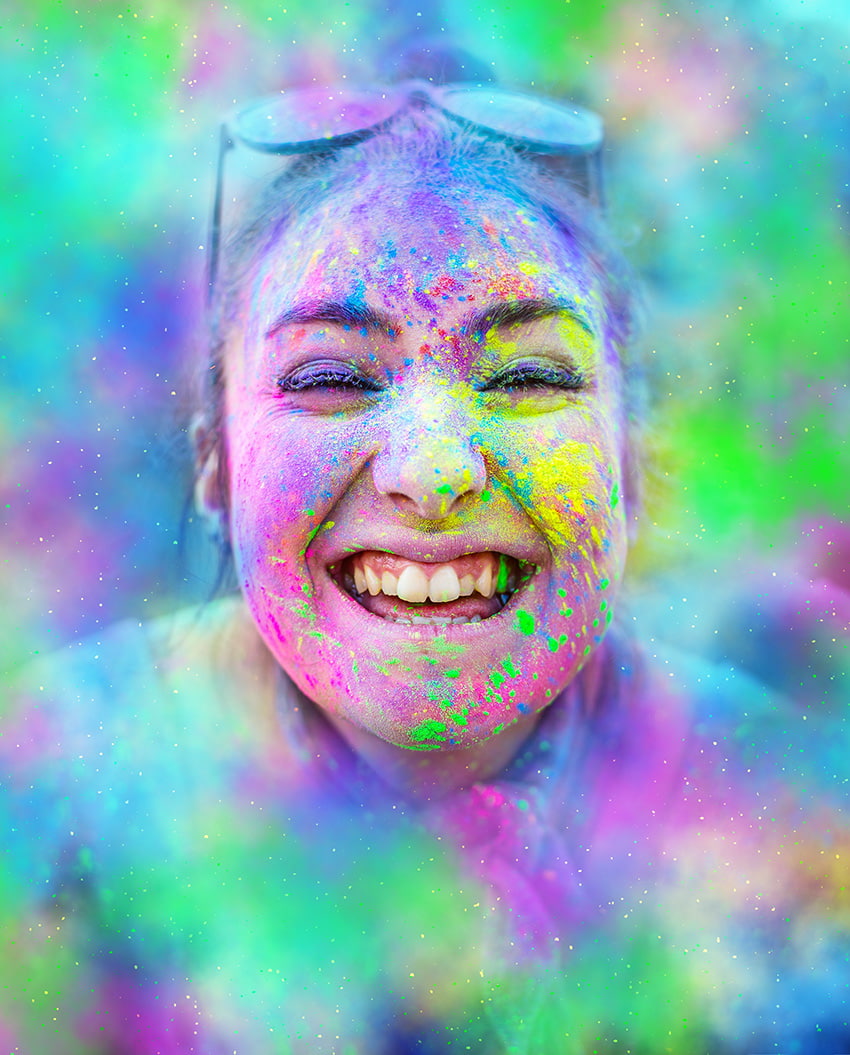
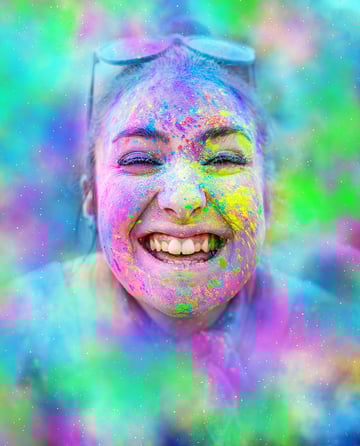
Congratulations, you have succeeded! You've learned how to create dust Photoshop brushes. Here is our final result:
5 Best Dust Photoshop Brushes
Want to see some of the best dust Photoshop brushes? Check out this list of dust brushes from Envato Elements. Enjoy incredible brushes, from dust brush sets to dust action and brush packs and more!
Dust Photoshop Brushes (ABR)
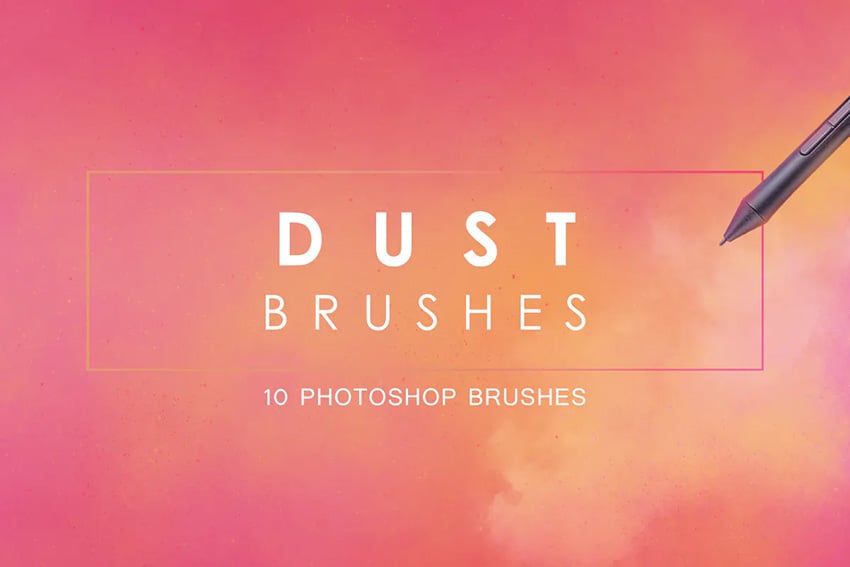


There are ten fully customizable dust Photoshop brushes included in this set, and you can make any adjustments to the brush settings to achieve different results!
30 Sand Dust Photoshop Brushes (ABR)


Create amazing sand dust photo effects with this set of 30 Photoshop brushes. The brushes have a high resolution of 3500 px, which should be more than enough for most projects!
60 Grunge Dust Photoshop Brushes (ABR)


An impressive 60 dust brushes come with this set of grunge dust Photoshop brushes. You can use them as photo overlays, for photo manipulations, visual effects, and more!
Dust Storm Photoshop Action (ATN, ABR)



This item includes not only dust Photoshop brushes, but Photoshop actions as well, which you can use to create really amazing dust storm effects!
60 Dust Boom Photoshop Stamp Brushes (ABR)


Another set of 60 dust Photoshop brushes of high resolution. These brushes will work for Photoshop versions all the way from CS2 to the newest CC version.
Did you like this tutorial on creating dust brushes and applying them to create a dust brush Photoshop effect? Then you may also like:


 By
By



