


In this tutorial, you will learn how to use the Mesh Tool in Adobe Illustrator to create a beautiful set of labels with red gift bows!
If you want to skip the tutorial and just use these labels in your work, you can purchase the Big Set of Sales Tags with Red Gift Bows item from GraphicRiver!


1. How to Draw the Bow
Step 1
We will begin by drawing the first part of the bow with Mesh.
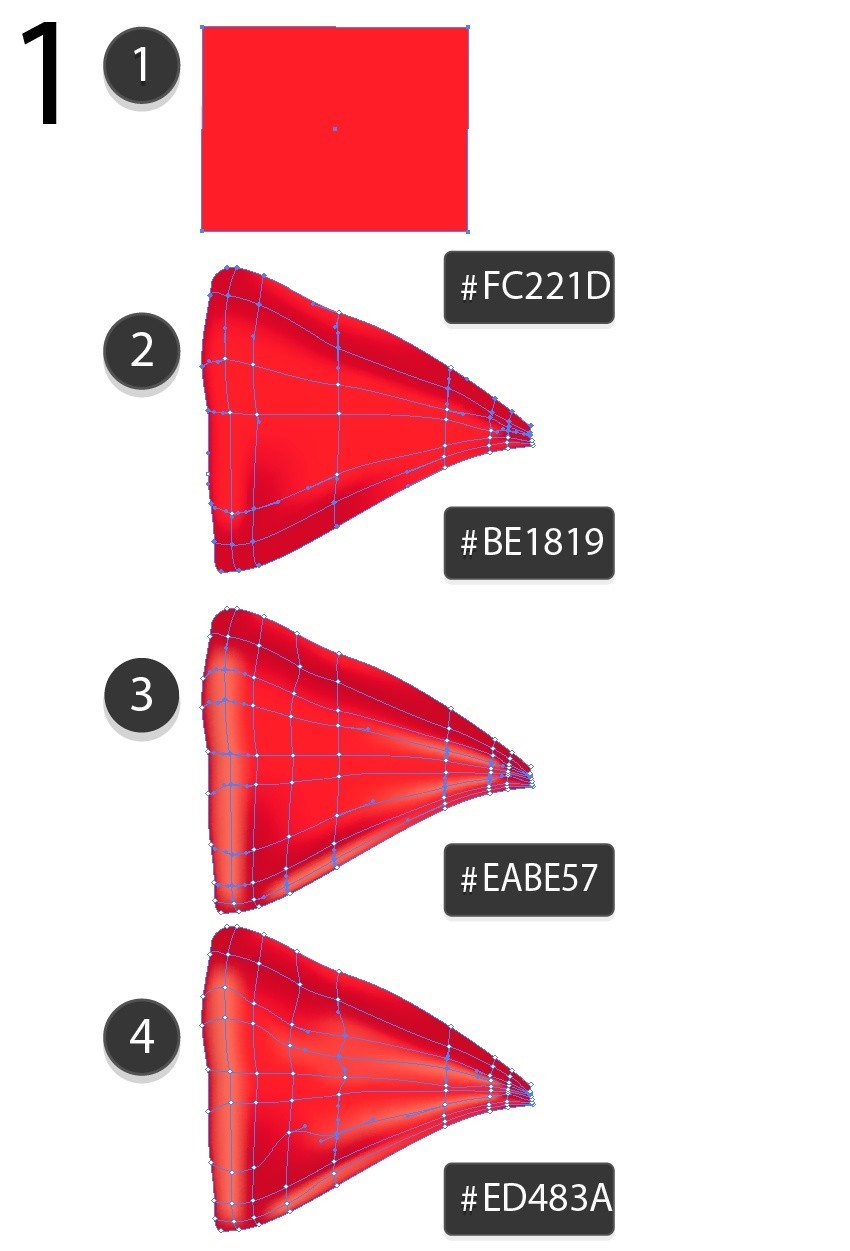
Draw a rectangle and fill it with #FC221D color. Grab the Mesh Tool (U) and create a Mesh Grid in the rectangle by clicking where you want to place your nodes. Next, drag the outer edges of the shape to create the right part of the bow.
Try to mimic the Mesh Grid in the screenshot.
Next, select the indicated nodes and recolor them all to #BE1819. Continue similarly, by creating more nodes and recoloring the selected ones.
Use these colors:
#FC221D#BE1819#EABE57-
#ED483A


Step 2
It's time for the second part! Recolor the selected nodes.
#FC221D#C81100#F77F6B


Step 3
Finish the second piece using these colors:
#8C0703#CA1505


Step 4
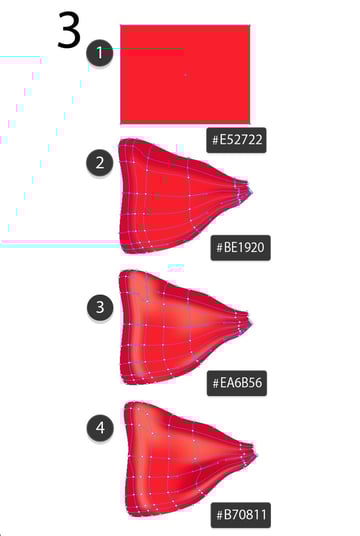
Draw the third piece in a similar fashion.
#E52722#BE1920#EA6B56-
#B70811


Step 5
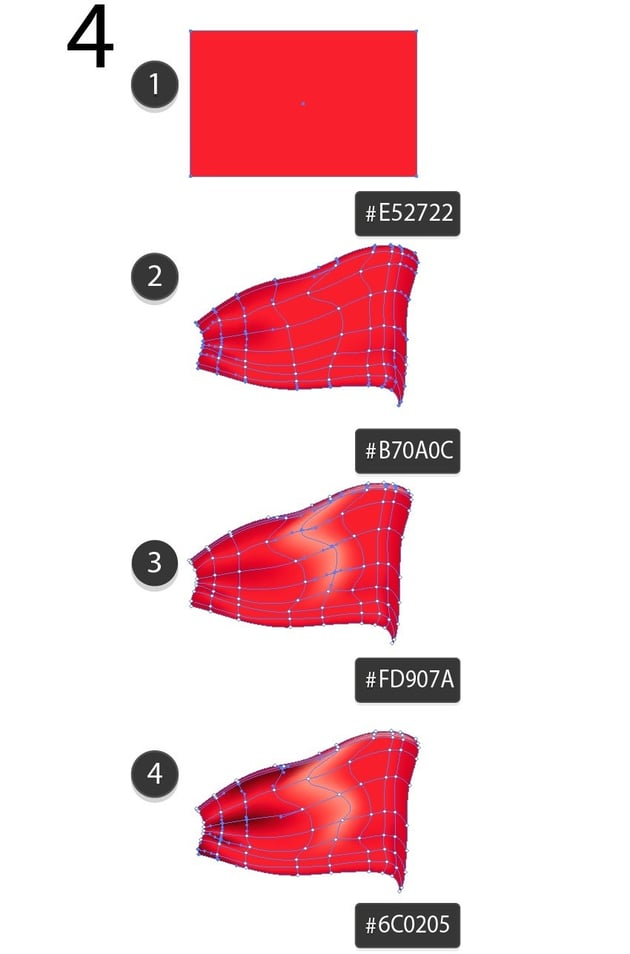
Draw the fourth piece with Mesh.
#E52722#B70A0C#FD907A-
#6C0205


Step 6
Draw a simple fifth piece from an ellipse.
#940000#BA0000


Step 7
Add the fifth piece under the fourth part.


Step 8
Draw the sixth part.
#C81313#F06E5F#9D0709-
#830303


Step 9
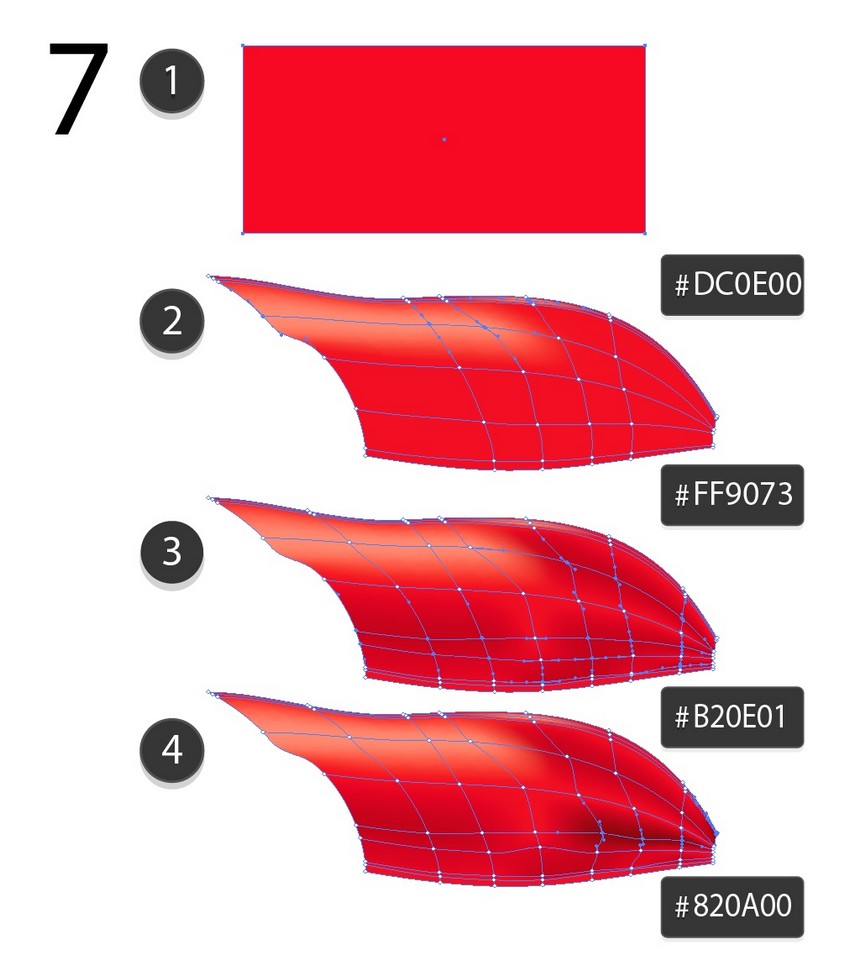
Use Mesh to complete the seventh piece.
#DC0E00#FF9073#B20E01-
#820A00


Step 10
Draw the eighth part of the bow.
#E02B1F#FF8D76#AA0900#CB1E13-
#7A0900


Step 11
Assemble the bow!


Step 12
Draw a shadow for the bow with a Radial Gradient from #A76969 to white.


Step 13
Place the shadow under the bow.


2. How to Draw the Rope
Step 1
Let's draw the rope for the label!
First, using the Pen Tool (P), draw a simple outline of a rope section.
Move it next to its original position while holding down Alt to create a copy. It should overlap a little bit, but make sure you place the copy in one move only; otherwise, the next step will not work.
Next, press Control-D to repeat your last action. It should create another section of the rope next to the last copy. Repeat this about 100 times—the rope should be long.


Step 2
Select the whole length of the rope and create an Art Brush out of it by dragging it into the Brushes panel.


Step 3
Next, draw an outline with the Pen Tool (P) and apply the brush to it.
Tweak the size of the Stroke until the rope is thin enough.


Step 4
For this step, first go to Object > Expand Appearance to expand the brush.
Next, select all of the sections and apply a Radial, white to #F5DEDE to #BC2725 gradient.


Step 5
To draw a ring for our rope, first draw a circle with a Radial Gradient (#835114 - #8D5A1D - #FECD23 - #79460F).


Step 6
Draw a smaller circle in the middle, and then select both shapes and use Minus Front in the Pathfinder panel.


Step 7
Select the bottom left sections of the rope and Send them to Back (Shift-Control-[), to create an illusion of the rope going through the ring.


3. How to Draw Labels
Step 1
Begin by drawing our first label!
Combine a circle and a rectangle with rounded edges by pressing Unite (first icon on the top left) in the Pathfinder panel.


Step 2
'Punch' a hole in our label using the Minus Front option in the Pathfinder panel.


Step 3
Add a Gradient on top of the label (Multiply, 50% Opacity).


Step 4
Place the hole with the ring on top of the label.


Step 5
You can write something on the label—I chose 'SALE'.


Step 6
Add the bow.


Step 7
You can also create ellipse-, triangle-, rectangle- and circle-shaped labels.


Step 8
The finished collection!


Congratulations, You're Now Done!
Thank you for following along, and please
feel welcome to post your result in the comments. I'll be looking
forward to seeing it!
In this tutorial, you learned how to
create a set of sale labels using the Mesh Tool.
I
hope you've enjoyed this tutorial and learned how to use Gradient Mesh
for the future! Check out some of my other vector tutorials on my instructor profile.
You can purchase the Big set of sales tags with red gift bows as well as other similar designs in my portfolio on GraphicRiver.
 By
By



