


Always wondered what a Bevel and Emboss Photoshop layer style is, and most importantly how to use it to create Photoshop text effects?
The Bevel and Emboss layer style is one of Photoshop's most powerful tools when it comes to creating Photoshop text effects, since you can use it to emboss text, add an inner bevel or any other type of bevel effect, or even create an emboss Photoshop action, all in a matter of moments.
So, if you want to learn how to bevel and emboss in Photoshop, then you should definitely give this tutorial a full read. You'll learn how to create an emboss effect, how to create a Photoshop text effect, and how to bevel in Photoshop.
Follow along with us over on our Envato Tuts+ YouTube channel:

The uses for Bevel and Emboss in Photoshop
Bevel and Emboss is one of the most powerful and adaptable tools within Photoshop Layer Styles.
The traditional use for Bevel and Emboss is to make something look more three-dimensional by adding highlights and shadows to different parts of your layer, but it doesn't stop there.
What does bevel mean?
A bevel effect gives a layer a raised, 3D appearance by creating highlights and shadows along its edges. It can be applied in the Layer Styles menu and can add depth to shapes, text, and pixel layers.
What does emboss mean?
Emboss creates a 3D effect by adding shadows and highlights to the entire surface of a layer to make it appear either raised or pressed into the underlying layers.
Bevel vs. Emboss
Bevel and Emboss are both Photoshop layer style settings that add depth and dimension to layers.
- Bevel focuses on creating a raised, 3D edge around an object, emphasizing its border with highlights and shadows.
- Emboss applies a similar 3D effect but treats the entire surface, making the layer appear pressed into or raised from the background.
While Bevel emphasizes edges, Emboss affects the whole surface to give a textured or stamped effect. Both are found in the Layer Styles panel.
With some special consideration and careful tweaks, you can create Photoshop effects ranging from reflective chrome and refractive glass to chiseled stone and subtle letterpress graphics using Bevel and Emboss.

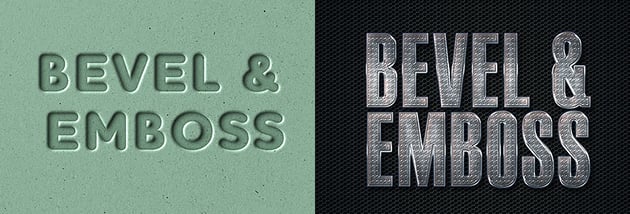

How to Bevel and Emboss in Photoshop
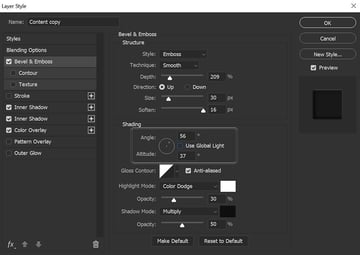
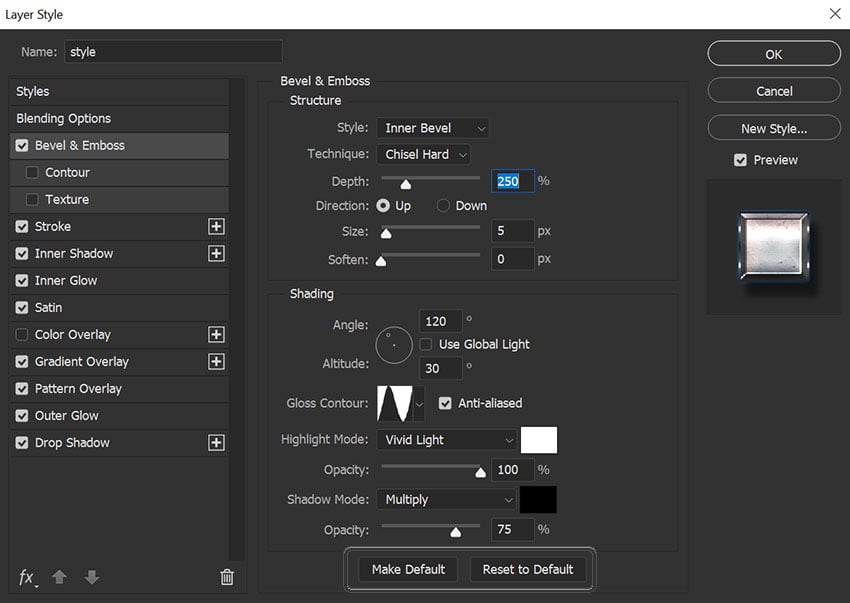
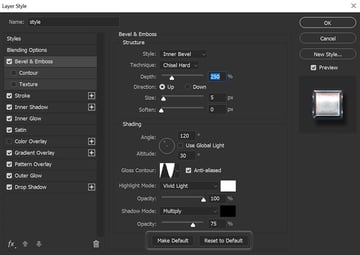
The Bevel and Emboss dialog boxes are shown below, giving us a slew of options. These will allow us to set things like bevel height, lighting direction, texture map, and more.


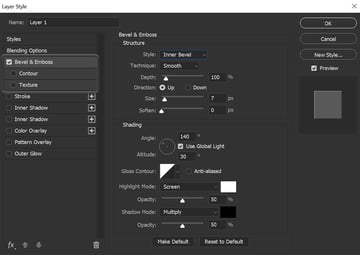
Style
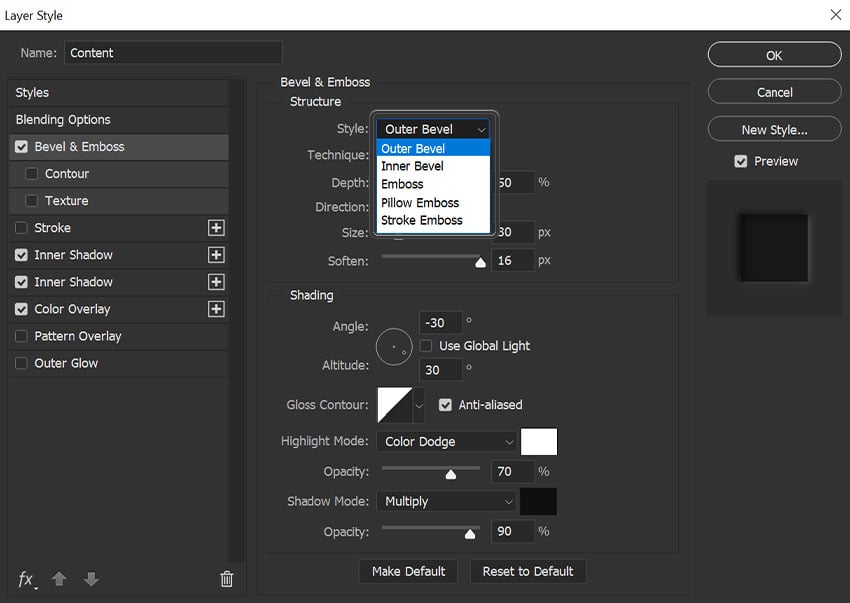
The Style dropdown is where you set the style/location of your bevel and includes the following options:
- Outer Bevel: This applies the bevel to the outside of the shape you are applying it to.
- Inner Bevel: This applies the bevel to the inside of the shape you are applying it to.
- Emboss: This applies the bevel to both the outside and the inside of the shape you are applying it to.
- Pillow Emboss: This applies the bevel to both the outside and inside of the shape you are applying it to, but in opposite directions.
- Stroke Emboss: This only works when you also have a stroke effect applied to your layer, and applies the bevel only to the stroke.
It may seem confusing, but simply scrolling through the different Style settings with the Preview box checked will quickly show you how they each work.

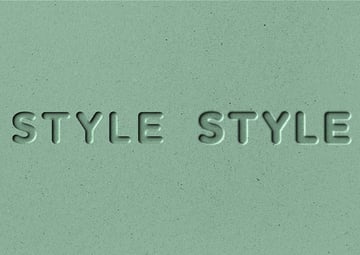
In the following emboss example, you can see on the left with Inner Bevel applied, it only affects the inside of the shape.
With the Emboss style applied on the right, the Bevel and Emboss affects both the inside and outside of the shape.
The text on the left is set to Inner Bevel.


Technique
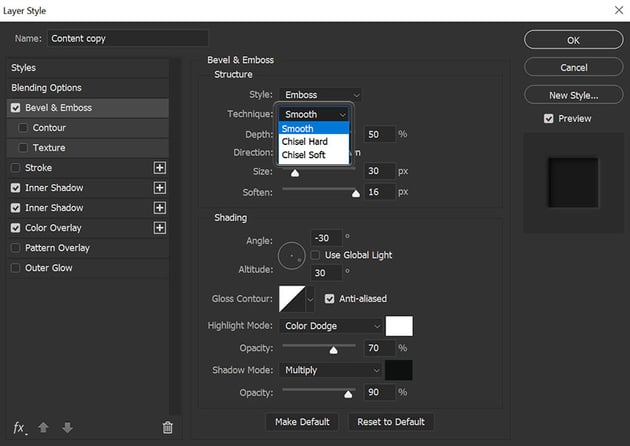
The Technique dropdown menu allows you to set the overall shape of the Bevel and Emboss and includes the following options:
- Smooth: This setting creates a smooth inner bevel in Photoshop.
- Chisel Hard: This setting creates a hard, chiseled edge bevel.
- Chisel Soft: This setting creates a rougher, chiseled edge bevel.
Again, the best way to see the difference is to scroll through the settings with the Preview box checked.

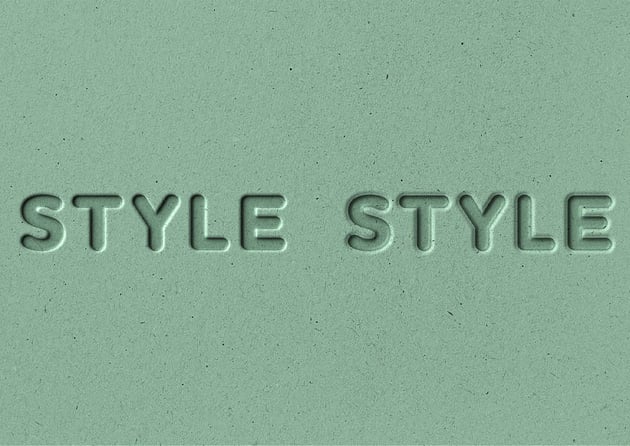
In the following example, you can see that text on the left is a Smooth inner bevel Photoshop effect, while the text on the right looks less smooth set to Chisel Hard. This can be used to create an easy rock chisel effect.

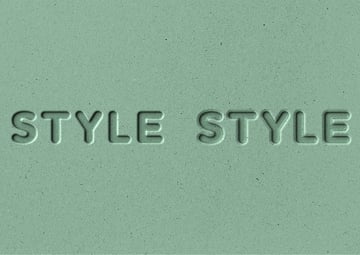
Depth
The Depth slider increases or decreases the apparent depth of the Bevel and Emboss. A lower number creates a less visible 3D effect, while a higher number makes it more dramatic.

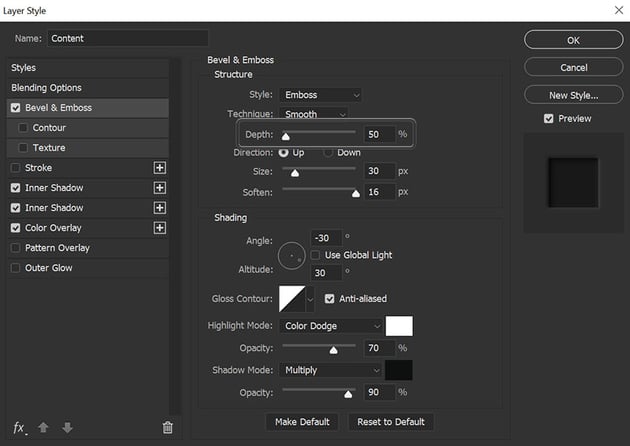
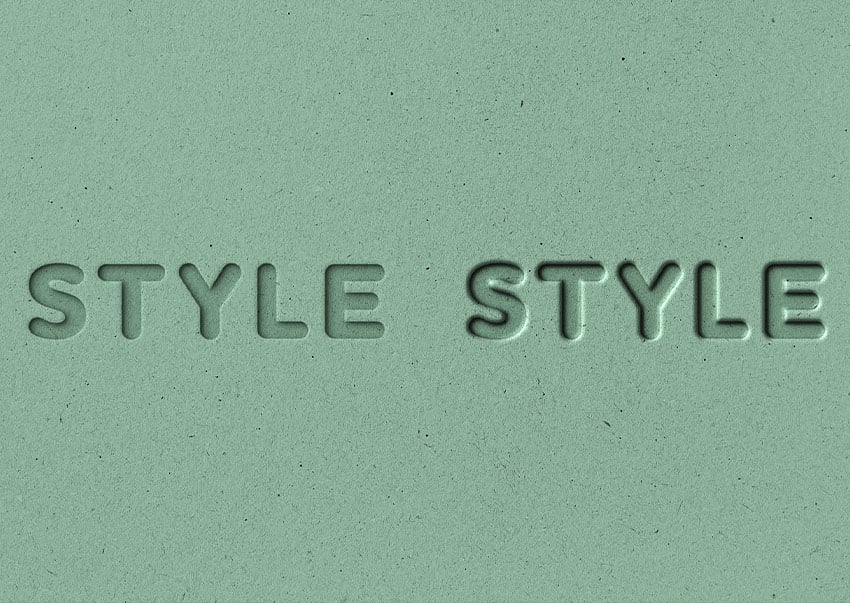
In the following example, you can see how increasing the Depth to 350% makes the text on the right look more three-dimensional.
The text on the left is set to Depth 1%.

Direction
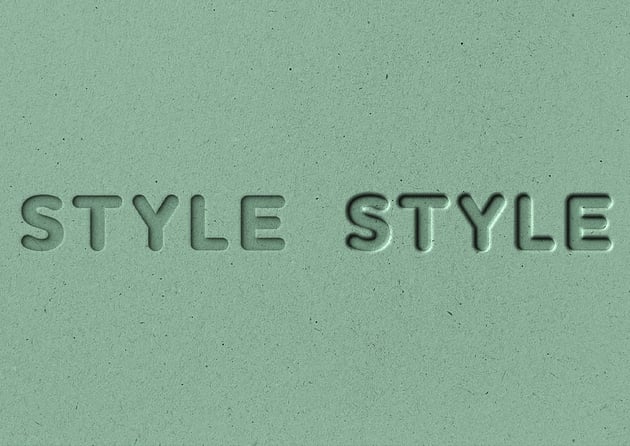
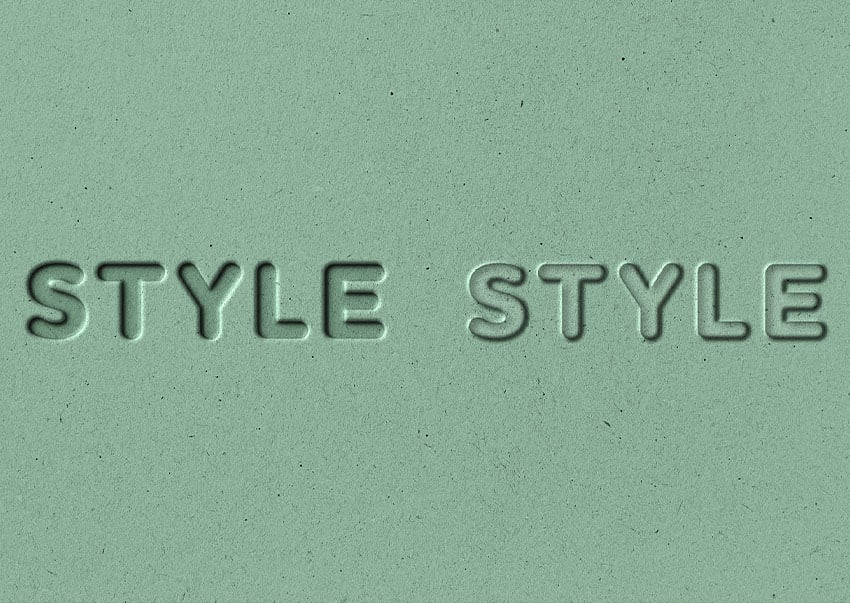
The Direction radio buttons simply let you choose whether you want your Bevel and Emboss to appear to be extruded towards you or away from you.
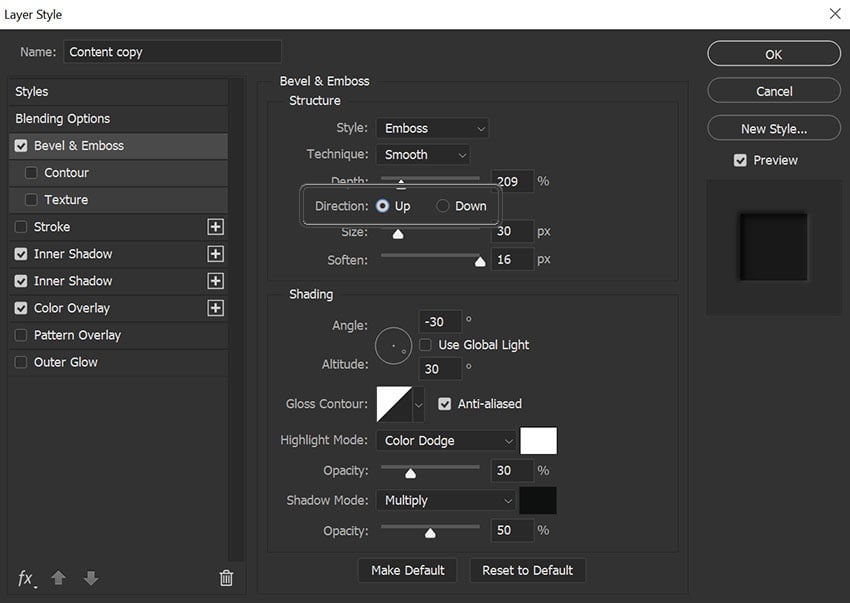
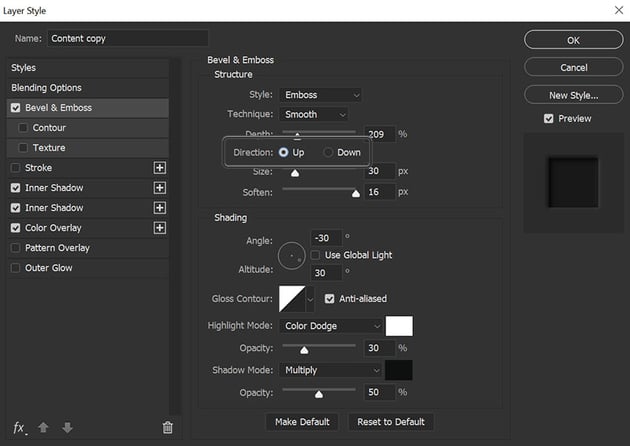
In the following example, you can see how the right text appears to come out of the page, while the left text appears to sink into the page.

Size
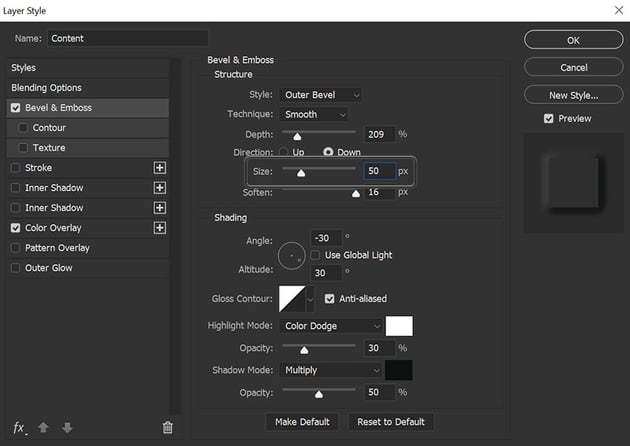
The Size slider sets the overall size of the Bevel and Emboss. A lower number creates a smaller effect that stays closer to the edges of your shape, while a larger number increases the Bevel and Emboss coverage to a bigger area of your shape.

In the following example, the text on the left has a smaller bevel while the one on the right covers much more of the text.


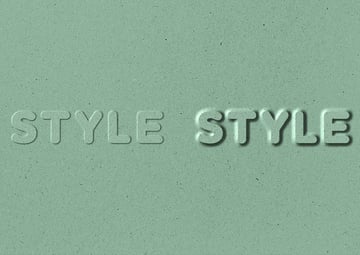
Soften
The Soften slider allows you to soften any hard edges created by your Bevel and Emboss. It can be helpful in creating soft, squishy-looking styles.
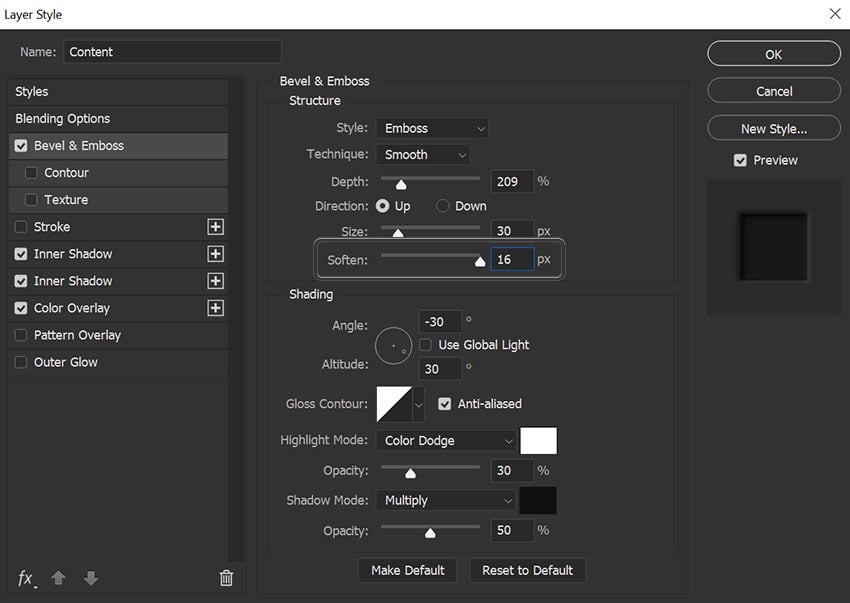
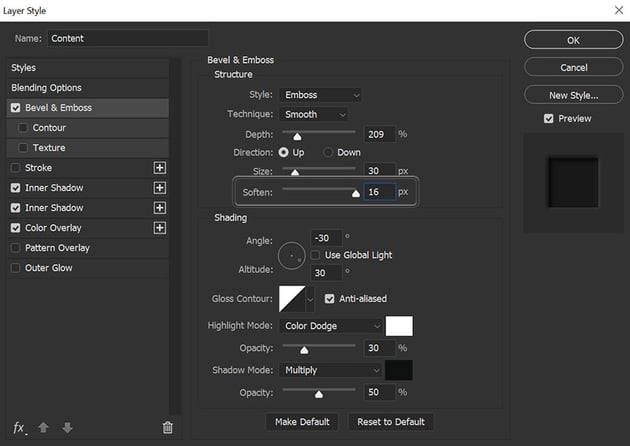
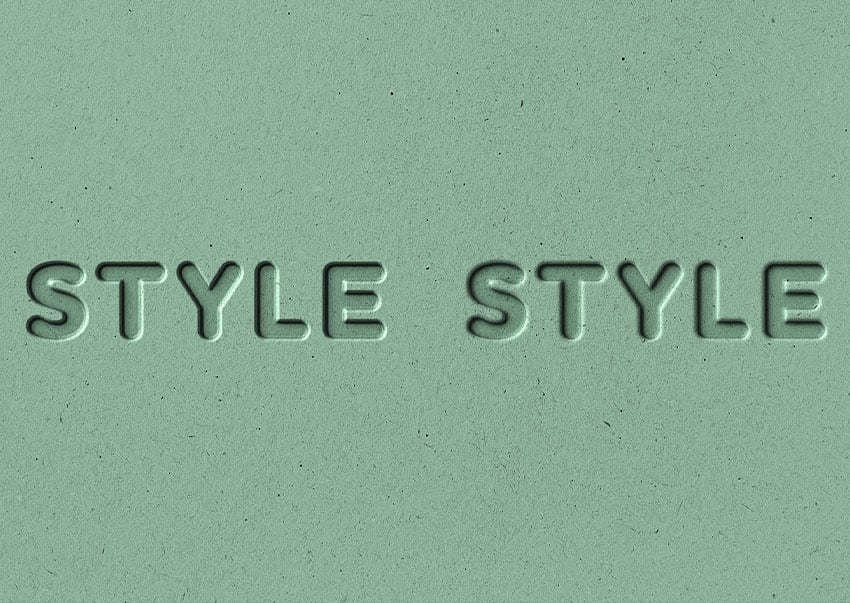
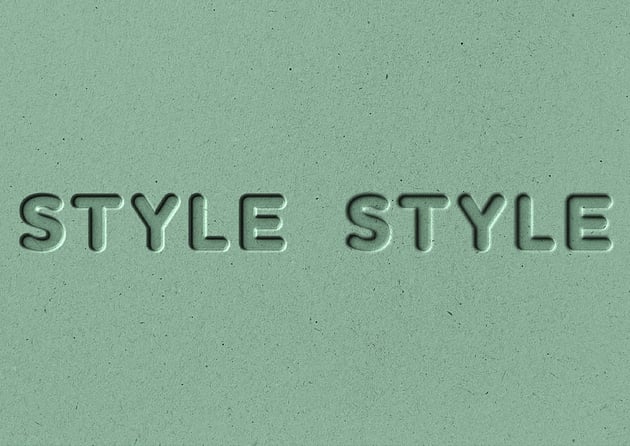
In the following example, you can see that increasing the Soften parameter helps us to create a softer-looking emboss effect on the right.

Angle and Altitude
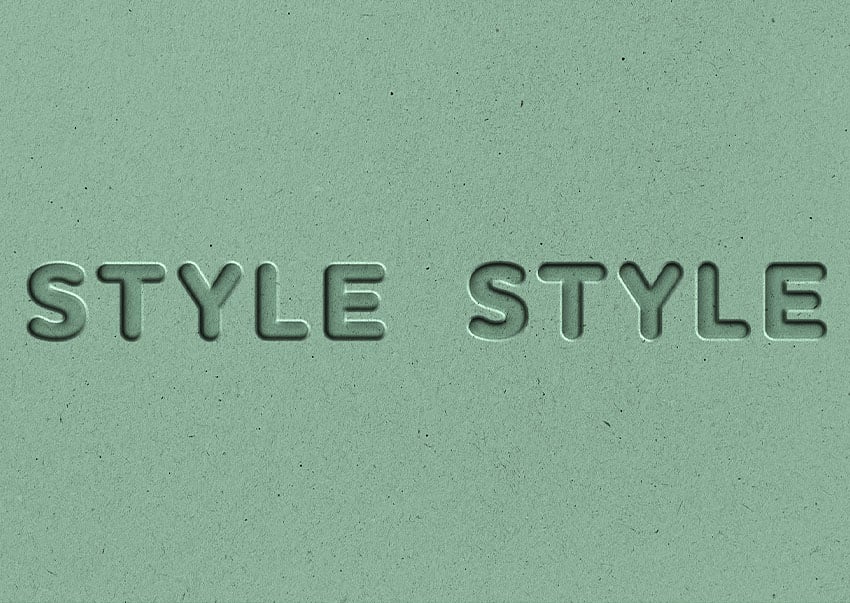
The Angle and Altitude area is where you set the position of your light. The Angle sets the horizontal position of your light source, and the Altitude sets the vertical position, or apparent height of your light source. You can also drag the small crosshair around to edit your light source without having to use numerical values.
Checking the Use Global Light checkbox will sync these settings with any other lighting-related settings in your document like Inner and Outer Shadow.
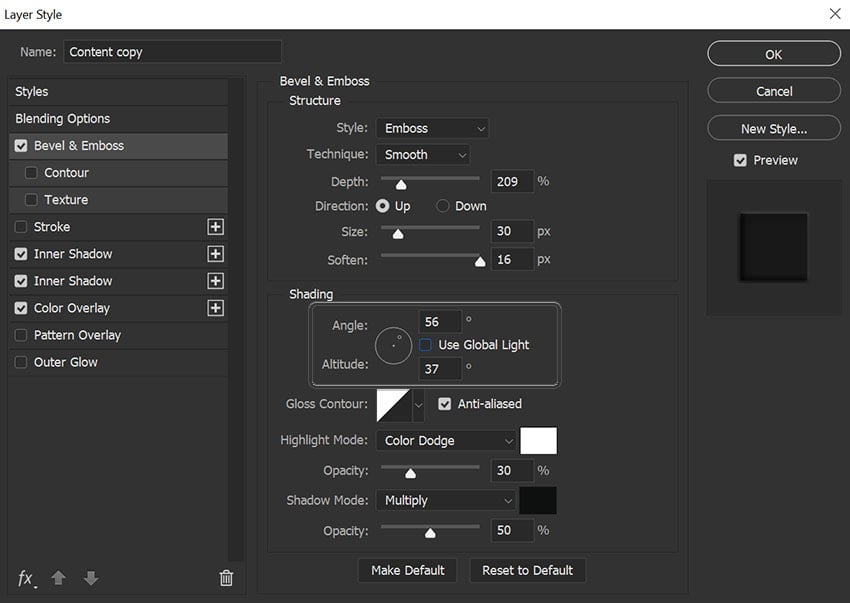
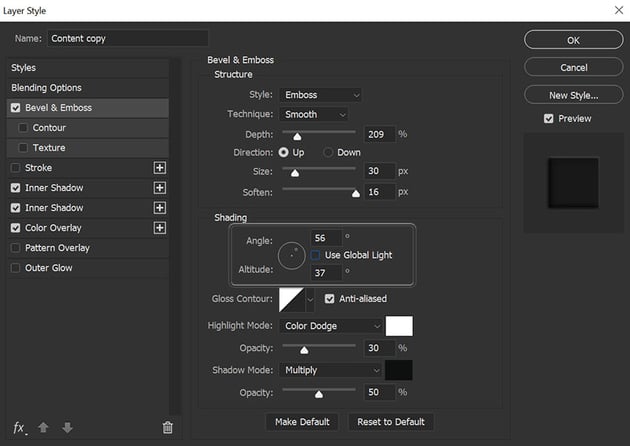
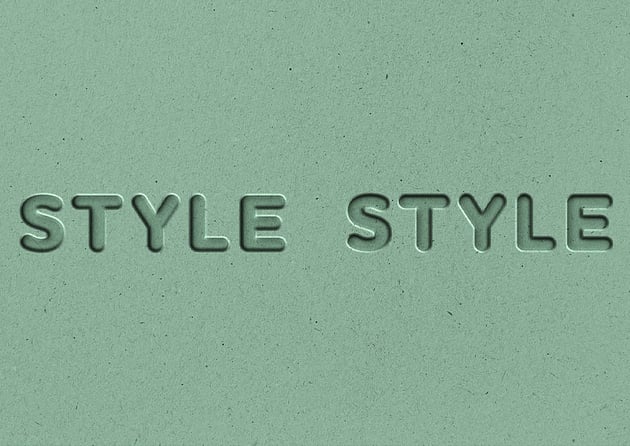
In the following example, you can see how changing the Angle and Altitude settings affects the perceived location of our light source.
Gloss Contour
Gloss Contour is the secret to creating great glass and metal effects.
The Gloss Contour sets the falloff of the shadows and highlights within our Bevel and Emboss. A linear contour creates a natural-looking falloff, while choosing something like a "sine wave" style contour can create cool, reflective effects.
In addition, the Anti-aliased checkbox will smooth out any jagged edges within your gloss if you want.
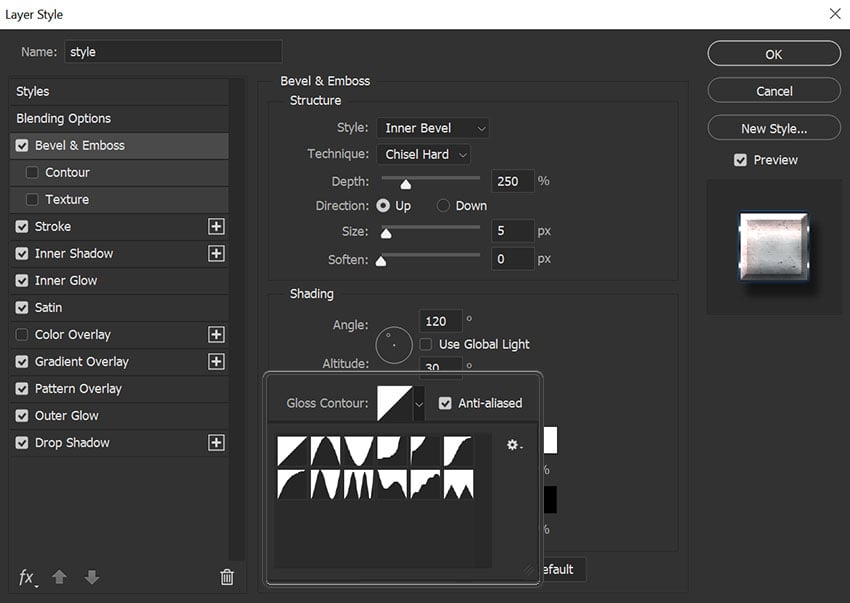
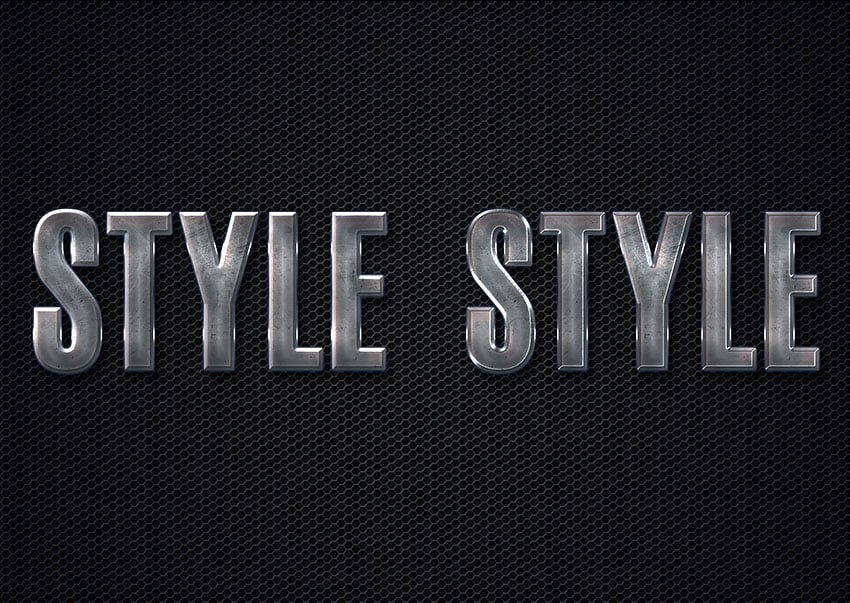
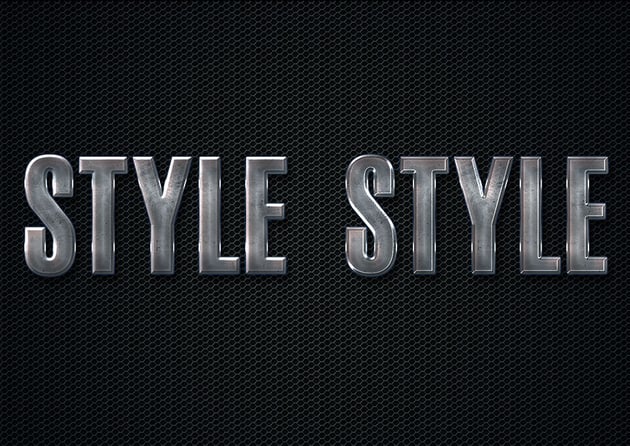
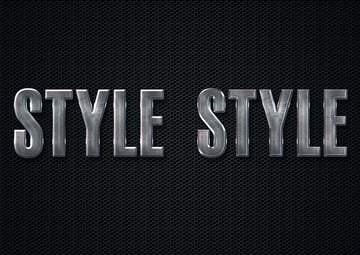
In the following example, you can see how the text on the left looks nothing like metal, but by changing the Gloss Contour to the Ring preset, it begins to look like a more realistic metal text effect.
Highlight Mode and Opacity
There are two parts to lighting: highlights and shadows.
The Highlight Mode dropdown is where you set the blend mode for your highlights. Screen is the default setting, but you can also try Linear Dodge (Add), and Color Dodge for more dramatic effects.
This is also where you set your highlight color. Most of the time you'll leave it at white, but if you want to simulate different color light sources, you can change the highlight to have a tint of color.
The Opacity slider adjusts the intensity of your highlight edges.
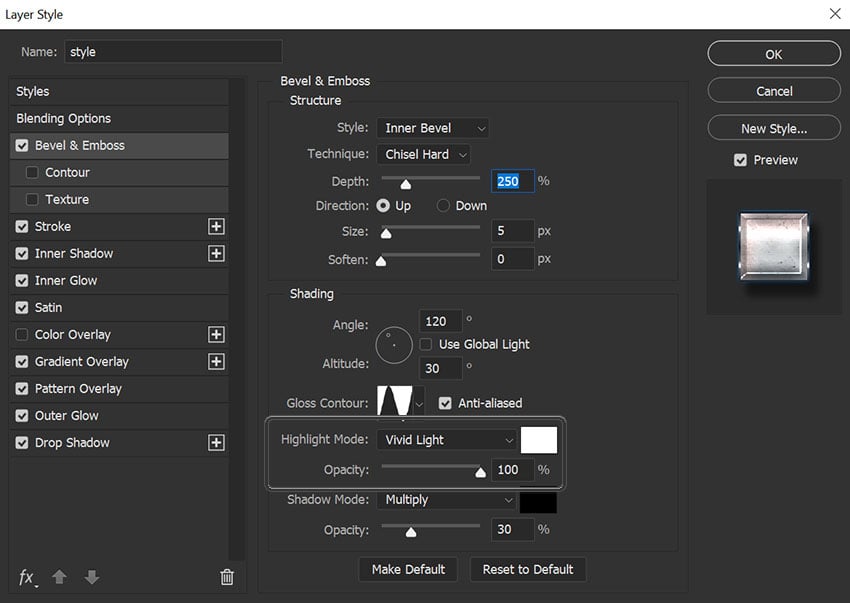
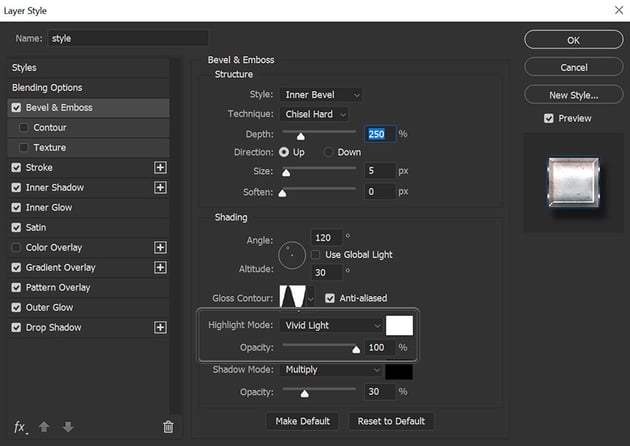
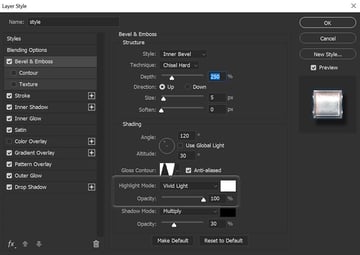
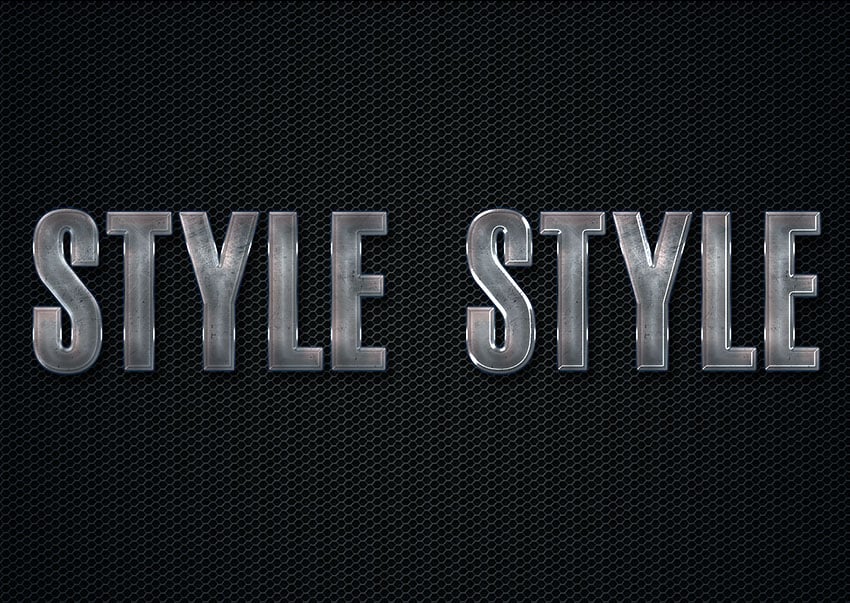
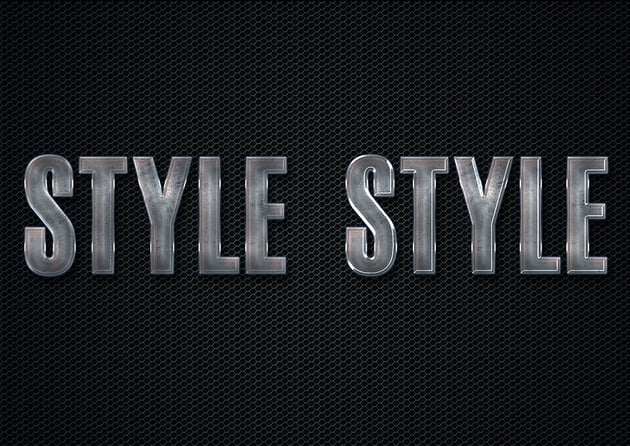
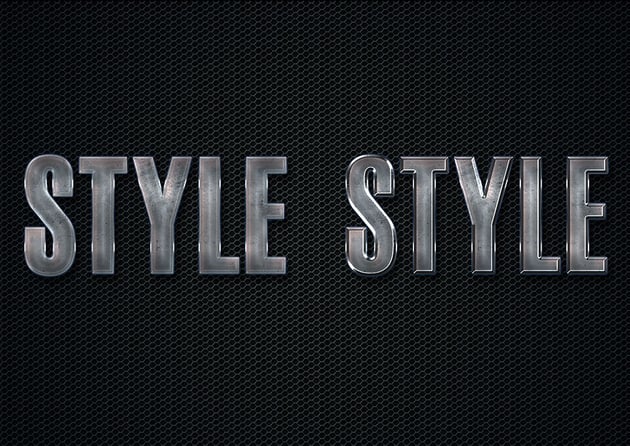
In the following example, you can see how changing the Highlight Mode, Color, and Opacity gives our metal effect stronger highlights.
Shadow Mode and Opacity
The Shadow Mode dropdown is where you set the blend mode for your shadows. Multiply is the default setting, but you can also try Linear Burn or Color Burn for more dramatic effects.
This is also where you set your shadow color. Most of the time you'll leave it at black, but you can also achieve other subtle effects by using different tints of color.
The Opacity slider adjusts the intensity of your shadows.
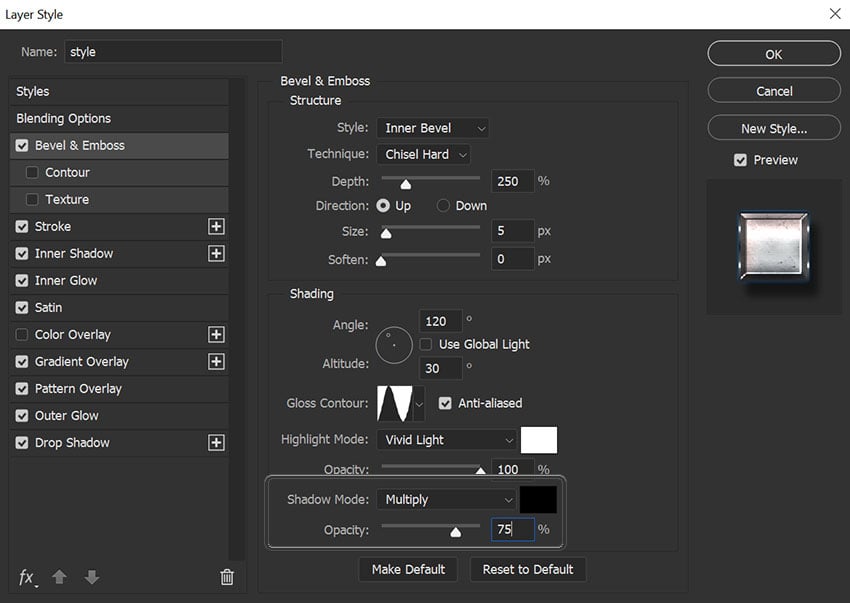
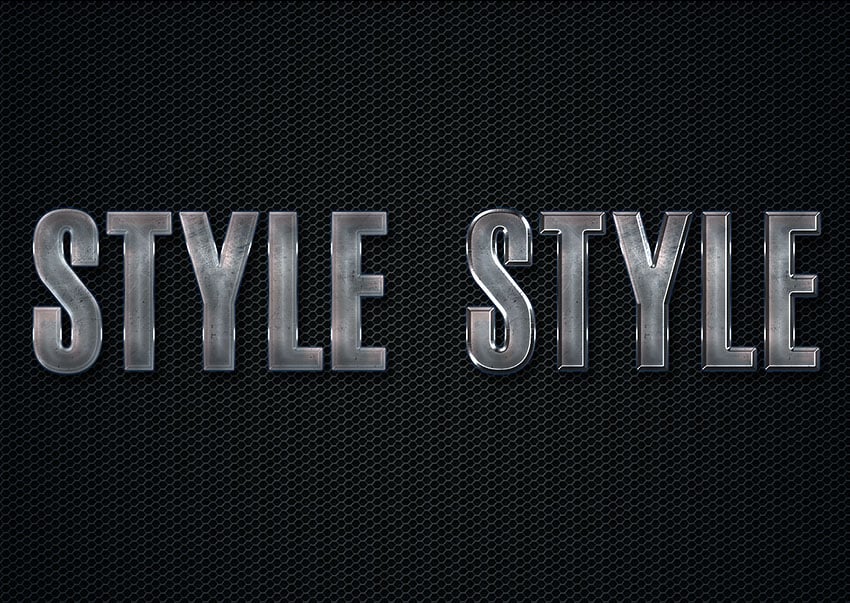
In the following example, you can see how changing the Shadow gives our metal style a more chrome look.
Saving and loading default settings
You can save and load default settings for each effect in the Layer Styles dialog box. When you clicking Make Default, Photoshop will store whatever settings are currently active as the new default settings for that effect.
When you click Reset to Default, Photoshop will then load whatever settings were last saved. This allows you to experiment and simply reload custom default settings if you want to start over.
Contour
The Contour sub-section under Bevel and Emboss allows you to set the overall shape of your bevel. Checking the Anti-aliased checkbox smooths out your Contour, and the Range slider allows you to set the overall coverage of your bevel that you want your chosen contour to apply to.
This is another setting that is easier seen than said.
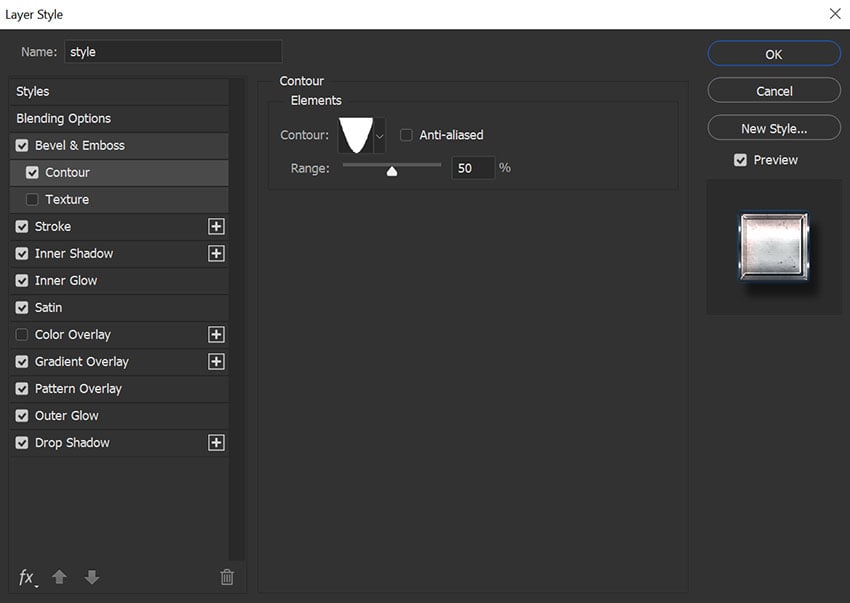
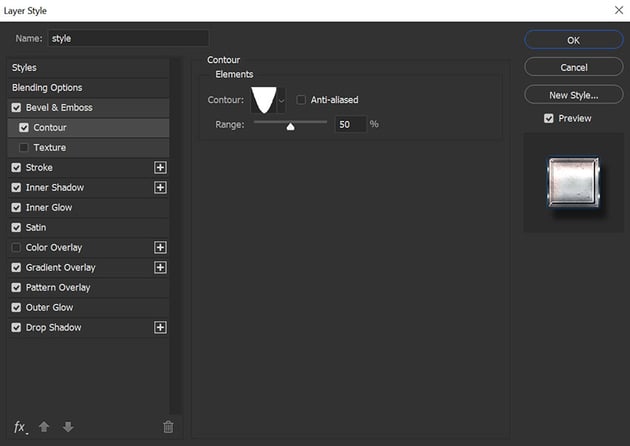
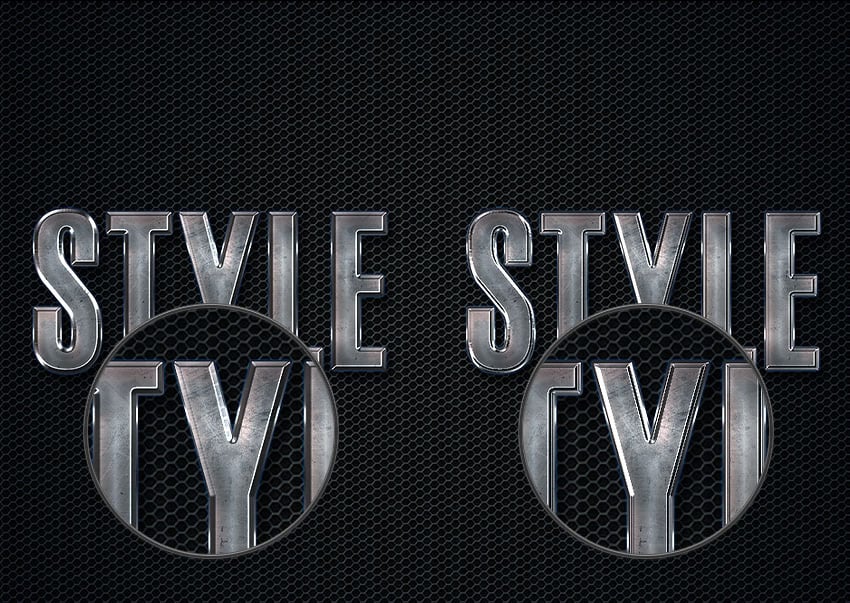
In the following example, you can see how adding a Contour to an inverted "U" shape gives our text an indented type of bevel design on the edges.
Texture
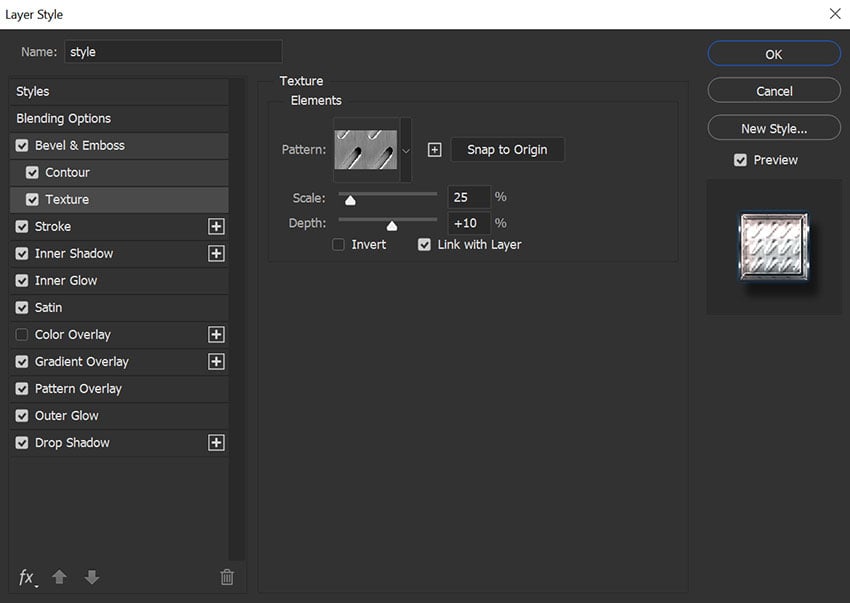
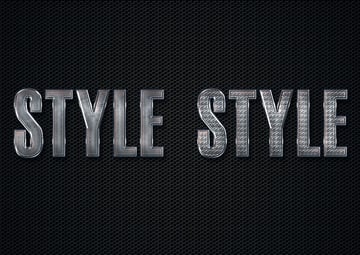
The Texture sub-section under Bevel and Emboss allows you to add a bump map to your style. A bump map makes the surface of your layer to appear higher or lower, giving us the ability to create special effects.
The Pattern area allows us to choose a pattern from Photoshop's Patterns palette to use as a bump map. Click the Snap to Origin button to align the Pattern to the origin of your document. You can also click the small "New" icon to create a new preset from your currently select Pattern.
The Scale slider lets you increase or decrease the size of your pattern, and the Depth slider changes the apparent depth of your bump map.
You can check the Invert checkbox to invert your pattern, making white areas black and black areas white.
Lastly, the Link with Layer checkbox locks the Pattern to your layer, so that if you move your layer around after closing the Layer Styles dialog box, the Pattern moves with it.
When the Layer Styles dialog box is open to the Contour sub-section, you can also drag the Pattern around on your canvas to position it manually.
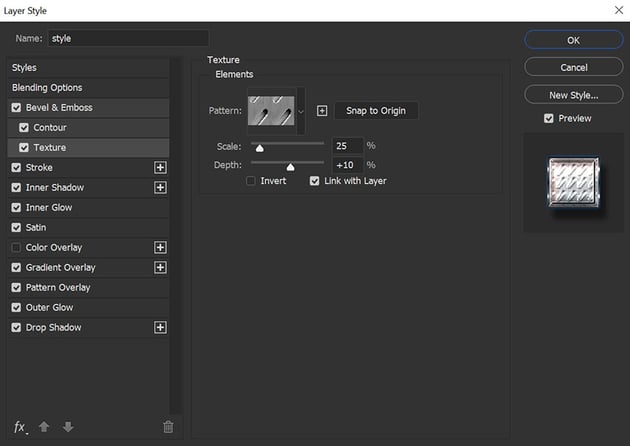
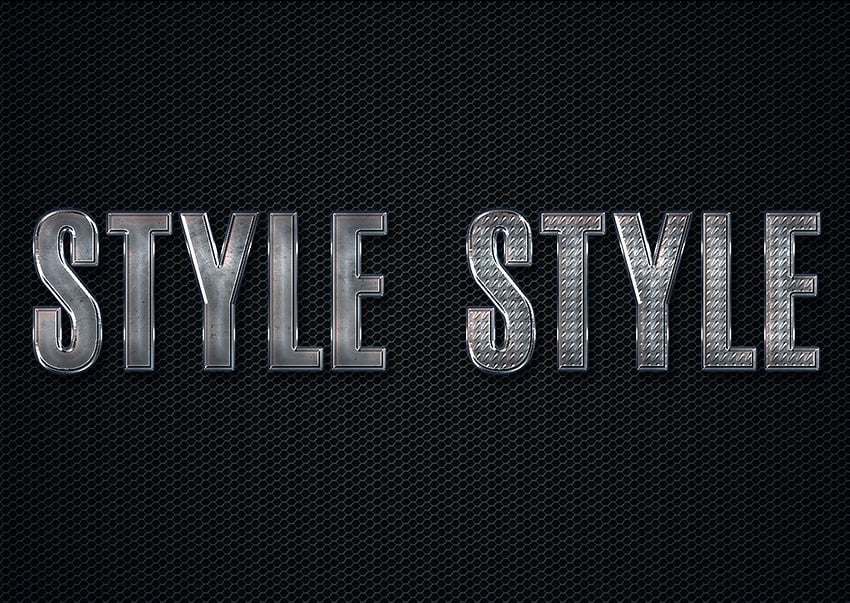
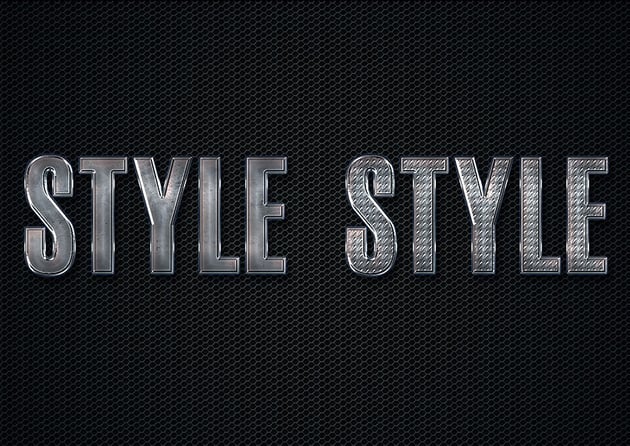
In the following example, you can see how adding a Pattern to our style can create a dramatically different effect. Since the Depth is set to 0 for the text on the left, the Pattern does not affect our style.
The metal Pattern is set to +10 on the right, giving it a metal rivet texture.
Expand your library
Want to build an extended Photoshop Layer Styles Library, but don't know exactly where to start? Well, don't worry since Envato has you covered, giving you a great selection of layer styles such as these ones.
Sloppy Press Layer Styles
Want to give your text that extra typographic feel? This layer style pack is exactly what you're looking for, since it comes with not one but 33 layer styles that you can use and abuse.


Ink Stamp Layer Styles
Let's be honest, giving your artwork that ink stamp look is and will always be an eye-catcher, so why not add this creative layer styles pack to your library in case you need it in future projects.


Retro Etch Vintage Layer Styles
Looking to give your text that vintage look but not too keen on going through the actual process required to do so? Well, if that's the case, this handcrafted layer style pack has you covered as it will do the job for you.


Grow your Photoshop skills
Just started out using Adobe Photoshop and feel like learning more of Photoshop? Well, today's your lucky day since I've put together a little list of tutorials that should keep you going!

 The A to Z of Adobe Photoshop


 How to Create a Stylized Chalk Text Effect in Adobe Photoshop


 How to Make a Distressed Effect Photoshop Action


 How to Create a Dripping Paint Photoshop Effect Action


 How to Create a Sketch Effect Action in Adobe Photoshop

 How to Make Gradients in Photoshop (And More!)


 7 Spooky Photoshop Photo Effect Videos to Check Out!


 How to Turn a Photo Into Art by Creating a Painting Photoshop Action
-
How to Create a Stylized Chalk Text Effect in Adobe Photoshop

 How to Make a Photoshop Vignette Effect Action

You can also learn more by following along with us over on our Envato Tuts+ YouTube channel:
 By
By



