

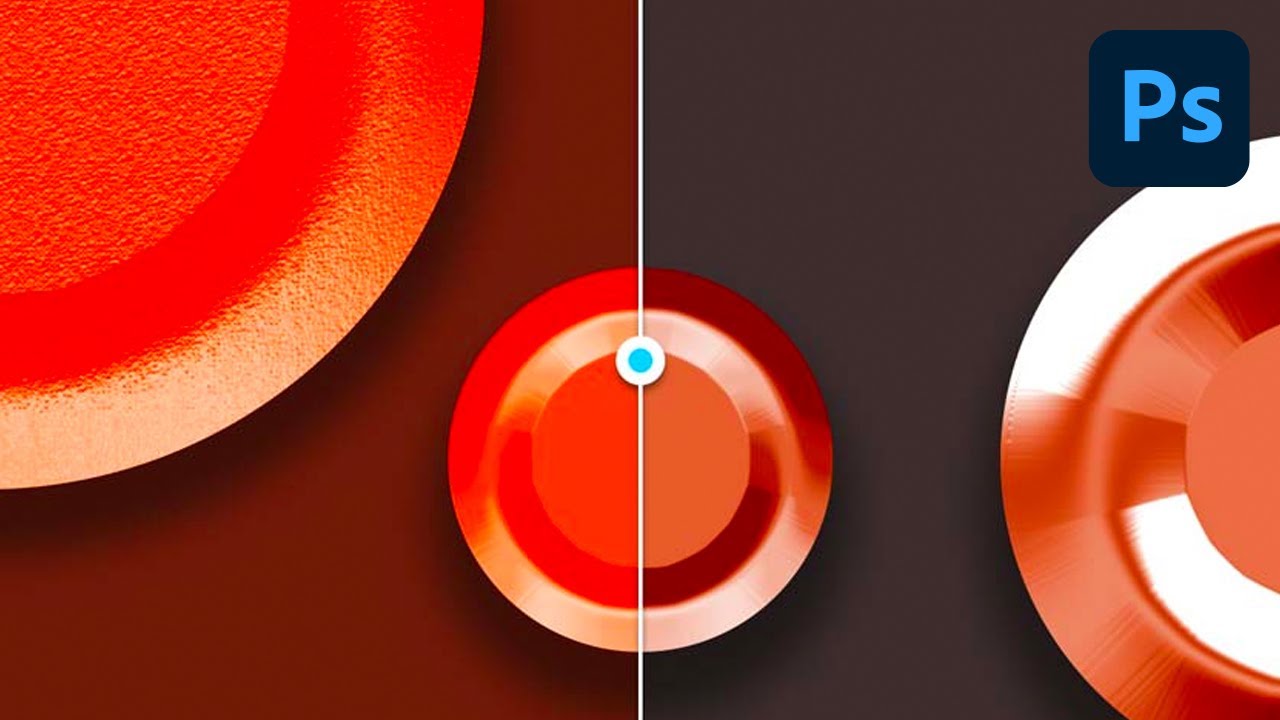
Always wondered what a Color Overlay layer style is or how to add a color overlay in Photoshop, but never quite managed to find a comprehensive guide on how to use it?
From how to add a color overlay to a layer in Photoshop to how to apply color overlays to multiple layers, this tutorial will do its best to answer all these questions and more.
So if you want to learn how to how to do color overlays in Photoshop or how cover overlays in Photoshop work, follow me as I walk you through all the ins and outs.
Follow along with us over on our Envato Tuts+ YouTube channel:
The Uses for Photoshop Color Overlay
After going through the many different settings within Bevel and Emboss, it's nice to come across something as simple as Color Overlay.
There isn't much to it at all, but it can be very useful in a number of ways.
Since Layer Styles are non-destructive and you can preview changes to your settings as you make them, using Color Overlay to pick background colors can speed up your workflow.
Rather than choosing a new color in the color picker, switching to the Paint Bucket Tool, and then filling in your layer, you can simply open up the Layer Styles dialog box, turn on Color Overlay, and see your color changes in real time.
You can also copy and paste Layer Styles between layers, making it easy to adjust a single object and then apply your settings to multiple layers.


The Layer Styles Color Overlay Dialog Box
Color Overlay is probably the most self-explanatory effect within all of Photoshop's Layer Styles.
It has only three settings: Blend Mode, Color, and Opacity.
Don't let its simplicity fool you. Color Overlay is one of the most useful and commonly used effects in everyday design.
Tip: The best way to utilize Color Overlay is to set the Fill transparency of your layer to 0% first. Fill can be found just underneath Opacity in the Layers palette.


Blend Mode
The Blend Mode allows you to set the blending mode for your Color Overlay, while the color box, as you'd expect, allows you to choose the color.
Changing the Blend Mode is most effective when your background is non-white and has some sort of texture.
If you are unfamiliar with how all the different Blending Modes work, I highly recommend checking out the Blending Is Fun Basix tutorial.


In the following example, you can see how changing the Blend Mode from Normal to Overlay makes our text look as if it is actually painted on the surface, making our graphic more cohesive and believable.


Opacity
A smaller number here makes your Color Overlay more transparent, while a higher number gives a stronger effect.


In the following example, you can see that a lower Opacity has a predictably subtler impact on our final effect.


Saving and Loading Default Settings
You can save and load default settings for each effect in the Layer Styles dialog box. When you click Make Default, Photoshop will store whatever settings are currently active as the new default settings for that effect.
If you click Reset to Default, Photoshop will then load whatever settings were last saved. This allows you to experiment and simply reload the default settings if you want to start over.


Grow Your Layer Styles Library
Want to build an extended Photoshop Layer Styles library, but don't quite have the time to make them yourself? Well, if that's the case then you should definitely head over to Envato Elements, where you'll find a great selection such as these ones:
Lava And Fire Layer Styles
Bring your art to life using this incredible-looking layer styles pack that helps you turn ordinary text into real-life lava and fire.


Sweet and Choco Layer Styles
Turn your text into delicious-looking pieces of sweet or chocolate using this handcrafted layer styles pack, which is meant to make your day sweeter.


Retro Wave Layer Styles
Give your text a taste of the 80s using this beautiful retro layer styles pack, which is guaranteed to turn some heads.


Expand Your Photoshop Skills
Just started out using Adobe Photoshop and feel like learning more? Well, today's your lucky day since I've put together a little list of tutorials that should keep you going for the next few days!

 The A to Z of Adobe Photoshop


 Introduction to Photoshop Layer Styles

 Understanding Inner Shadows in Photoshop
 How to Create a Realistic Embroidery Text Effect in Adobe Photoshop


 How to Create a Realistic Chrome Text Effect in Adobe Photoshop


 How to Use Drop Shadows in Photoshop
 How to Create a 'Stranger Things' Inspired Text Effect in Adobe Photoshop

 How to Create a Stylized Chalk Text Effect in Adobe Photoshop

 How to Create a Disney Frozen Inspired Text Effect in Photoshop


 How to Create a Glass Text Effect in Photoshop Using Layer Styles

 By
By



