


The Procreate app for iPad is not just the killer mobile app for artists—it’s genuinely one of the best painting programs ever released.
If you’d rather watch than read, check out the video version on our Envato Tuts+ YouTube Channel:

So What Is the Procreate App?
In this A to Z of Procreate, you'll learn the top tips for Procreate. You'll find some of the best Procreate tutorials to answer common questions about the app. Moreover, you'll get Procreate tips and tricks that will demonstrate why it’s so popular among digital artists today.
Take a deep dive and learn more about Procreate through this Envato Tuts+ tutorial:


What You Will Learn in These Procreate App Tutorials
Among the things you’ll learn in these Procreate tips and tricks are:
- What is the Procreate App and what is Procreate used for?
- How to add new brushes in Procreate
- How to install new fonts and style text
- How to blend and erase while maintaining texture
- How to change opacity in Procreate
- How to use a clipping mask in Procreate
- Tricks for working with palettes and colors
Jump to these sections to explore the Procreate tricks and hacks:
- A is for Add New Brushes
- B is for Blending Modes
- C is for Changing Opacity
- D is for Drag & Drop to Fill
- E is for Erase & Blend With Matching Brush
- F is for Fonts
- G is for Grouping Layers
- H is for Harmonies
- I is for Instant Palette
- J is for Just Tap
- K is for Photoshop Killer?
- L is for Line Art
- M is for Masking and Clipping
- N is for No Line Wobble
- O is for Open the Quick Menu
- P is for Paint With Filters
- Q is for Quick Shapes
- R is for Reference Box
- S is for Snapping
- T is for Two Brushes
- U is for Unstacking and Stacking
- V is for Video Time Lapse
- W is for Warp and Distort
- X & Y are for XY Axis Drawing Guide
- Z is for Zoom and Rotate
- Wrapping Up the Best Procreate Tips and Tricks
- More of the Best Procreate Tutorials and Resources from Tuts+:
A is for Add New Brushes
Let's start the list with the letter A and this basic tutorial for beginners about the Procreate tools. You can add new brushes to the default collection by opening the Brush panel and tapping the “+” button:


Then tap the Import button:


Browse for and select a compatible brush pack:


You’ll then see the brush pack appear in the Brush panel:


You can find over 150 of the best Procreate brush packs in the dedicated Procreate section at Envato Elements. This is one of the best Procreate tricks and hacks you'll ever learn.
B is for Blending Modes
If you're keen on learning about blending modes, this is another of the best tips for Procreate. The app has 26 different blending modes you can apply to layers.
By default, a layer’s blending mode will be set to “Normal”, as indicated by the letter N to the right of the layer name:


To change to a different blending mode, tap that letter N and a list of all available blending modes will expand for you to choose from:


C is for Changing Opacity
It’s not immediately obvious how to change opacity in Procreate, but it's easy once you know some useful tricks and hacks. There are two ways to get there.
The first is to open the Layers panel and tap on the blending mode indicator. Once you do that, a space will open up showing an opacity slider at the top:


Alternatively, you can two-finger tap on the layer and an opacity indicator will appear along the top of the canvas. Slide your finger to the left on the canvas to decrease opacity and to the right to increase it:


D is for Drag & Drop to Fill
This is one of the great tips for Procreate to get you started in your design journey. If you’d like to know how to fill in Procreate, it’s super easy. All you have to do is drag your active color from your palette and drop it into the area you want to fill:


If there’s a little jaggedness around the edges, hold for a moment before dropping the color and drag to the left or right to control how the edge of the fill is placed:


E is for Erase & Blend With Matching Brush
When you’re painting with a textured brush, you don’t want to ruin that texture by erasing with a regular round brush. So take a look at one of the most useful drawing hacks to avoid this from happening.
Erase with a matching brush by tapping the eraser icon twice to open its panel and then choosing the same brush you’re painting with:


Now, when you erase, your textured style will remain consistent:


If you’re wondering how to blend in Procreate, the process is the same, so you can blend with a matching brush as well:


F is for Fonts
Fonts are one of the most important elements in graphic design. This is where Procreate tricks like this come in handy. Procreate makes font installation a simple matter of drag and drop.
Download some fonts for Procreate, and for that purpose you can choose from over 18,000 fonts available at Envato Elements (any TTC, TTF, and OTF files are compatible).
Then open up the Files app and Procreate side by side, and just drag and drop the fonts onto the canvas to have them automatically imported:


Add text to your design by tapping the wrench icon, and under Add, choose Add text (this is one of the most used Procreate tools):


Select the text, and then open the Edit Style panel by tapping either the font name or weight:


Here you can choose from among your Procreate fonts, set a weight, control the sizing, spacing, and opacity, and set the alignment:


G is for Grouping Layers
This is another of the top basic tips for Procreate. Layers in Procreate can be grouped by swiping right on each layer you want to add to a group, and then tapping the Group button at the top right:


Groups allow you to move and resize multiple layers at once, as well as moving multiple layers up and down in the layer stack at once.


H is for Harmonies
Learning to harmonize colors can elevate your work significantly, so here's one of the drawing hacks you can't miss—in fact, this is the best Procreate hack for it! Selecting colors that harmonize is easy through the Color panel.


Open the Color panel and switch to Harmony at the bottom. You’ll see multiple reticles, the largest of which is your currently active color. The other reticles are colors that harmonize with the active color. Click a different reticle to set that color as the active one.
Switch between five different color harmonies by clicking the current harmony name. Move the active reticle, and all the other reticles will move to maintain the selected color harmony.
I is for Instant Palette
You can instantly create a Procreate color palette from any photograph. Just open the Color panel and switch to Palettes at the bottom. Click the “+” button at the top right and choose New from photos:


Select a photo, and Procreate will automatically extract colors from it and add them to a palette:


J is for Just Tap
Speaking of useful Procreate tips and tricks, check out this one! All you need to do to undo changes in Procreate is tap anywhere on the canvas with two fingers.


Conversely, you can redo steps by tapping with three fingers. And a four-finger tap will hide the interface or show it again.
K is for Photoshop Killer?
Procreate can be purchased for an astoundingly low, one-time, flat US$9.99. That’s the price of a single month of Photoshop.
This massive difference in price leaves a lot of people wondering about Procreate vs. Photoshop. Compared to Photoshop, what is Procreate used for? Could you use Procreate as a Photoshop replacement?


It depends on what you use Photoshop for, but in many cases, yes, you could use Procreate as a replacement.
If you are primarily a digital painter, you could most definitely switch to Procreate. Likewise, if you need software for frame-by-frame animation, photo manipulation or photo-bashing, hand lettering, or even pixel art, there’s a very good chance Procreate will be able to adequately replace Photoshop for you.


L is for Line Art
If you're into line art, this is one of the basic Procreate tips and tricks you should know about. If you are working with line art and don’t want to accidentally make changes to it while coloring, you can take advantage of the Reference function.
Tap the layer with line art on it, and then activate the Reference property.
Now, if you drag and drop colors onto other layers, the fill will stay inside the line art, as though everything was on a single layer:


M is for Masking and Clipping
Masking is an incredibly helpful skill, so learn to do it with this Procreate trick. To create a mask for any layer, just tap that layer and then choose Mask from the popup menu:


A mask layer will then be added above. Paint in black on the mask to hide parts of the active layer, in white to show it, and in gray for transparency:


To use a clipping mask in Procreate, add a layer above the layer with the shape you want to use for clipping. You can paint on the new layer before or after activating clipping. When you’re ready, tap the layer you want to act as the clipping shape and choose Clipping Mask:


Anything you paint on the clipped layer will only show if it’s within the bounds of the clipping shape:


N is for No Line Wobble
To help with your Procreate drawing or line art, brushes have a line smoothing setting called StreamLine. This is one of the go-to drawing hacks. The more you increase the setting, the smoother your lines will be:


Access the StreamLine setting by selecting a brush from the Paint menu, and then tapping it a second time to open up its settings. The StreamLine setting is located under the Stroke path tab:


O is for Open the Quick Menu
This is the ultimate Procreate tutorial for beginners. Procreate has a six-item radial menu called the Quick Menu. To activate it, tap the wrench icon, go to Prefs, and choose Gesture controls:


Go into the QuickMenu tab, and then choose the gesture you want to use to open the QuickMenu:


Once you open the QuickMenu, you can customize any of its items by long-pressing them and then choosing a different action:


P is for Paint With Filters
If you want to paint in this app, here's a Procreate trick for it. Rather than filters being applied to whole layers, you also have the option to paint the areas in which you’d like a filter to take effect.
Tap the wand icon, choose an adjustment filter, and then tap the pencil option:


Start painting on a layer, and the filter will affect only the areas you paint, with the intensity determined by the pen pressure:


Q is for Quick Shapes
Make some quick shapes with the help of this Procreate hack. Procreate doesn’t have dedicated shape drawing tools, but what it does have is Quick Shapes.
Draw out any shape, as roughly as you like, and hold the pencil in place at the end of the last line:


The lines will automatically snap into perfectly straight lines, or curves if you drew an ellipse. From here, you can move the position of your pencil to change the rotation and size of the shape. Before you lift the pencil, if you place a finger onto the canvas as well, the proportions and angles of the shape will be adjusted and can form perfect squares and circles.
R is for Reference Box
Make your job easier with this tip for Procreate. You can easily keep your reference images on hand while working by tapping the wrench icon, choosing Canvas, and then toggling on the Reference option:


A box will appear, into which you can import any image:


S is for Snapping
When making transformations, activate snapping to get some very useful assistance for moving, scaling, and rotating.
Turn on Magnetics to activate blue guidelines that behave like railroad tracks, giving you some stickiness when you move along those lines and helping you with repositioning:


Turn on Snapping to snap to the edges and center points of other layers, and of the canvas, as well as snapping for rotation increments:


T is for Two Brushes
Here's a brush Procreate tip. You can mix any two brushes into a single "dual“ brush.
Select your first brush, and then swipe right to select another brush from the same set. Tap the Combine button at the top of the panel:


You’ll then be able to paint with both brushes at the same time:


U is for Unstacking and Stacking
“Stacks” in Procreate are a way of organizing your documents into categories within the Gallery.
To create a stack, long-press a document to select it. Optionally, tap other documents to add them to your selection. Then drop the documents onto another document to create a stack. Tap the stack name if you’d like to rename it.


To unstack documents, first go into a stack by tapping it, and then long-press a document to select it. Again, you can optionally tap other documents to select them too. Then drag the selection up to the top left and hold it over the stack name. After a moment, you’ll be taken out of the stack and into the gallery, where you can release the selection to drop them back into the top level.
V is for Video Time Lapse
For a cool Procreate app tutorial, check this one out. Procreate can capture a time-lapse video of your work, with no noticeable impact on the performance of the software.
To activate video recording, tap the wrench icon, go to Video, and toggle Time-lapse Recording on:


When you’re done with your piece, go back to the same place in the menu and tap Time-lapse Replay to watch your time-lapse video back. Or tap Export Time-lapse video to generate a video file.
W is for Warp and Distort
Procreate has powerful warping and distorting functionality that lets you remold the shape of any layer. To access both functions, tap on the arrow icon to open the Transform Toolbar:


Distort is the third tab on the toolbar and is great for doing things like modifying the apparent perspective of a shape, while maintaining the appearance of flatness:


Warp is the fourth tab and is excellent for more detailed manipulation that changes the curvature of the shape:


X & Y are for XY Axis Drawing Guide
Get your lines perfectly aligned into the X and Y axes by using the 2D grid drawing guide.
Tap the wrench icon, go to Canvas, toggle on Drawing Guide, and then tap Edit Drawing Guide:


From here, under 2D Grid, set the grid size you want, activate Assisted Drawing, and then tap Done:


Now, all the lines you draw will be locked into precise alignment:


You can also use the same technique to assist you with drawing isometric lines, perspective lines, and symmetry:


Z is for Zoom and Rotate
You can zoom and rotate your entire image by tapping the wrench icon, going to the Canvas section, and choosing using the Crop and Resize function:


To zoom in on the image, drag the light gray handles of the canvas inward, and drag it around to reposition it. And to rotate the image, tap Settings, and then in the dropdown panel that appears, drag the Rotation slider left or right:


Wrapping Up the Best Procreate Tips and Tricks
So that’s the A to Z of Procreate hacks: 26 of the coolest features, tips, and tricks to help you take full advantage of the software.
Discover More of the Best Procreate Tutorials from Tuts+
Learning about Procreate doesn't have to stop here. If you have more questions like what the Procreate app is or how to use a clipping mask in Procreate, there are lots of resources on Envato Tuts+ to help you out. Dive into these articles and tutorials to continue learning:

 How to Use Procreate


 How to Animate in Procreate


 How to Draw in Procreate


 Procreate vs. Photoshop: Battle of the Digital Painting Software


 30+ Best Procreate Tutorials for Beginners and Advanced!

 50 Best Procreate Brushes to Add to Your Brush Library!

 40+ Best Procreate Stamp Brushes (Ready to Download)

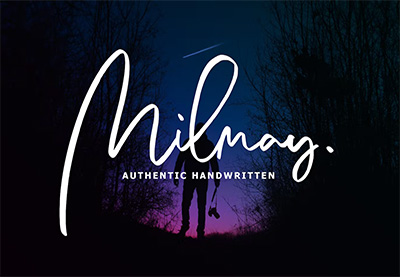
 43 Best Procreate Fonts (Calligraphy, Tattoo, Comic, and More!)
 By
By



