


Fan of graffiti art, but short on spray cans? Learn how to create your own graffiti text effect in Photoshop by following this cool tutorial. We'll use layer styles and the "Blend If" function from the blending options to create a text effect with graffiti in Photoshop.
Follow along with us over on our Envato Tuts+ YouTube channel. Here's our video version on how to create a text effect with graffiti in Photoshop.
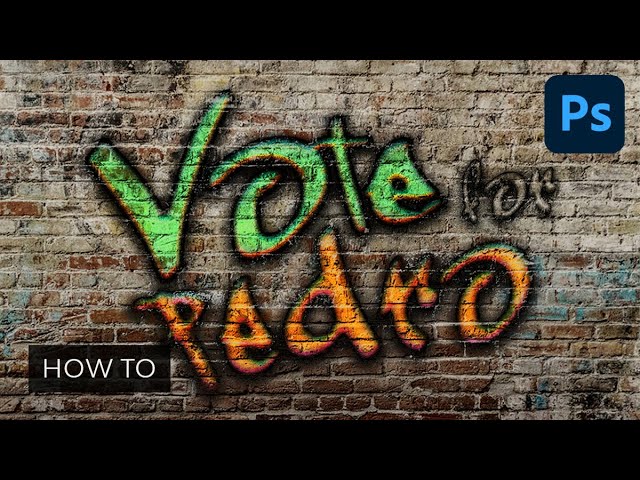
The text effect we will be creating is inspired by the graffiti styles on Envato Elements, where you'll find some of the best graffiti letters in the world, like this Graffiti Photoshop Text Effect with ten different styles.
Tutorial Assets
The following assets were used during this graffiti text effect Photoshop tutorial:
- Brick wall original: background image for our Photoshop graffiti effect
- Brick wall (edited): we'll add our cool graffiti words on the edited background
- Graffogie: our Photoshop graffiti font
1. How to Set the Background and the Text
Step 1
We will use a brick wall background for this tutorial. Open Photoshop and instead of creating a new document, go to File > Open... and select Brick-wall.jpg from the tutorial assets. If you want to try a different background, you can try one of the many wall backgrounds on Envato Elements.


Step 2
Use your Type Tool (T), select the Graffogie graffiti text font with a Size of 285 pt, and write the word "Vote" on your artboard. Then go to Type > Warp Text and select Shell Upper with Bend: 21%, Horizontal Distortion: -29%, and Vertical Distortion: 22%, and hit OK. Finally, select only the letter "V" on your artboard, and then go to your Character panel and set the Tracking to -75.


Step 3
Use your Type Tool (T) again to write two more words—"for" and "Pedro"—with the same graffiti text font. Make sure that each word is on its own layer. Write "for" with the font size 116 pt and tracking 75. Then write "Pedro" on a new layer with the font size 255 pt and tracking 75.


Step 4
Use your Move Tool (V) and move the graffiti style letters together. Then select all three text layers in your Layers panel and hit Control-T. Now set the Rotate to -8°. Finally, we are ready to start creating Photoshop graffiti text effects.


2. How to Create the First Graffiti Effect in Photoshop
Step 1
Let's start by selecting the graffiti text layer "Vote". Now go to Layer > Layer Style > Blending Options... and apply the following layer style.
In Blending Options, use these settings:
- Advanced Blending: 0%
- Blend if: Grey
- Underlying Layer: Alt-click (Mac users Option-click) on the white marker to split it, and then set the left part to 161 and the right part to 236.


Step 2
Add a Bevel and Emboss with these settings:
- Style: Inner Bevel
- Technique: Chisel Hard
- Depth: 144%
- Direction: Up
- Size: 8 px
- Soften: 0 px
- Uncheck the Use Global Light box
- Angle: 98º
- Altitude: 30º
- Check the Anti-aliased box
-
Highlight Mode: Overlay with color
#035b7cand Opacity: 100% -
Shadow Mode: Overlay with color
#ff3000and Opacity: 88%


Step 3
Add an Inner Shadow to the graffiti effect in Photoshop with these settings:
- Blend Mode: Normal
-
Color:
#000000 - Opacity: 100%
- Uncheck the Use Global Light box
- Angle: -94º
- Distance: 0 px
- Choke: 0%
- Size: 10 px
- Contour: Cone
- Check the Anti-aliased box
- Noise: 11%


Step 4
Add an Inner Glow with these settings:
- Blend Mode: Normal
-
Color:
#000000 - Opacity: 19%
- Noise: 61%
- Technique: Precise
- Source: Center
- Choke: 1%
- Size: 10 px
- Contour: Cone - Inverted
- Check the Anti-aliased box
- Range: 50%


Step 5
Add a Satin style with these settings:
- Blend Mode: Overlay
-
Color:
#64ec87 - Angle: 90°
- Distance: 19 px
- Size: 24 px
- Contour: Half Round
- Check the Anti-aliased box
- Check the Invert box


Step 6
Add a Gradient Overlay with these settings:
- Blend Mode: Linear Burn
- Check the Dither box
- Opacity: 6%
- Style: Linear
- Angle: 90º
- Scale: 60%
- Click on the Gradient and set these stops:
- Color stops with Color
#000000on Location: 0% and 100% - Opacity stop with Opacity: 0% on Location: 0%
- Opacity stop with Opacity: 100% on Location: 100%


Step 7
Add an Outer Glow with these settings:
- Blend Mode: Linear Burn
- Opacity: 29%
-
Color:
#000000 - Technique: Precise
- Spread: 50%
- Size: 3 px
- Check the Anti-aliased box


Step 8
We're almost finished with this graffiti text effect Photoshop tutorial. As a final step for this text effect, add a Drop Shadow with these settings:
- Blend Mode: Normal
- Pick the color
#000000 - Opacity: 95%
- Uncheck the Use Global Light box
- Angle: 90°
- Distance: 5 px
- Spread: 39%
- Size: 24 px
- Check the Anti-aliased box
- Noise: 10%
Hit OK to apply all changes.


Here's the result of the first graffiti text effect applied to the graffiti font in Photoshop.


3. How to Create the Second Graffiti Text Effect
Step 1
Select the "for" graffiti text layer and go to Layer > Layer Style > Blending Options... to apply the following layer style to the graffiti letter font.
In Blending Options, use these settings:
- Advanced Blending: 0%
- Blend if: Grey
- Underlying Layer: Alt-click (Mac users Option-click) on the white marker to split it, and then set the left part to 158 and the right part to 217.


Step 2
Add a Bevel and Emboss to the graffiti letters 3D text effect with these settings:
- Style: Inner Bevel
- Technique: Smooth
- Depth: 100%
- Direction: Up
- Size: 8 px
- Soften: 0 px
- Uncheck the Use Global Light box
- Angle: 90º
- Altitude: 30º
- Check the Anti-aliased box
- Highlight Mode - Opacity: 0%
-
Shadow Mode: Multiply with color
#000000and Opacity: 50%


Step 3
Add a Stroke with these settings:
- Size: 1 px
- Position: Outside
- Fill Type: Color
-
Color:
#000000


Step 4
Add an Inner Shadow with these settings:
- Blend Mode: Normal
-
Color:
#000000 - Opacity: 100%
- Uncheck the Use Global Light box
- Angle: -94º
- Distance: 0 px
- Choke: 18%
- Size: 5 px
- Check the Anti-aliased box
- Noise: 11%


Step 5
Add an Inner Glow with these settings:
- Blend Mode: Normal
-
Color:
#000000 - Opacity: 30%
- Noise: 61%
- Technique: Precise
- Source: Edge
- Choke: 1%
- Size: 4 px
- Check the Anti-aliased box
- Range: 50%


Step 6
Add a Drop Shadow with these settings to finish this graffiti letters 3D text effect:
- Blend Mode: Normal
- Pick the color
#000000 - Opacity: 956%
- Uncheck the Use Global Light box
- Angle: 90°
- Distance: 5 px
- Spread: 27%
- Size: 18 px
- Check the Anti-aliased box
- Noise: 17%
Hit OK to apply the layer style.


Here's the result of the second graffiti text effect applied to the cool graffiti letters. You're doing great—we've almost finished this Photoshop tutorial on graffiti text.


4. How to Create the Third Graffiti Text Effect
Step 1
Select the "pedro" graffiti letter font layer and go to Layer > Layer Style > Blending Options... to apply the following layer style.
In Blending Options, use these settings:
- Advanced Blending: 0%
- Blend if: Grey
- Underlying Layer: Alt-click (Mac users Option-click) on the white marker to split it, and then set the left part to 139 and the right part to 201. Then split the black marker and set its right part to 80.


Step 2
Add a Bevel and Emboss with these settings:
- Style: Inner Bevel
- Technique: Chisel Hard
- Depth: 144%
- Direction: Up
- Size: 8 px
- Soften: 0 px
- Uncheck the Use Global Light box
- Angle: 98º
- Altitude: 30º
- Check the Anti-aliased box
-
Highlight Mode: Overlay with color
#1faee3and Opacity: 100% -
Shadow Mode: Overlay with color
#ce43dband Opacity: 88%


Step 3
Add an Inner Shadow to the graffiti letter font text effect with these settings:
- Blend Mode: Normal
-
Color:
#000000 - Opacity: 100%
- Uncheck the Use Global Light box
- Angle: -94º
- Distance: 0 px
- Choke: 0%
- Size: 10 px
- Contour: Cone
- Check the Anti-aliased box
- Noise: 11%


Step 4
Add an Inner Glow with these settings:
- Blend Mode: Linear Dodge (Add)
-
Color:
#dd8925 - Opacity: 33%
- Noise: 47%
- Technique: Precise
- Source: Center
- Choke: 58%
- Size: 16 px
- Check the Anti-aliased box
- Range: 50%


Step 5
Add a Satin effect with these settings:
- Blend Mode: Overlay
-
Color:
#f08d18 - Angle: 90°
- Distance: 19 px
- Size: 24 px
- Contour: Half Round
- Check the Anti-aliased box
- Check the Invert box


Step 6
Add a Gradient Overlay with these settings:
- Blend Mode: Linear Burn
- Check the Dither box
- Opacity: 6%
- Style: Linear
- Angle: 90º
- Scale: 60%
- Click on the Gradient and set these stops:
- Color stops with Color
#000000on Location: 0% and 100% - Opacity stop with Opacity: 0% on Location: 0%
- Opacity stop with Opacity: 100% on Location: 100%


Step 7
Add an Outer Glow with these settings:
- Blend Mode: Linear Burn
- Opacity: 29%
-
Color:
#000000 - Technique: Precise
- Spread: 40%
- Size: 2 px
- Check the Anti-aliased box


Step 8
As a final step for this graffiti style letters text effect, add a Drop Shadow with these settings:
- Blend Mode: Normal
- Pick the color
#000000 - Opacity: 96%
- Uncheck the Use Global Light box
- Angle: 90°
- Distance: 5 px
- Spread: 39%
- Size: 24 px
- Check the Anti-aliased box
- Noise: 10%
Hit OK to apply the text effects.


That's It! Now You Know How to Create a Photoshop Graffiti Effect
In this graffiti text effect Photoshop tutorial, you learned how to use layer styles and blending options to create some cool graffiti text effects in Adobe Photoshop.
We started by creating our text graffiti in Photoshop, and then we changed it with blending options and layer styles to three different graffiti effects on the wall. With this effect you'll be able to create some cool graffiti words that look realistic.


And if you're looking for cool spray paint graffiti fonts check out this article:


Top 5 Graffiti Logo Templates & Add-Ons for Photoshop (From Envato Elements)
I hope you've enjoyed my graffiti text effect Photoshop tutorial. Now, I'll show you a selection of the top text graffiti Photoshop add-ons from Envato Elements.
This is our subscription-based marketplace, where you can get as many graffiti logo templates for Photoshop as you need, along with thousands of creative graphic assets, for a low monthly fee.
With help from Envato Elements, you'll create the best graffiti letters in the world. We've got all types of graffiti styles and actions. Take a look here:
1. Graffiti Text Effect PSD (ASL, PSD)


These graffiti style letters are really easy to use in Photoshop. You just need to place your text or design into the smart object, and you'll have cool graffiti letters in no time! This text graffiti Photoshop pack includes ten different graffiti styles, ten PSD files, and smart objects well organized in layers.
2. Graffiti Text Effect PSD vol.1 (ASL, PSD)


Here's another set of cool graffiti letters by the same talented artist. This graffiti text effect PSD pack also features ten unique mockups, plus ten ASL files: ten sets of graffiti styles for Photoshop. Don't hesitate to try these 3D graffiti letters!
3. Street Art Graffiti Text Effect for Photoshop (ABR, ATN, PAT)


Who said graffiti is only about text? We've got all types of graffiti style add-ons, and this is a very cool street art graffiti logo Photoshop action. This works best with portraits, figures, models, and inanimate objects. Your final result is a fully layered composition with lots of effects and customization.
4. Graffiti Text Effect PSD Layer Styles (ASL, PSD)


But if you're a fan of graffiti letter fonts and graffiti letter 3D effects, then this is for you. Enjoy this set of 15 graffiti style letters for Photoshop and create cool graffiti text compositions.
5. Spray Art Graffiti Logo Photoshop (ABR, ATN, PAT)


To close our selection of all types of graffiti styles, this spray art is a cool graffiti logo Photoshop action. This allows you to create quick digital art in a few clicks. The composition is really easy to edit thanks to its layers, giving you full creative control.
Explore More Cool Photoshop Text Effect Tutorials
I hope you've enjoyed this tutorial and the selection of the best graffiti letters in the world from Envato Elements. And remember to explore our Envato Tuts+ YouTube channel, where you'll find many attractive Photoshop projects.
The Photoshop graffiti text tutorial you've just followed isn't the only one we have. You can learn many text effects, not just cool graffiti letters! You'll also find some Photoshop graffiti fonts to download. Check them out:

 How to Create a Graffiti Effect in Adobe Photoshop


 How to Create a Graffiti Text Effect in Illustrator


 How to Create a Retro 'Saved by the Bell' Text Effect in Photoshop


 How to Distort Text in Photoshop


 How to Rotate Text in Photoshop


 How to Create a GTA Text Effect Action in Adobe Photoshop


 25+ Free Graffiti Fonts (Dope Font Styles to Download Now)


 35 Best Graffiti Fonts

 By
By



