

Wondering how to flip a layer in Photoshop? Today I'll show you a few simple ways to do that!
Prefer video tutorials? Then don't miss this new video by Jonathan Lam from the Envato Tuts+ YouTube channel. Quickly learn about flipping a layer in Photoshop here:
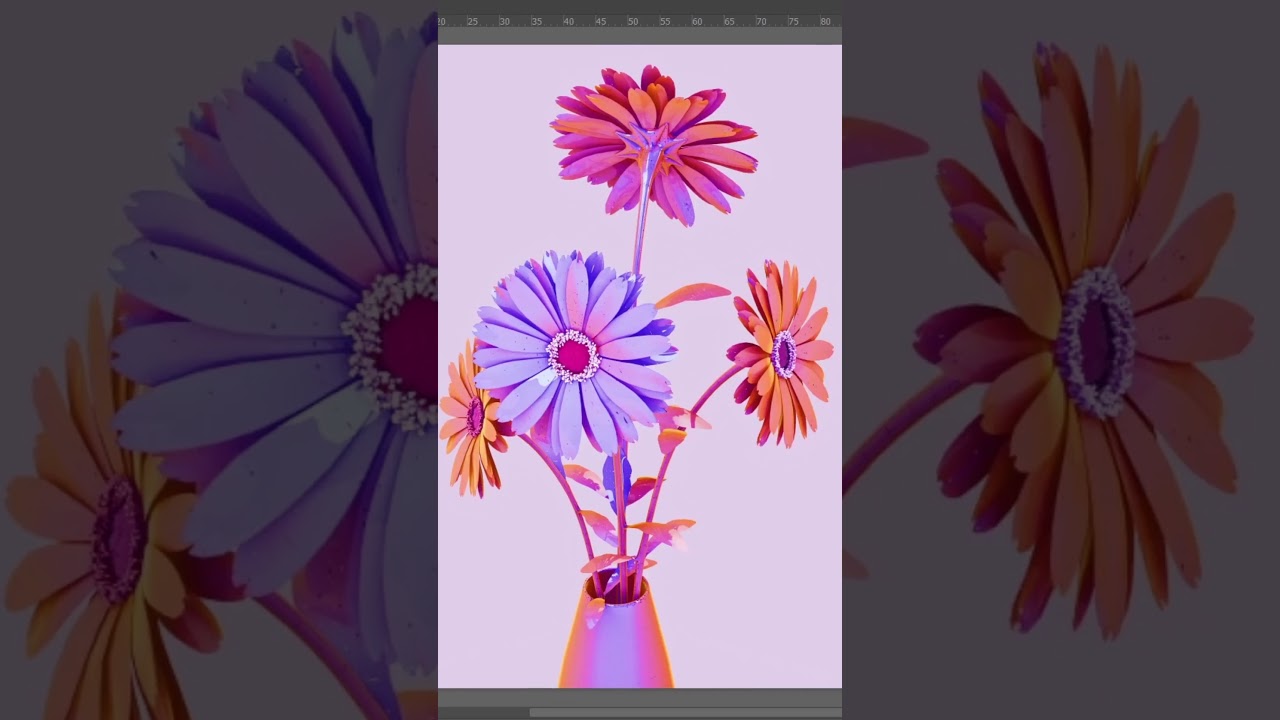
What You'll Learn in This Tutorial on How to Flip a Layer in Photoshop
- How to flip one layer in Photoshop vertically
- How to flip one layer in Photoshop horizontally
- How to flip a layer horizontally with the Transform Tool
- How to flip a layer vertically with the Transform Tool
1. Flip Layer a Vertically in Photoshop
If you want to flip a layer in Photoshop, all you need to do is select your layer in the Layers panel and then go to Edit > Transform > Flip Vertical.


And this is how my image, which I found on Envato Elements, looks now:


2. Flip a Layer Horizontally in Photoshop
The Photoshop "flip layer horizontally" function works the same way! Just select the layer and go to Edit > Transform > Flip Horizontal.


Here's my image, which I flipped horizontally:


3. How to Flip a Layer Horizontally With the Transform Tool
Another way to go about flipping a layer in Photoshop is with the Free Transform Tool. To activate it, press Control-T, and then change the angle to 90° (or -90°).


4. How to Flip a Layer Vertically With the Transform Tool
This works the same as the "flip layer horizontally" Photoshop function. Just press Control-T and change the Angle to 180°.


Awesome Work, You're Now Done!
Today you've learned how to flip a layer in Photoshop in a few simple ways. I hope you enjoyed the tutorial, and if you want to learn more about Photoshop functions, check out these amazing tutorials:


 By
By



