


Want to make a Diwali poster template but don't know how to use Photoshop? Now's the perfect time to get a head start with making a Diwali invitation poster. This tutorial will teach you how to make a Diwali flyer background, create a 3D text effect, and arrange Diwali accents.
If you want to skip the tutorial, you should check out this amazing Diwali flyer template available on Envato Elements. Did I mention that you will get a version for Photoshop and Illustrator? Download it now with a subscription to Envato Elements and promote your event today.


What You'll Learn in This Happy Diwali Poster Tutorial
- How to create a Diwali-themed background
- How to create a happy Diwali 3D text effect
- How to decorate a Diwali poster with accents
What You'll Need to Make This Happy Diwali Poster Template
- Break Love Font
- Kinetic Font
- Smoky Background
- 3D Render Metaball
- Geometric Bold Lines
- Vector Mandala
- Diwali Festival
- Diwali Diya
- Reggina Font
- Lanterns
- Vector Lights
1. How to Create a Diwali-Themed Background
Step 1
Open Photoshop and create a new document by going to File > New. Use the dimensions 11.25 in x 17.25 in, 300 Resolution, and CMYK Color Mode.


Step 2
Add guides by selecting View > New Guide Layout. Change the Preset to Custom and change the Margin to 0.125 in for each side.


Step 3
Add a new Solid Color Fill layer and fill it with #180e37.


Step 4
Open the 9.png and 3.png files from the 3D Render Metaball folder in Photoshop. Drag the 9.png file onto the Diwali flyer template and Right-Click > Convert to Smart Object. Apply a Gaussian Blur (Filter > Blur > Gaussian Blur). Change the Radius to 185.4 px and select OK.


Step 5
Apply the previous steps to the 3.png file by converting it to a smart object and applying a Gaussian Blur.


Step 6
Open the 06.png file from the Geometric Bold Lines folder. Then go to Edit > Define Pattern. Leave the name the same and click OK. Go back to the Diwali flyer template and create a new Pattern Fill and select the pattern we just created. Change the Scale to 57% and the Blending Mode to Color Burn. Change the Opacity to 50%.


Step 7
Open the 1-01.png Vector Lights file in Photoshop and place it at the top of the Diwali poster.


Step 8
Open the Diwali Hindu Festival graphic in Illustrator. Copy (Command-C) and paste (Command-V) a section of the peacock feathers to enclose the circle. Select the peacock feathers and Unite the layers in the Pathfinder panel.


Step 9
Use the Pen Tool (P) to enclose the peacock feathers and Unite the layers again. Copy (Command-C) and paste (Command-V) this layer into the Diwali flyer template at the bottom of the poster.


Step 10
Change the Blending Mode of this layer to Color Dodge and change the Fill to 0%. Apply a Gradient Overlay by Double-Clicking the peacock feather layer. Use the color #fbb042 and create a transparent gradient. Change the Scale to 114%.


Step 11
Duplicate (Command-J) this layer and apply a stroke. Change the Blending Mode to Normal. Delete the Gradient Overlay (or make it invisible) and replace it with a Gradient Stroke using the color #fbb043.


Step 12
Open the Mandala_00080.eps Mandala file in Illustrator and copy (Command-C) and paste (Command-V) it into the Diwali poster Photoshop file. Apply a Gradient Overlay to this layer and change the Fill to 0%. Use the color #fbb042 and apply a transparent gradient.


Step 13
Duplicate (Command-J) this Mandala layer twice and place it on both sides of the poster. Apply a Color Overlay using the color #fab042. Change the Blend Mode to Overlay and the layer Fill to 0%.


2. How to Create a Happy Diwali 3D Text Effect
Step 1
Now, we will create a Diwali logo. Install the Break Love font and type the word "Diwali" using 140 pt size. Use the Glyphs (Window > Glyphs) panel and highlight the letters to use alternate characters.


Step 2
Apply these layer effects by Double-Clicking the text layer. Let's start with Inner Glow:
- Blend Mode: Screen
- Opacity: 75%
- Color:
#ffffff - Technique: Softer
- Source: Edge
- Choke: 0%
- Size: 10 px


Step 3
Apply a Satin Layer Style:
- Blend Mode: Multiply |
#ffc709 - Opacity: 100%
- Angle: 120°
- Distance: 34 px
- Size: 65 px


Step 4
Apply a Gradient Overlay:
- Blend Mode: Normal
- Opacity: 100%
- Color Stop #1:
#dba328 - Color Stop #2:
#ffc709 - Method: Perceptual


Step 5
Apply a Drop Shadow:
- Blend Mode: Multiply |
#010101 - Opacity: 75%
- Angle: 135°
- Distance: 38 px
- Spread: 0%
- Size: 125 px


Step 6
Duplicate (Command-J) this type layer and place this layer beneath the original one. Apply these layer settings. Let's start with Bevel & Emboss.
- Style: Emboss
- Depth: 100%
- Direction: Up
- Size: 9 px
- Soften 0 px
- Angle 90°
- Use Global Light
- Gloss Contour: Linear
- Highlight Mode: Soft Light |
#ffffff| Opacity 75% - Shadow Mode: Multiply |
#000000| Opacity 43%


Step 7
Apply an Inner Glow:
- Blend Mode: Screen
- Opacity: 75%
- Color:
#ffffff - Technique: Softer
- Source: Edge
- Choke: 0%
- Size: 10 px


Step 8
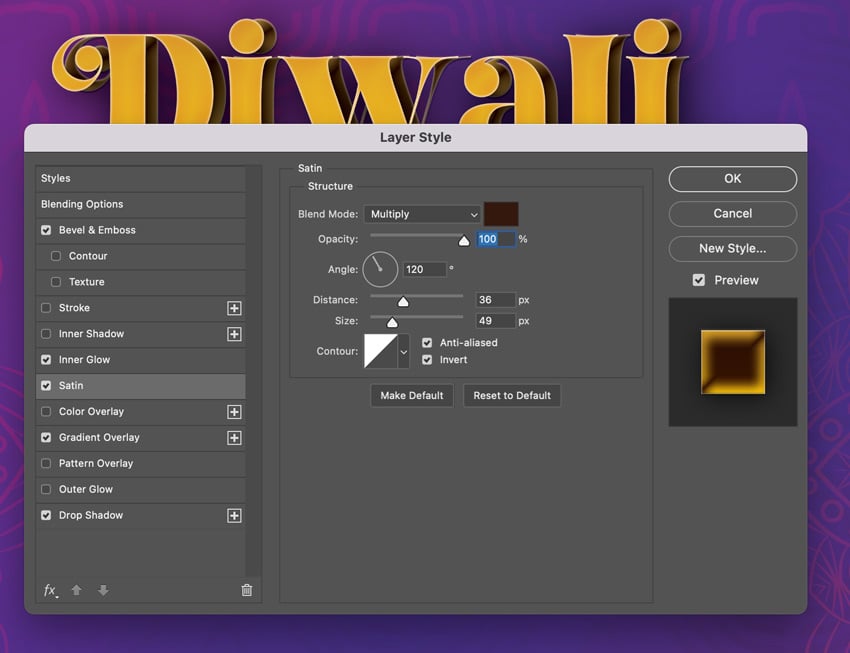
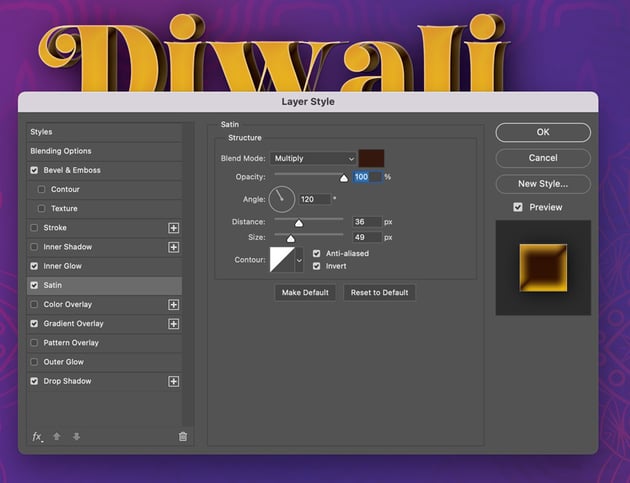
Apply a Satin Layer Style:
- Blend Mode: Multiply |
#34180e - Opacity: 100%
- Angle: 120°
- Distance: 36 px
- Size: 49 px
- Invert
Step 9
Apply a Gradient Overlay:
- Blend Mode: Normal
- Opacity: 100%
- Color Stop #1:
#dba328 - Color Stop #2:
#ffc709 - Method: Perceptual


Step 10
Apply a Drop Shadow:
- Blend Mode: Multiply |
#010101 - Opacity: 75%
- Angle: 135°
- Distance: 17 px
- Spread: 0%
- Size: 207 px


Step 11
Add the location date and tagline for the event using the Kinetic Bold 17 pt font and 140 Tracking. Use the colors #ffc709 and #ffffff.


Step 12
Add the rest of the details to the Diwali invitation poster using Reggina Medium 19 pt font and 0 Tracking.


3. How to Decorate a Diwali Poster With Accents
Step 1
Add a divider using the Rectangle Tool (U). Make a gold diamond shape and two white lines.


Step 2
Add the lanterns to the Diwali poster at the top and resize them so that they look like the image below.


Step 3
Place the lanterns in a folder and apply a Drop Shadow.
- Blend Mode: Multiply |
#010101 - Opacity: 46%
- Angle: 90°
- Distance: 286 px
- Spread: 0%
- Size: 224 px


Step 4
Copy (Command-C) and paste (Command-V) the peacock feathers we used earlier and apply a Color Overlay. Use the color #160e44.


Step 5
Open the Diwali Diya photo in Photoshop and change the color mode to CMYK (Image > Mode > CMYK Color) and place the photo on top of the purple peacock feathers. Make a selection from the purple peacock feathers by Command-Clicking the thumbnail in the Layers panel and creating a mask. Use a soft brush (Brush Tool (B) and mask the edges of the Diwali Diya photo.


Step 6
Duplicate (Command-J) the purple peacock feather layer and place it above the Diwali Diya photo. Change the Fill to 0%.
- Blend Mode: Color Burn |
#010202 - Opacity: 35%
- Angle: 90°
- Distance: 54 px
- Choke: 0 %
- Size: 121 px


Step 7
Apply an Inner Glow:
- Blend Mode: Screen
- Opacity: 65%
- Color:
#c39c2d - Technique: Softer
- Source: Edge
- Choke: 0%
- Size: 29 px


Step 8
Apply a Drop Shadow:
- Blend Mode: Multiply |
#010101 - Opacity: 46%
- Angle: 90°
- Distance: 0 px
- Spread: 0%
- Size: 224 px


Bravo! You Did a Great Job!
Thanks for following my tutorial on how to create a happy Diwali poster in Photoshop. Throughout this tutorial, you've learned how to create a happy Diwali background and how to create a Diwali logo, and we finished it up by applying accents to make it stand out. Now, it's time to display your beautiful creation with a mockup. Placeit is a great resource to create professional mockups in minutes like this hanging poster mockup.


5 Beautiful Diwali Posters From Envato Elements
If you want to make this Diwali a memorable one, you'll need the best templates. Check out our handpicked collection of Diwali posters, guaranteed to make it a memorable night. You'll find a variety of options for posters, flyers, and more.
1. Diwali Event Flyer (AI, PSD)


Celebrate the Festival of Lights with this beautiful flyer template. It's fully editable and customizable, so you can make it your own. Download this Diwali flyer and invite your community for a great time!
2. Diwali Festival Flyer (PSD)


This Diwali festival flyer template is perfect for any and all celebrations of the Festival of Lights. Download it now and start creating your own flyer in a matter of minutes. It's super easy to use, so don't wait—get started today!
3. Diwali Festival Template (AI, EPS)


Join the celebration for Diwali, the Festival of Lights. Download this Diwali flyer template and send it to your friends and family to let them know about your event. This flyer is customizable, so you can fill in the details of your celebration.
4. Diwali Party Flyer (AI, PSD)


Light up your Diwali festivities this year with this customizable, ready-made flyer! Our Diwali flyer template is fully editable and easy to use. You can change the font styles, colors, and images to customize the printable flyer for your needs.
5. Diwali Flyer Set (AI, PSD)


Invite everyone in your community to join you for the Festival of Lights! With this set of Diwali flyer templates, you can create a custom flyer in just minutes and send it out to your followers. This Diwali template features bright colors and a simple layout. You can also customize the text with any message of your choice.
Sharpen Your Skills With These Resources
Create your own Diwali posters or other holiday-themed invitations with this list of resources. Learn how to create a Kwanzaa candle text effect, Rangoli design, Dia de Muertos flyer, and so much more.

 How to Create a Kwanzaa Candle Text Effect in Adobe Illustrator


 How to Create an Easy Rangoli Design for Diwali in Adobe Illustrator

 How to Create a Colourful Dasara Infographic in InDesign


 How to Create a Trendy Neon and Oil Spill Rainbow Poster


 How to Make a Poster for an Event (Using a Template)


 How to Make a Dia de Muertos Flyer in Photoshop
 By
By



