




In this tutorial, you will learn how to use Mesh in Adobe
Illustrator to create a vector Christmas sleigh design with a sleigh and a pile of gift
boxes!
If you want to skip the tutorial and just use this Christmas design along with some other awesome elements in your work, you can purchase Christmas Background with Presents on a Sleigh from GraphicRiver!


1. How to Draw the Christmas Sleigh
Step 1
Start by drawing an object just like the one shown below. Fill it with #DBAF85.
Let's begin using Mesh in Adobe Illustrator! Grab the Mesh Tool (U) and create a Mesh Grid like the one in the screenshot below by clicking where the nodes are supposed to be.
Once your Mesh Grid is done, begin coloring it by selecting the indicated nodes with the Mesh Tool (U) and changing their color to #A67F64.
Finally, color the nodes on the top edge of the shape with #FEE4CD.


Step 2
Draw another part of the Christmas sleigh using the Mesh Tool.
You will need these colors to complete the object:
#E8CAB0#B08A70#FEE4CD


Step 3
Now combine both parts, adding a #634326 curve on the side.


Step 4
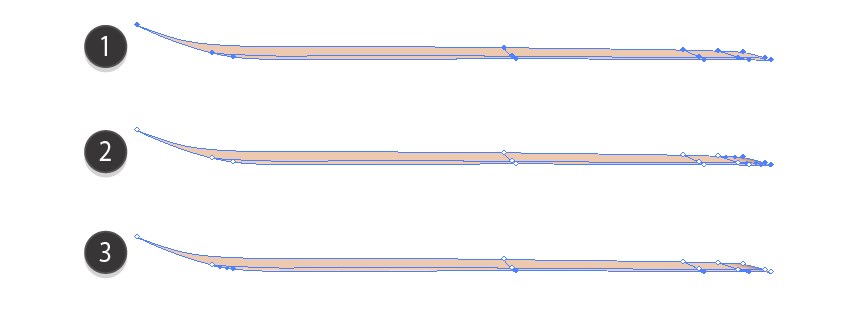
Begin drawing another object with Mesh.
#E5D0BA#B1885B#CEAF8F


Step 5
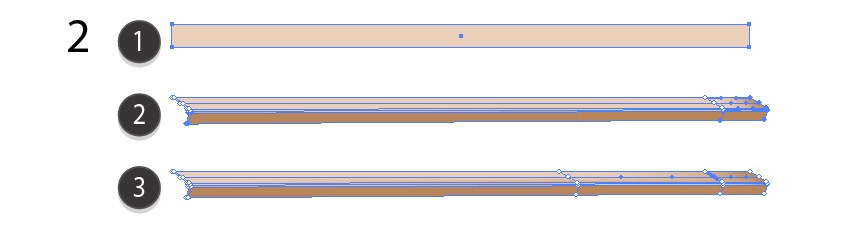
Add one more part.
#90745D#B1885B


Step 6
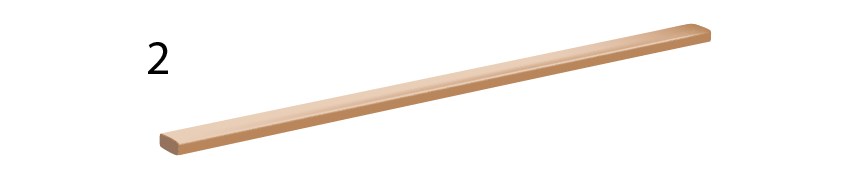
Assemble this part of the Christmas sleigh.

Step 7
Begin drawing another plank using these colors:
#E5D0BA#B1885B#CEAF8F

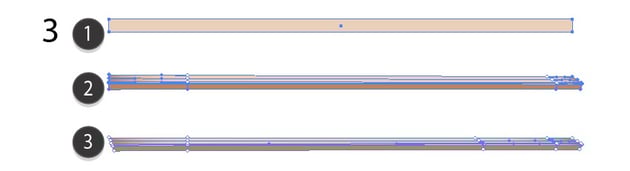

Step 8
Draw a leg for the sleigh with Mesh.
#B18D62#4D2807#96734A#C8B299#BF9C70

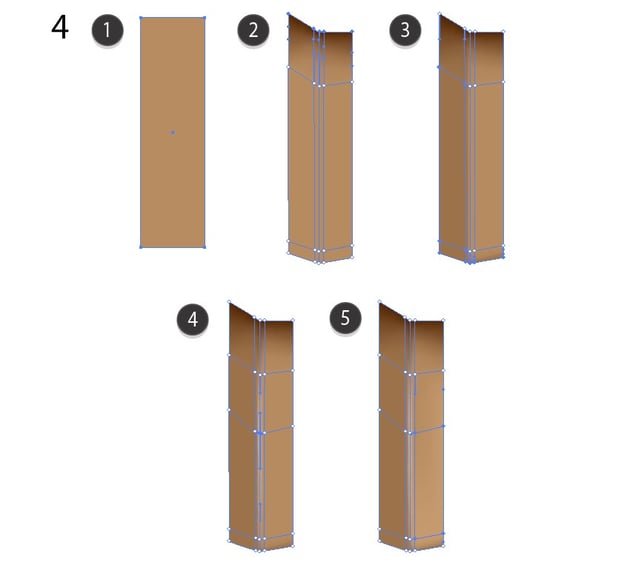

Step 9
Add a second leg.
#B2885A#4B2C09#BCA388#694C2D#A88A6B-
#9E7955
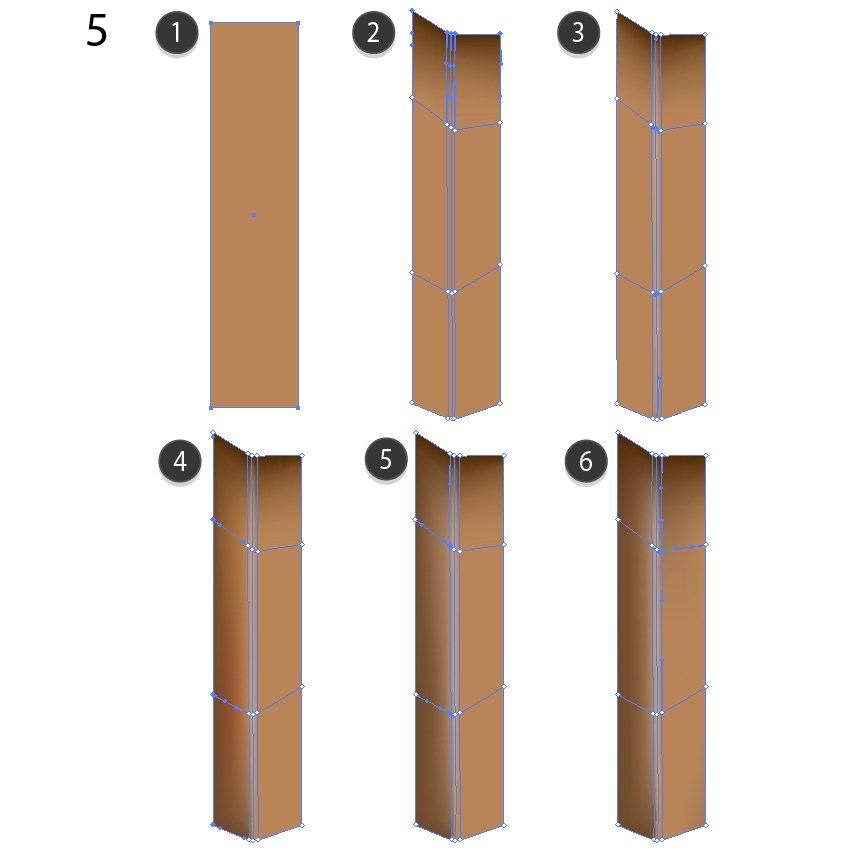


Step 10
Draw the next part for our Christmas sleigh design.
#84613A#C5AD9B#AB8D6F


Step 11
Draw one more plank with Mesh.
#C5AD9B#9A7652



Step 12
Assemble the last wooden part.


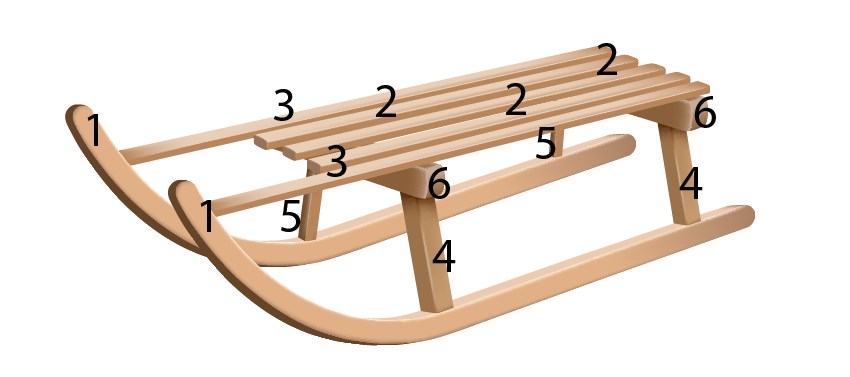
Step 13
Create the Christmas sleigh out of the elements we made!


2. How to Add the Christmas Presents
Step 1
To learn how to draw one of the presents we will be using, please consult this tutorial I've made:
Go to Section 3 and draw the green present with a bow.
Next, select it and proceed to Edit > Edit Colors > Adjust Colors, inputting the following values:
- Red: -2%
- Green: 3%
- Blue: 10%


Step 2
For two more presents, take a look at this tutorial:


Grab the violet box from Section 1 and recolor it with Edit > Edit Colors > Adjust Colors.
- Red: 53%
- Green: -17%
- Blue: -47%


Step 3
Recolor the silver bow as well. Use these parameters:
- Red: 20%
- Green: 0%
- Blue: -40%


Step 4
Combine the box with the bow!



Step 5
Grab a white box from Section 2 of the tutorial linked above, and then proceed to Edit > Edit Colors > Adjust Colors.
- Red: 5%
- Green: 2%
- Blue: -6%


Step 6
Recolor the violet bow.
- Red: 21%
- Green: -33%
- Blue: -66%


Step 7
Grab another copy of the violet bow and make it cyan.
- Red: -11%
- Green: 15%
- Blue: -11%


Step 8
Assemble both color variants.


Step 9
Now it's time to draw one more Christmas present with Mesh in Adobe Illustrator!
Start with the gift box.
#D1A967#FFFDC2-
#EFC785


Step 10
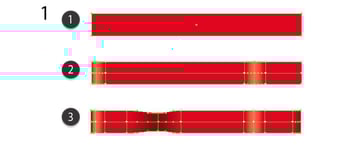
Begin drawing the ribbon with the Gradient Mesh Tool.
#C81601#FF7150-
#7F0000


Step 11
#C81601#FF7150-
#7F0000


Step 12
#F03F00#850000#FF7150-
#C81601


Step 13
#C00E00#7C0000-
#A30800


Step 14
#DB2909#7C0000-
#FF7150


Step 15
#DB2909#FF5636-
#940A05


Step 16
Assemble the Christmas design bow.


Step 17
Place the bow onto the box.


Step 18
Place all presents on top of the sleigh or around it!



3. How to Complete the Christmas Design
Step 1
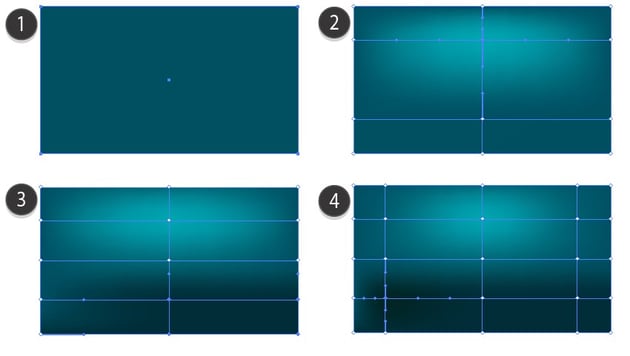
First, draw the background with Mesh. Use these colors:
#06525F#00A7B1#003036-
#002623


Step 2
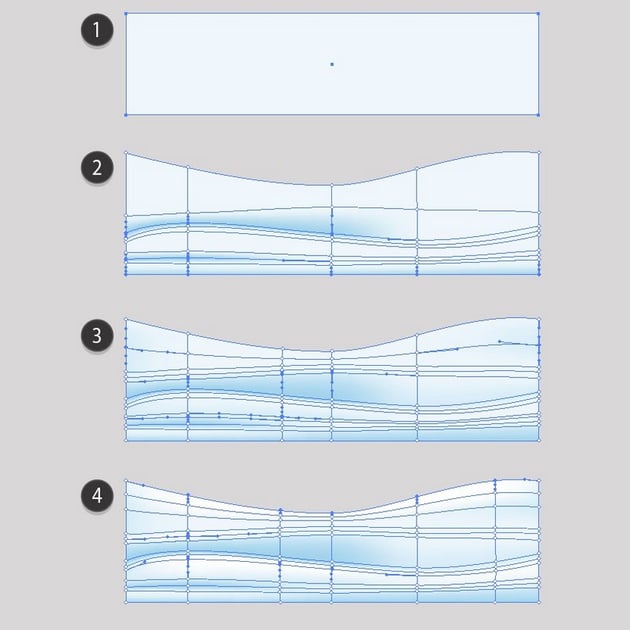
Draw some snowy hills.
#F0F8FD#ADD3EB#DCEDFA#FFFFFF


Step 3
Make the top edge of the hill completely transparent.


Step 4
Draw some pine trees, using #01656B, #00353F, #00322E, and #00433C.


Step 5
Make a forest out of the trees.


Step 6
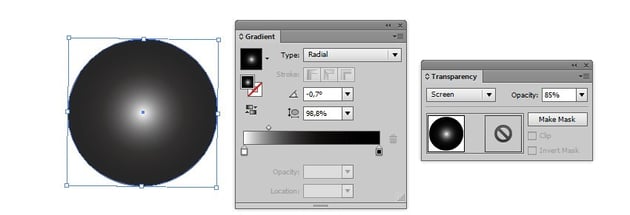
Draw a circle, filling it with a white to black Radial Gradient.
Set it to Screen with 85% Opacity.


Step 7
Make a starry sky, adding a moon from this tutorial:




Step 8
Make snow out of white, roundish shapes.



Step 9
Add a cloud from this tutorial:
Set it to 60% Opacity and Soft Light.


Step 10
Add snow to the sleigh and boxes from this tutorial:



Step 11
Combine everything into a Christmas design background!


Awesome Work, You're Now Done!
What now? You can try any of my other tutorials from my profile, or check out my portfolio on GraphicRiver, as well as the original Christmas design we recreated in this tutorial.
I hope you enjoyed the tutorial and will be super happy to see any results in the comments below!
Check out more Christmas tutorials right here!

 How to Draw a Festive Winter Landscape With Glowing Lamps in Adobe Illustrator


 How to Draw a Winter Christmas Landscape With a Wooden Sign in Adobe Illustrator

 How to Draw Christmas Presents in the Snow in Adobe Illustrator
 By
By



