


1. Creating PDI Bodies
Step 1
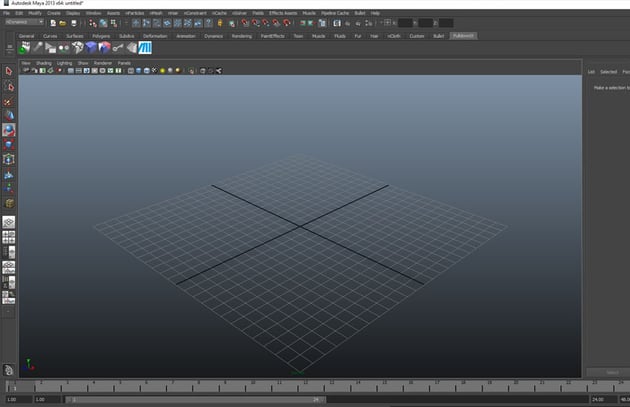
Open Maya.


Step 2
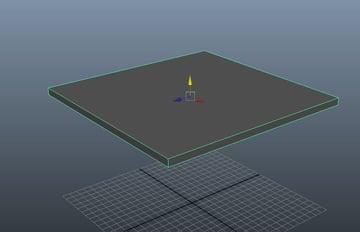
Go to Create > Polygon Primitives > Cube and create a cube in the perspective view port. Lift the cube above the ground plane a little.


Step 3
With the cube selected, go to PullDownIt menu bar and click on the ShatterIt
feature icon.
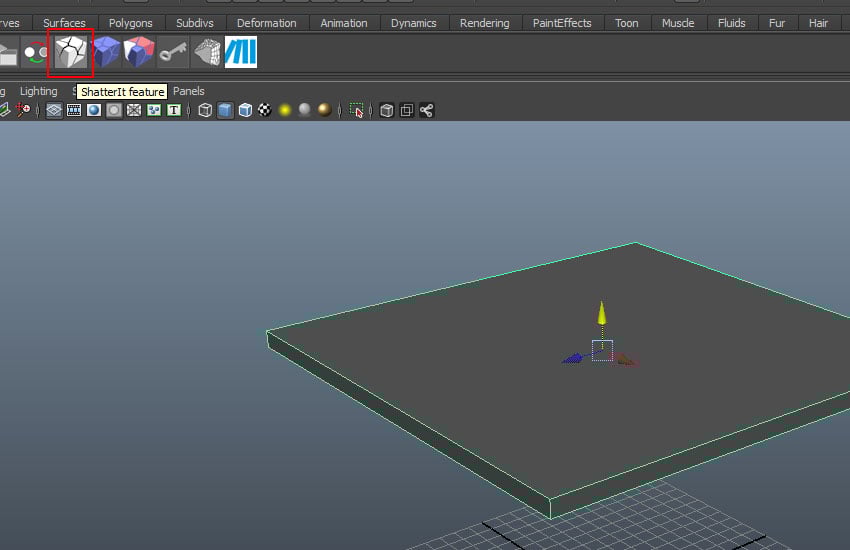

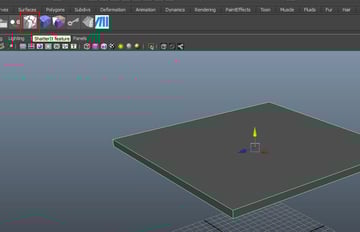
Step 4
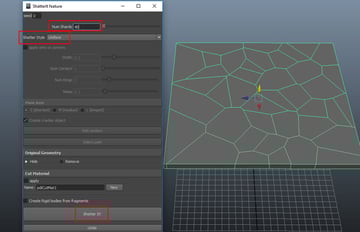
In the ShatterIt feature window, set the values of Num Centers to 40 and Shatter Style to Uniform, and then click on Shatter It! button.
You'll see the cube gets shattered as shown in the following image.


Step 5
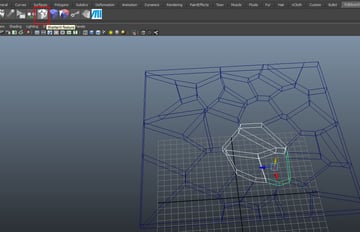
With the indicated chunk selected, go to PullDownIt menu bar and
click on the ShatterIt feature icon as shown in the following image.


Step 6
In the ShatterIt feature window, set the values of Num Centers
to 10 and then click on Shatter It! button.

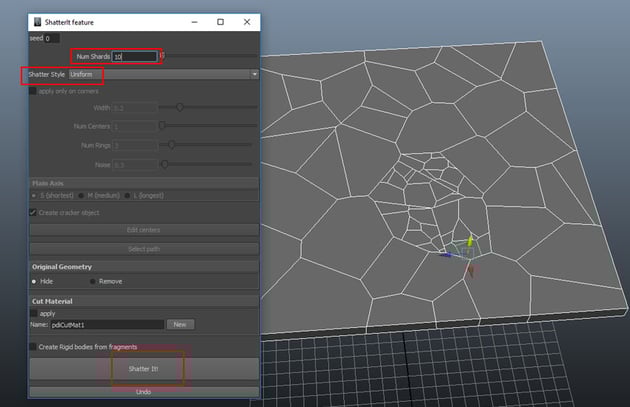
Step 7
With the indicated chunks of the mesh selected, create a new layer. Rename
the layer as Dynamic.


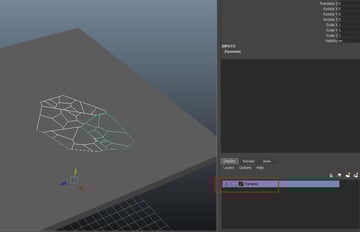
Step 8
Turn off the visibility of DynamicChunks layer. With the rest chunks selected, create a new layer. Rename the layer as Static.


Step 9
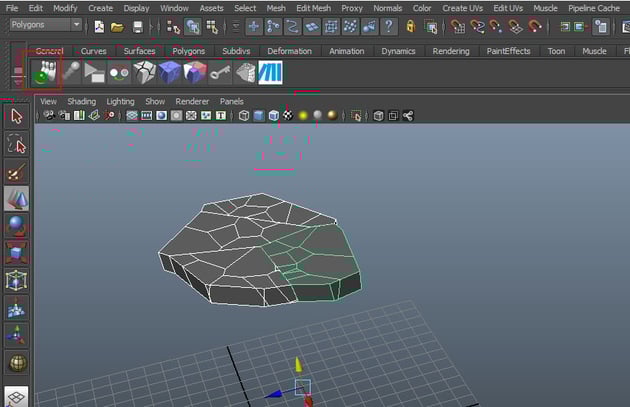
With the Dynamic layer’s objects selected, click on Create Pdi
Body icon.
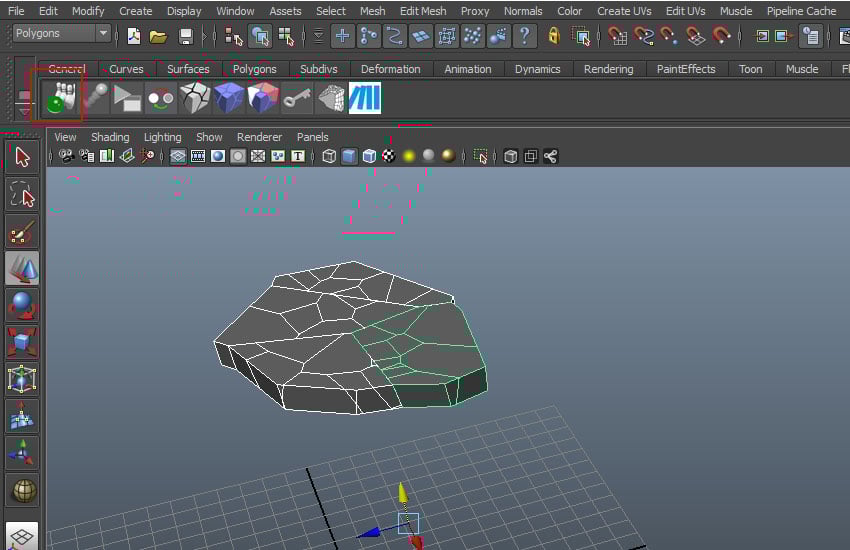
Step 10
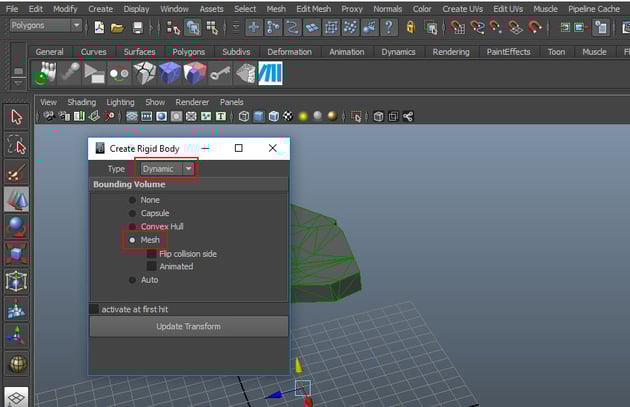
In the Create Rigid Body window, select the Type as Dynamic and then click on Mesh option.

Step 11
With the Static layer’s objects selected, click on Create PDI Body icon.

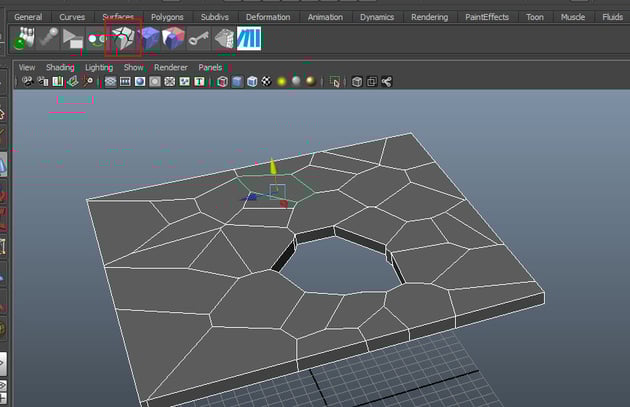

Step 12
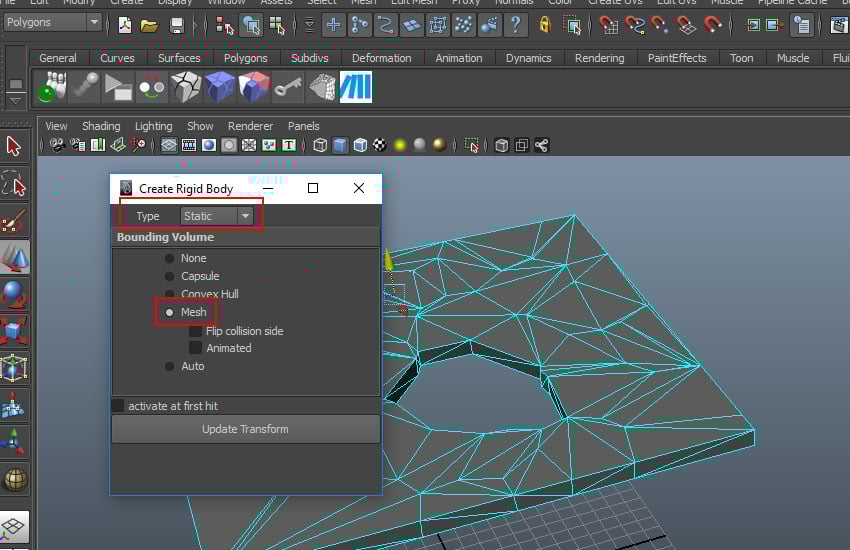
In the Create Rigid Body window, select the Type as Static and then click on Mesh option.

2. Creating the Ball
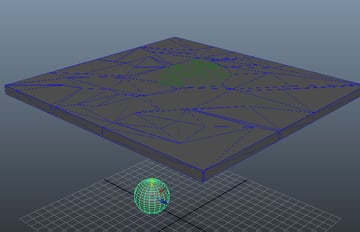
Step 1
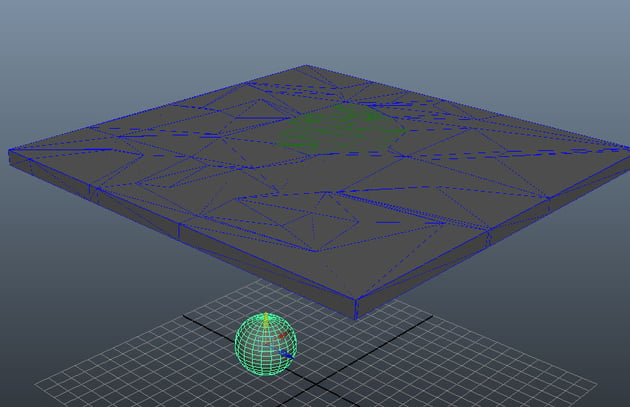
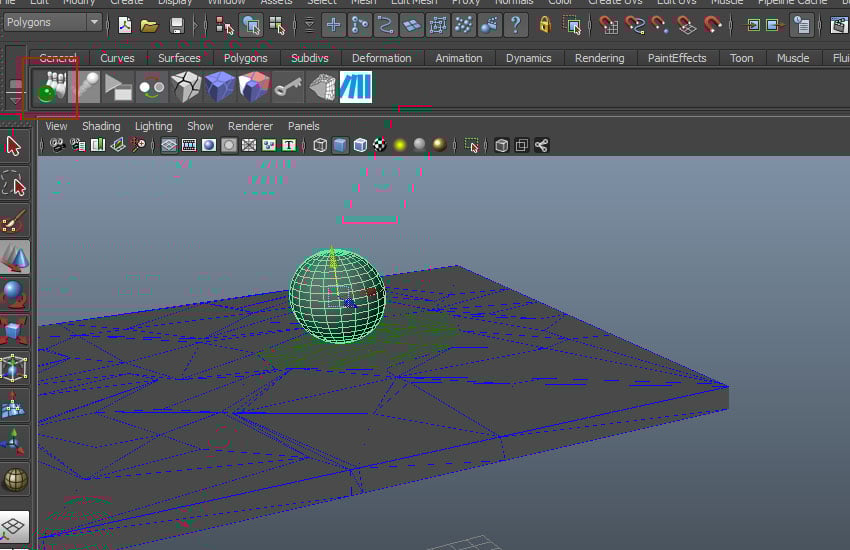
Create a spherical ball in the perspective viewport as shown in the
following image.

Step 2
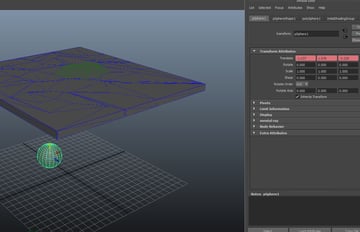
With the ball selected, go to Translate and with the right mouse click on, select Set Key option.


Step 3
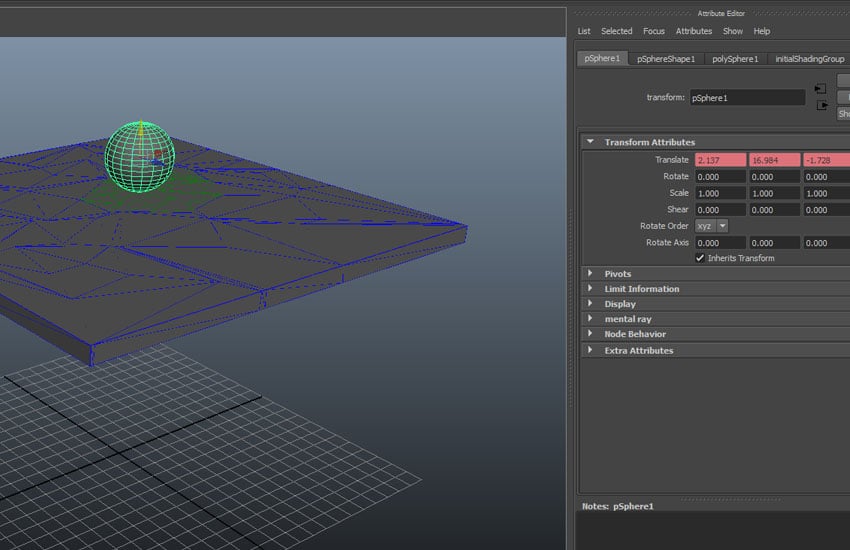
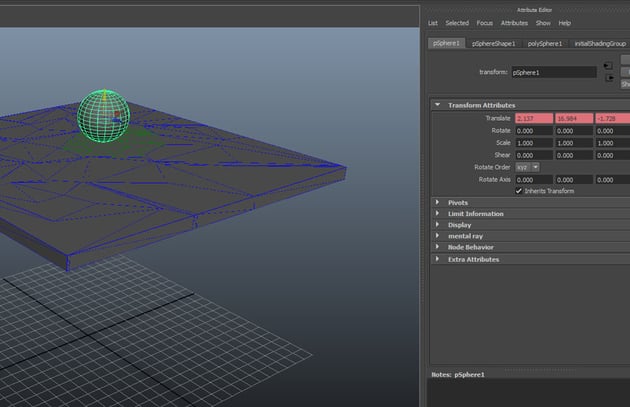
Go to 15th frame on the timeline and translate the ball so that
it could pass through the broken dynamic chunks.

Step 4
With the ball selected, click on Create PDI Body icon.


Step 5
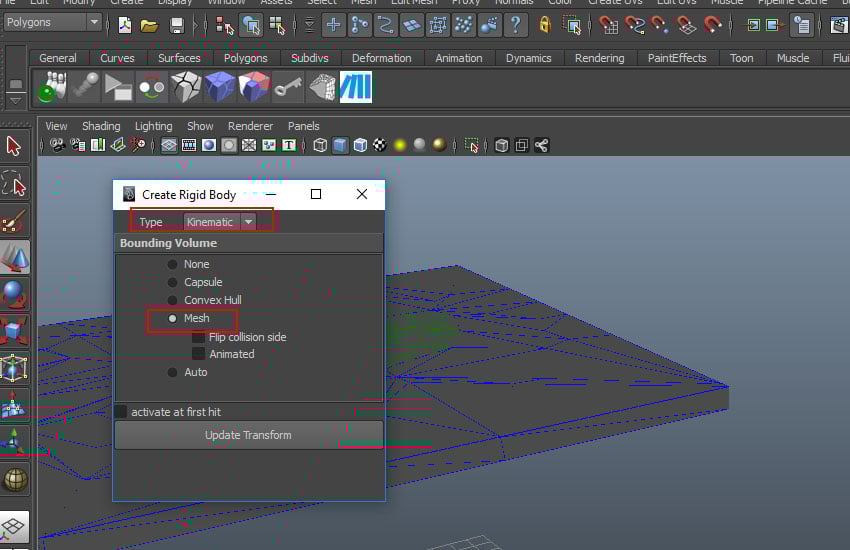
In the Create Rigid Body window, select the Type as Dynamic and then click on Mesh option.

3. Creating PDI Fracture
Step 1
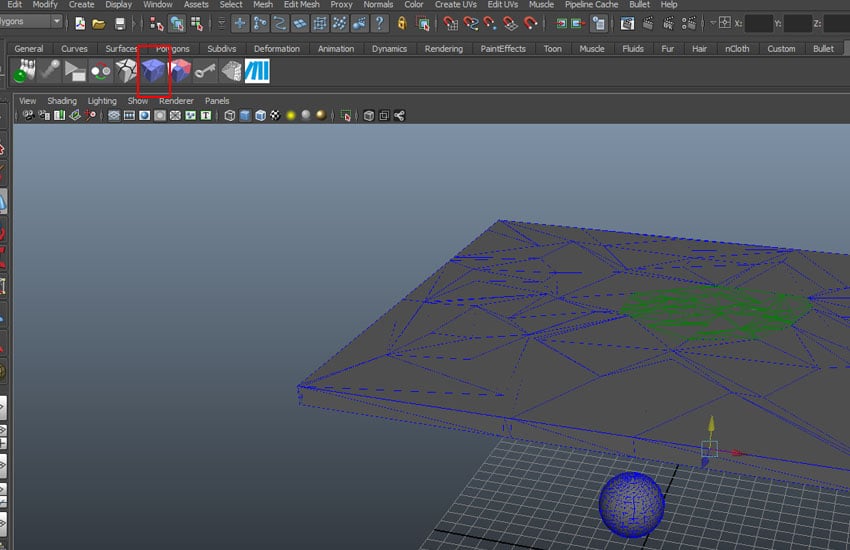
With the dynamic chunks selected, click on PDI Basic Fractures icon.
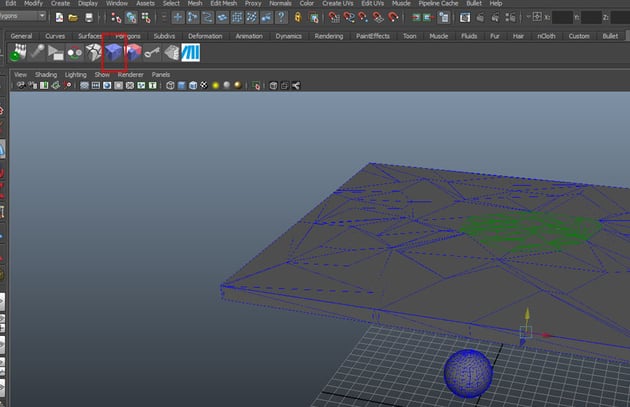
Step 2
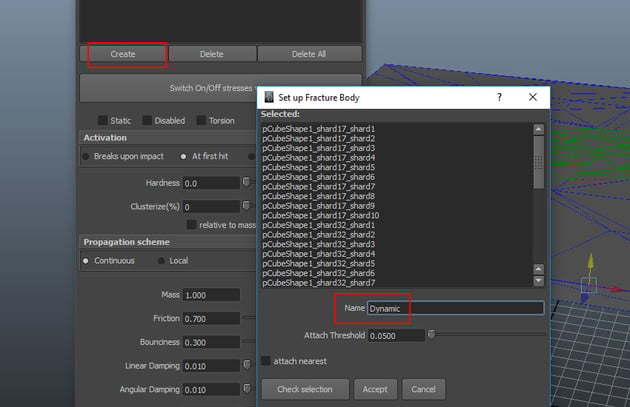
In the PDI Basic Fractures window, click on Create button. It opens Set up Fracture Body sub-window. Here set the name as Dynamic and then click on Accept button.

Step 3
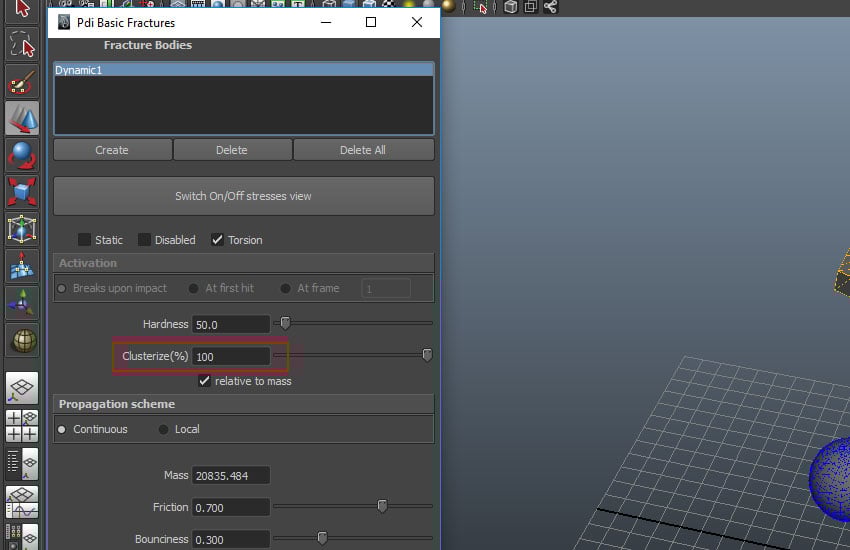
Increase the value of Clusterize(%) to 100 to get more
detailed fracture.
Step 4
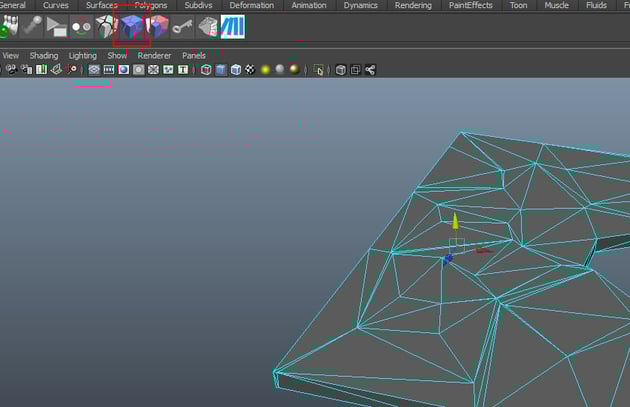
With the static chunks selected, click on PDI Basic Fractures icon.

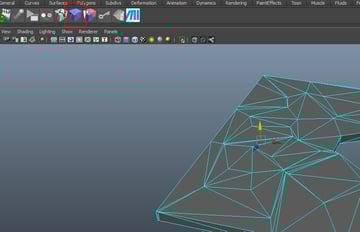
Step 5
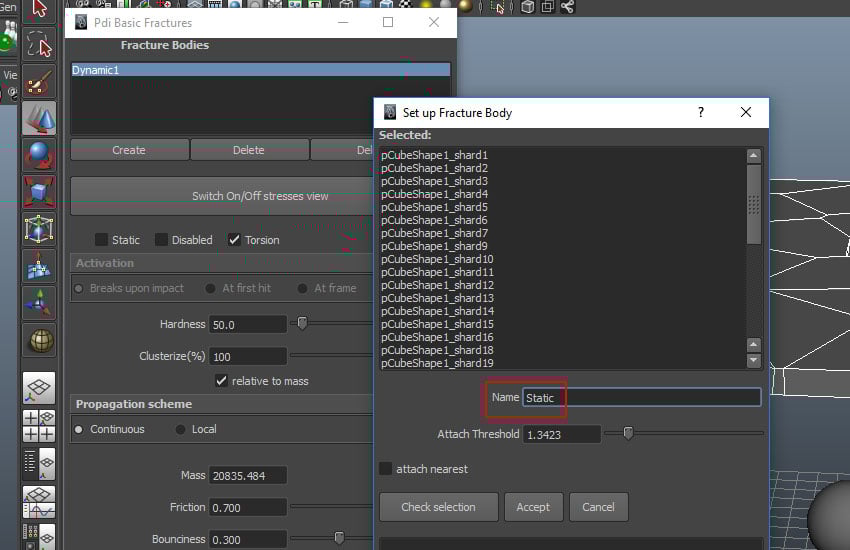
In the PDI Basic Fractures window, click on Create button. It opens Set up Fracture Body sub-window. Here set the name as Static and then click on Accept button.


Step 6
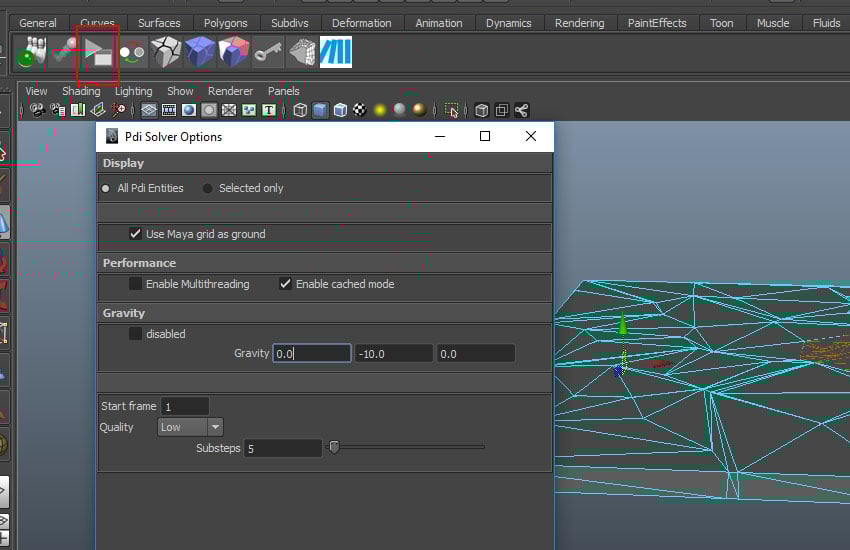
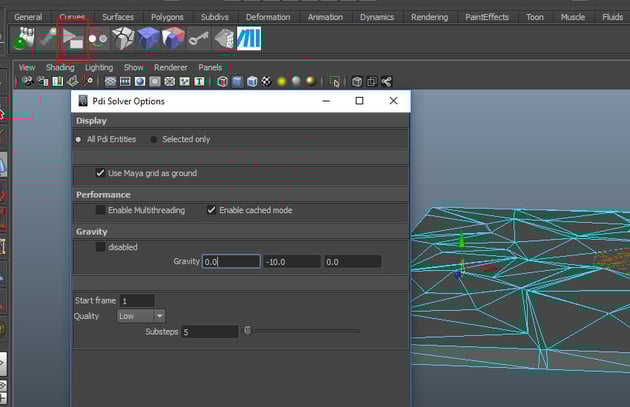
Go to PDI Solver Options icon and turn on Use Maya grid as ground
option.
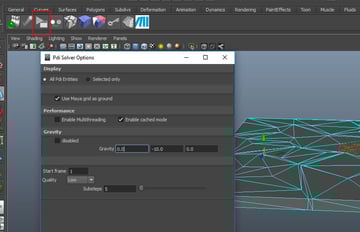
Step 7
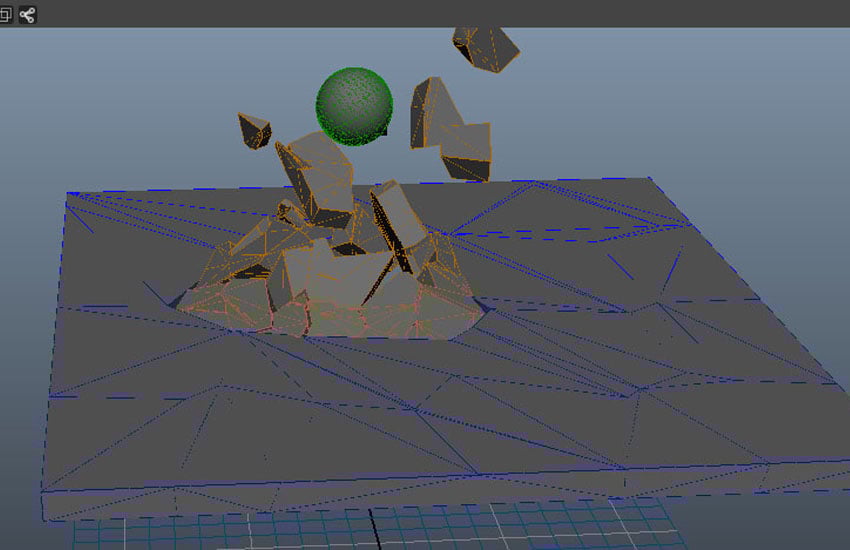
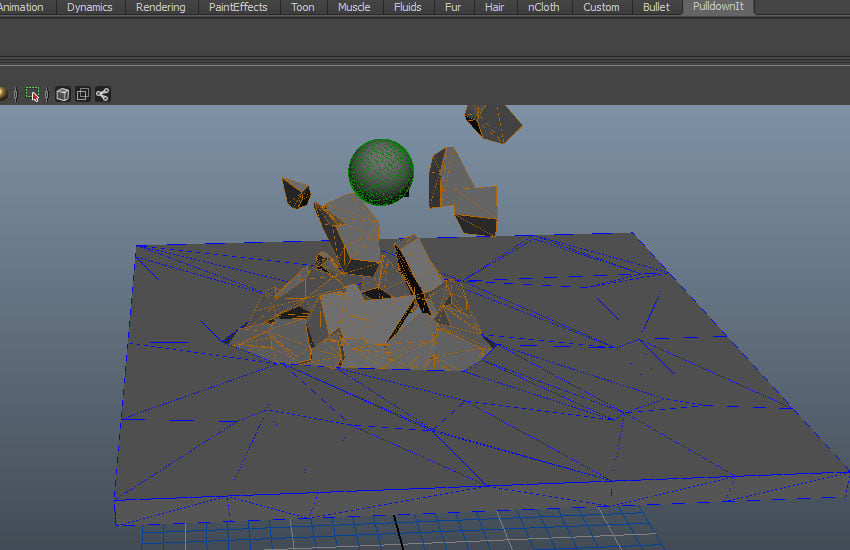
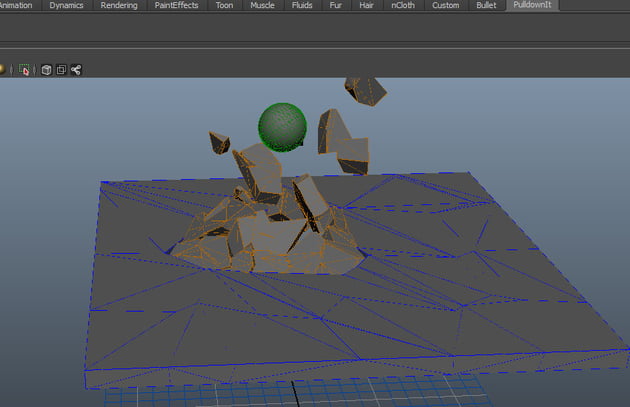
Press the Play button. You'll see the ball is shattering the
selected chunks.
Conclusion
That's the conclusion of this series. I hope you've learned some useful tips and tricks of PDI in Maya. I'll be back soon with more tutorial series on VFX.
 By
By



