

Preview

1. Scene Setup
Step 1
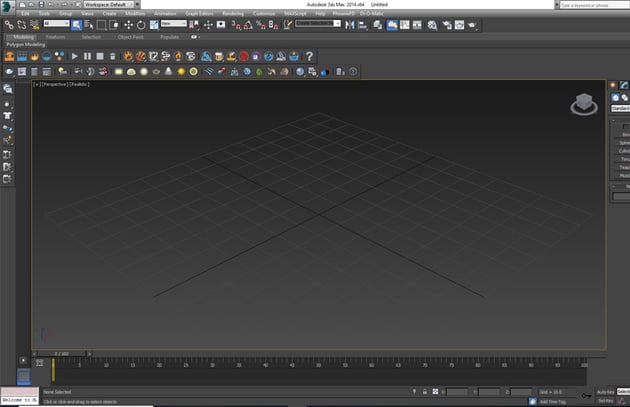
Open 3ds Max.


Step 2
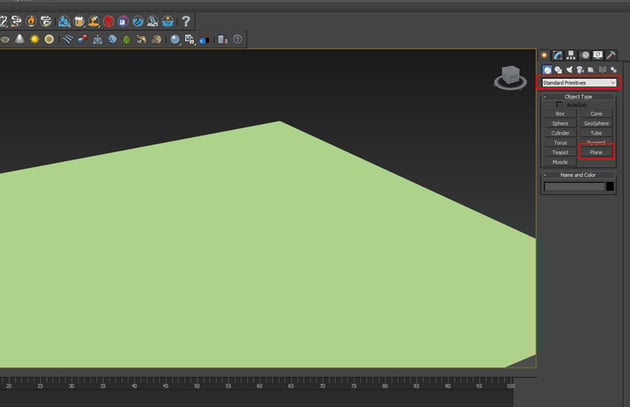
Go to Create > Standard Primitives > Plane and create a
ground plane on the perspective viewport as shown in the following image.

Step 3
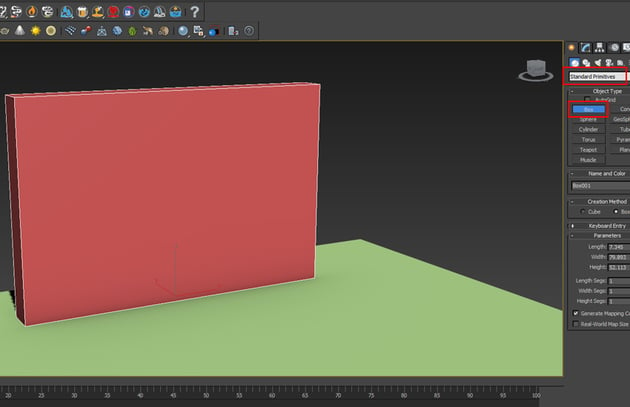
Go to Create > Standard Primitives > Box and create a wall
structure on the ground plane.


2. Creating Shape Fragments
Step 1
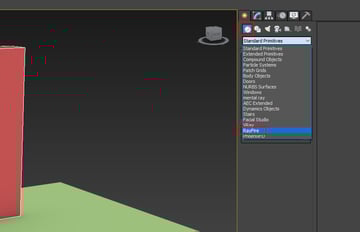
Go to Create > RayFire.


Step 2
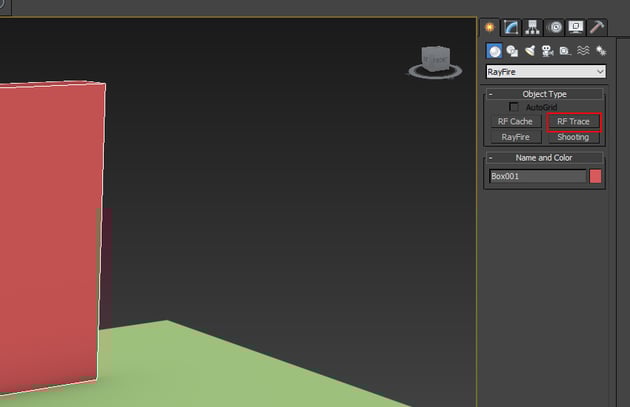
Click on RF Trace button.


Step 3
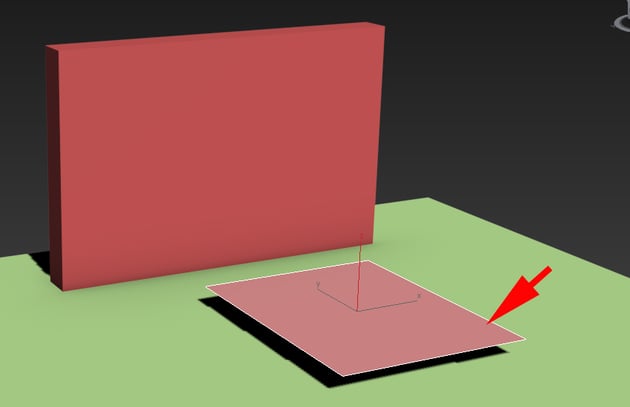
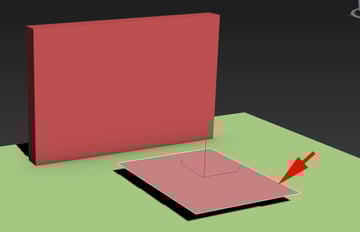
Create a trace plane in the perspective view port as shown in the following image.

Step 4
Click on None button under Bitmap section as shown in the following image.

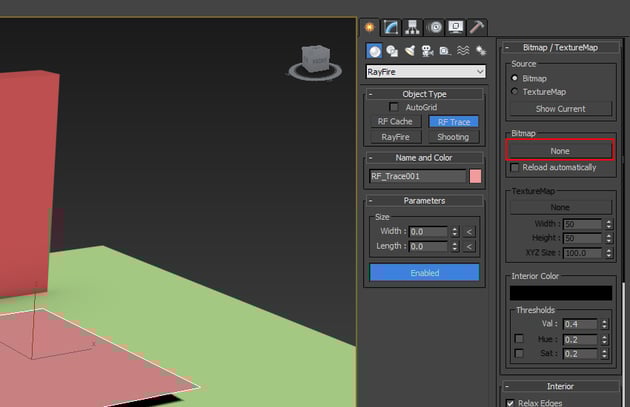
Step 5
It opens Select Bitmap Image File window. I will use a silhouette image as the bitmap.

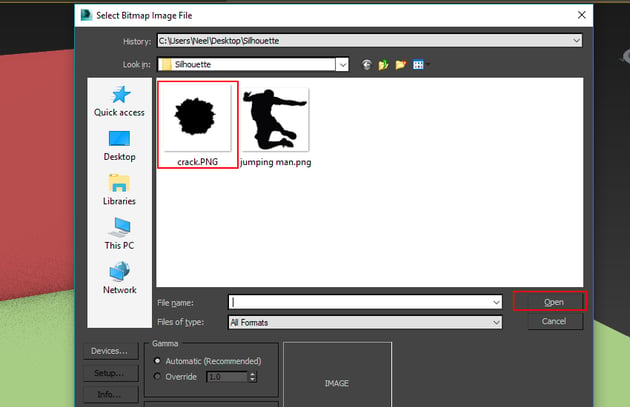
Step 6
You can see the bitmap image outline on the trace plane in the perspective view port.

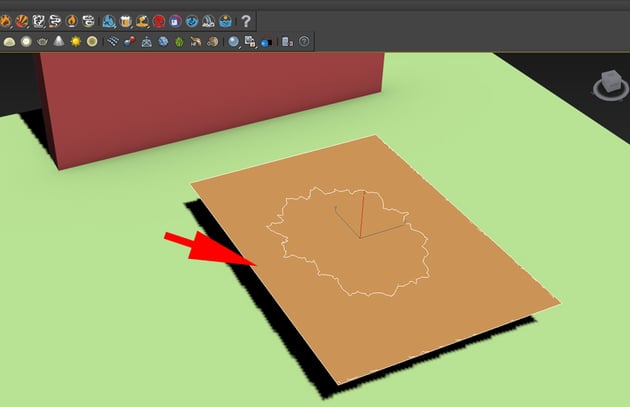
Step 7
Rotate the trace plane vertically and keep it as shown in the following image. You can resize the trace plane according to your wish.

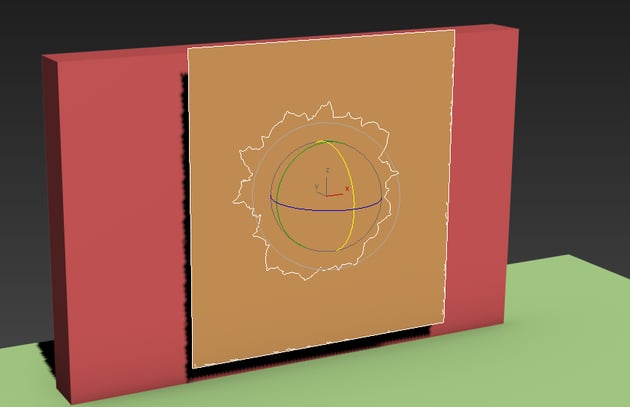
Step 8
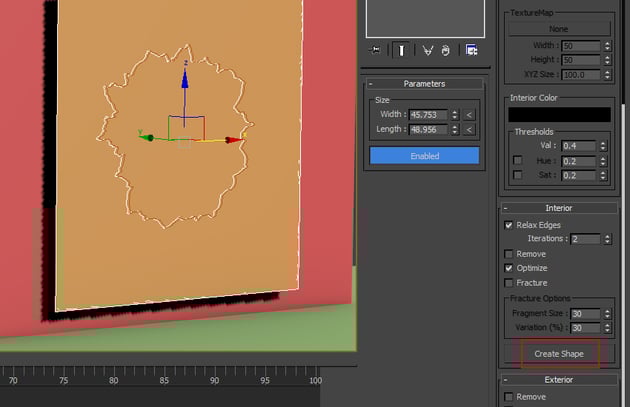
With the trace plane selected, click on Create Shape button. It
creates a spine shape out of the trace plane.

Step 9
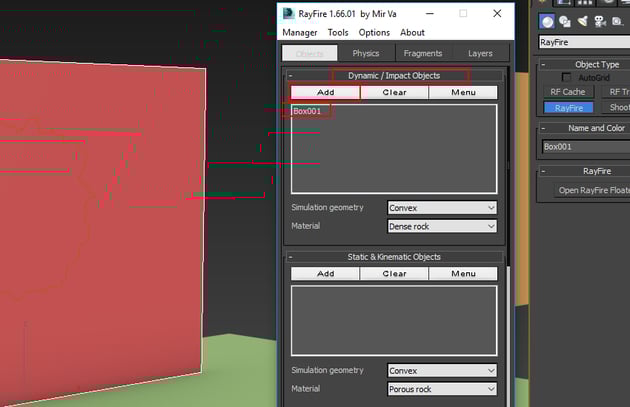
Go to RayFire > Open RayFire Floater. It opens the RayFire
floater window.


Step 10
With the wall selected, go to Dynamic/Impact Objects window under Objects tab and click on Add. It will add the wall object in the list.

Step 11
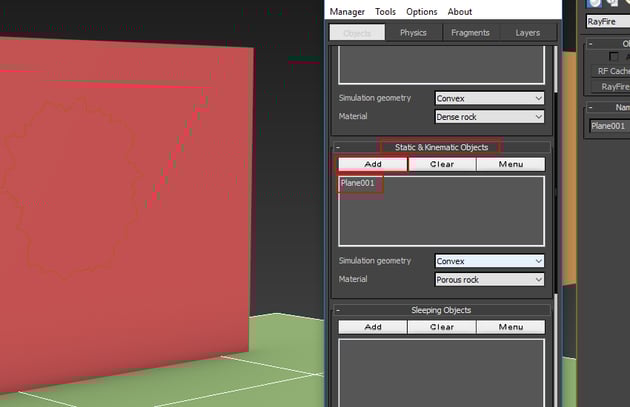
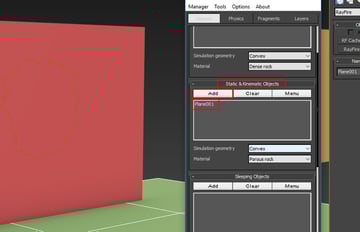
With the ground plane selected, go to Static & Kinematic Objects
window and click on Add button to add the selected objects in the list.

Step 12
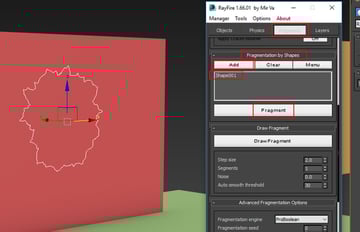
With the shape selected, go to Fragmentation by Shapes window under Fragments
tab and click on Add. It will add the shape object in the list. Click on
Fragment.


Step 13
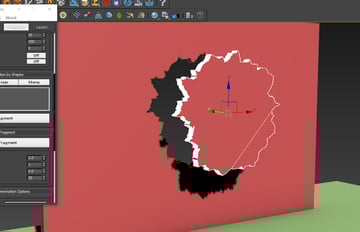
You'll get a shape out of the wall according to the spline shape as shown in the following image.


Step 14
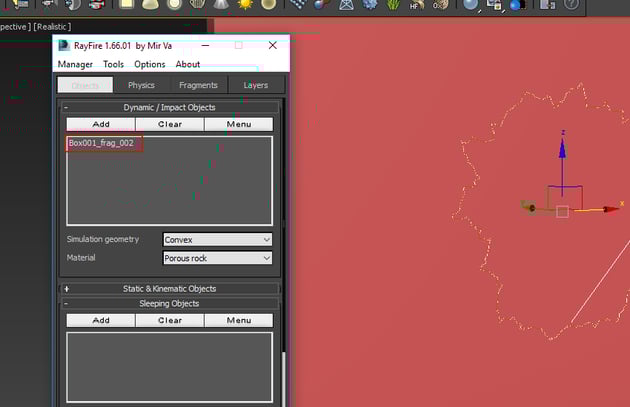
Once again, go to Object tab and click on Clear button to
remove all dynamic objects from the Dynamic/Impact Objects list. Add
the spline shaped chunk in the list.

Step 15
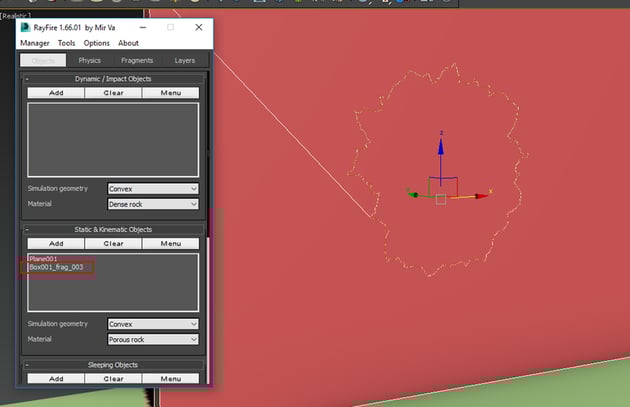
Add the rest of the wall object to the Static & Kinematic Objects window.

Step 16
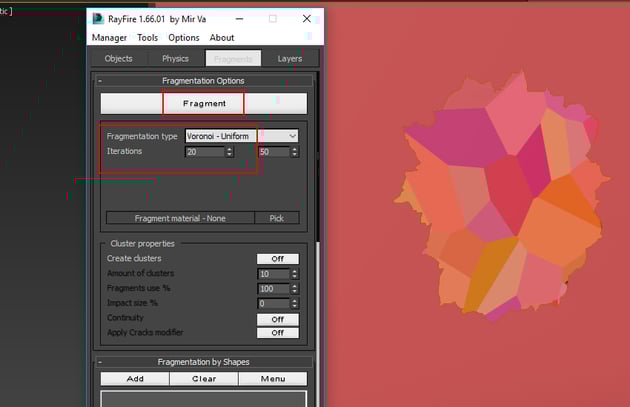
Go to Fragments tab and set the Fragmentation type to Voronoi-Uniform
and Iteration to 20. Click on Fragment to break the wall
into pieces.

3. Creating RF Bomb
Step 1
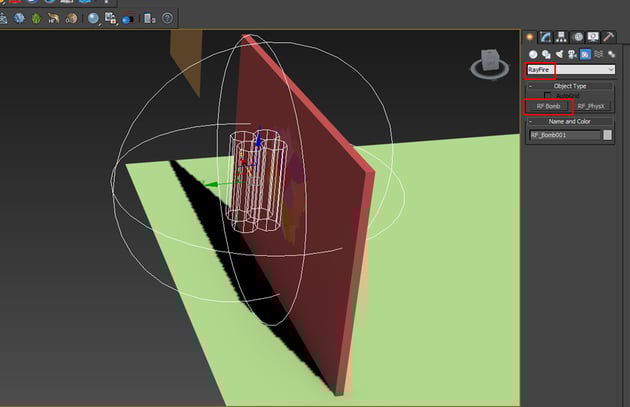
Go to Helpers > RayFire > RF Bomb and create its icon in the perspective view port as shown in the following image.

Step 2
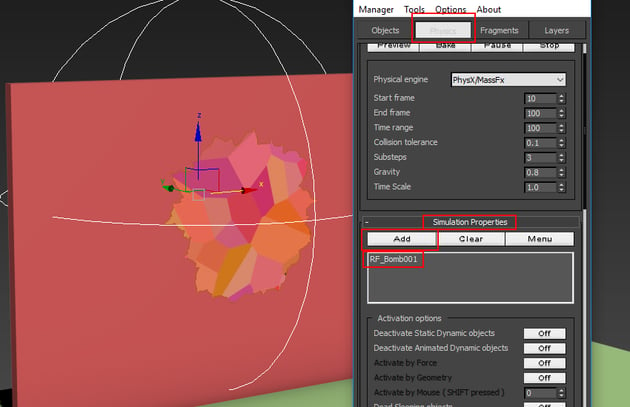
Go to Physics tab and under Simulation Properties, add RF Bomb.

Step 3
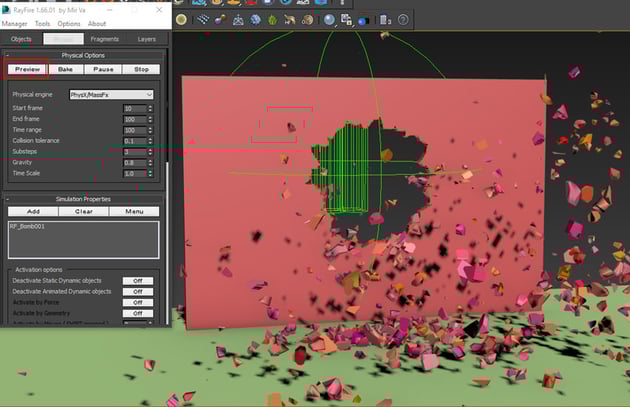
Now start the simulation by pressing the Preview button. You will
see the part of the wall getting exploded into chunks.

Conclusion
In the next part of the tutorial, I'll show some more ways and methods to create destruction using RayFire.
 By
By



